7 Ways to Fix Windows 11/10 Keeps Freezing Up Randomly
Quick Navigation:
- How to Fix Windows 11/10 Computer Keeps Freezing and Restarting
- Method 1: Free Disk Space on your System Disk
- Method 2: Check for any Damaged Hardware
- Method 3: Disconnect all attached Devices
- Method 4: Repair Corrupt System Files
- Method 5: Uninstall Possible Incompatible Programs
- Method 6: Update Device Drivers
- Method 7: Perform a System Restore or a Clean Install of Windows PC
Windows 11/10 freezing can occur randomly, causing the entire system to malfunction or affecting specific elements like the Taskbar. This issue can be frustrating, especially when users experience 'Windows 10 keeps freezing up randomly.' To resolve this problem, there are seven different methods that can be employed, which will be discussed in this article.
If freezing may be caused by disk errors, see how to check bad sectors before reinstalling Windows.
How to Fix Windows 11/10 Computer Keeps Freezing and Restarting
This section provides solutions to quickly fix Windows 10 freezes randomly and restarting issue. There are seven ways to address this problem, and they will be explored in detail. Let's take a look at the solutions.
Method 1: Free Disk Space on your System Disk
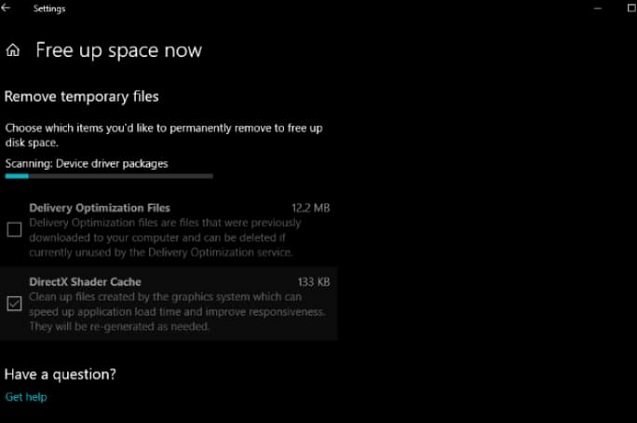
When the system disk has low disk space, it can cause system performance to slow down and even lead to issues like a new Windows PC install freezing randomly. To resolve this, you can try the following.
Ensure you have enough free space on the C drive, and if not, clean up junk files using Windows disk cleanup to free up space and improve PC performance.
Method 2: Check for any Damaged Hardware
If your computer is freezing, it's likely due to faulty hardware, so check for damaged parts. Installing a different version of Windows can help determine if the issue is hardware-related. If the problem persists on Windows 11/10 but not on another version, it's likely a software issue. In that case, check other troubleshooting methods.
Method 3: Disconnect all attached Devices
USB drives and other external drives can cause Windows 11/10 to freeze, so try disconnecting each external drive on your PC. Additionally, disconnect the keyboard and mouse, and then reboot the system to see if the problem is resolved. If it is, it indicates that the external drives are the cause of the freezing issue.
Method 4: Repair Corrupt System Files
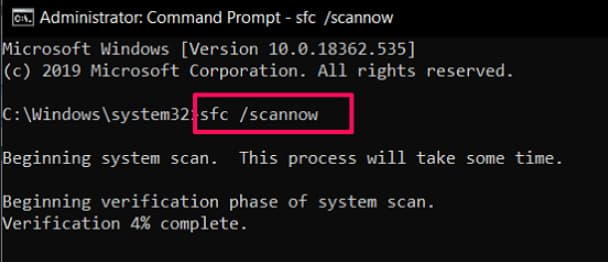
If Windows 11/10 randomly freezes and hangs, it may be due to corrupted system files. To resolve this issue, run a Command Prompt as an administrator, type 'SFC /scannow', and press 'Enter' on your keyboard. This will scan and repair any corrupt files, helping to stop the freezing.
Method 5: Uninstall Possible Incompatible Programs
If your PC has recently been installed with a new program and it's freezing, try uninstalling the app to see if it resolves the issue.
Method 6: Update Device Drivers
Windows 10 freezing can be caused by driver and hardware incompatibility. To resolve this issue, update all device drivers on your PC. This can be done by following the necessary steps.
- Click the 'Start' menu and then the 'Settings' tab
- To update Windows, click on 'Update and Security' in the Settings app, and then select 'Windows Update' in the left pane.
- To update the device drivers, click on 'Check for Updates' to ensure all drives are updated from that point onwards. It is recommended to have a stable internet connection during the updating process.
Method 7: Perform a System Restore or a Clean Install of Windows PC
If your Windows 10 computer still freezes randomly after trying the above methods, you may need to perform a system restore or clean install of Windows 10. This will erase all data on your PC, so it's essential to back up your data before proceeding. This drastic measure will likely resolve the issue, but be sure to recover your backed-up data once you've completed the process.
Tips#1.How to Backup Important Files/Folders/Drives
To back up your PC's data, you can use Qiling Disk Master to protect files, disks, partitions, and the operating system. It supports automatic backup options for system data, hard drives, partitions, files, and external drives.
Tips#2. How to Recover Lost Data in Windows 11/10 Reinstallation
If you performed a system restore or clean install of Windows without backing up your data, you may still recover lost files with a data recovery tool. Deep Data Recovery can scan RAW drives, partitions, hard disks, external hard drives, and USB drives for recoverable data.
Guide to Recover Lost Data in Windows 11/10 Reinstallation
- Download the data recovery software on your Windows PC and install it on your computer.
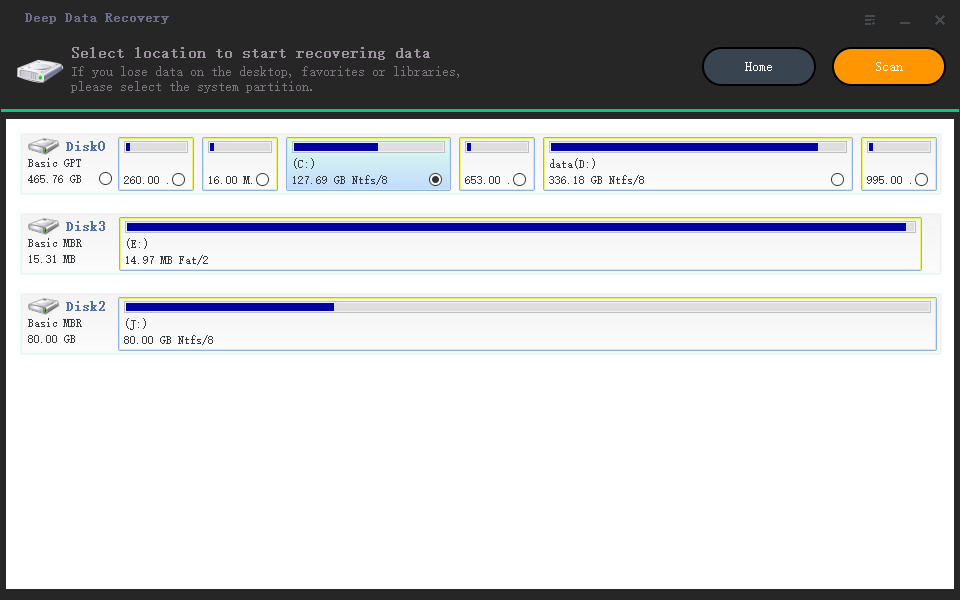
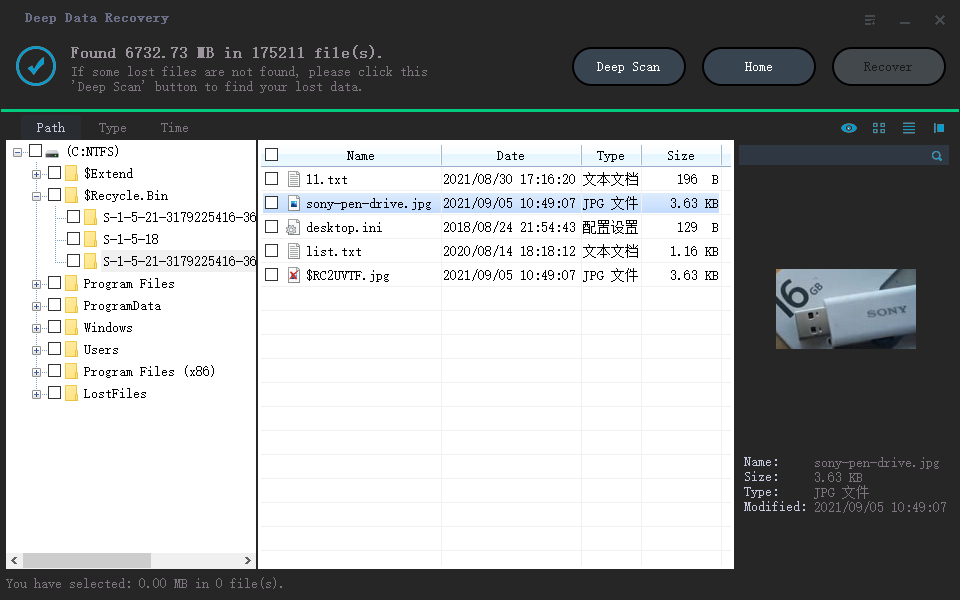
- Select the location where the lost files are saved, such as a specific folder or partition. The software will then scan the selected area and search for the missing data. Once the scan is complete, the results will be displayed in a window.
- In Windows 10, you can recover deleted files by previewing them in the search window and restoring all the files. If you need to search further, use the 'Deep Scan' menu to search for more data.
To fix Windows 11/10 freezing issues, try the methods one after the other. If a system restore is your final option, back up your data first using Qiling Disk Master or data recovery software for Windows 11 and Windows 10, to prevent any potential loss of data during the process.
Related Articles
- Excel Not Responding How to Save Your Work in Windows 10
- [Solved] Windows 10 Do not Show Hidden Files and Folders
- Fix 0x80240fff Windows 10 Update Error
- Enter Safe Mode in Windows 10
- Fix Kernel Security Check Failure in Windows 10/8/7
- Fix Windows 10 Update Error Code 0x80070002
- How to Upgrade to Windows 11 from Windows 7/10
Products
Articles & Tutorials
- Data Recovery
- Data Backup
- File Recovery
- File Backup
- File synchronize
- System Backup and Restore
- Disk and Partition Clone
- Technical articles
- Disk Master Help
- Windows Deleted File and Disk Recovery Tutorials
- Windows File and Data Recovery Tutorials
- More Windows Tutorials for Install, Security, Files, and PC Tips
- Windows Boot, Repair, and Recovery Environment Tutorials
- Windows Backup Tutorials
- Windows Restore Tutorials
- Windows Clone and Migration Tutorials
- Windows Server Backup, Recovery, and Management Tutorials
- Windows Disk, Partition, and Storage Management Tutorials