How to Enter Safe Mode in Windows 11/10
Windows 10's Safe Mode boots the operating system with a minimal set of drivers and resources, allowing it to run in a basic state. If the system functions normally in Safe Mode, it suggests that problematic device drivers or default settings are the cause of issues when running in normal mode.
If Safe Mode is needed for startup repair, compare this with automatic repair loop fixes.
Operating Windows 10 in safe mode helps you identify the source of a problem on your PC and troubleshoot issues. Safe mode comes in two versions: Safe Mode and Safe Mode with Networking. The latter allows you to connect to the Internet and other computers on a network, making it a useful option for testing online functionality. By running Windows 10 in safe mode, you can isolate the cause of a problem and take targeted steps to resolve it.
Entering safe mode allows you to operate and troubleshoot your Windows PC when it's not responding or showing errors. You can enter safe mode in various ways, giving you the ability to check for problems and identify the cause of the issue.
- Quick Navigation
- Part 1. 5 Ways for How to Enter Safe Mode in Windows 10
- Part 2. Unable to Enter Safe Mode in Windows? Solve It!
Part 1. 5 Ways for How to Enter Safe Mode in Windows 10
Method #1. Using "Shift + Restart" on Sign-in Screen to Enter Safe Mode in Windows 10
1. If you're unable to enter safe mode in Windows 10, you can try restarting your computer while holding down the Shift key. This will allow you to access the sign-in screen, where you can select the "Restart" option.
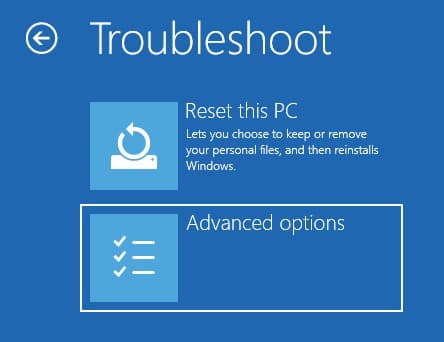
2. Windows 10 will restart and display a few options. From the list, click "Troubleshoot".

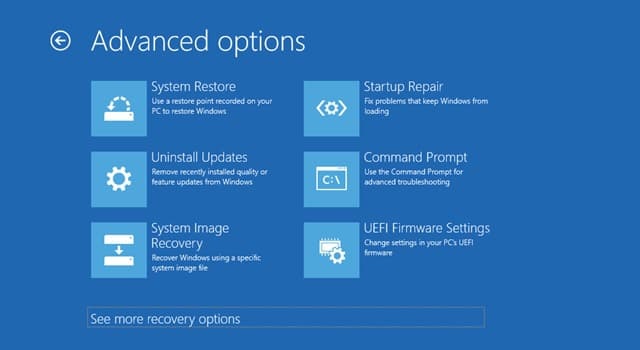
3. Click the "Advanced options" feature on the next screen.
4. If the "Startup Settings" feature is not available, click the "See more recovery options" at the bottom and then click the "Startup Settings" feature.
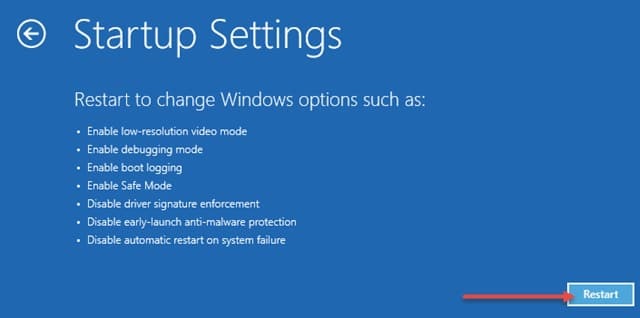
5. Windows 10 will display different features, including enabling Safe Mode, when you click the "Restart" button.
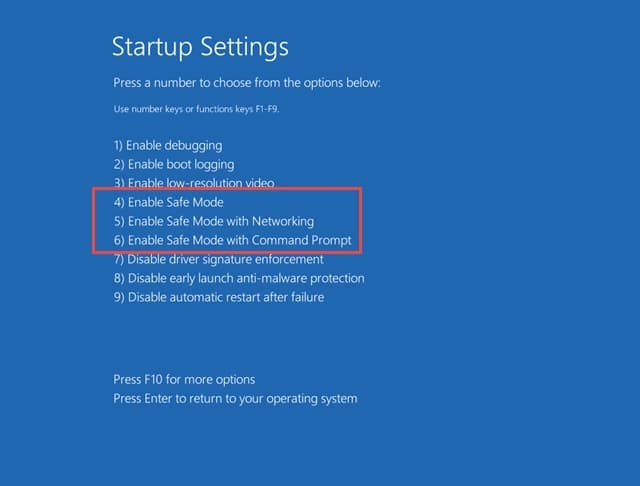
6. Once Windows 10 restarts, you can choose F4, F5, or F6 to enter safe mode, which is available in three versions.
Method 2. Entering Safe Mode Using USB Drive
To enter safe mode in Windows 10 with a USB, you'll need to create a system recovery using a USB flash drive on another Windows 10 computer. This process allows you to boot into safe mode from the USB drive.
1. After creating the drive, boot your computer from it. Select your keyboard layout and proceed.

2. Windows 10 will take you to the "Choose an option" screen. Click the "Troubleshoot" option.
3. To repeat the steps, you can select safe mode, safe mode with networking, or safe mode with command prompt, depending on your needs, and follow the same process as before.
Method 3. Interrupting the Normal Boot Procedure
Windows 10 has an automatic repair mode that kicks in on the fourth boot attempt if the computer can't boot normally, allowing you to access Safe Mode.
1. You can interrupt the normal boot process three consecutive times to allow the computer to enter the Automatic Repair mode, where you'll see a screen with options to troubleshoot and fix issues.

2. Select an account with administrator permissions, enter the password, and proceed with the next step if the message doesn't appear.
3. Windows 10 will automatically diagnose your computer, looking for any potential issues that may be causing problems. This process is usually quick and doesn't require any user input.
4. When the "Automatic Repair" screen appears, click the "Advanced options" button.

5. Click the "Troubleshoot" button.
6. From here, you can follow the steps mentioned in the first method to enter the safe mode. You can choose the preferred safe mode version using the "F" keys.
Method 4. Entering Safe Mode Using Installation Drive and Command Prompt
If you're still unable to enter safe mode in Windows 10, you can try using the installation drive and command prompt to get into the safe mode of your choice. This requires either the installation DVD or USB drive.
1. Insert the DVD or USB, boot the computer, select the installation language and keyboard layout, then click "Next".

2. Click "Repair your computer".
3. Select the "Troubleshoot" option from the "Choose an option" window.
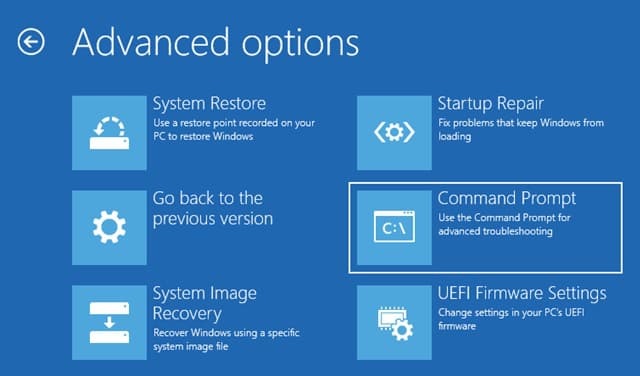
4. Select "Advanced options" and click the "Command Prompt" feature.
5. To enable the Windows Safe Mode, open the Command Prompt and type "bcdedit /set {default} safeboot minimal", then press Enter.
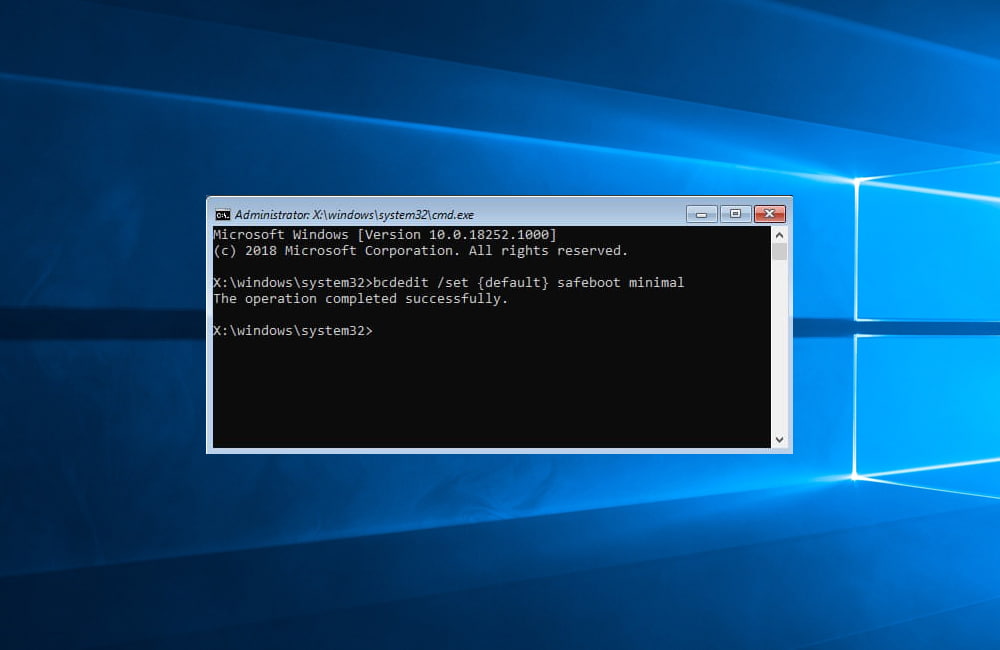
6. Wait until you see the message that states the operation was successful.
7. Exit the command prompt window and click the "Continue" option.
8. To resolve the issue, the computer is rebooted into Safe Mode, where the user logs in with an account that has administrator rights and makes the necessary changes.
To enable safe mode in Windows 10 using the command prompt, type the command "bcdedit /set {bootmgr} safeboot:Minimal" and press Enter. This will activate the computer to start in safe mode automatically until you disable the feature.
Method 5. Using the System Configuration Tool
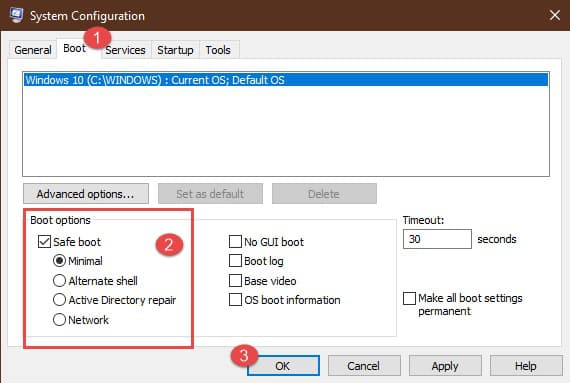
To log into safe mode on a Windows 10 computer, use the System Configuration tool, which can be accessed by typing "msconfig.exe" in the search bar.
1. To access System Configuration, type "System Configuration" in the search field and click on the "System Configuration" application that appears in the search results.

2. To enter safe mode in Windows 10, go to the Start menu and click on the "Settings" icon, which is usually represented by a gear. Then, click on "Update & Security", followed by "Recovery". In the Recovery tab, click on "Restart now" under the "Advanced startup" section. This will take you to the boot options menu, where you can select "Safe Mode" from the list of available options. Click on it and then click "OK" to confirm.
Part 2. Unable to Enter Safe Mode in Windows? Solve It!
If you're unable to enter safe mode on your laptop's Windows 10 after learning how to do so, you can try the following method. This approach is effective only when you can log into your Windows PC or laptop.
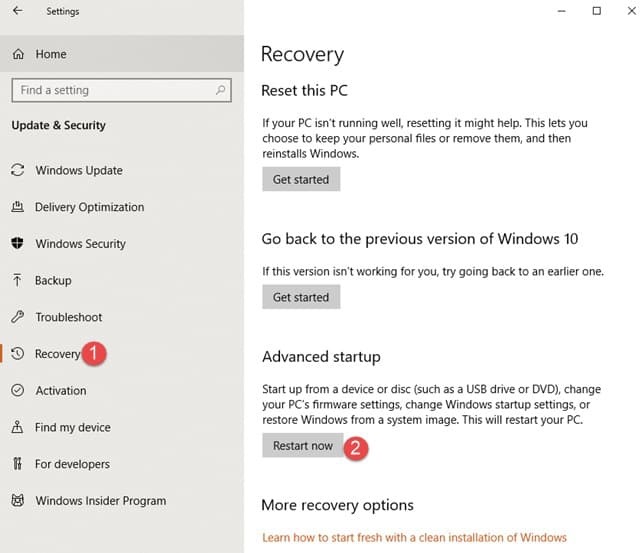
1. To open the Windows Settings page, press the "Windows" key and the "I" key at the same time. This will open the "Settings" app. From there, choose the "Update & Security" option from the list of available settings.
2. From the left side of the window, select "Recovery", then on the right side of the same page, choose "Restart now" under the "Advanced startup" option.
3.The computer will reboot, and you will see the "Choose an option" screen. To troubleshoot, click the "Troubleshoot" option and follow the steps to select the preferred safe mode version by pressing "F4" for safe mode, "F5" for safe mode with networking, or "F6" for safe mode with command prompt.
If your files disappear on your Windows PC due to an error, you can try using Deep Data Recovery software to retrieve them.
Related Articles
- Fix Windows 10 Preparing Automatic Repair Loop
- Fix Disk is Unknown, Not Initialized, Unallocated in Windows 10/7
- Fix 'Windows Could Not Complete the Installation' in Windows 10
- How to Fix 'Error 0xc1900101' on Windows 11 Installation Assistant
- How to Fix Win 10 PC Won't Shut Down
- Fix Windows 10 Update Error Code 0x80070002
- Fix Kernel Security Check Failure in Windows 10/8/7
- [Solved] Deleted File Not Showing in Recycle Bin
Products
Articles & Tutorials
- Data Recovery
- Data Backup
- File Recovery
- File Backup
- File synchronize
- System Backup and Restore
- Disk and Partition Clone
- Technical articles
- Disk Master Help
- Windows Deleted File and Disk Recovery Tutorials
- Windows File and Data Recovery Tutorials
- More Windows Tutorials for Install, Security, Files, and PC Tips
- Windows Boot, Repair, and Recovery Environment Tutorials
- Windows Backup Tutorials
- Windows Restore Tutorials
- Windows Clone and Migration Tutorials
- Windows Server Backup, Recovery, and Management Tutorials
- Windows Disk, Partition, and Storage Management Tutorials