How to Fix Windows 10 Update Error Code 0x80070002
Quick Navigation:
- How to Fix Error Code 0x80070002 in Windows PC
- Method 1: Remove Temporary Update Files
- Method 2: Restart Windows Update Services
- Method 3: Troubleshoot the Windows Update
- Method 4: Modify Registry Editor
- Method Five: Check Date and Time
- Bonus Tips: How to Keep Data Safe or How to Rescue Lost Files
- How to Backup Files with Qiling DBackup
- How to Recover Data Loss with Deep Data Recovery Software
- Step-by-step Guide on how to recover lost data after error 0x80070002
The error code 0x80070002 occurs when there's a driver issue or corrupted/missing files in a Windows Update, and can be resolved using various methods such as checking for driver updates, running the System File Checker, and using the Windows Update Troubleshooter.
If update errors lead to missing files or failed system changes, this Windows update lost file recovery guide is a useful follow-up.
How to Fix Error Code 0x80070002 in Windows PC
If you're experiencing issues with your Windows 10 update, you can resolve the problem on your own. There are several solutions that can help fix the issue, including [list the top five solutions].
Method 1: Remove Temporary Update Files
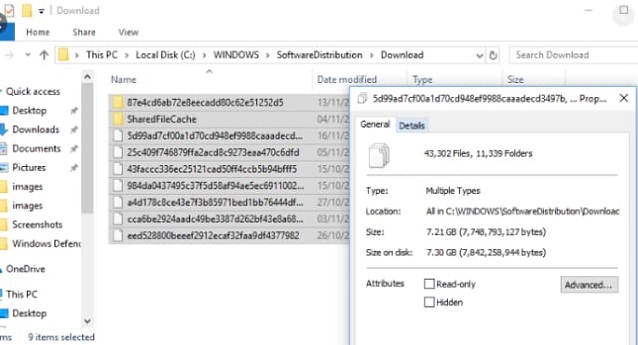
To resolve the Windows 10 update error 0x80070002 caused by temporary update files, navigate to the software distribution folder, delete any files you find there, and then restart your computer.
Step #1: Click on the "Win Key" and type in "File Explorer".
Step #2: Open the folder and double-click on the hard disk with the Windows Installation Data.
Step #3: Navigate to Windows and select "Software Distribution" folder.
Step #4: Select Download Sub-folder and delete its contents. This should fix the issue.
Method 2: Restart Windows Update Services
Follow the step-Here's a one-paragraph, step-by-step guide to resolve Windows 10 update error code:
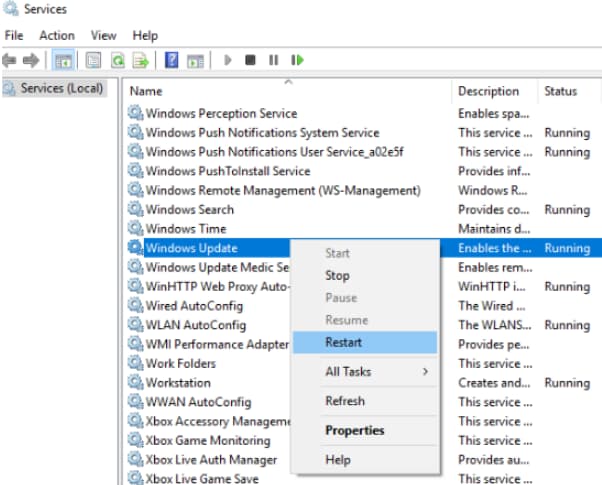
Step #1: Open the Windows search and type in "Service" to fix error code 0x80070002.
Step #2: Click "Enter" and wait for a confirmation window. Type in the administrator's password and click "Enter" to proceed.
Step #3: Click the "Name" Column and sort the names in reverse order.
Step #4: Locate Windows Update from the list and right-click on it.
Step #5: Select "Restart". When your PC comes up again, the error message should have cleared.
Method 3: Troubleshoot the Windows Update
If you're experiencing issues with Windows Update, another method to consider is to troubleshoot error code 0x80070002 by following a series of steps.
Step #1: Rick-click on the Start menu and click on "Settings".
Step #2: Select 'Update and Security' and on the left side, select "Troubleshoot".
Step #3: To fix Windows 10 update error 0x80070002, click on "Windows Update" on the right-hand side, then select "Run the troubleshooter".
Step #4: Wait for some minutes to allow Windows to completely run the troubleshooter.
Method 4: Modify Registry Editor
To fix error code 0x80070002, run the Windows Media Creation Tool as an administrator by right-clicking on it and selecting 'Run as Administrator', then follow the steps to resolve the issue.
Step #1: Simultaneously press the Windows logo key + R on the keyboard and type "Regedit".
Step #2: Click "Enter". You may be prompted to supply the administrative right to open the folder. Click "Yes" to confirm.
Step #3: Navigate to: "HKEY_LOCAL_MACHINE\SOFTWARE\Microsoft\Windows\CurrentVersion\WindowsUpdate/OSUpgrade".
Step #4: Select the "OSUpgrade" key and right-click on the space on the right plane close to the Registry Editor.
Step #5: Click "New" and then "DWORD (32-bit) Value" and then on the newly created "NewValue#1".
Step #6: Select the "Modify" menu and change the name to "AllowOSUpgrade". Then, double-click on the number below the Value data and type "1".
Step #7: Select "Hexadecimal" and then click on "OK" to fix error 0x80070002 in Windows PC.
Step #8: Restart the PC and check to see if this works.
Method Five: Check Date and Time
If you've tried the different methods above to fix Windows 10 update error 0x80070002 errors, but are still experiencing issues, it's worth checking the Date and Time settings. You can do this by going to the Start menu, typing 'Date and Time' in the search bar, and selecting the 'Date and Time' settings from the results. From there, ensure that the date and time are set correctly, and that the time zone is also accurate.
Step #1: Open the Control Panel and click on "Clock, Language, and Region" menu.
Step #2: To synchronize your computer's time with an internet time server, select the "Change Settings" menu, hover over "Synchronize with an internet time server", click on "Update Now", and then click "OK" to confirm and close the window.
Step #3: Restart the PC and confirm that the Date and Time menu is set.
Bonus Tips: How to Keep Data Safe or How to Rescue Lost Files
To prevent data loss and keep your data safe, it's recommended to back up important files on your PC before attempting to fix error code 0x80070002. If data backup is not possible and data is lost in the process, a data recovery tool can be used to recover the lost data. Recommended tools for backing up and recovering data include.
How to Backup Files with Qiling DBackup
Qiling DBackup is a professional tool that enables seamless backup of files, drive, and system, and can also create bootable media. It provides secure data and system protection of a PC, flash drive, external hard drive, and USB drive, among others. To backup your files with Qiling DBackup, follow the steps below: [insert steps]
Step #1: After downloading and following the instructions, open the main window of Qiling DBackup and click "File Backup" to access the directory of all files and hard drives on your PC.

Step #2: Select the files you want to back up from the directory and click "Next" to backup files in Windows 10 and other Windows.
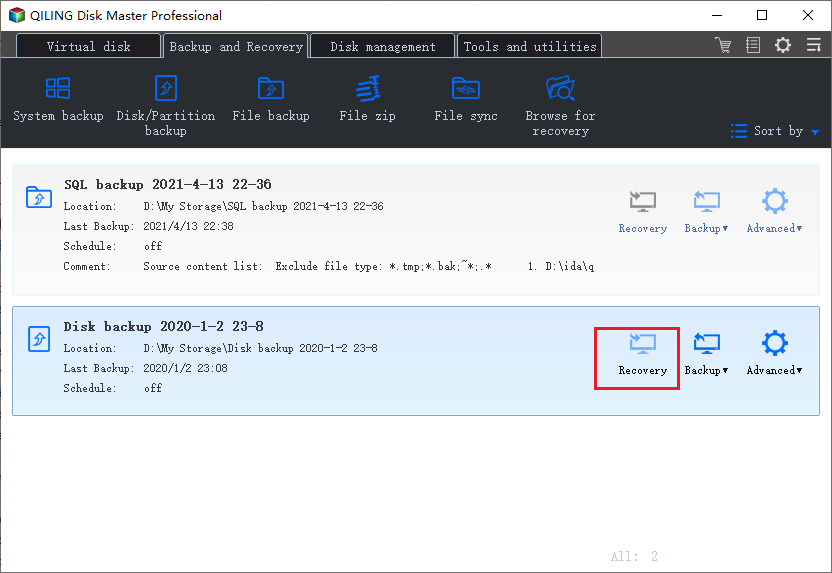
Step #3: When the backup is complete, select "Backup", "Restore" or "Edit" to complete your desired process.
How to Recover Data Loss with Deep Data Recovery Software
When fixing Windows 10 update error 0x80070002, you may risk losing important data. However, with the help of Deep Data Recovery software, you can recover your lost data. This professional tool is designed to help users recover data from various scenarios, including formatted hard drives, deletion, system failure, and virus attacks.
Step-by-step Guide on how to recover lost data after error 0x80070002
Step #1: Download and Launch the Deep Data Recovery software
Step #2: Select the drive/partition you want to scan, and choose the specific ones you want to recover files from, then click the "Scan" button to start the recovery process.

Step #3: After the scan is completed, you can preview the lost files, select the ones you want to recover, and click "Recover" to save them.

When encountering the error code 0x80070002, try any or all of the five methods mentioned to fix the issue. To safeguard your data, it's recommended to use Qiling DBackup to backup data beforehand. If you didn't back up data and lost it while fixing the error, you can use the Deep Data Recovery tool to recover your data.
Related Articles
- Fix 'Windows Could Not Complete the Installation' in Windows 10
- How to Fix 0x80240fff Windows 10 Update Error
- Why C Drive Is Full and How to Make Space
- 3 Ways for How to Fix User Profile Cannot Be Loaded
- [Solved] Deleted File Not Showing in Recycle Bin
- The Best Data Recovery Software to Recover Deleted File
It's common to accidentally delete some important files on Windows computer. In such a case, you may want to find the professional data recovery software to recover deleted file. Here you will get a best file recovery tool and learn how to use it.
Products
Articles & Tutorials
- Data Recovery
- Data Backup
- File Recovery
- File Backup
- File synchronize
- System Backup and Restore
- Disk and Partition Clone
- Technical articles
- Disk Master Help
- Windows Deleted File and Disk Recovery Tutorials
- Windows File and Data Recovery Tutorials
- More Windows Tutorials for Install, Security, Files, and PC Tips
- Windows Boot, Repair, and Recovery Environment Tutorials
- Windows Backup Tutorials
- Windows Restore Tutorials
- Windows Clone and Migration Tutorials
- Windows Server Backup, Recovery, and Management Tutorials
- Windows Disk, Partition, and Storage Management Tutorials