5 Ways to Recover Lost Files After Windows 10 Update
Windows Update Deleted All Files from My Desktop
"2 days ago, I decided to update Windows. After the update, I noticed that the files on my desktop were missing, so I searched for them in Windows search. I found them and placed them on the desktop as they were before the update. Also, my wallpaper and several settings were changed. But the next day, I found them lost and could not get them back anymore. Please help." - from Microsoft Community
If the files were removed permanently during the update, compare this with Shift Delete file recovery before writing new data to the drive.
If you are a Windows 10 user, you know that updates are necessary to keep your computer running smoothly. But sometimes, after an update, essential files can go missing. If this happens to you, do not panic -- here are five ways to recover lost files after a Windows 10 update.
Method 1. Recover Lost Files After Windows Update from Recycle Bin
Losing files after a Windows 10 update can be frustrating, but there are ways to recover them. The method used often depends on how the files were lost. One simple approach is to check the Recycle Bin in Windows 10, as files deleted during the update may still be there.
If files were deleted before or during the Windows 10 update, they can likely be found in the Recycle Bin, where they can be easily recovered. To recover lost files, simply navigate to the Recycle Bin, find the deleted files, and restore them to their original location. This should resolve the issue without needing further assistance.
Step 1. Click on the Recycle Bin icon on your desktop or taskbar.
Step 2. To recover deleted files, locate the files you want to recover, right-click on them, and select the "Restore" option from the context menu. This will restore the files to their original location.
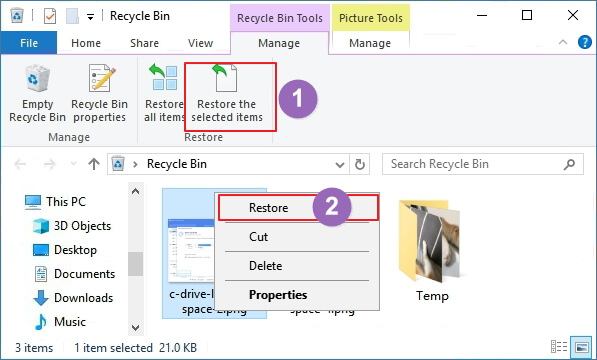
Your files will be sent to the original location.
Method 2. Recover Lost Files After Windows 10 Update with Software
If you have lost files after a Windows 10 update, do not panic. Deep Data Recovery is a reliable and effective data recovery tool that can easily help you recover lost files, including photos, videos, documents, and more. You can use the software to scan for and recover lost files from the location where they were lost, making the process quick and straightforward.
- Recover permanently deleted files in Windows 11/10/8/7.
- Restore lost Word documents, videos, photos, audio, and other files.
- Recover files lost due to Windows updates, system crashes, virus attacks, and accidental deletion.
Download this data recovery software and follow the steps below to restore lost files from Windows 10.
Step 1. Launch Qiling file recovery software on your Windows computer, choose file types, and click "Fast Scan" to start the file recovery process.

Note: You can choose different search modes based on where and why the data was lost.
Step 2. To recover deleted files, select the exact location where the files were lost, then click the "Scan" button to initiate the recovery process.

Step 3. The software will start scanning the drive, displaying deleted files soon. If the target file is found during the scan, you can stop the scan. To quickly locate the target file, use the file format filter.

Step 4. Select the files you want to recover, click the "Recover" button, and you can choose a different location to save the recovered files.
Method 3. Recover Lost Files After Windows 10 Update with Backup
If you made a Windows backup of your files before the update, you can recover lost files from the backup by following these steps.
Step 1. Click the "Start" button, type Control Panel, and select it.
Step 2. Select the "Backup and Restore (Windows 7) > Select another backup to restore files from" option and choose your backup from the list of available backups.
Step 3. Select the files you want to recover and click "Next".
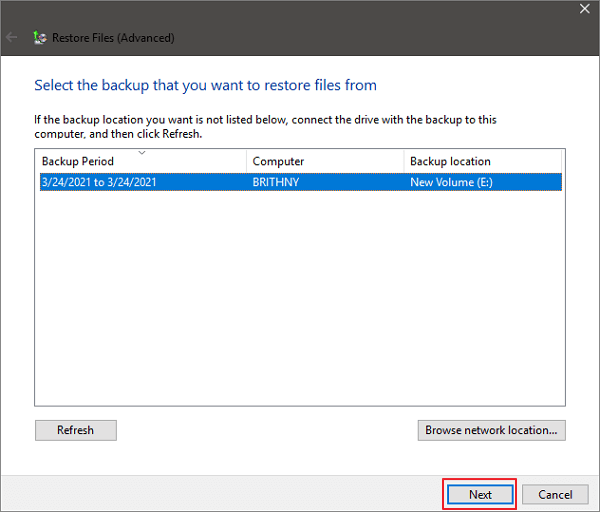
If you are using Windows 10 File History to back up files, you can restore them with ease by following a few simple steps.
Method 4. Sign Out of the Temporary Profile to Restore Lost Files
After the Windows 10 update, users may log into a temporary profile instead of their main one, with changes not being saved once they sign out. Signing out of the temporary profile and logging back into the main profile can restore lost files.
Step 1. Right-click "Start" and select "Settings".
Step 2. Click "Accounts > Sync your settings".
Step 3. If you are using a temporary profile, the message "You are logged on with a temporary profile. Roaming options are currently unavailable" will be displayed at the top.
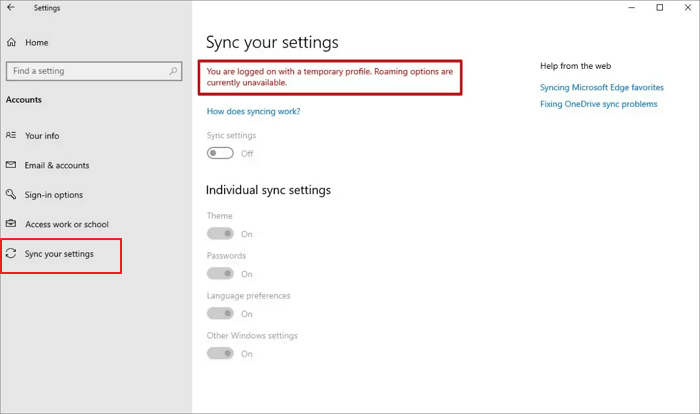
Step 4. Restart your computer and sign in to your main profile.
If you are still unable to find your lost files, do not worry -- they should be back on your computer after signing into the main profile. If you are still having trouble, you can try the last solution.
Method 5. Recover the Administrator Account to Restore Lost Data
The Administrator Account is a hidden account created during Windows 10 installation, giving full access to all files, including inaccessible ones, allowing for the restoration of lost files by enabling the Administrator account.
Step 1. To access Computer Management, type "Computer Management" in the Search box and select the corresponding option.
Step 2. Go to "Local Users and Groups > Users > Administrator".
Step 3. Clear the "Account is disabled" check box and select "Apply" to enable the Administrator account.
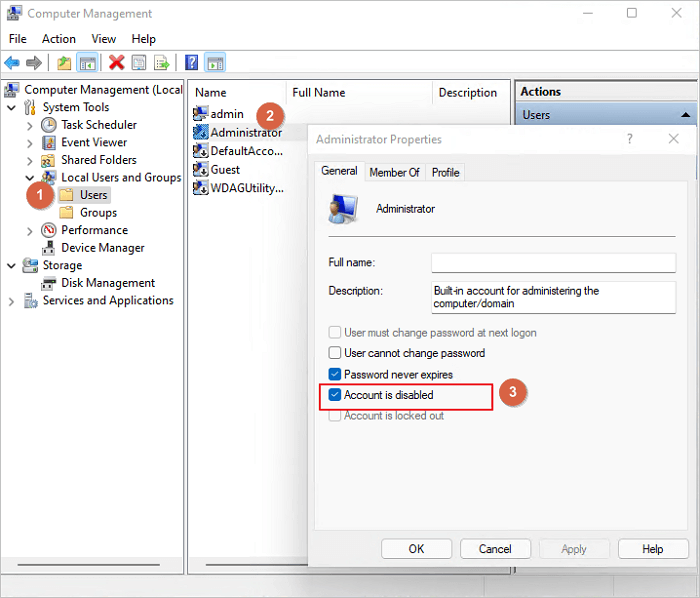
To access your data from the Administrator account, first, log into the Administrator account on your computer. Once logged in, your data should be visible.
Once you have logged in to the Administrator account, all your data should be visible. This is a good opportunity to transfer all your data to the new account you created, making it easier to manage and access your information from now on.
Conclusion
Regardless of the method you use to recover lost files after Windows 10 updates, it is essential to regularly back up your computer data to avoid losing important files in case of another system crash or failure. This will enable you to restore lost files quickly and easily.
Recover Lost Files After Windows 10 Update FAQs
If you have lost files after a Windows 10 update, do not worry -- there are ways to recover them. Depending on your situation, you can try one of five methods to get your files back. If you need more help or have questions, check out the Q&A section below.
1. Where are my files after the Windows 10 update?
In Windows 10, you can find your files on the hard drive by using the search option. To do this, right-click on the Start menu, choose File Explorer, and then select a location from the left pane to search or browse for your files.
2. Does updating to Windows 11 delete everything?
Upgrading to Windows 11 will not delete any data if you choose the "Keep personal files and apps" option.
3. How to recover lost files after a Windows update?
To recover lost files after the Windows update:
- Download and install Deep Data Recovery to your computer.
- Select your drive, then click Scan.
- When the scan is complete, preview the files.
- Review the found data and mark what files you want to recover with a tick.
- Click Recover to restore lost files after an update.
Related Articles
- Top 10 Best Free Data Recovery Software
- How to Recover Data from FAT32 SD Card/Hard Drive/USB (Windows & Mac)
- Top 10 Best Video Recovery Software [Free]
- Lost Bitlocker Recovery Key? Here is How to Get It Back Easily
- How to Recover CDR Files on Windows PC and Mac
If you deleted or lost CDR files, then read the step-by-step guide for how to recover CDR files in Windows PC and Mac. - 3 Ways to Recover Chrome Browsing History
How to restore deleted or cleared browsing history from Chrome, Firefox, etc. Here are 3 ways to guide for how to recover deleted history on Chrome or how to restore Chrome history.
Products
Articles & Tutorials
- Data Recovery
- Data Backup
- File Recovery
- File Backup
- File synchronize
- System Backup and Restore
- Disk and Partition Clone
- Technical articles
- Disk Master Help
- Windows Deleted File and Disk Recovery Tutorials
- Windows File and Data Recovery Tutorials
- More Windows Tutorials for Install, Security, Files, and PC Tips
- Windows Boot, Repair, and Recovery Environment Tutorials
- Windows Backup Tutorials
- Windows Restore Tutorials
- Windows Clone and Migration Tutorials
- Windows Server Backup, Recovery, and Management Tutorials
- Windows Disk, Partition, and Storage Management Tutorials