How to Recover Shift Deleted Files in Windows 7/8/10/11 in 4 Ways [2023]
Unfortunately, if you've permanently deleted a file using the Shift key, it's unlikely to be recoverable from the Recycle Bin. However, you can try using a third-party data recovery software to scan your computer for deleted files. Some popular options include Deep Data Recovery Wizard, Recuva, and Disk Drill. These tools can scan your hard drive for deleted files and potentially recover them. Be aware that the success of recovery depends on various factors, such as the type of file, the amount of time elapsed since deletion, and the overall health of your hard drive. If you're not comfortable using third-party software or if the file is critical, you may want to consider seeking professional help.
For command-based recovery options, see how to recover deleted files using Command Prompt before installing tools on the affected drive.
Shift delete files is a common way to delete files, but what if you need to undelete them? Unlike regular delete, shift delete files are not sent to the recycle bin, making them invisible to the system. In Windows 7/8/10/11, there's no visual indication of shift deleted files, let alone a straightforward way to recover them. However, with the right approach, you can still recover shift delete files, either manually or with the help of specialized software.
- Quick Navigation
- Part 1. How to Restore Deleted Files after Shift Delete with File History
- Part 2. How to Recover Shift Deleted Files in Windows 7/8/10/11 with Previous Versions
- Part 3. How to do Windows Shift Delete Recovery with Backup Files
- Part 4. How to Undelete Shift Delete Files with Software (Fully Recommended)
- Part 5. Tips for Shift Delete You Must Know (Shift Delete Vs Delete, Prevent Data Loss)
To recover shift deleted files, regardless of the type (videos, documents, photos, etc.), stop using your computer immediately to prevent further data loss. After that, follow the steps below to retrieve the deleted files until successful recovery.
Part 1. How to Restore Deleted Files after Shift Delete with File History
If you've accidentally deleted files using the Shift + Delete command, it may seem like they've vanished forever. However, if you've enabled the File History feature on your Windows device (available on Windows 11, Windows 10, Windows 8, and Windows 7), you can easily recover the deleted files.
- To open the Control Panel, click the "Search" icon and type "control panel" in the search bar.
- To restore personal files, go to System and Security, then File History, and finally Restore personal files.
- Locate the folder where the deleted files were stored.
- To recover the files, click on the "Restore" button. This will move the files back to their original location.
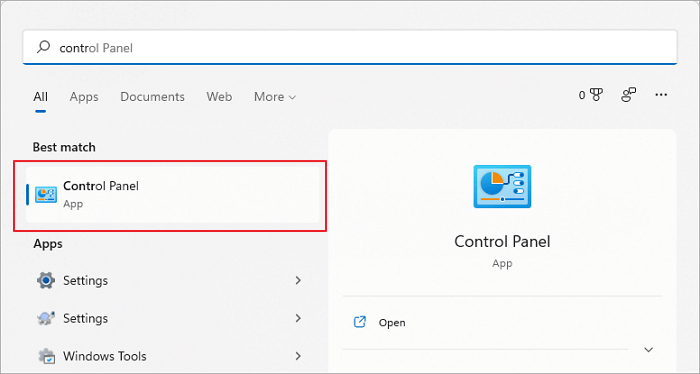
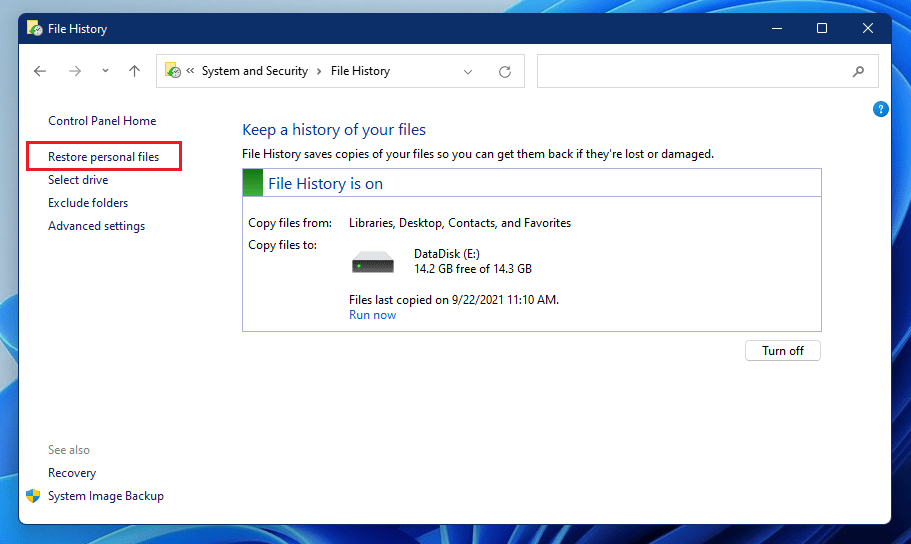
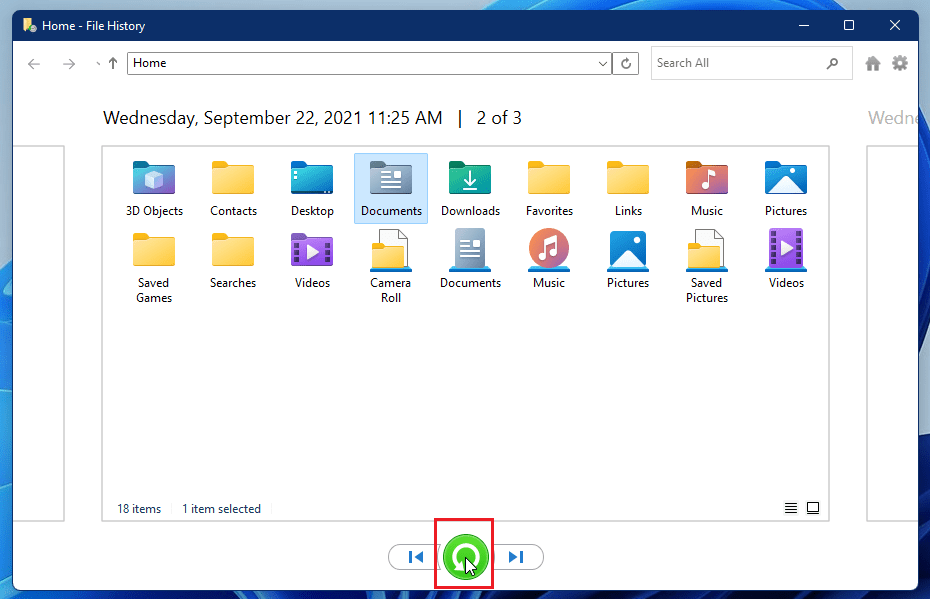
If you're unable to see any folders, it's likely because the File History feature has been disabled. To prevent future data loss, you should enable File History.
- To enable File History, go to Control Panel, click on System and Security, and then click on File History.
- To enable File History on Windows, click on the File History options and toggle the switch to the "On" position.
Part 2. How to Recover Shift Deleted Files in Windows 7/8/10/11 with Previous Versions
The feature to recover previous versions of files is available for Windows 7, 8, 10, and 11. You can attempt to recover shift deleted files by following the instructions, which allow you to retrieve previous versions of all files and folders on your PC. This feature is available on Windows 7, 8, 10, and 11.
- Find the folder/drive where the deleted file is saved.
- Right-clicking on it and selecting the "Restore Previous Versions" option.
- To recover your files, select the desired version from the backup and click on the "Restore" option.
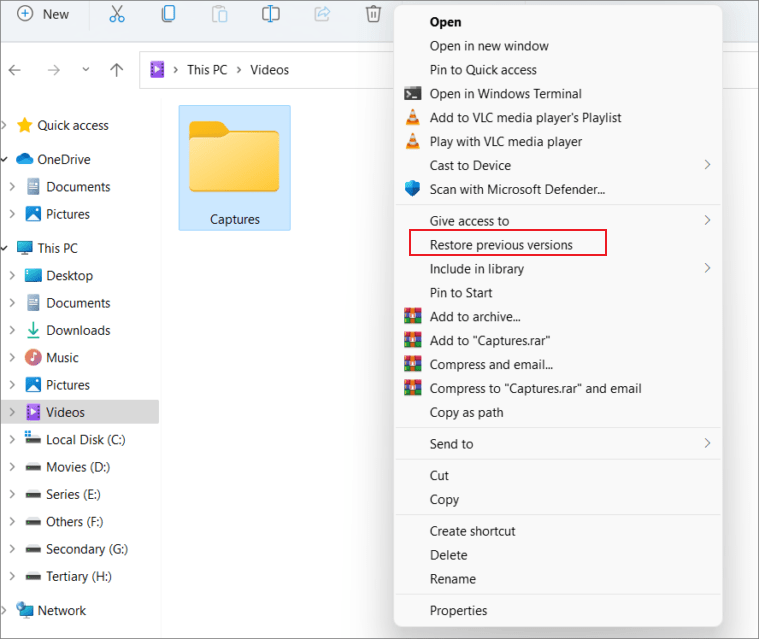
If there are no files, it will display a message saying "There are no previous versions available".
Part 3. How to do Windows Shift Delete Recovery with Backup Files
The purpose of backing up files is for data recovery and restore, allowing you to retrieve deleted files, including those deleted using the Shift key. This method works for Windows 7, 8, 10, and 11, and is particularly useful for users who have enabled Windows backup. If you haven't had a backup, you can still recover permanently deleted files using alternative methods, as described in part 4.
for Windows 11
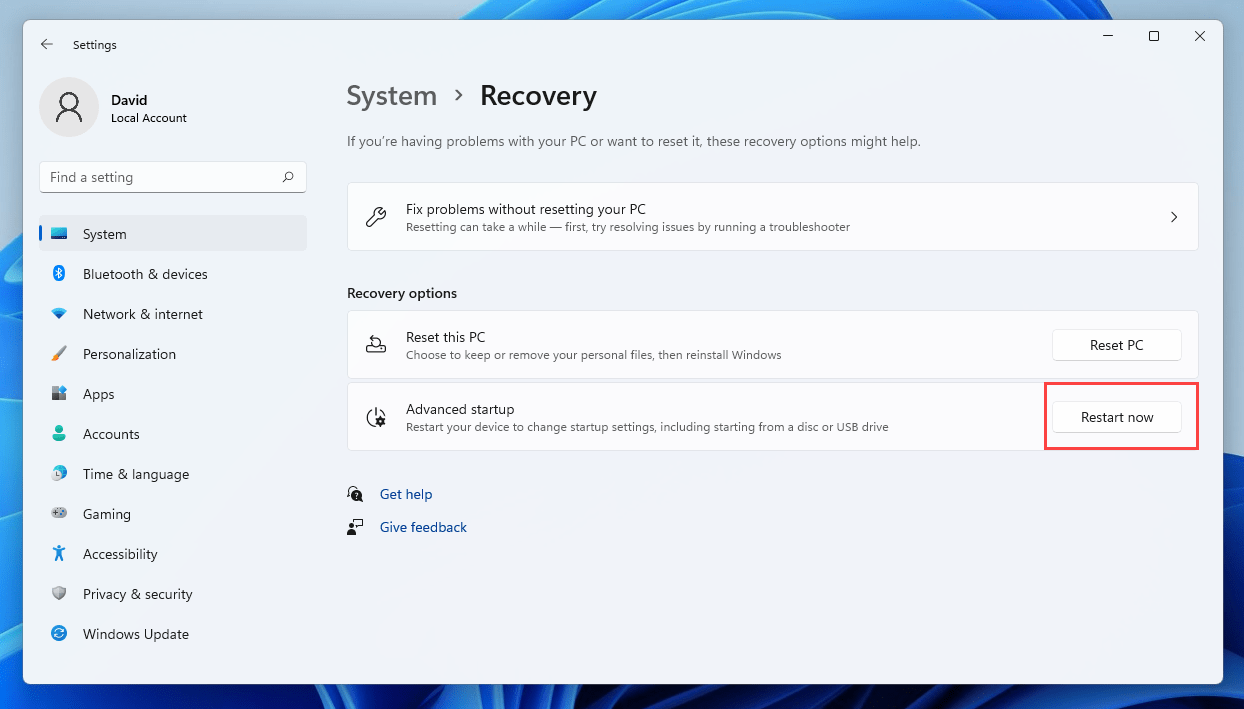
- Go to "Settings" and click on "System", then click on "Recovery" and finally click "Restart now".
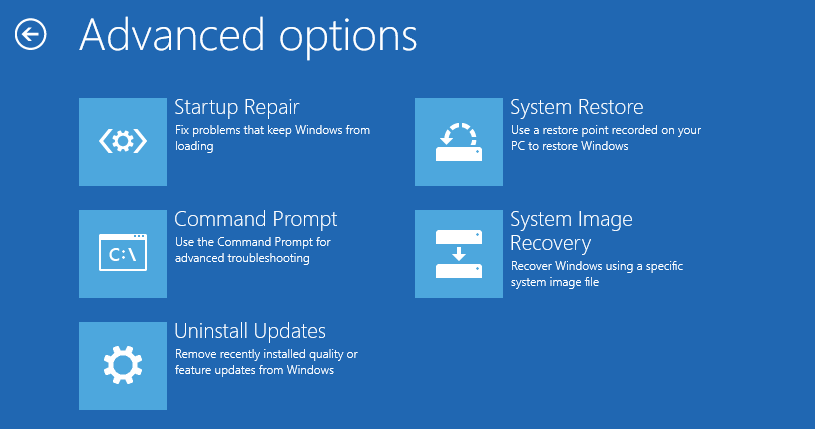
- After your Windows 11 finishes restarting, you will see the "Advanced startup" page.
- Choose between "System Restore" and "System Image Recovery" based on your backup situation. If you have a recent system restore point, select "System Restore" to revert to that point.
- To recover a shift file in Windows 11, first, open File Explorer and navigate to the location where the file was saved. Then, locate the shift file and right-click on it.
for other Windows
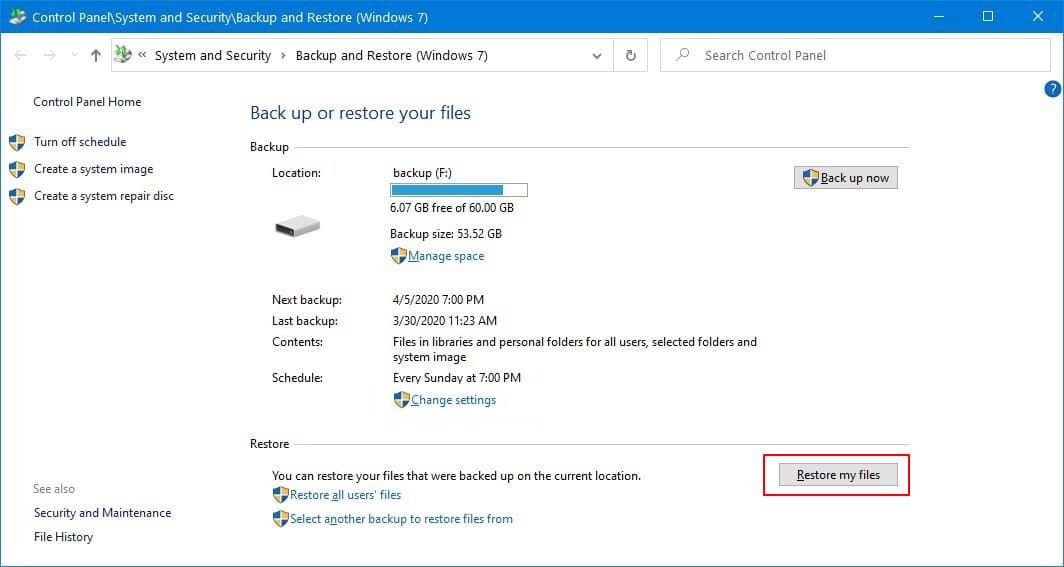
- To start the process, go to the "Control Panel" and navigate to "System and Maintenance" followed by "Select Backup and Restore". Then, click on "Restore my files".
- Tap "Browse for files" to choose the previously created backup.
- If there's a conflict, choose how to handle it by selecting "Copy and Replace", "Don't copy", or "Copy, but keep both files" depending on your preference.
- Let the restore shift deleted files process to finish. Once complete, permanently deleted files will become visible at the selected location on your PC.
Part 4. How to Undelete Shift Delete Files with Software
If all other methods fail to recover shift delete files on Windows, you may need to use professional shift delete recovery software, which can scan your PC, find the deleted files, and let you select them to recover.
Deep Data Recovery is a great option for recovering shift deleted files in Windows, offering a reliable solution for users who need to retrieve lost data.
Your Best Software for Recover Shift Deleted Files on Windows 11/10/8/7/XP
- With this tool, you can recover almost all file types, including documents, spreadsheets, presentations, images, videos, audio files, compressed files, and more. It displays all the recoverable files for you, making it easy to select and recover the ones you need.
- This tool effectively restores files deleted by Shift + Delete in Windows 11, 10, 8, and 7, with no compatibility issues.
- It can also recover files deleted during cut and paste in Windows PC.
- 100 safe to use and preview all recoverable files before go forward.
Guide for How to Recover a Shift Deleted Folder/File in Windows 7/8/10/11
- Download the best sift delete file recovery software
- Launch it on your Windows PC.
- To scan for deleted files, select the location you want to search and click the "Scan" button.
- Once the scanning process is completed, preview the recoverable files
- To recover deleted files, select the files you want to retrieve and click the "Recover" button to save them.


Part 5. Tips for Shift Delete You Must Know (Shift Delete Vs Delete, Prevent Data Loss)
Shift Delete Vs Delete
- When you delete files by pressing the "Delete" button or using the Delete option in the right-click menu, they are moved to the Recycle Bin instead of being permanently deleted. The deleted files remain in the Recycle Bin until it is emptied, allowing you to recover them if needed.
- If files are deleted using the "Shift + Delete" command, they are permanently deleted and can't be found on the computer. However, you can try to recover them using previous versions, file history, or backup files. If that fails, it's recommended to use Deep Data Recovery software as soon as possible to prevent permanent data loss.
How to Prevent Data Loss?
- Don't use Shift Delete regularly as it permanently deletes files without giving you the option to restore them from the recycle bin. Instead, use the regular Delete function, which moves files to the recycle bin, allowing you to recover them if needed.
- If you're unsure whether to back up certain files, it's best to back them up to an external hard drive. You have various options for backing up files, including Windows File History, Windows Backup, and cloud services. You can even schedule backups with Qiling Disk Master to back up hard drives, folders, and specific files.
Related Articles
- How to Recover Permanently Deleted Files in Windows 11/10/8/7 Using CMD
- How to Recover Deleted Files from Recycle Bin after Empty in Windows 11/10/8/7
- How to Recover Shift Deleted Excel Files from Windows PC
- How to Recover Shift Deleted Word Documents
- How to Fix a Windows 11 Installation Error 0x8007007f
- How To Recover Data From SSD In Windows 11
- Free Data Recovery Software for Windows 11
- How to Recover Deleted Files in Windows 8
- Restore Deleted Files on C Drive in Windows 10/11/8/7
Products
Articles & Tutorials
- Data Recovery
- Data Backup
- File Recovery
- File Backup
- File synchronize
- System Backup and Restore
- Disk and Partition Clone
- Technical articles
- Disk Master Help
- Windows Deleted File and Disk Recovery Tutorials
- Windows File and Data Recovery Tutorials
- More Windows Tutorials for Install, Security, Files, and PC Tips
- Windows Boot, Repair, and Recovery Environment Tutorials
- Windows Backup Tutorials
- Windows Restore Tutorials
- Windows Clone and Migration Tutorials
- Windows Server Backup, Recovery, and Management Tutorials
- Windows Disk, Partition, and Storage Management Tutorials