How to Restore Deleted Files on C Drive on Windows PC
Quick Navigation:
- What happens when files are deleted from drive C?
- How Can I Recover Deleted Files from C Drive?
- Method #1. Retrieve Deleted Files on C Drive from Recycle Bin
- Method #2. Recover permanently deleted files from C drive with Deep Data Recovery
- Your Safe & Effective Deleted File Recovery Software
- Frequently Asked Questions for C Drive Data Recovery
- Q: How to Retrieve Deleted Files from C Drive in Windows 11?
- Q: How to Recover Deleted Excel File from C Drive?
- Q: How to Restore Files from C Drive after Formatting?
When the C drive is shown as a red bar indicating low space, users often worry about installing new software or opening old tools due to the lack of space. To free up space, they might remove files from the C drive, which can lead to data loss.
If files were permanently deleted from the system drive, this permanently deleted file recovery guide can help you continue safely.
The C drive is crucial for a Windows PC as it contains the operating system files and default locations for downloads, desktop files, and installed software tools, making it a vital component for the computer's functionality.
What happens when files are deleted from drive C?
Deleting files from the C drive can be problematic, depending on what was deleted. If it was just output files or cache, it's likely fine. However, if application files were deleted, the software won't work. If important operating system files were deleted, it could cause errors and issues with the computer.
How Can I Recover Deleted Files from C Drive?
When files are deleted from the C drive, it's essential to act quickly to recover them. Although the deleted files may appear inaccessible, they still exist and can be replaced by new data. The sooner you take action, the lower the risk of losing them. Fortunately, there are two simple ways to restore deleted files in the C drive.
Method #1. Retrieve Deleted Files on C Drive from Recycle Bin
If you haven't used the Shift+Delete buttons to delete files from the C drive, the removed files are likely to be sent to the recycle bin, where you can access and restore them if needed. To delete files permanently, you should use the Shift+Delete buttons, which bypasses the recycle bin and directly deletes the files. If you're looking to remove files from your C drive, following these simple steps will guide you through the process.
- To empty the recycle bin, click on the recycle bin icon on the desktop, and a window will open. Click on the "Empty Recycle Bin" button to remove all contents.
- After deleting files from the C drive, you can view the deleted files in the Recycle Bin. From there, you can scroll up and down to find the lost files.
- Select the needed files, right-click on them and select "Restore".
- The files were successfully restored from the backup to the original location, and they can be seen in their original folders on the C drive.
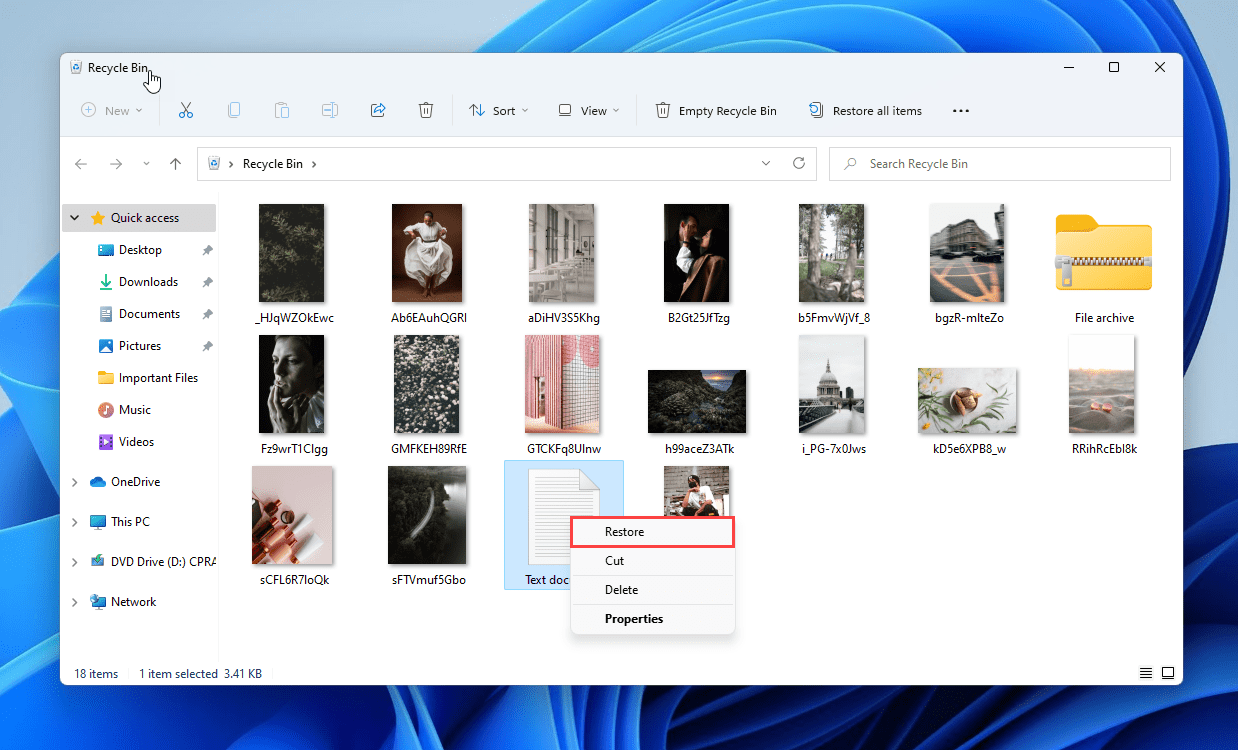
The recycle bin only keeps deleted files from the C drive for a limited time, typically 30 days. If you don't recover the deleted files within this timeframe or empty the recycle bin, they will be permanently deleted and cannot be recovered through the recycle bin. In such cases, using file recovery software is the only option to recover deleted files on the C drive.
Method #2. Recover permanently deleted files from C drive with Deep Data Recovery
If you've permanently deleted files from the C drive, your only option to restore them is to use professional data recovery software, which can scan the files and display them for you to find.
Deep Data Recovery is a highly effective recovery tool with a 99.68% file recovery success rate, helping thousands of people worldwide recover lost files. Its key features include [list features].
Your Safe & Effective Deleted File Recovery Software
- The software supports over 1000 different file types, encompassing a wide range of formats including images, videos, audio files, documents, emails, and many others.
- You can recover files from various storage devices, including the C drive, internal disks of another computer, external hard drives, and more, with support for over 2000 types of storage devices.
- Data can be restored after various scenarios such as diskpart clean, disk deletion, hard drive formatting, corruption, virus attacks, system crashes, and file transfer errors, among over 500 data loss situations.
To recover permanently deleted files from the C drive in Windows 11/10/8/7, download data recovery software now.
To retrieve deleted files from your C drive, start by downloading and installing the software from the button above on your computer. Once installed, follow the provided steps to recover your deleted files.
- The data recovery tool is launched and the C drive is scanned by moving the mouse over it and clicking the "Scan" button beside it, which begins to search for both deleted and hidden files on the drive.
- When the scanning process is finished, the found files are displayed in a directory, allowing you to preview and recover them.
- Select the target files on the C drive, click "Recover" to save the deleted files to your PC.


Deep Data Recovery has combined Quick Scan and Deep Scan features, allowing users to find as many files as possible, even if it takes longer.
Frequently Asked Questions for C Drive Data Recovery
Q: How to Retrieve Deleted Files from C Drive in Windows 11?
If the deleted files are in the recycle bin, retrieve them from there. If not, use Qiling data recovery software to recover deleted files from the C drive in Windows 11.
- Download and install a data recovery software on your Windows 11 PC.
- Click "Scan" button and let it scan for deleted files.
- Select needed files and click "Recover" to get back them.
Q: How to Recover Deleted Excel File from C Drive?
If you lost an Excel file, check if you have enabled File History. If so, go to the folder where the file was deleted from and right-click to restore a previous version. If not, use Deep Data Recovery to find the deleted file. (Note: This response is a rewritten version of the original text in a concise and one-paragraph format)
- Install it on other hard drives of your PC.
- Click "Scan" button beside the C drive.
- To recover a deleted Excel file on C drive, select the file in the scan result, click "Recover" to save it.
Q: How to Restore Files from C Drive after Formatting?
Formatting the C drive will erase all data on it, including any backup files. To avoid losing important files, it's essential to recover the data from the C drive as soon as possible. This will ensure that the files are preserved and can be restored if needed.
- Install an unformat SSD or HDD program on your D or E drive.
- Click the "Scan" button beside the drive after launching it.
- Preview them one by one and just select what you need and click "Recover" to transfer the computer's other disks.
Be cautious when recovering files from the C drive. Avoid installing data recovery software on the C drive, which is typically set up for system installation. Take careful steps to prevent data overwriting on the C drive. Preview recovered files before saving them, and avoid saving them back to the C drive. The Deep Data Recovery software is a viable option for retrieving deleted files from the C drive.
Formatting C drive will erase all data on it, including any backups. To recover your files, you should act quickly to prevent permanent loss.
Related Articles
- How to Recover Permanently Deleted Files in Windows 11
- How to Recover Shift Deleted Files in Windows 7/8/10/11
- How to Recover Deleted Files Not In Recycle Bin
- How to Recover Deleted Zip/Rar Files in Windows 11/10
- How to Recover Files after Windows 11 Reset
- How to Recover Items Deleted from Recycle Bin?
This article aims to recover items deleted from Recycle Bin, even if it has been emptied, and provides users with 6 proven methods below.
Products
Articles & Tutorials
- Data Recovery
- Data Backup
- File Recovery
- File Backup
- File synchronize
- System Backup and Restore
- Disk and Partition Clone
- Technical articles
- Disk Master Help
- Windows Deleted File and Disk Recovery Tutorials
- Windows File and Data Recovery Tutorials
- More Windows Tutorials for Install, Security, Files, and PC Tips
- Windows Boot, Repair, and Recovery Environment Tutorials
- Windows Backup Tutorials
- Windows Restore Tutorials
- Windows Clone and Migration Tutorials
- Windows Server Backup, Recovery, and Management Tutorials
- Windows Disk, Partition, and Storage Management Tutorials