Archive File Recovery | How to Recover Deleted Zip/Rar Files in Windows 11/10

ZIP/RAR files are compressed archive files that combine multiple documents, pictures, or items into a single file, saving space and making them easier to transfer. However, like other computer files, they can be easily lost or deleted.
If other file types are also missing, use Windows file recovery methods to choose the safest scan route.
If you're looking for practical solutions to recover deleted Zip/Rar/Zip files in Windows 11/10/7, you've come to the right place. A comprehensive guide will be provided, offering specialized software and free techniques to quickly and efficiently retrieve archived files. Don't hesitate - let us show you the way!
- Quick Navigation
- Part 1. Can I Restore a Zip/Rar File after Deleted?
- Part 2. 5 Free Ways to Restore Deleted Archive Files on Your PC
- Part 3. 2 Ways to Recover Deleted Zip/Rar Files in Windows 11/10 with Software
- Part 4. How to Enable File History in Windows PC to Avoid Archived Files Loss
- Part 5. Frequently Asked Questions for Zip/Rar File Recovery
Can I Restore a Zip/Rar File after Deleted?
Accidentally deleting an archive file can be frustrating, but it's not the end. With advancements in technology, you can recover deleted ZIP/RAR files in Windows and macOS, as well as retrieve lost archive files due to various reasons, assuming your drive is not physically damaged and no new data has been saved after the lost items.
- Empty Recycle Bin after removing Zip/Rar files.
- Format your hard drive, volume, USB drive, or another storage device without backup.
- Reinstalling or upgrading your operating system may have caused your archive files to be deleted or removed, resulting in their disappearance.
- Malware or virus deleted your Zip/Rar file.
- Drive failure, system crashes, or other reasons can render archive files inaccessible.
In today's digital age, Zip/Rar files have become a staple for storing and sharing data. If you've accidentally deleted or lost your Zip/Rar files, don't panic! With prompt action, you can still recover them. Simply check out the following methods to regain access to your lost files.
5 Free Ways to Restore Deleted Archive Files on Your PC
If you've accidentally deleted an archive file on your Windows PC, you can still recover it for free. There are several options available to you, and we've rounded up the best ones.
Ways 1. Restore from Recycle Bin
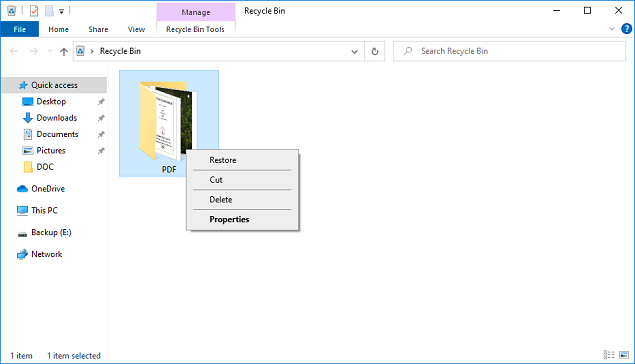
Before attempting to recover deleted Rar files, check the Windows Recycle bin, as removed items are temporarily stored there and can be retrieved before being permanently deleted.
- Locate the Recycle bin icon and double-tap it.
- Look for the archive file you are looking for retrieval.
- Once you've found the target items, right-click on them and select the option to restore them.
- Go to the original location to check the deleted archive file.
Ways 2. Recover Archived Files by File History
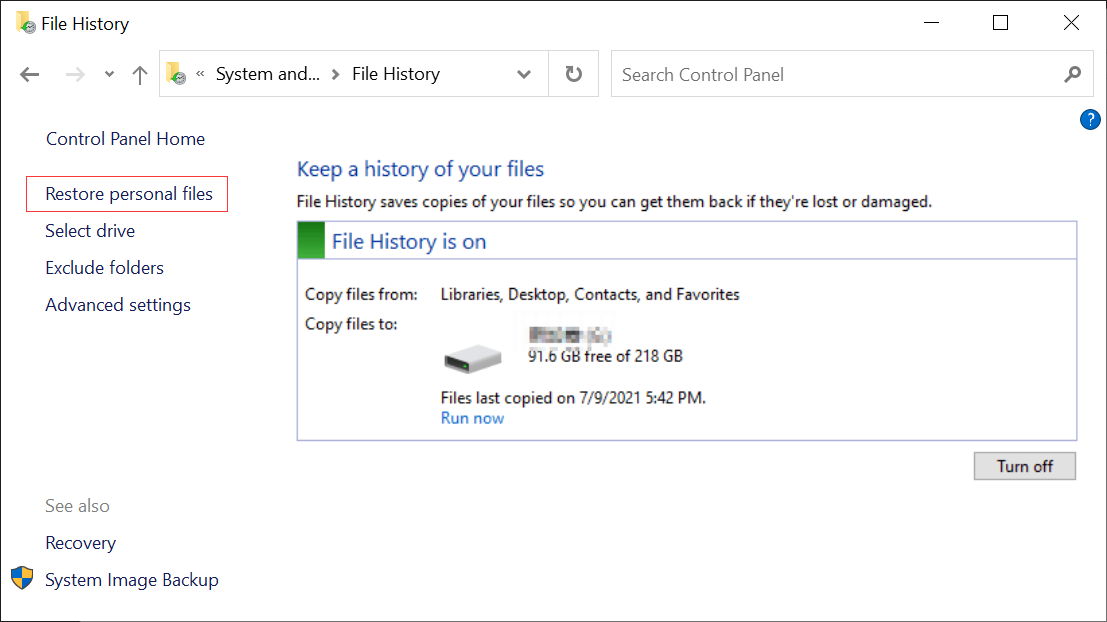
Windows 7 has a built-in backup and restore option called File History, which can help recover deleted files, including ZIP/RAR files, if enabled before deletion.
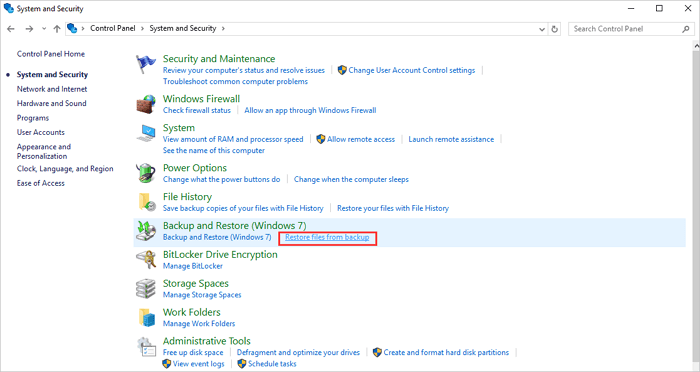
- To access the File History feature, open the Control Panel and navigate to System & Security, then select File History from the options available.
- Click "Restore Personal Files" in the left panel.
- Now, click the left and right arrows to scroll through your backup items.
- Select the desired ZIP/RAR files for recovery, then click the "Restore" button to save them again.

Ways 3. From the Previous Versions
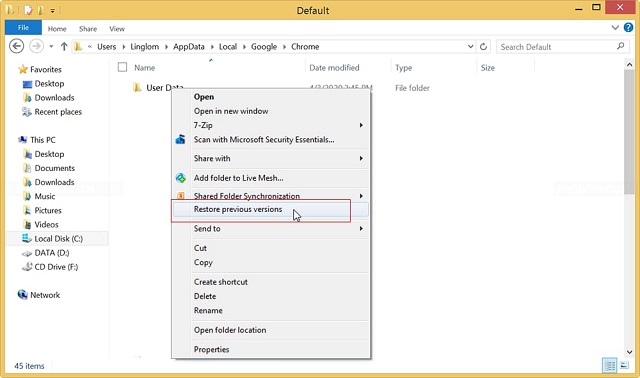
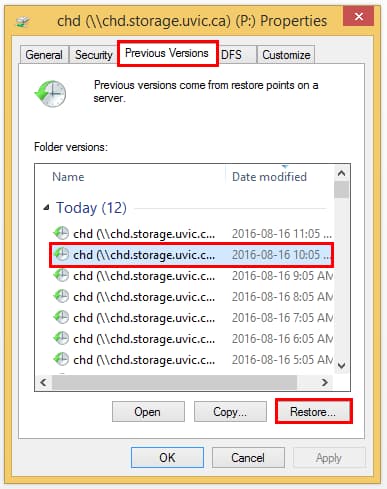
To retrieve deleted Zip files, system protection must be enabled beforehand, allowing for automatic saving of file copies as part of the system shadow copy. This enables the "Restore Previous Versions" option, which can also be used to restore files to older versions based on different times.
- Right-click on the blank area in the folder where the archive file is saved.
- To restore a previous version of a file, select "Restore Previous Versions" from the menu, which will display a list of available previous versions for the file.
- Open the recent version of the file and tap on the 'Open' option to view its contents. This will allow you to verify that it is the correct version.
- After confirming that this version contains the necessary ZIP or RAR files, click the "Restore" option to save them to their original location.
Ways 4. Check Cloud Storage
If you habitually synced your files using Google Drive, OneDrive, or other network drives, there's an option to recover deleted ZIP Files. However, be cautious not to open cloud storage applications directly on your Windows PC, as this will sync your recent changes and cause the copy on the cloud to disappear. To complete the process, follow the necessary steps.
- To access your Cloud Storage account, open a web browser and navigate to the official website of Cloud Storage. Once you're on the website, click on the "Log in" or "Sign in" button, usually found at the top right or center of the page.
- To find missing ZIP/RAR files in your cloud storage, navigate to the cloud storage folder on your device. Look for the folders that contain your ZIP/RAR files and check if they are present.
- Finally, re-download them to your computer.
Ways 5. Using System Restore
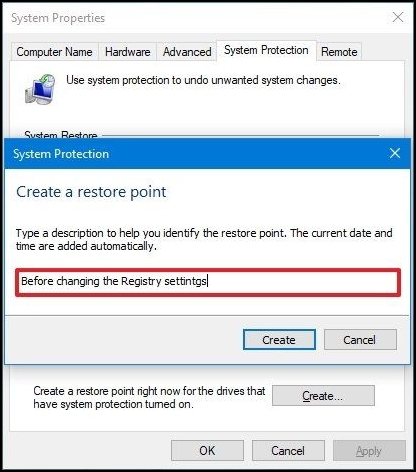
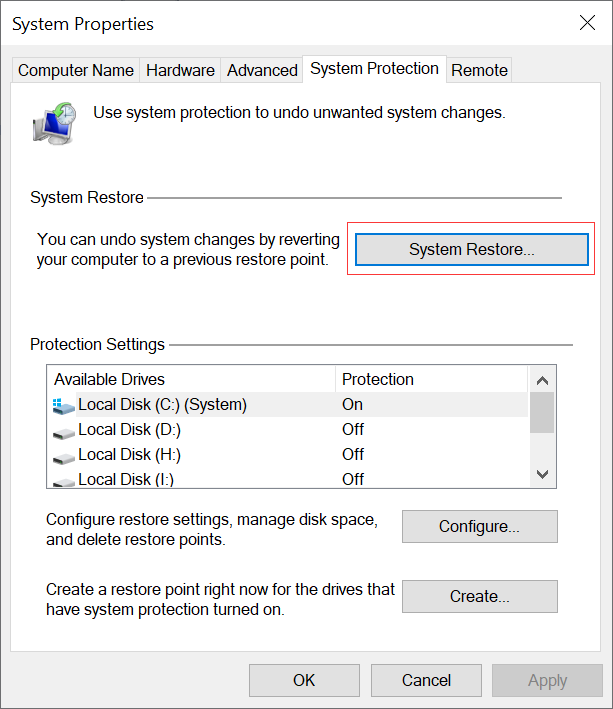
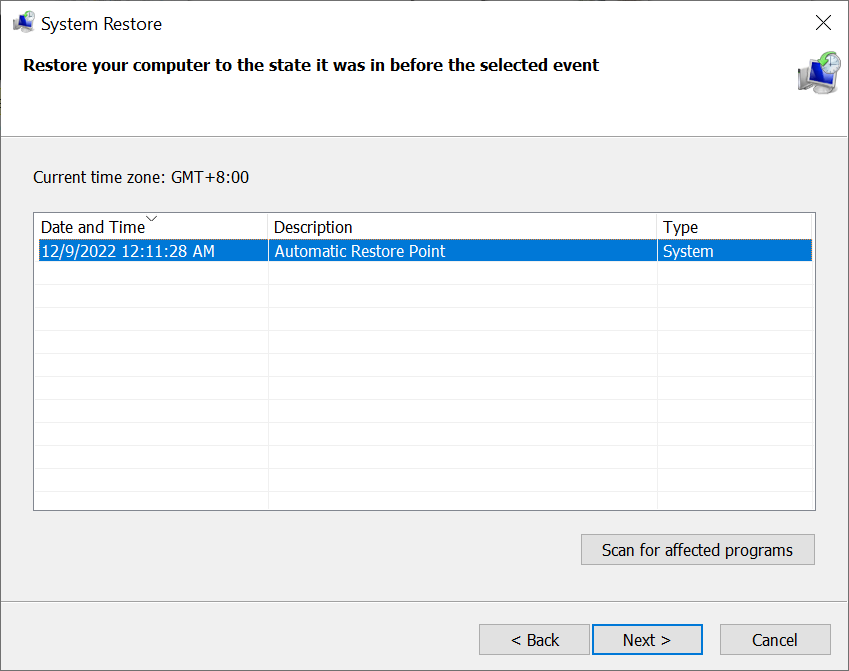
If the methods above fail to recover your deleted Zip files, you can try using System Restore to find them. System Restore automatically takes snapshots of your system to assist in undoing any changes that may have caused the deletion, allowing you to restore your PC to a previous version.
- Click the "Windows" key and type "create a restore point."
- To restore your Windows system to a previous state, locate the "System Restore" option in the list and toggle it on. Once enabled, tap on the "System Restore" option to proceed with the restoration process.
- To recover an archived Windows system, follow the wizard and select a restore point to complete the process.
If you're unable to recover archive files using the methods mentioned, there are still options available. You can try using a third-party software or online tool that specializes in recovering lost or corrupted Zip and Rar files. These tools can help you regain access to your lost files, even if you don't have the specific conditions required for the above methods.
2 Ways to Recover Deleted Zip/Rar Files in Windows 11/10 with Software
Losing important archive files can be frustrating, especially if they contain critical information or large collections of photos and videos. However, you don't have to lose heart; you can also take the help of data recovery software to retrieve deleted archive files in Windows 11, 10, 7, and more.
Ways 1. Use Deep Data Recovery to Get Back Zip/Rar Files
It's an all-Deep Data Recovery is a powerful one-file recovery tool that can tackle even the most complicated data loss issues, allowing you to recover lost data with just a few simple steps and freeing you from the despair of lost data.
Your Safe & Effective Archive Recovery Tool
- Data recovery software can recover RAR or Zip files in Windows/Mac due to various reasons such as accidentally deleted files, formatted drives, emptying recycle bin, reset devices, and virus attacks.
- The powerful program easily and completely recovers deleted files from external hard drives, hard disk drives, solid state drives, USB flash drives, CF cards, and other removable storage devices.
- Deep Data Recovery software can automatically repair and recover corrupted archive files, even if they are lost.
- Download and install Deep Data Recovery on your Windows PC.
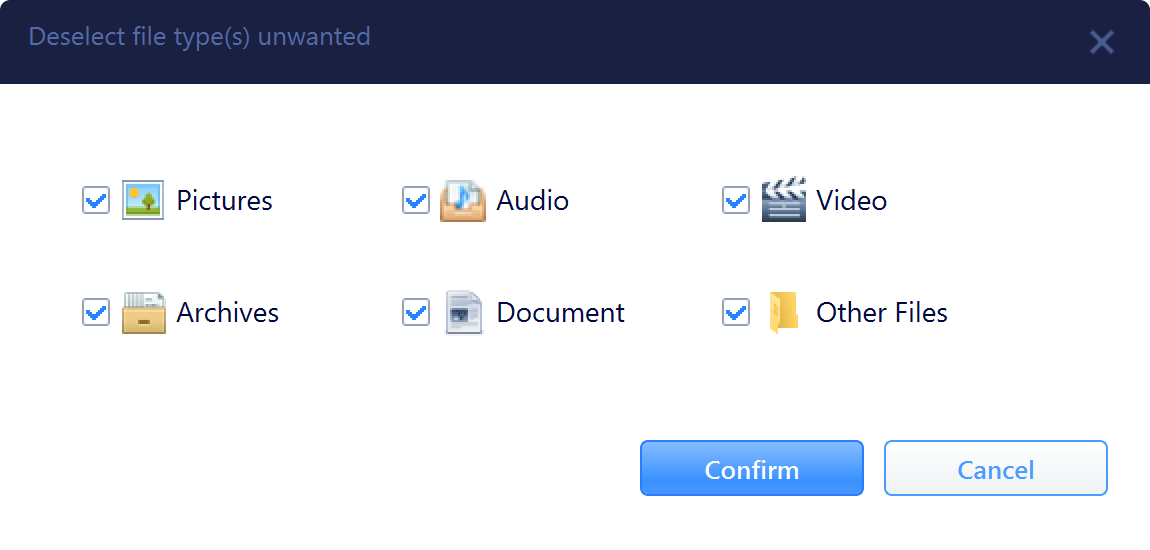
- To save scanning time, click "Go to Settings" and keep only "Archives" selected.
- Select the location where the ZIP/RAR files are saved and click the "Scan" button to initiate the retrieval process.
- Once the archive file has been located, select it and click the "Recover" button to save it to a new location.


Ways 2. Retrieve ZIP Files by Windows File Recovery
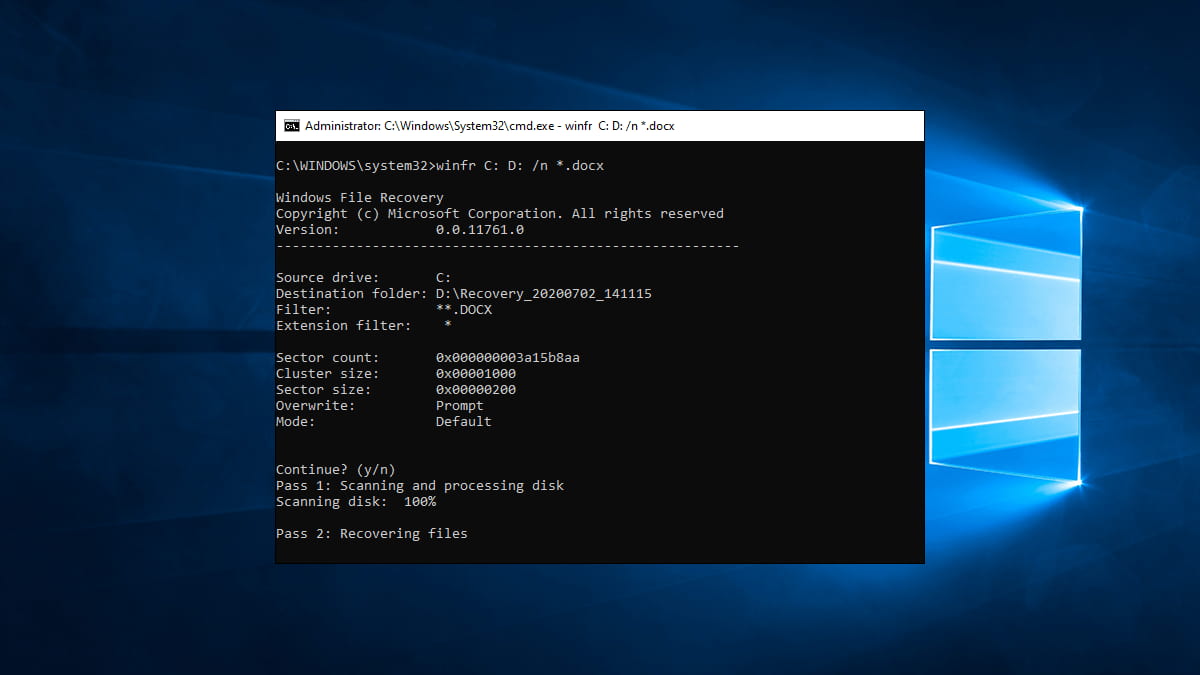
Microsoft's Windows File Recovery is a command-line tool that helps users recover deleted files in Windows 11, 10, and more, using advanced algorithms to extract lost data under almost any circumstances, but is easier to use with a technical background.
- Download the Windows File Recovery form Microsoft store.
- Type "Windows File Recovery" in the search box for Windows, and select "Run as administrator."
- The command "winfr C: D: /n *.zip" is used to recover lost archive files from drive C and save them to drive D. The "/n" option is used to specify that the recovery should be done in non-interactive mode, and the "*.zip" wildcard is used to specify that only zip files should be recovered.
- The analysis shows that a folder named 'Recovery_data and time' is automatically created at the D drive.
- Open it and check your lost data.
The software is the best way to recover permanently deleted Zip/Rar files in Windows 11/10/8/7 without a backup, but if it fails, the archive file may be overwritten and lost forever. To avoid similar disasters, it's recommended to enable Windows PC's built-in backup options to keep your data safe.
How to Enable File History in Windows PC to Avoid File Loss
Windows File History is an incredibly useful tool for those looking for an easy way to keep their data safe. When a data loss disaster strikes, it can quickly restore all your essential items so you don't waste valuable time trying to recreate them. You can follow the steps below to complete the process if you haven't enabled it.
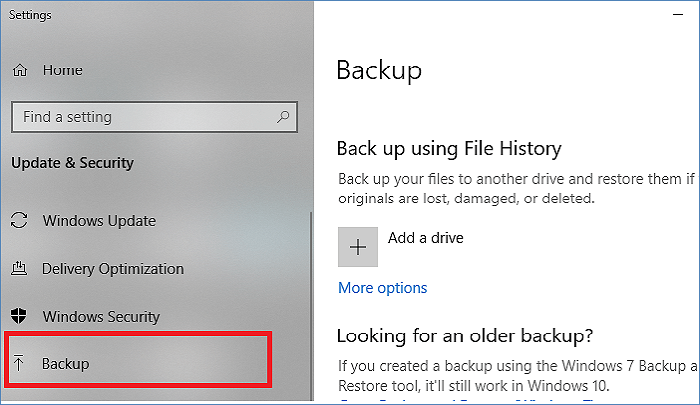
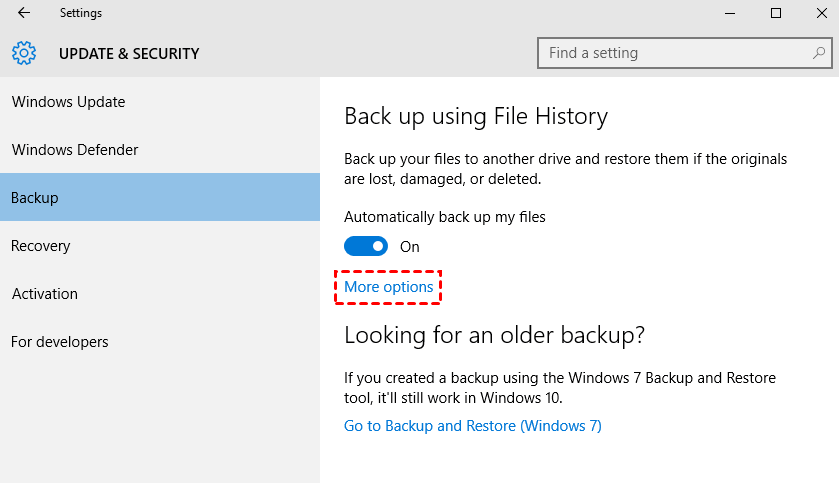
- To access the backup settings, press the Windows key on your keyboard and navigate to Settings, then select "Updated Security" and finally "Backup".
- To add a drive to the File History, click on the "Back up using the File History" option in the right panel, then click on "Add a drive" under it.
- Select a drive from the list to store the copy files on.
- Once you've selected the target disk, click "More options" under "Back up using File History."
- To set the backup time and the folders/drives that need to be backed up, go to the backup options and select the desired time and the folders/drives you want to include in the backup. You can also set the frequency of the backups, such as daily, weekly, or monthly, and choose the storage location for the backups.
- Once you've set up File History, your files will be automatically backed up, protecting your data from loss or corruption.
To minimize future data loss, regularly back up important information by following the steps outlined above.
Frequently Asked Questions for Zip/Rar File Recovery
Recovering archive files doesn't have to be a daunting task, even for those without experience in data retrieval. With the right tips and tricks, you can quickly and easily recover your files, making the process much less intimidating. For reference, here are some frequently asked questions and answers to help guide you through the process.
-
In Windows 10, deleted files are initially moved to the Recycle Bin. If you delete a file using the Del key, it will be placed in the Recycle Bin, where it can be restored if needed. However, if you use Shift + Del to delete a file, it will be permanently deleted, and you won't be able to recover it using the Recycle Bin. In this case, you can try using data recovery software or a backup to restore the deleted files.
-
You can recover deleted zip files using Deep Data Recovery software. This software can scan your hard drive and recover deleted files, even if they have been permanently deleted. It's a useful tool for recovering lost data.
-
A: You can find an old Zip/Rar file by looking for the same in the previous versions.
-
- To recover data, open the Deep Data Recovery software and select the drive you want to scan.
- Preview found items
- Recovery of ZIP/RAR files
-
The archive files have many extensions, such as .zip, .rar, .7z, .cpt, .egg, and more.
-
A: Sometimes you may get Recycle bin in your Android device from where you can restore deleted Zip files by following these steps;
- To access the gallery, go to the main menu, select the Gallery option, and then tap on the three dots located in the top-right corner of the screen.
- Fetch Settings > Recycle Bin.
- Check the required folder and resave them.
-
You can check your trash to see if the files are still there, and if not, use file recovery software to help you.
- Download and install Deep Data Recovery for Mac.
- Filter file types and select a location to start scanning.
- Select the removed archive files and click the Recover button to restore them.
Conclusion
Accidentally deleting an archive file can be frustrating, but it's not the end of the world. On Windows 10 or 11, you can try several methods to recover your source files, but Deep Data Recovery software is the most reliable way to retrieve deleted Rar/Zip files, especially when they're not available in the Recycle Bin or you don't have a backup.
Related Articles
- Recover Corrupted Files in Windows 10/11
- How to Recover Files Lost During/After Cut and Paste in Windows 11/10
- How to Recover Deleted My Documents Folder in Windows 10/11
- How to Recover Unsaved/Deleted Notepad Files in Windows 10/11
- How to Recover Files Deleted from USB Flash Drive/SD Card Not in Recycle Bin [2023]
If you deleted files from a USB drive or SD card and they're not in the recycle bin, You can use Deep Data Recovery software to try and recover the deleted files. - Solved - Files in Downloads Folder Disappeared [2023]
If your files in the downloads folder have mysteriously disappeared, there's a solution.
Products
Articles & Tutorials
- Data Recovery
- Data Backup
- File Recovery
- File Backup
- File synchronize
- System Backup and Restore
- Disk and Partition Clone
- Technical articles
- Disk Master Help
- Windows Deleted File and Disk Recovery Tutorials
- Windows File and Data Recovery Tutorials
- More Windows Tutorials for Install, Security, Files, and PC Tips
- Windows Boot, Repair, and Recovery Environment Tutorials
- Windows Backup Tutorials
- Windows Restore Tutorials
- Windows Clone and Migration Tutorials
- Windows Server Backup, Recovery, and Management Tutorials
- Windows Disk, Partition, and Storage Management Tutorials