How to Recover Deleted My Documents Folder in Windows 10/11

The My Documents folder, created when you first install Windows, stores your personal data, including documents, pictures, and music files. However, your important files may sometimes disappear from this folder due to various reasons.
If files disappear from the Documents folder without clear deletion, this My Documents missing files guide explains related checks.
- 🗑️ Accidental deletion of files or entire folders.
- ⚙️ Reinstall the system without backing up the My Documents Folder
- 👽 The folder may be lost due to malware or a virus infection. This can happen when a computer is infected with a virus or malware that deletes or corrupts files, including folders.
- 💽 If the storage device is damaged or corrupted, it may result in data loss.
- 🔋 Power surges or other electrical issues can also cause files in the My Documents folder to disappear or become damaged, leading to their loss. This can happen if the computer loses power unexpectedly, resulting in files being deleted or corrupted.
One of the most common problems PC users face is file or folder loss, which can be a dilemma if not resolved. Thankfully, there are useful ways to recover deleted files and folders in Windows 10 and Windows 11, and knowing these methods can help alleviate the issue.
- Quick Navigation
- Method 1. Check Recycle Bin to Restore Deleted My Documents Folder
- Method 2. Get Back the My Documents Folder from the Previous Versions
- Method 3. Reset the Registry User Folder Settings to Recreate My Documents Folder
- Method 4. Restore Document Library
- Method 5. Recover Deleted My Documents Folder with Recovery Software
- Frequently Asked Questions for My Documents Folder Recovery
Method 1. Check Recycle Bin to Restore Deleted My Documents Folder
To recover deleted My Documents Folder in Windows 10, start by checking the Recycle Bin folder, which is a dedicated directory provided by Windows to temporarily store files and folders you want to remove. Simply navigate to the Recycle Bin, search for your deleted My Documents Folder, and restore it to its original location. This is the most obvious place to look for your lost documents or folder, and following these simple steps can help you recover your deleted files.
- To open the Recycle Bin on your desktop, double-click on the Recycle Bin icon or right-click on it and select "Open".
- A new window should open, showing all items that have been removed, including the lost My Documents folder.
- To restore a document folder, start by locating the folder you want to restore within the list of items. If there are too many items to browse through, you can use the search bar to quickly find the folder by its name.
- Once you find the folder, right-click on it and select the Restore option.
- The My Documents folder has been relocated to its original position on the hard drive, and it can also be manually moved to a different location by dragging and dropping it.
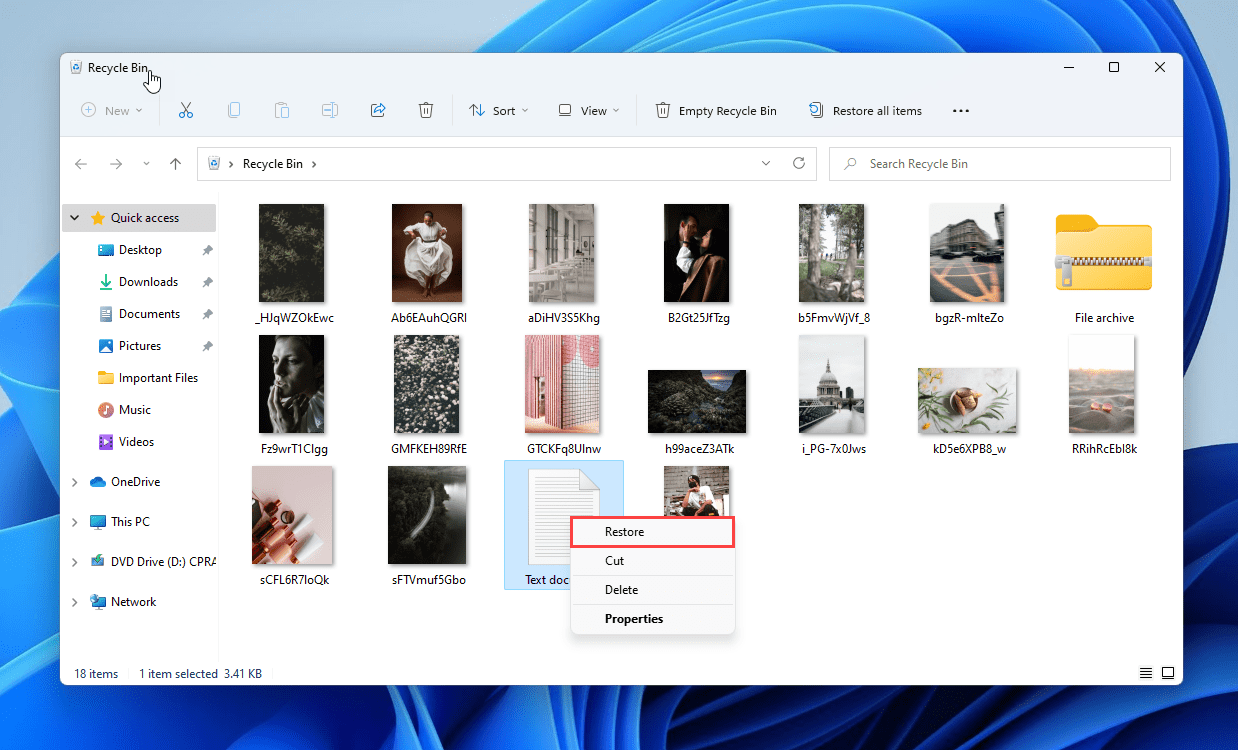
If the My Documents folder is the only item in the Recycle Bin, you can select the "Restore all items" option in the Recycle Bin's Manage tab.
Method 2. Get Back the My Documents Folder from the Previous Versions
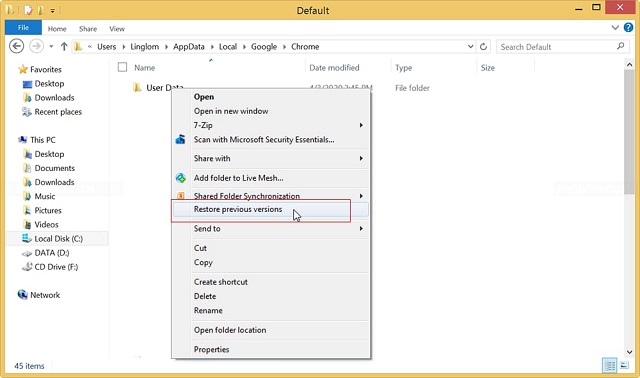
Windows users have an incredible feature called "Restore previous versions" that allows you to easily find any items, even if you have permanently deleted them. To recover deleted files from your My Documents folder in Windows 11, 10, and 7 using this method, simply follow these simple steps: (insert steps here).
- To open the File Explorer on your Windows PC, navigate to the C:\Users folder.
- To restore a previous version of a file, select the user folder where you are logged in, right-click, and choose "Restore previous versions" from the drop-down menu, which will display all available backups in a popup window.
- If you're trying to recover lost files, you can choose the latest version or the one you're sure will contain the destination folder. Once you find the correct option, click the "Restore" button to retrieve your lost items.
To recover deleted files from the Documents folder, you'll need to have backup enabled on your computer, which can be done by going to the Settings app, then Update & Security, and enabling the "Back up using File History" option. If this is not enabled, you'll need to use an alternative method.
Method 3. Reset the Registry User Folder Settings to Recreate My Documents Folder
If you've accidentally deleted your entire My Documents folder in Windows 10/11, you can recover it by recreating it in the Registry Editor. This process may seem complicated, but it's actually quite simple. To get started, you'll need to navigate to the Registry Editor and create a new key for the "My Documents" folder. This will allow you to restore the folder and all its contents, giving you back access to your important documents. By following these steps, you can easily recover your deleted My Documents folder and get back to work.
- To access the Registry Editor, you can either search for it in the Windows search bar or open the Run dialog box by pressing the Win+R keys, then type "Regedit" and press enter. This will open the Registry Editor, allowing you to make changes to the Windows registry.
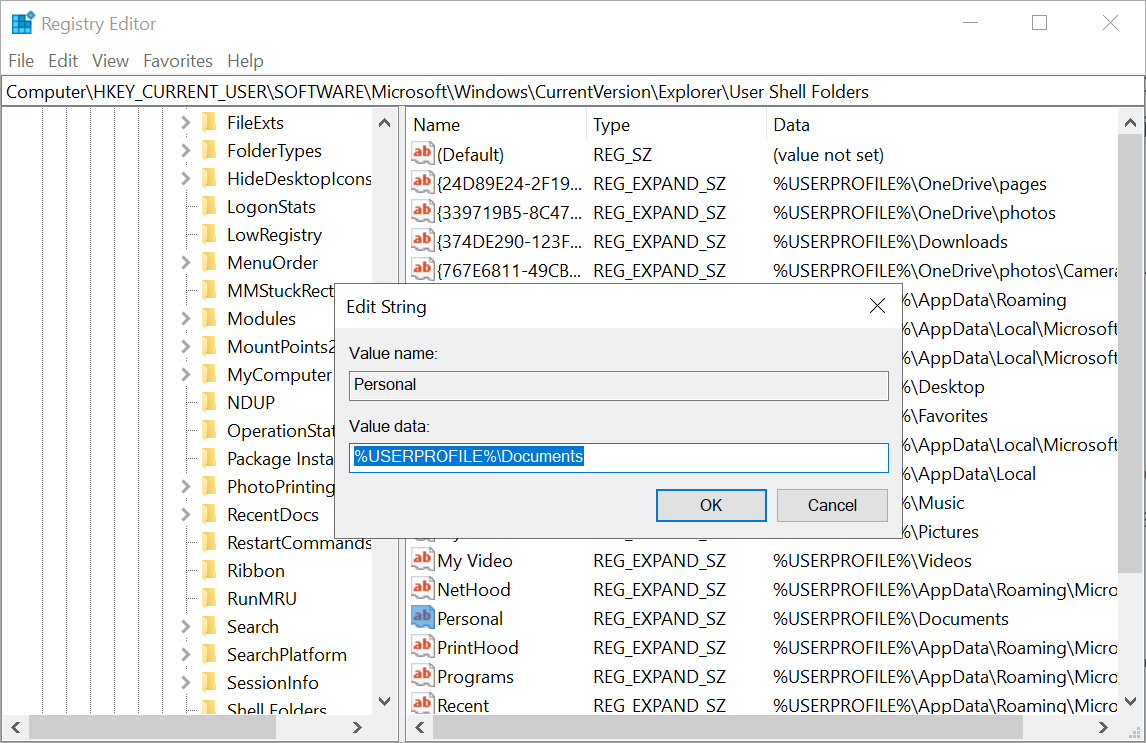
- To access the Registry Editor, press the Windows key + R to open the Run dialog box, type "regedit" and press Enter. Once the Registry Editor is open, use the folder list on the left side to navigate to "HKEY_CURRENT_USER\Software\Microsoft\Windows\CurrentVersion\Explorer\User Shell Folders," where you will find a list of options, including the location of the Downloads folder.
- To check if the Personal file is set to the correct location, select it and look under the data column. If it says "%USERPROFILE%\Documents", you're good to go, but if it's not, you can manually change the value to correct it.
- Once you've completed the registry edits, close the Registry Editor and open the Command Prompt as Administrator. You can do this by searching for "cmd" in Windows search, right-clicking on the Command Prompt app that appears, and selecting "Run as Administrator."
- To remove the read-only attribute, hidden attribute, and system attribute from all files and subfolders within the Documents folder, you can run the command "attrib +r -s -h %USERPROFILE%\Documents /S /D" in the Command Prompt. This command will recursively traverse the Documents folder and its subfolders, removing the specified attributes from all files and folders.
After completing the process, we recommend rebooting your computer to ensure the changes take effect. Once your system starts up again, your My Documents folder should be restored.
Method 4. Restore Document Library
If you've accidentally deleted documents from a folder, you can try restoring them by going to the Document library and following a few simple steps. This option is a bit more straightforward than the previous method, and it might be worth a try before resorting to the more comprehensive approach.
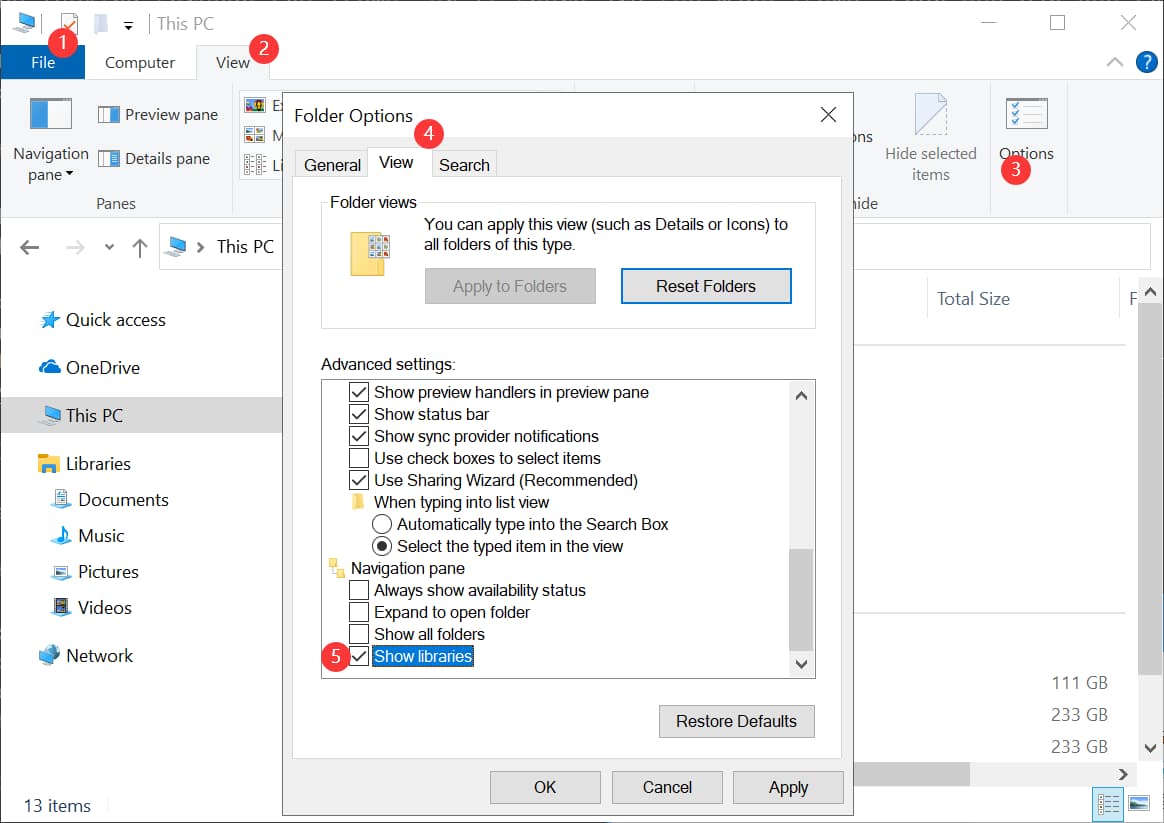
- To find the Libraries option in the file explorer window, you can either look for it in the quick access pane on the left side or follow the steps to display it if it's not visible. If it's not visible, follow the screenshot to display it.
- Right-To restore default libraries in Windows, click on the Libraries option and select "Restore default libraries" from the menu. This will automatically restore your My Documents folder and other libraries like Music, Videos, and Pictures.
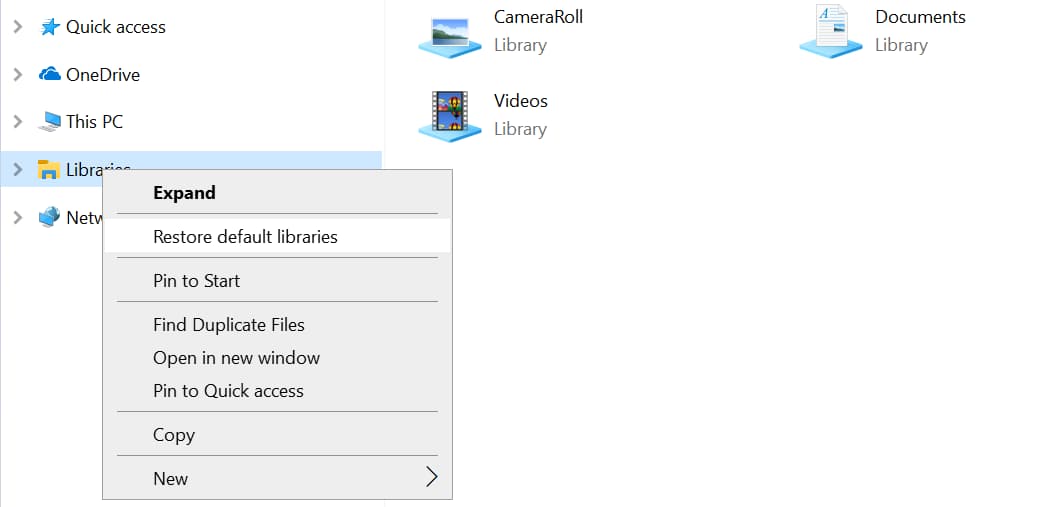
This option does not require a restart, but you should only use it if your other libraries are empty to avoid data loss.
Method 5. Recover Deleted My Documents Folder with Recovery Software
The methods for recovering a deleted documents folder mentioned above come with some limitations, requiring a backup or risking data loss. Ideally, you'd have a backup to fall back on, but if your drive is corrupt or has other issues, even that might not be enough. In such cases, using good data recovery software is often the best option.
We recommend choosing Deep Data Recovery as it supports various complex data loss scenarios, including corrupted/access denied drives and permanent deletion. Additionally, it can recover deleted files from various storage devices, such as SD cards, pen drives, USB flash drives, HDD/SSD, and more. The program is also user-friendly, making it easy to use even for those who are not tech-savvy. To recover My Documents data, follow the program's instructions, which involve a straightforward process.
- Ensure you have Deep Data Recovery software installed and running on your computer.
- To begin the scan, hover your mouse over the drive where your My Documents folder is located, typically the C:\ drive, and click on the Scan button that appears. This will initiate the scanning process.
- After using the recovery tool, the files you can recover will be displayed on the next screen, along with your My Documents folder on the left side of the screen.
- Once you've selected your My Documents and verified its contents using the preview window, you can click the Recover button to download it to your computer.
- Verify that you have all the files by going to the location where your folder has been recovered.


Frequently Asked Questions for My Documents Folder Recovery
We often get questions about recovering lost or deleted files from the "My Documents" folder. Some common questions include how to recover deleted files, what to do if a file is missing, and how to retrieve a file that was accidentally deleted. These are all important questions, and we have the answers.
-
You can recover permanently deleted files/folders on Mac if nothing else has been overwritten on top of the space utilized by the deleted records. Even if you accidentally removed your documents folder, there are ways to recover deleted files successfully.
-
To restore permanently deleted files in Windows 11, you can use a third-party recovery tool, such as Deep Data Recovery, which offers a range of features and is considered easy to use.
-
The process of recovering deleted files depends on various factors, including the type of file and the method used to remove it. While it's not possible to guarantee the recovery of all lost or deleted files, you can try using Deep Data Recovery to potentially recover deleted files in Windows 10, 11, and other operating systems. This process may have varying degrees of success based on the specific circumstances.
-
If you don't have a backup, download and install Qiling recovery software. Launch it, select the system disk/partition, and follow the on-screen instructions to complete the process.
-
Deep Data Recovery can recover various file types from the "My Documents" folder, including standard files like text documents and images, as well as more complex types like videos and audio files. However, the success of this process depends on several factors and cannot guarantee the recovery of all file types.
Summing Up
Here are five effective ways to restore deleted documents folder in Windows 11/10/7: Each method has its own advantages and disadvantages, but they all offer the potential to find lost data. You can use the Recycle Bin, System Restore, File History, Shadow Copies, or third-party software like Deep Data Recovery Wizard to retrieve your deleted files. By learning about each method, you can be prepared in case of accidental deletion or other data loss.
For maximum success, we recommend using a practical and easy-to-use tool like Qiling file recovery software, available for both Mac and Windows. This tool is easy to use, offers a range of great features, and provides sufficient free recovery storage, making it likely that you won't need to purchase the full version in most cases.
Related Articles
- How to Recover Deleted Folders in Windows 8.1/8
- How to Retrieve Deleted Downloads in Windows 11/10
- Recover Unsaved/Deleted Notepad Files in Windows 10/11
- How to Recover Deleted Archive Files in Windows 11/10
- 4 Ways to Fix the Parameter is Incorrect in External Hard Drive
Here are 4 ways to fix the problem of the parameter is incorrect in an external hard drive, solve the problem and recover data in external hard drive: Check the connection, update the drive's firmware, run a disk check and repair, and recover data using data recovery software. - How to Fix USB Drive Not Formatted Error [2023]
The 'USB drive not formatted' error can be frustrating, but there are solutions available. Fortunately, there are ways to resolve this issue, and one can try three methods to fix the problem.
Products
Articles & Tutorials
- Data Recovery
- Data Backup
- File Recovery
- File Backup
- File synchronize
- System Backup and Restore
- Disk and Partition Clone
- Technical articles
- Disk Master Help
- Windows Deleted File and Disk Recovery Tutorials
- Windows File and Data Recovery Tutorials
- More Windows Tutorials for Install, Security, Files, and PC Tips
- Windows Boot, Repair, and Recovery Environment Tutorials
- Windows Backup Tutorials
- Windows Restore Tutorials
- Windows Clone and Migration Tutorials
- Windows Server Backup, Recovery, and Management Tutorials
- Windows Disk, Partition, and Storage Management Tutorials