3 Ways for How to Recover Deleted Folders in Windows 8.1/8
Deleting files and folders is a common process, but losing them can be frustrating. Fortunately, most devices, including Windows 8 and 8.1, are designed to retain deleted files and folders for a short period. Therefore, if you act quickly and follow the right procedures, you can recover permanently deleted folders. There are three ways to do this: one without using software and two using software.
If deleted folders are not in Recycle Bin, this Windows deleted file recovery guide offers related recovery methods.
- Quick Navigation
- Part 1: How to Restore Deleted Folders in Windows 8/8/1 by Restoring from Recycle Bin
- Part 2: How to Restore Deleted Folders in Windows 8/8.1 by Restoring from Windows Backup
- Part 3: How to Recover Permanently Deleted Folders in Windows 8/8.1 with Software
Part 1: How to Restore Deleted Folders in Windows 8/8/1 by Restoring from Recycle Bin
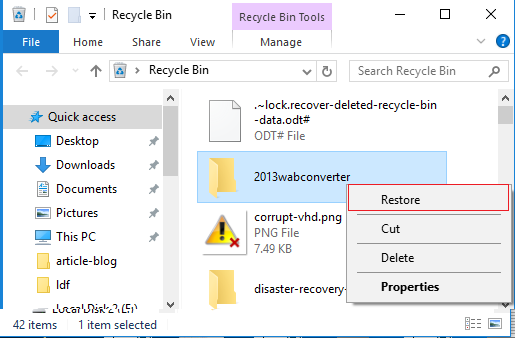
To recover a deleted folder in Windows 8, you can use the Recycle Bin as a temporary storage for deleted files. This allows you to change your mind and recover the folder before it's permanently deleted. Simply navigate to the Recycle Bin, search for the deleted folder, and right-click on it to restore it to its original location. If the folder is not in the Recycle Bin, it may have been permanently deleted, but you can try checking the folder's original location to see if it's still there. If you're unable to recover the folder, you may want to consider using data recovery software to scan your hard drive for any remaining deleted files.
Step 1: Double-click the recycle bin icon on your computer to launch it.
Step 2: After deleting a folder, you can find it in the Recycle Bin. Open the Recycle Bin, find the deleted folder, right-click on it, and select Restore.
Part 2: How to Restore Deleted Folders in Windows 8/8.1 by Restoring from Windows Backup
If you've enabled the backup and restore feature in Windows 8/8.1, you can recover deleted folders using a backup file. If you're unsure how to do this, the following steps can guide you through the process.
Step 1: First open the search icon and click on "Settings".
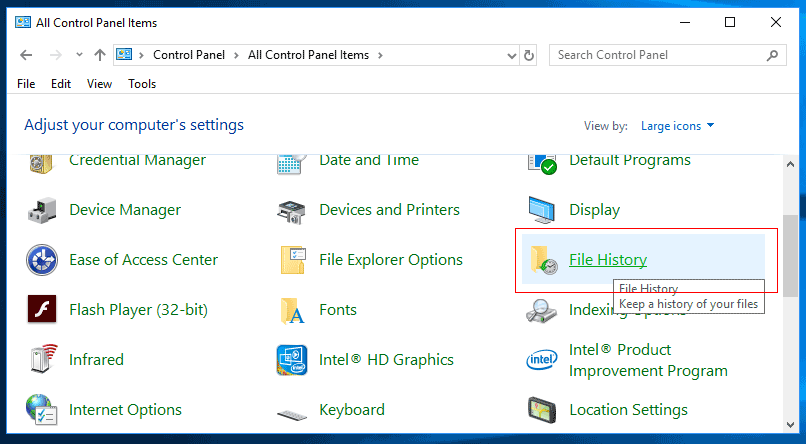
Step 2: Then type "backup" and select the "Restore your files with file history" option.
Step 3: To restore a file from a backup, first, open the backup window where you can see the available backups. Then, select the desired backup file to restore the required file from the backup.
Step 4: You can view the contents of the backup file and select the desired folder to restore the files to their original location.
Step 5: Finally after selecting the files, click the green button like below to start the Windows 8 deleted folder recovery process.
The above-To recover permanently deleted folders in Windows 8 without software, you can try restoring them from the Recycle Bin or using a backup file. However, if these methods fail, you can use Deep Data Recovery software to recover a deleted folder in Windows 8. (Note: I removed the "shortly" at the end as it's not a valid sentence)
Part 3: How to Recover Permanently Deleted Folders in Windows 8/8.1 with Software
The Deep Data Recovery program can easily recover deleted files and folders from a Windows 8/8.1 computer, and can detect various file formats to recover them from any situation, although it cannot retrieve deleted folders, allowing users to recover deleted files and store them in a new folder.
Your Effective File Recovery Software for Windows 7
- It can recover deleted files from various storage devices, including External Hard Drive, USB Drive, Memory Card, Digital Camera, Camcorder, and other drives.
- Recovers folder lost from various situations, including accidental formatting, accidental deletion, delete/lost partition, RAW drive, data lost due to the wrong operation, virus/malware issue, etc.
- It can recover a wide range of file types, including documents, graphics, audio, video, email, and more.
Step-by-step guide for how to recover deleted folder in Windows 8
Step 1: Download the free trial version of Deep Data Recovery and complete the installation on your PC. Once installed, starting the application will display a screen on your computer.
Step 2: The program shows various hard disk partitions along with their available sizes. To recover deleted files, select the relevant partition/folder and click "Scan" to initiate the process.

Step 3: After scanning, the program displays recoverable files, sorted by format. You can choose a folder or select specific files from the list and click "Recover" to retrieve deleted files, effectively restoring your lost data.

You can easily recover deleted folders in Windows 8/8.1, 11, 10, 7, and other versions using the methods described here, which include risky manual methods and a guaranteed successful recovery with the Deep Data Recovery software.
Related Articles
- Retrieve Deleted Downloads and Restore Downloads Folder in Windows
- [Solved] Windows 10 Do not Show Hidden Files and Folders
- Samsung Data Recovery: Recover Deleted Files from Samsung SD Card
This guide explains Retrieve Deleted Downloads and Restore Downloads Folder in Windows Windows 10 Do not Show Hidden Files and Folders Samsung Data Recovery: Recover Deleted Files from Samsung SD Card with clear steps, key checks, and practical tips. - 4 Best Ways to Recover Deleted Files in Windows 11 Without Software
if you lose files in Windows 11. This post provides the four best ways to recover deleted files in Windows 11 without software. Read on to get more information. If you still prefer a data recovery tool, download and run Deep Data Recovery. - How to Recover Files from Ransomware Attack [Full Guide 2022]
Learn how to Recover Files from Ransomware Attack with clear steps, key checks, and practical tips. - Four Options: How to Recover Lost Data from Hard Disk for Free
This guide explains Four Options: How to Recover Lost Data from Hard Disk for Free with clear steps, key checks, and practical tips.
Products
Articles & Tutorials
- Data Recovery
- Data Backup
- File Recovery
- File Backup
- File synchronize
- System Backup and Restore
- Disk and Partition Clone
- Technical articles
- Disk Master Help
- Windows Deleted File and Disk Recovery Tutorials
- Windows File and Data Recovery Tutorials
- More Windows Tutorials for Install, Security, Files, and PC Tips
- Windows Boot, Repair, and Recovery Environment Tutorials
- Windows Backup Tutorials
- Windows Restore Tutorials
- Windows Clone and Migration Tutorials
- Windows Server Backup, Recovery, and Management Tutorials
- Windows Disk, Partition, and Storage Management Tutorials