Samsung Data Recovery: Recover Deleted Files from Samsung SD Card
About Samsung SD Card
A Samsung SD card can be used to expand storage space and transfer files such as photos, music, and documents to different devices, commonly used in digital cameras and android mobile phones.
If the SD card becomes blank or unsupported, check SD card unsupported file system fixes first.
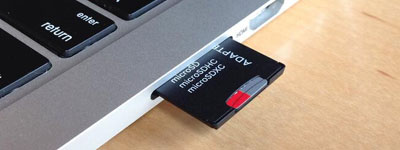
Samsung SD card users may lose data in situations such as accidental deletion, formatting, virus attacks, physical damage, power outages, and software glitches.
- SD cards can be vulnerable to virus attacks when connected to infected computers, which may corrupt the data stored on the card.
- You may lose data if the system is suddenly corrupted while you are transferring files to computers.
- If your Samsung SD card is full and you still want to add new files to it, you may risk causing data loss and potentially need to recover corrupted SD card data.
- If you format the Samsung SD card without creating a backup, the data will be lost, as formatting erases all data on the card.
- For some physical damages, you may put your Samsung SD card in the water or hit your SD card, which may cause data loss.
When using a Samsung SD card, data loss can occur due to various situations. Fortunately, deleted data on an SD card doesn't disappear right away, allowing for potential recovery. To recover deleted files from a Samsung SD card, whether it is from a phone or camera, using professional data recovery software on Windows can be an effective solution.
Recover Deleted Files from Samsung SD Card with Data Recovery Software Windows 11/10
If you have accidentally deleted files from your Samsung SD card on Windows, don't worry, as you can recover them using a reliable data recovery tool like Deep Data Recovery. This tool allows you to recover deleted photos, videos, music, and documents from your SD card, giving you peace of mind and preventing the loss of important files.
Deep Data Recovery is a professional and handy software that can recover files from SD cards, including Samsung and Sony, in a risk-free manner.
Deep Data Recovery supports recovery of various file types, including images, documents, videos, and audio files, from various devices.
Recovering deleted files from a Samsung SD card on Windows is a straightforward process that can be completed in just a few simple steps. First, you will need to download and install a reliable data recovery software, such as Deep Data Recovery.
Step 1. Choose file types and click "Next" to start
Launch Deep Data Recovery on your computer, select the file types you want to recover, and click "Fast Scan" to begin the recovery process.

Note: You can choose different search modes based on where and why the data was lost.
Step 2. Select a location and start scanning
To recover deleted files, hover over the partition/drive where the files were stored. Then, click "Scan" to initiate the search for lost files.

Step 3. Select the files you want to recover
After scanning is complete, select the deleted files you want to recover. You can filter the results to show only specific file types, or search for a file by name in the "Search files or folders" box, which can be the quickest way to find the target file.

Step 4. Preview and recover deleted files
Preview the recoverable files, select the desired files, and click "Recover" to restore them to a new storage location.
Before recovering deleted files from a Samsung SD card with Deep Data Recovery, you can preview the files first. If you find the photos or videos are corrupted, this tool can help you deal with video and photo repair, and we also offer a short video about recovering corrupted photos and videos for help.
Recover Deleted Files from Samsung SD Card in Android
You can recover deleted files from SD card Android with professional mobile phone recovery software - Qiling MobiSaver for Android.
The Android recovery tool supports over 6000 devices from various brands, including Samsung, Google, Sony, Huawei, HTC, and ZTE, and can recover a wide range of lost data, such as documents, music, notes, videos, and contacts, from different devices.
Recovering deleted files from a Samsung SD card on Android using Qiling MobiSaver for Android is a straightforward process. To do this, you can follow these simple steps:
Step 1. Connect your Android phone to the computer
Install and run Qiling MobiSaver for Android on your computer, then connect your Android phone to the computer with a USB cable. Click the "Start" button to allow the software to recognize and connect your device.
Step 2. Scan Android phone to find the lost data
After connecting your Android phone, the software will quickly scan the device to find all existing and lost data. You can easily locate the lost files you want by selecting the correct file types.
Step 3. Preview and recover data from Android phone
Preview all the recoverable files and select the items you want to recover quickly. Then, click the "Recover" button to get the selected files back at once.
Bonus Tip: How to Avoid Data Loss from Samsung SD Card
If you are worried about recovering deleted files from Samsung SD cards, don't panic! You can take steps to avoid data loss from the start.
- To ensure your data is safe, create an SD card backup frequently, either by downloading useful tools or using the built-in software on Windows and Android devices.
- When your device's battery is low, stop using it and plug it into the charger right away.
- When removing a Samsung SD card, ensure you eject it correctly to avoid any potential damage or data loss.
- Be cautious when deleting files from SD cards as they may contain important photos and videos.
- You should scan your computer regularly to prevent viruses.
Deleted Files from Samsung SD Card FAQs
You are allowed to read some further questions and answers in this part.
Can I recover Samsung SD card deleted files?
You can recover Samsung SD card deleted files with Deep Data Recovery by following a few simple steps.
- 1. Run Deep Data Recovery software on Windows.
- 2. Connect your SD card to the laptop or PC.
- 3. Scan the target SD card.
- 4. You can preview the files and recover them.
How can I recover deleted files from my Android SD card?
You can easily recover deleted files from your Android SD card using Qiling MobiSaver for Android.
- 1. Connect your Android devices to Windows PC.
- 2. Scan the Android device card to Find Lost Files.
- 3. Preview the deleted files.
- 4. Recover lost Files on Android.
What should I do with corrupted Samsung SD cards?
Deep Data Recovery can potentially recover data from corrupted Samsung SD cards.
- 1. Run Deep Data Recovery software on Windows.
- 2. Connect the SD card to the laptop or PC.
- 3. Scan the target SD card.
- 4. You can preview the files and repair them.
Related Articles
- 3 Proven Ways to Get Data Off an Old Hard Drive [SOLVED]
- Recycle Bin Recovery Software Free Download Full Version [Step-by-Step Guide]
- What Is Network Attached Storage and How to Recover Lost/Deleted Data from NAS
- Free Download | Undelete Files with Windows Undelete Software
- How to Migrate Windows 10 to an SSD without Data Loss
Upgrading to a Solid-State Drive (SSD) can significantly improve your Windows 10 experience. However, the process can be daunting, especially if you're not familiar with computer hardware. - [Solved] My Pictures Won't Load from My SD Card/Can't View Pictures on SD
This guide explains My Pictures Won't Load from My SD Card/Can't View Pictures on SD with clear steps, practical tips, and safer ways to complete the related Windows, disk, backup, or recovery task.
Products
Articles & Tutorials
- Data Recovery
- Data Backup
- File Recovery
- File Backup
- File synchronize
- System Backup and Restore
- Disk and Partition Clone
- Technical articles
- Disk Master Help
- Windows Deleted File and Disk Recovery Tutorials
- Windows File and Data Recovery Tutorials
- More Windows Tutorials for Install, Security, Files, and PC Tips
- Windows Boot, Repair, and Recovery Environment Tutorials
- Windows Backup Tutorials
- Windows Restore Tutorials
- Windows Clone and Migration Tutorials
- Windows Server Backup, Recovery, and Management Tutorials
- Windows Disk, Partition, and Storage Management Tutorials