How to Retrieve Deleted Downloads and Restore Downloads Folder in Windows
If you want to retrieve deleted downloads on your Windows PC, you can try using Deep Data Recovery to scan the downloads folder and recover them. Alternatively, if the downloads folder is missing, you can create a new one with the system, restore it using the desktop.ini file, or use a restore point to bring it back.
If Downloads disappeared after a system update or reset, this find deleted files on Windows guide can help you search other locations.
The Downloads folder in Windows is the default location where apps and files downloaded from the internet are stored. However, data in this folder can be removed due to accidental deletion, drive formatting or corruption, or anti-virus deletion. If you've experienced any of these and can't find some important files, we'll share details on how to retrieve deleted downloads on Windows PC.
- Quick Navigation
- Part 1: How to Retrieve Deleted Downloads on Windows PC
- Part 2: How to Restore Deleted Downloads Folder in Windows 11/10/8/7
Part 1: How to Retrieve Deleted Downloads on Windows PC
When you download files through Chrome or Firefox, they are saved in the Downloads folder by default. However, if you accidentally delete this folder or it's missing from your Windows PC, it can be challenging to find your downloaded files. Fortunately, there are steps you can take to recover deleted downloads from Mozilla Firefox or Google Chrome using an effective method.
To recover deleted downloads, use data recovery software to find and retrieve them, even after they've been permanently deleted.
Deep Data Recovery is the most recommended option for using recovery software, as it is an effective tool that seamlessly recovers deleted files. It is 100% effective and safe, introducing no malware into your PC, and is a leading tool that recovers permanently deleted folders or files from computers, including videos, audio files, documents, pictures, and more.
Guide to Retrieve Deleted Downloads on Windows PC
To retrieve deleted downloads on a PC, follow these steps. First, check if the Recycle Bin contains the deleted download file.
Step 1. To recover data from your Windows PC's Downloads Folder, download and install the Deep Data Recovery software, then launch the app to begin the recovery process.
Step 2. To recover deleted folders and files in Windows 10, 7, and 8, select the disk/partition where the deleted items are located, usually drive C, and click the 'Scan' button to initiate the recovery process.

Step 3. After scanning, a list of recovered files and folders will appear. Preview the files and select the specific folders and files you want to recover, then click the 'Recover' button to retrieve them.

To search for more files, use the 'Deep Scan' feature, which can be found at the top navigation panel. Note that Deep Scan takes longer than the quick scan, but you'll still follow the same steps.
Part 2: How to Restore Deleted Downloads Folder in Windows 11/10/8/7
If you want to know other options for restoring a deleted Downloads folder in Windows 10, there are three methods you can use. In this part, we'll share those details. You can restore the deleted Downloads folder in Windows 10/8/7 using these methods. Let's look at them in detail.
Method 1: How to Restore Downloads Folder when the Previous Downloads Folder is Missing
If you can't find the download folder, you can restore it using File Explorer. To recover deleted downloads from Chrome when the Downloads folder is missing, follow these simple steps:
1. Click open 'File Explorer' and navigate to 'C:\Users\Default Folder'.
2. From the right-side panel, right-click on 'Downloads' and select 'Copy'.
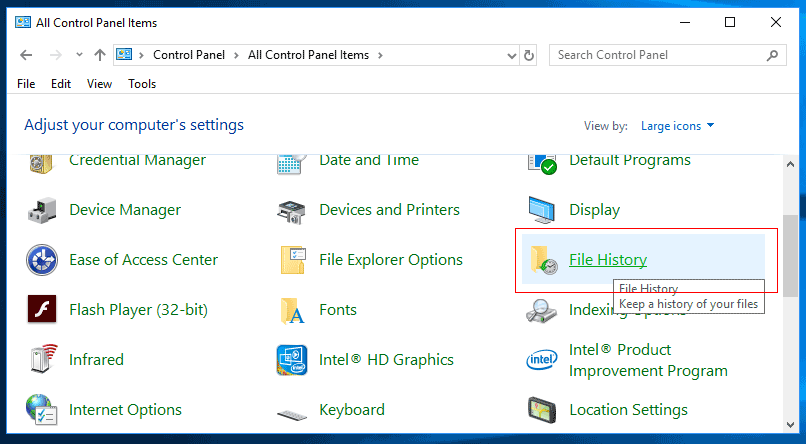
3. Proceed to 'C:\Users\YourNameFolder' and right-click on the folder.
4. Select the 'Paste' option.
This process will restore the missing Download Folder and get it functional again.
Method 2: Restore the Default Downloads Folder through Desktop .ini File
If you've lost some user folders, you can use this method to restore all of them. To do this, follow these steps:
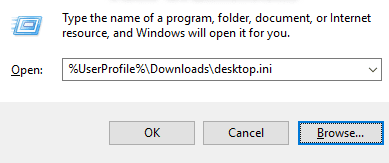
Step 1: Open the Run Dialog by pressing and holding 'Win + R'.
Step 2: Type 'Shell: downloads' and click 'Enter'.
Step 3: Change the protected OS files to display in the Folder options.
Step 4: Go to the internet to search and download the desktop.zip file that has the desktop.in file.
Step 5: Extract the content of the desktop.zip file and right-click on the .txt file in the desktop.ini file. Next select 'Properties'.
Step 6: Click the 'Unlock' button in the 'General' tab and select 'OK'.
Step 7: Go to 'C:\Users\%UserName%\Download' and replace the 'desktop.ini' file with the extracted file and close the folder.
Step 8: Click to open the command prompt and type in 'attrib +r –s –h %UserProfile%Downloads/S/D/' and click 'Enter'
Step 9: Restart Windows after closing the command prompt to start using the Downloads Folder again.
Method 3: Restore Downloads Folder to the Original Version by Restoring System to Restore Point
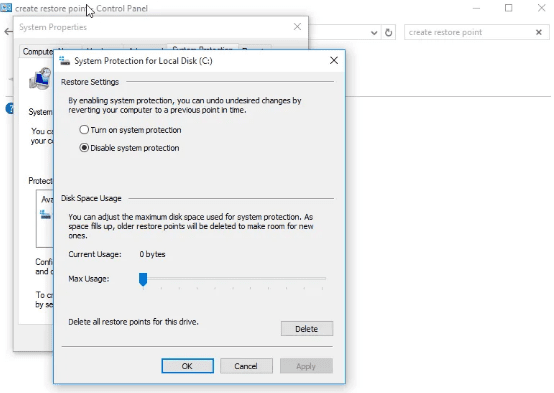
To recover a deleted downloads folder in Windows 10/8/7, you can use System Restore. Before attempting this, it's essential to create backups of your data and system to prevent any further data loss. By following the steps below, you can restore the download folder using a previously created Restore Point, effectively resolving the issue of retrieving deleted downloads.
Step 1: Visit the Microsoft software download site to create Windows 10 installation media.
Step 2: Install the installation media on the PC and then restart the system.
Step 3: Select 'Repair your Computer' on the Install Windows screen.
Step 4: Select 'Troubleshoot' and then 'Safe Mode' and then 'Advanced Options' and then 'System Restore'.
Step 5: After the system restore process is complete, reboot your PC. This will allow you to access your Download Folder without any issues.
We've explored various methods to retrieve deleted downloads and the download folder in Windows. You can try any of these options to resolve the issue on your PC. I recommend not storing important files in the Downloads folder, as it's located on drive C, where the Windows OS is saved, and any issues with the computer may result in the entire drive being erased. Instead, save important files to a folder on drive D or E, which are not correlated with the Windows system itself.
Related Articles
- Recover Permanently Deleted Files in Windows 11
- Recover Deleted Files from SD Card in Windows 10
- How to Recover Deleted Files Not In Recycle Bin
- How to Recover Deleted Photos from Canon Camera
- Recover Deleted Files on Mac Without/With Software
- How to Recover Deleted/Lost Audio Files from SD Card
If you've deleted or lost audio files from an SD card, you can recover them by following these 4 steps: stop using the SD card, download a reliable data recovery software, scan the SD card to locate the deleted files, and recover the files to a safe location.
Products
Articles & Tutorials
- Data Recovery
- Data Backup
- File Recovery
- File Backup
- File synchronize
- System Backup and Restore
- Disk and Partition Clone
- Technical articles
- Disk Master Help
- Windows Deleted File and Disk Recovery Tutorials
- Windows File and Data Recovery Tutorials
- More Windows Tutorials for Install, Security, Files, and PC Tips
- Windows Boot, Repair, and Recovery Environment Tutorials
- Windows Backup Tutorials
- Windows Restore Tutorials
- Windows Clone and Migration Tutorials
- Windows Server Backup, Recovery, and Management Tutorials
- Windows Disk, Partition, and Storage Management Tutorials