How to Fix USB Drive Not Formatted Error [2023]
Quick Navigation:
- Solution 1: Inspection of USB Drive in Another Computer
- Solution 2: Use CHKDSK to Fix USB drive not formatted error
- Solution 3: Recover Data from USB Drive and Format USB Drive
- Your Safe & Effective Recover Formatted USB Drive Software
- How to Recover Data from USB Drive with Not Formatted Error
- Guide to Format the USB Drive with Not Formatted Error
When a pop-up tells you the USB drive is not formatted, it's an error that can be fixed. You can try to fix it on another computer or use the computer system to recover files from it with Deep Data Recovery software, and then format it later.
If Windows asks to format the USB drive, recover files first with USB drive unformat recovery.
If you're experiencing a "USB drive not formatted" error every time you plug in your thumb drive, - it's an easy fix. The error often occurs due to a few common reasons, such as a corrupted file system or an incorrect file allocation table. Fortunately, you don't have to worry about losing your data, as you can simply format the drive without erasing its content. This is because most USB drives are formatted in a way that allows them to be reformatted without losing any data. So, go ahead and format your USB drive - your files are safe!
- Virus attack
- Corrupted file system
- Improper removal of the device
- Physical abuse
The error occurs due to the operating system's inability to support the USB drive's file system, prompting it to ask for formatting, which would erase the drive's contents.
If you're experiencing a "USB is not formatted" error, try to resolve the issue before resorting to formatting the drive. Check the drive for physical damage, ensure the USB is properly connected, and verify the drive's file system is intact. If none of these steps work, formatting the drive might be the last resort. However, this should be done with caution, as it will erase all data on the drive.
Solution 1: Inspection of USB Drive in Another Computer
If your operating system is having trouble recognizing the USB drive, try checking its functionality on another computer to ensure it's working properly. To do this, simply plug the drive into a different computer and see if it's recognized and accessible. This will give you a better indication of whether the issue lies with the drive itself or with your original computer's operating system.
- If you've connected a USB drive to your system, try disconnecting it and restarting in safe mode. Connect the USB drive again and check if the issue persists.
- Press Windows + X to open the options window, then select "Disk Management" from the list.
- Connect the USB drive to the computer and click "Cancel" on the formatting message that appears.
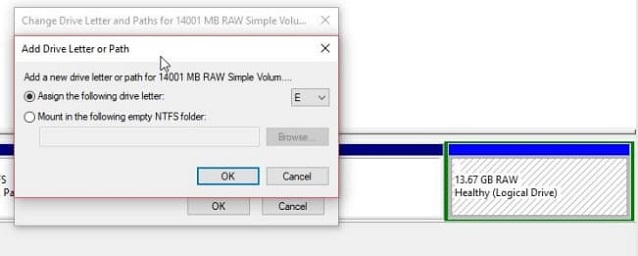
- In the File Explorer, check if a letter is assigned to the storage device. If not, look for an unassigned RAW partition, select it, right-click, and choose "Change Drive Letter and Paths" to assign a letter.
- If the drive is not accessible after assigning a new letter, try checking the drive letter in the Disk Management Tool to ensure it is not already assigned to another drive. If it is, you can remove the existing assignment by right-clicking on the drive and selecting "Change Drive Letter and Paths." In the resulting window, click on the assigned drive letter and click "Remove." Then, assign a new drive letter by clicking "Add" and selecting the desired letter.
Solution 2: Use CHKDSK to Fix USB drive not formatted error
To clear the "USB drive is not formatted" error displayed by your computer, simply follow these steps: unplug the USB drive, then plug it back in. If that doesn't work, try using a USB formatting tool or software to reformat the drive.
- To open the Command Prompt in Windows, press the Windows key + R to open the Run dialog box, type "cmd" in the text field, and then press the Enter key. This will open the Command Prompt window, where you can execute various commands and interact with the operating system.
- To enable the Command Prompt feature, right-click on the Command Prompt icon, choose the Command Prompt feature, right-click on the same, and select "Run as Administrator".
- Run the command Chkdsk /r /f X in the window, where X is the drive letter assigned to the USB drive by the operating system.
- The time to complete a scan is influenced by the size, interface, and type of the device being scanned.
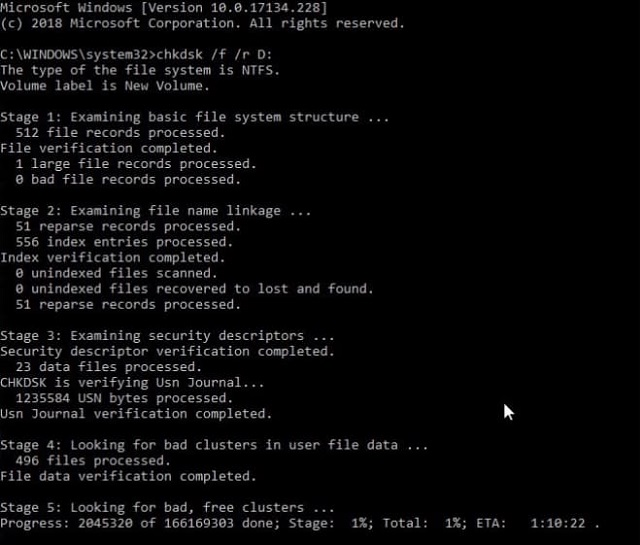
After completing the process, unplug the storage device, wait for 30 seconds, and plug it back in. Reconnect the device and check if the error persists. If it does, proceed to the final solution.
If the above methods don't work, you may need to format the hard drive. Before doing so, it's essential to recover any important data. You might wonder how to recover data when your computer is showing a USB is not formatted error, but the solution is straightforward.
Solution 3: Recover Data from USB Drive and Format USB Drive
If you're still encountering the "USB drive not formatted" error, it's time to use Deep Data Recovery software to retrieve your data and then format the drive. This recovery software is an effective method to get back your data with ease, using a robust algorithm that helps search for different file types and retrieve everything.
Your Safe & Effective Recover Formatted USB Drive Software
- Data loss from a USB drive can occur due to improper operation, such as removing the drive during use, accidental formatting, or file system corruption that displays as RAW, deleted, or other issues.
- Recovery from lost or hidden partitions in Windows/Mac.
- The USB file recovery tool supports various file types, including pictures, videos, music, and documents.
How to Recover Data from USB Drive with Not Formatted Error
- Before proceeding, download the trial version of the software from its website and install it, which is a simple standalone process. Once installed, connect the USB drive to your computer.
- The software will then scan the selected storage device, allowing you to recover any lost data. This process may take a few minutes, depending on the size of the device and the amount of data being scanned. Once the scan is complete, you will be able to view the recovered data and select which files you want to recover, then save them to a safe location.
- The scan time depends on the size, type, and selected file format. Once completed, the program displays recoverable files by format, which can be browsed using the directory tree management in the left pane. You can preview files, select the essential ones, and click "Recover" to save them to a designated location, such as a folder on your computer's hard disk. After recovery, you can proceed with formatting the USB drive.


Guide to Format the USB Drive with Not Formatted Error
- Open File Explorer. Click This PC from the left pane.
- To format a USB drive, go to the "Devices and driver" section, select the connected USB drive, right-click to open the properties window, and click the "Format" option. This will erase all data on the drive and prepare it for new files.
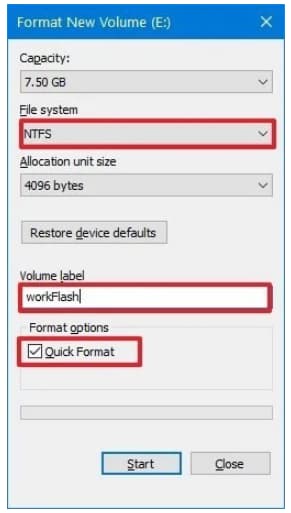
- When formatting a drive, use NTFS as the file system, select the default allocation size, and input a desired name for the drive under the volume label section.
- When choosing the format option, selecting quick format is recommended. This option deletes the file system table, but it's still possible to recover data. If the quick format option is unchecked, a full format will occur, which replaces bad sectors with zeroes and completely erases all data.
- Click "Start". Then click "Yes" in the next pop-up message.
If you're experiencing the "USB drive not formatted" error, it's an easy fix. Once you've successfully recovered your data from the USB drive using Deep Data Recovery, you can then proceed to format it, making it ready to store pictures, documents, files, and more.
Related Articles
- Fix Raw External Hard Drive without Losing Data
- How to Recover Files from Formatted Flash Drive
- How to Fix the Problem of Cannot Format SanDisk SD Card
- How to Fix Slow USB Transfer Speed in Windows 7/10/8
- How to Recover Data from USB in CMD
- How to Fix External Hard Drive Not Showing Up
- [Fix] Convert External Drive to APFS Failed/Greyed Out/Not Available
- How to Recover Data from Raw USB Flash Drive
- How to Format Drive/HDD/Disk using CMD
- How to Recover Files from Formatted Flash Drive
Products
Articles & Tutorials
- Data Recovery
- Data Backup
- File Recovery
- File Backup
- File synchronize
- System Backup and Restore
- Disk and Partition Clone
- Technical articles
- Disk Master Help
- Windows Deleted File and Disk Recovery Tutorials
- Windows File and Data Recovery Tutorials
- More Windows Tutorials for Install, Security, Files, and PC Tips
- Windows Boot, Repair, and Recovery Environment Tutorials
- Windows Backup Tutorials
- Windows Restore Tutorials
- Windows Clone and Migration Tutorials
- Windows Server Backup, Recovery, and Management Tutorials
- Windows Disk, Partition, and Storage Management Tutorials