Fix Slow USB Transfer Speed in Windows 7/10/11
Quick Navigation:
- Method #1. Optimize the Performance of the Speed Up USB Transfer
- Method #2. Enable USB 3.0 Port to Fix USB File Transfer Slow
- Steps to enable USB 3.0
- Method #3. Convert USB System from FAT32 to NTFS
- 1. Convert the File system directly
- 2. Reformat the Drive to Fix Slow USB Transfer
- Method #4. How to Increase Copy Speed in Windows 11/10/7 with Update USB Drivers
- Steps to fix USB transfer speed slow follow:
- Tips: How to Recover Lost Data from USB Flash Drive After Formatting/Deletion
If you're experiencing slow USB transfer speeds when moving files from your PC to a flash drive, it can be frustrating, especially when dealing with large files. To resolve this issue, there are several effective ways to speed up your USB transferring speed, applicable to all Windows versions. The slow transfer speed can be due to either a slow USB port or a slow reading speed of the source video or a slow writing speed of the target video. By implementing these easy and working solutions, you can resolve the issue of a slow USB 3.0 and recover any lost data during the transfer process.
Method #1. Optimize the Performance of the Speed Up USB Transfer
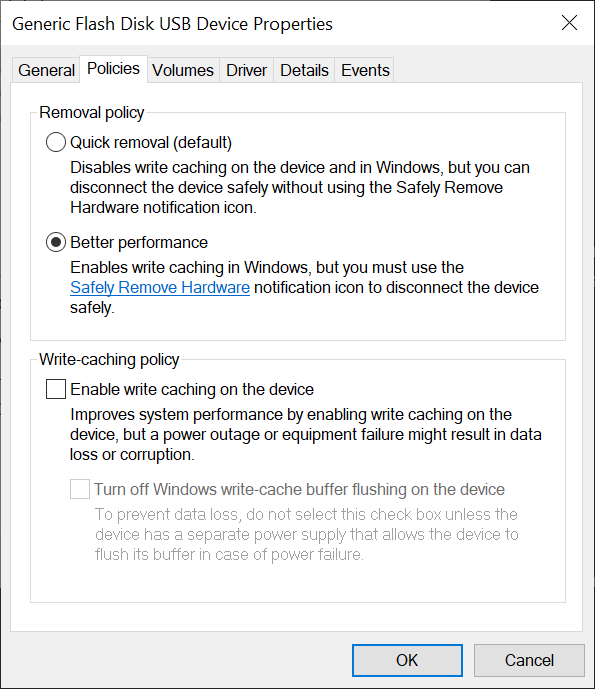
To optimize the performance of a USB Flash drive, enable 'Write caching', which temporarily stores files in RAM before transferring them to the slower flash memory, allowing for faster copying and closing of file dialogs. This feature is disabled by default, but can be enabled in the Device Manager, where you can follow specific steps to activate it. This enables the file dialog to close sooner, while the actual copying still takes longer, but occurs in the background.
- Click at Start menu and right-click "Computer". Choose "Manage".
- Click at the "Disk Management" in the left panel.
- Right-click at the entry for the USB drive of interest, select "Properties".
- Again choose "Hardware" tab, then click the "Properties" button again
- In the newly opened window, Click at the "Policies" tab.
- Choose the radio button "Better Performance".
- To resolve USB 3.0 slow issues in Windows 11/10/7, click on the "OK" button. This action initiates the troubleshooting process, which may involve updating drivers, disabling and re-enabling the USB port, or adjusting power management settings.
Method #2. Enable USB 3.0 Port to Fix USB File Transfer Slow
USB 3.0, also known as SuperSpeed USB, is the latest and most enhanced port that enables high-speed data transfer. To enjoy this speed, you need to enable the corresponding ports on your device, which are typically USB 3.0 ports. This version has 9-pin connectors, a significant upgrade from the older 4-pin connectors. With USB 3.0, you can enjoy transfer rates of up to 5GB per second.
Steps to enable USB 3.0
- Press Win + R and your Run dialog will be opened. In the Run dialog, type cmd and press Enter.
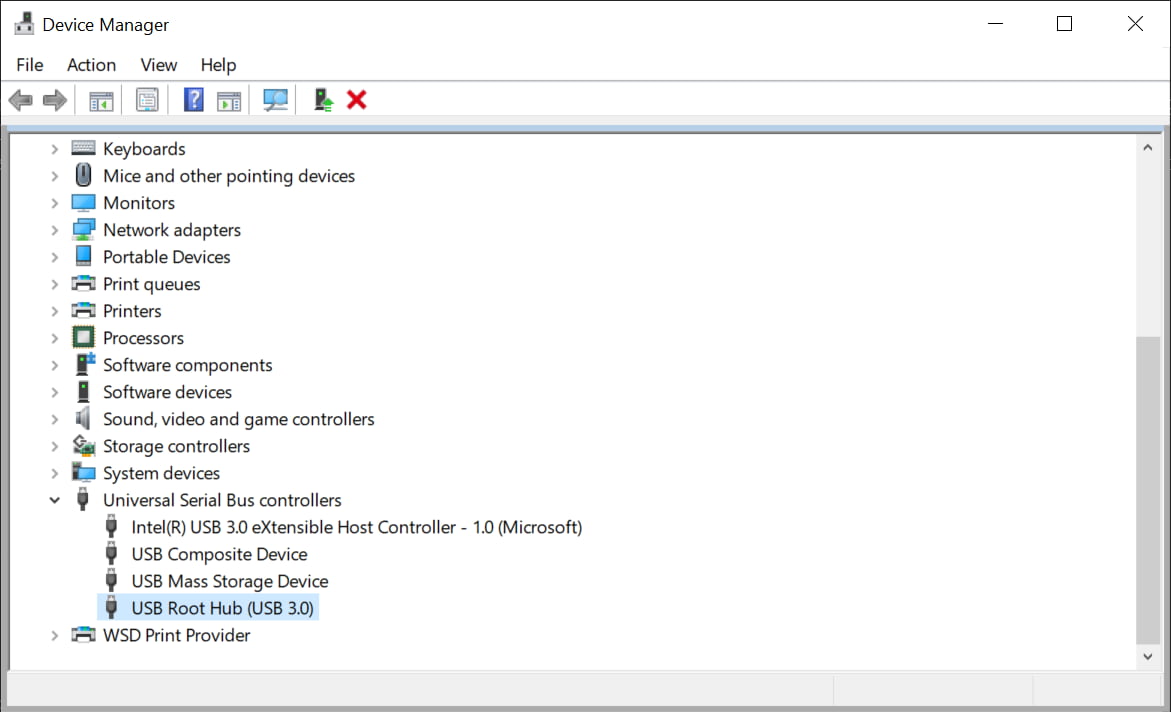
- To open the Device Manager, type "devmgmt.msc" in the Run dialog box and press Enter. This will open the Device Manager window, where you can view and manage the hardware devices connected to your computer.
- To expand the Universal Serial Bus controller section, click on the small arrow next to it.
- The USB root hub entry should be checked for the USB port version, and if it mentions USB 3.0, that should be selected.
Method #3. Convert USB System from FAT32 to NTFS
To convert a FAT32 file system to NTFS, you can use the built-in command in Windows called "convert" in the command prompt. Here's how: Open the command prompt as an administrator, type the command "convert /fs:ntfs" followed by the drive letter of the drive you want to convert, for example, "convert /fs:ntfs c:", and press Enter. This will convert the file system of the specified drive from FAT32 to NTFS, allowing you to copy large files to that drive. Note that this process will erase all data on the drive, so make sure to back up any important files before proceeding.
1. Convert the File system directly
- Open up a command prompt with administrator mode.
- To convert a drive from FAT32 to NTFS, you can use the built-in command in Windows. First, open the Command Prompt as an administrator.
- Wait for a while, conversion takes time. And you have converted this successfully.

2. Reformat the Drive to Fix Slow USB Transfer
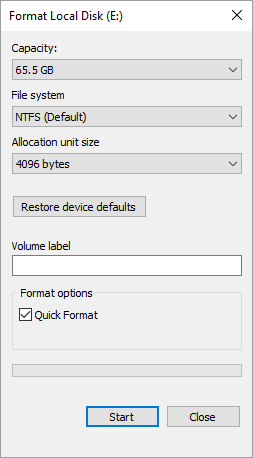
If you don't have a lot of crucial data, the simplest method is to just reformat the drive. This approach is ideal for situations where you don't have a lot of important data to worry about.
- Right-click on the drive, choose format.
- Select NTFS in the system drop-down.
- Finish the format, copy your data back.
Method #4. How to Increase Copy Speed in Windows 11/10/7 with Update USB Drivers
If your computer fails to recognize a device inserted into a port or struggles to make it work, updating the USB drivers might be the solution. However, the most effective way to achieve this is by updating your operating system, which will automatically bring updated drivers and resolve the issue of slow USB transfer speeds.
Steps to fix USB transfer speed slow follow:
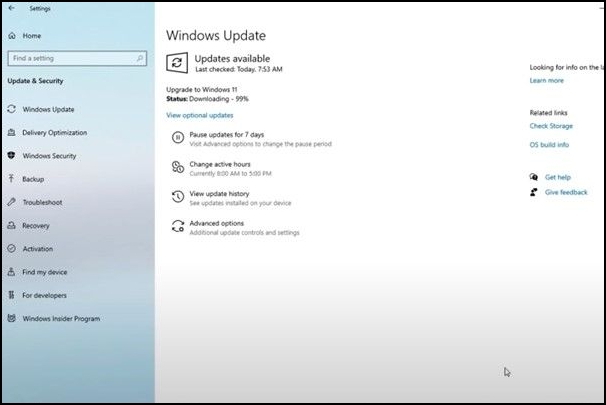
- Open the Windows setting.
- Click on Update and security after windows setting opens up.
- Check for the updates if its available Update it.
Tips: How to Recover Lost Data from USB Flash Drive After Formatting/Deletion
When you accidentally delete a file from a USB flash drive, you may want to recover the deleted file. If you're lucky, you'll find it in the Recycle Bin, but if not, things can get tough. Fortunately, Deep Data Recovery is a tool that can help you recover deleted files or formatted flash drive from your Windows machine, making the process easier and less stressful.
- Download the USB recovery software on your computer and launch it.
- As a next step, select your USB flash drive to scan all the lost files. Click at the Scan button to scan the files from USB.
- After the scanning process is completed, you can view the missing files in the list. Select all of them and click the "Recover" button to save them into your computer.


If the above-mentioned ways can't help, then you have to consider formatting it to fix the problem or ditch for a new USB flash drive. Anyway, take care of your important data. If you accidentally lost them, use Deep Data Recovery to undelete or unformat USB.
Related Articles
- How to Fix USB Drive Not Formatted Error
- How to Fix USB Drives not showing up in Windows 10
- [Solved] USB/External Hard Drive Folder Access Denied
- How to remove write protection from USB
- How to Fix External Hard Drive Not Recognized
- How to Delete Photos/Videos from iCloud
- [Fix] Convert External Drive to APFS Failed/Greyed Out/Not Available
Products
Articles & Tutorials
- Data Recovery
- Data Backup
- File Recovery
- File Backup
- File synchronize
- System Backup and Restore
- Disk and Partition Clone
- Technical articles
- Disk Master Help
- Windows Deleted File and Disk Recovery Tutorials
- Windows File and Data Recovery Tutorials
- More Windows Tutorials for Install, Security, Files, and PC Tips
- Windows Boot, Repair, and Recovery Environment Tutorials
- Windows Backup Tutorials
- Windows Restore Tutorials
- Windows Clone and Migration Tutorials
- Windows Server Backup, Recovery, and Management Tutorials
- Windows Disk, Partition, and Storage Management Tutorials