[Fixed] External USB Hard Drive not Showing UP/Recognized in Windows 11/10
Why is my USB stick not showing on my computer?
Windows 10 and Windows 11 not recognizing USB drives is a common issue caused by various reasons. The specific solutions to resolve the issue depend on the underlying causes, and the symptoms, such as the USB drive showing up in Disk Management but not in Windows File Explorer, or being missing from both places, can help determine the most effective solutions.
If the USB drive appears as unknown or unallocated, check disk not initialized fixes before formatting it.
Check whether your USB drive appears in Disk Management or not?
If your external drive is not showing in Disk Management, you don't have to worry, as we can explore various solutions to the different issues associated with USB not showing up on Windows PC. To check, navigate to 'This PC' and then to 'Manage' and 'Disk Management', where you can see if the USB drive is visible.
- Quick Navigation
- Part 1: Repair Windows 11/10 Not Recognizing USB in File Explorer but in Disk Management
- Part 2: Fix USB Drive Not Showing Up in Windows 11/10 File Explorer Not Disk Management
Part 1: Repair Windows 11/10 Not Recognizing USB in File Explorer but in Disk Management
If your USB stick is visible in Disk Management but not in File Explorer, it's likely due to file system errors, drive letter conflicts, or USB driver issues. Solutions may include checking for file system errors, assigning a drive letter, or updating the USB driver.
Solution 1: Update USB Drive
If the USB drive isn't showing up in File Explorer, it may be due to an issue with the drive itself, and updating the drive might be necessary to resolve the problem.
- Connect your USB drive to the PC and right-click on "This PC" and select "Manage" from the context menu.
- To update the driver for a USB drive with issues, go to Device Manager, expand the Disk Drives section, locate the problematic USB drive, right-click on it, and select Update Driver.
- Click on Search Automatically for drivers.
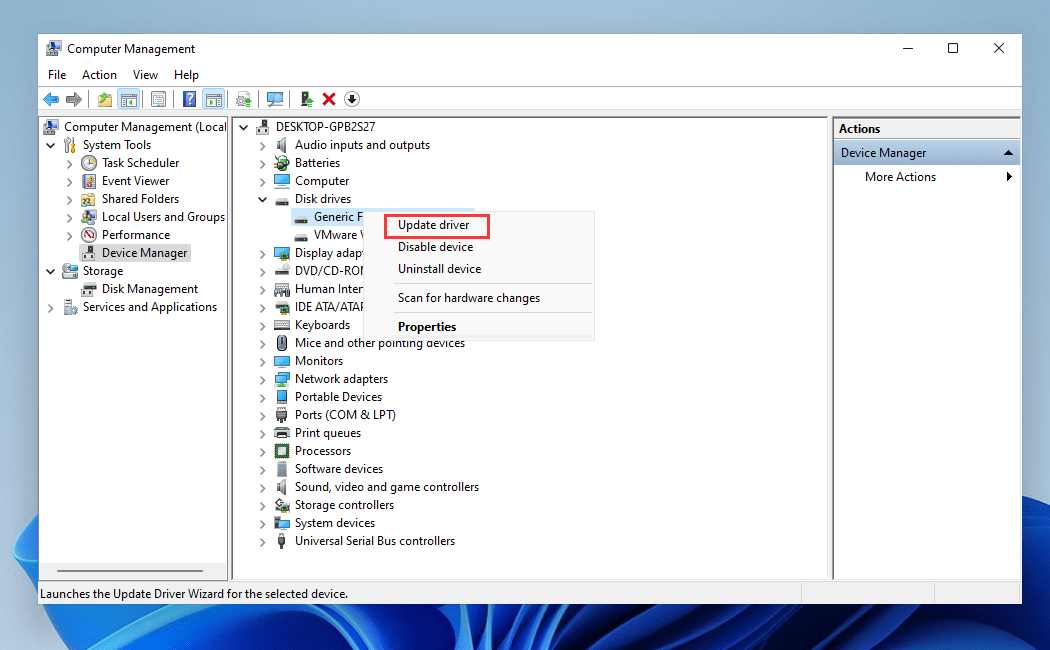
The driver will be updated and your PC will reboot. After this, you can reconnect the USB drive to the computer and check if it's visible in File Explorer.
Solution 2: Reinstall Disk Driver
To resolve the issue of a USB not showing up in Windows 11/10, you can try reinstalling the disk driver, which may resolve the problem by refreshing the driver and allowing the USB to be recognized again.
- Hold down the Windows + R keys and type devmgmt.msc.
- Double-To troubleshoot the issue with the USB drive, click on Disk Drives in File Explorer, and select the USB drive that is experiencing the problem. This will allow you to view the drive's properties and potentially identify the root cause of the issue.
- Next, right-click select Uninstall Device.
- You will be prompted to confirm the option and click Uninstall.

Wait for the process to be complete, then restart your PC and reconnect your USB flash drive. The disk drive should be installed automatically when your PC restarts.
Solution 3: Format USB Drive to Fix System Error
If your USB hard drive isn't showing up on Windows 10/11, it might be due to file system errors, causing the drive to appear as RAW and become inaccessible. In this case, formatting the drive would fix the issue, but it would result in a complete loss of data. To recover data from the RAW USB drive, you can use Qiling data recovery software, and once the files are recovered, you can format the drive and convert the file system to a Windows-compatible format like NTFS.
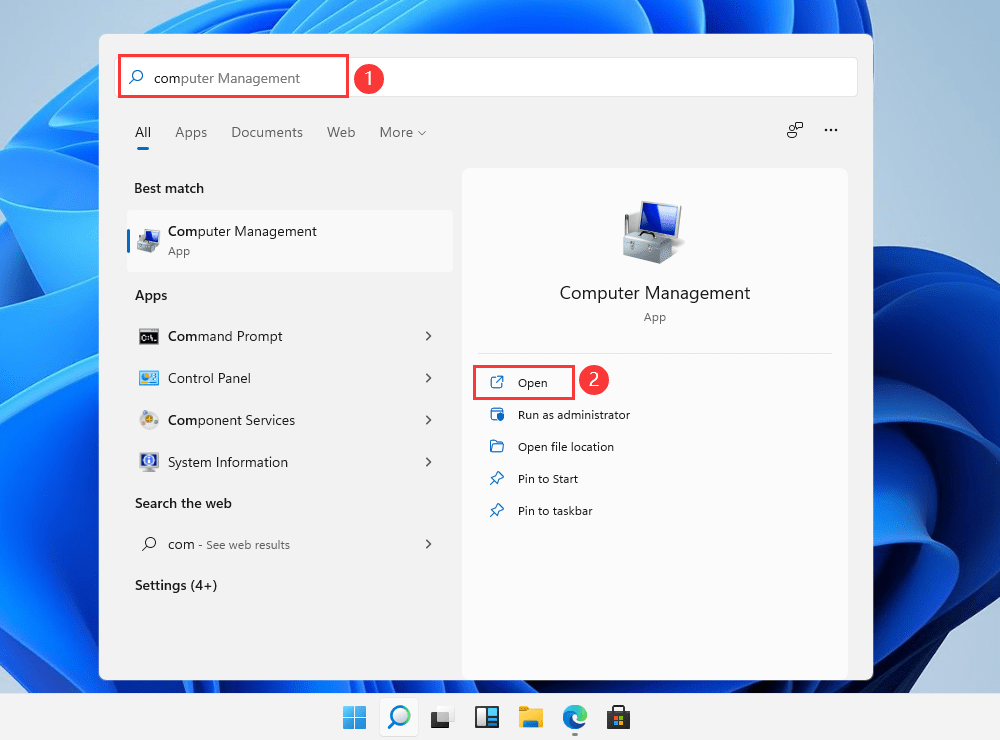
- Right-click on Search icon and type Computer Management.
- Open this app and select Disk Management.
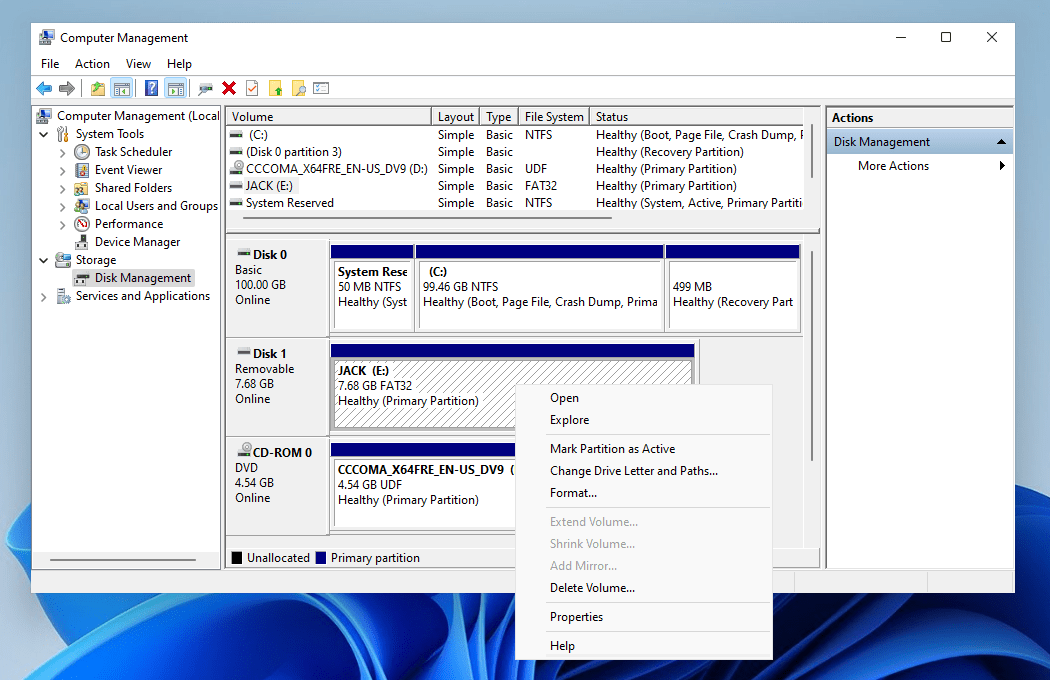
- Right-To erase a USB hard drive, click on the USB hard drive icon and select the "Format" option to completely erase the drive.
Solution 4: Change Letter Conflicts
If your USB drive is not showing up in Windows File Explorer, it's likely because it shares the same drive letter as a computer hard disk partition. To resolve this issue, you'll need to assign a new drive letter to the USB drive, which can be done by following a series of steps.
- Go to This PC and right-In the Disk Management window, click on the disk you want to resize. Right-click on it and select "Shrink" or "Extend" depending on your needs. Then, follow the on-screen instructions to resize your disk.
- Right-To change the drive letter of your USB drive, click on the "Volume" of your USB drive, then select "Change Drive Letter & Paths" from the context menu.
- Click Change in the new window.
- Assign a new drive letter to your USB drive by selecting it and clicking the "Change" button, then selecting a new drive letter from the dropdown menu and clicking the "OK" button.
Solution 5: Recover USB Data
If you're unable to resolve the issue with a USB device not being recognized in Windows 11/10, you can recover files from the flash drive to prevent data loss. We recommend using Deep Data Recovery to do so.
This is a professional and advanced USB drive recovery software that helps users recover files after deletion, formatting, or displaying as RAW, among other issues. It works effectively to recover any type of data without compromising the safety of your files.
If your USB drive is not showing up in Windows 11/10, start with basic checks before changing the disk. To protect your files, avoid formatting the USB drive until you have recovered or backed up important data.
- Download the Qiling data recovery software for Mac or Windows by clicking the download button and launch the app.
- Attach your USB drive to your computer and select it in the software to scan for recoverable data.
- After scanning, preview the list of files and folders found and select the files and folders that you want to restore. Then click "Recover" to get back the USB data.


Part 2: Fix USB Drive Not Showing Up in Windows 11/10 File Explorer Not Disk Management
Solution 1: Try Another USB Slot to Make Sure it is not Problem of USB Slot
If your USB hard drive is not accessible, try checking the USB connection and moving it to a different port on your PC, as problems with the USB port can also cause issues.
Solution 2: Ask for Help from the Retailer
If the problem of Windows 11 not recognizing a USB persists after trying all the solutions in this manual, it's possible that the USB hard drive is damaged or corrupted, and you may need to contact a retailer for manual repair.
If your Windows 10 or Windows 11 USB drive is not showing up, try the methods mentioned above to make it readable. If none of them work, it's likely the USB drive is faulty and you'll need to replace it. This article provides a comprehensive guide to resolving the issue, and it's essential to act quickly to prevent losing important files stored on the USB drive.
Related Articles
- Format USB Drive to FAT32 in Windows
- How to Repair Corrupted Hard Drive
- Unspecified Error During System Restore 0x80070002 - Fixed!
This tutorial shows how to fix an unspecified error occurred during System Restore 0x80070002 and provides an easier way to perform system backup and restore in Windows. - Automatic USB Backup Portable for Windows 10
This guide explains Automatic USB Backup Portable for Windows 10 with clear steps, key checks, and practical tips. - System Restore from BIOS in Windows 7︱Step-by-Step Guide
This guide explains System Restore from BIOS in Windows 7︱Step-by-Step Guide with clear steps, key checks, and practical tips. - Windows 7 Backup Disk Full - Manage Space Correctly
You will get the reasons and solutions to Windows 7 backup disks full issue. In fact, the best way is to preset rules for deleting backups at the beginning.
Products
Articles & Tutorials
- Data Recovery
- Data Backup
- File Recovery
- File Backup
- File synchronize
- System Backup and Restore
- Disk and Partition Clone
- Technical articles
- Disk Master Help
- Windows Deleted File and Disk Recovery Tutorials
- Windows File and Data Recovery Tutorials
- More Windows Tutorials for Install, Security, Files, and PC Tips
- Windows Boot, Repair, and Recovery Environment Tutorials
- Windows Backup Tutorials
- Windows Restore Tutorials
- Windows Clone and Migration Tutorials
- Windows Server Backup, Recovery, and Management Tutorials
- Windows Disk, Partition, and Storage Management Tutorials