How to Delete Photos/Videos from iCloud using Windows PC/Mac/iPhone
Quick Navigation:
- iCloud Storage and Cost for Extra Space
- Part 1. How to Delete Photos from iCloud in Windows 11/10/7
- Part 2. How to Delete Photos from iCloud Using Mac
- Part 3. How to Delete Photos from iCloud on your iPhone
- Part 4. Qiling iPhone Data Recovery Software – a Must for iOS Devices
- Main Features of Qiling iPhone Data Recovery
iCloud is a built-in feature on Apple devices that keeps users' files safe, available, and up-to-date, accessible from anywhere. It works automatically, requiring no extra effort to function. To delete photos from iCloud, you can do so using your Mac, iPhone, or even a Windows PC. This post provides guidance on how to accomplish this.
If you need to access photos on a Windows PC first, see how to access iCloud Photos on Windows.
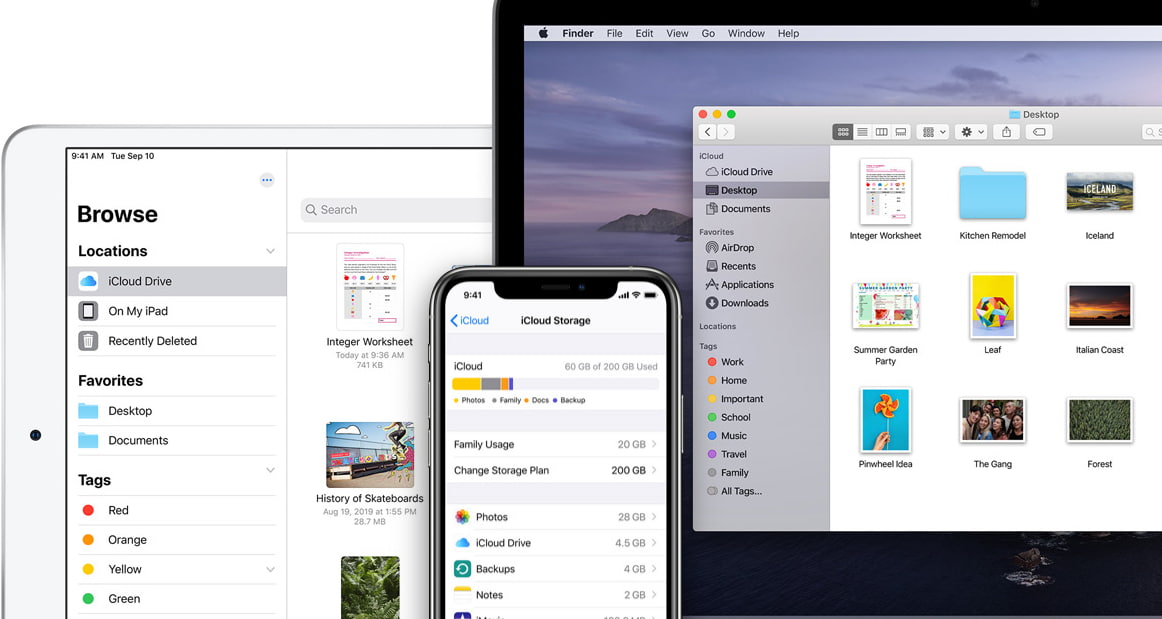
iCloud Storage and Cost for Extra Space
When you sign up for an iCloud account, you're given 5GB of free storage space, so it's a good idea to be mindful of what you store on your device and consider deleting photos and videos from iCloud if they're not important.
If you're wondering how to remove photos from your iCloud, this post will cover the details shortly. You don't have to pay for this storage space, but when saving files and documents on your device, you may need to upgrade to a larger storage space.
Users can upgrade their iCloud storage from Apple devices, choosing from 50GB, 200GB, or 2TB plans, with monthly fees ranging from $0.99 to $9.99.
To delete photos from iCloud on your iPhone, go to Settings > [your name] > iCloud > Photos, then toggle off iCloud Photos. This will stop new photos from being uploaded to iCloud, but existing photos will still be stored. If you want to delete existing photos, go to the Photos app, select the photos you want to delete, and tap the "Delete" button.
Part 1. How to Delete Photos from iCloud in Windows 11/10/7
iCloud is also available for Windows devices and offers the same storage space plans. Similar to Apple devices, you can delete videos and photos stored in iCloud from your PC, which will also remove them from your Windows device. This process is seamless and easy, allowing you to delete files from your Windows 7/10/11 device and remove them from your PC.
To remove iCloud photos from Windows 10 and earlier, you need to delete the files directly from iCloud, as they are still stored there even after deleting them from your device. You can do this by going to iCloud.com, signing in with your Apple ID, and deleting the unwanted photos. This will permanently remove them from your iCloud account.
1. To open File Explorer or Windows Explorer, click on the 'File Explorer' icon in the taskbar, or press the Windows key + E on your keyboard. Alternatively, you can type 'File Explorer' in the search bar and click on the result to open it.
2. To access iCloud Photos, click on the "iCloud Photos" option in the Navigation pane, or if it's not visible, click on "Pictures" and double-click on "iCloud Photos".
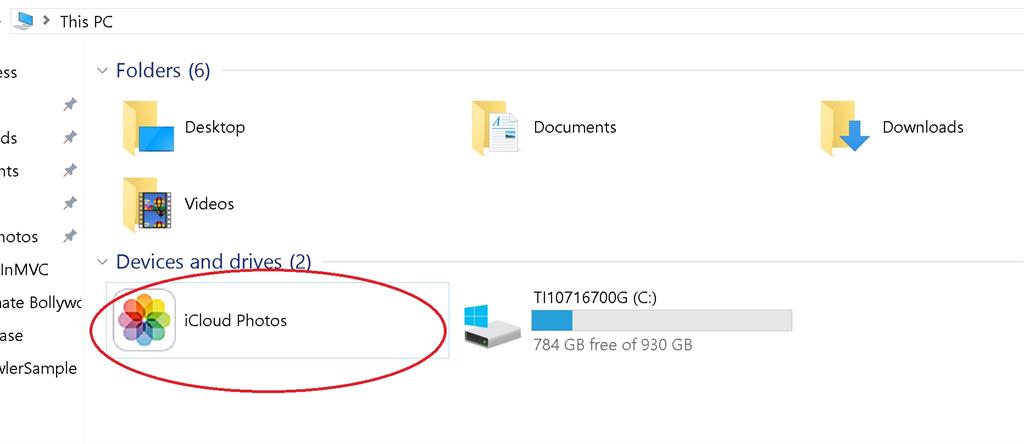
3. Double click on the 'Downloads' folder
4. To delete photos, select the ones you want to delete and press the 'Delete' key.
5. Proceed to iCloud.com and select the same photos.
6. Click the Bin icon and then click the 'Delete' button.
Deleting photos from iCloud will remove them permanently, but they will be stored in the 'Recently Deleted album' for 30 days, after which they will be deleted permanently and cannot be recovered.
Part 2. How to Delete Photos from iCloud Using Mac
To free up space in your iCloud, you can upgrade your storage plan or delete some photos from your iCloud by deleting them from your Mac's Photo Library. This is a convenient option as you don't need to go to iCloud.com to delete files. Simply deleting photos from your Mac's Photo Library will automatically remove them from your iCloud, giving you more space. This is a straightforward process that can be completed on your Mac device.
1. Navigate to 'Photo Library' on your Mac device
2. To delete photos, select the ones you want to delete and press the 'Delete' key.
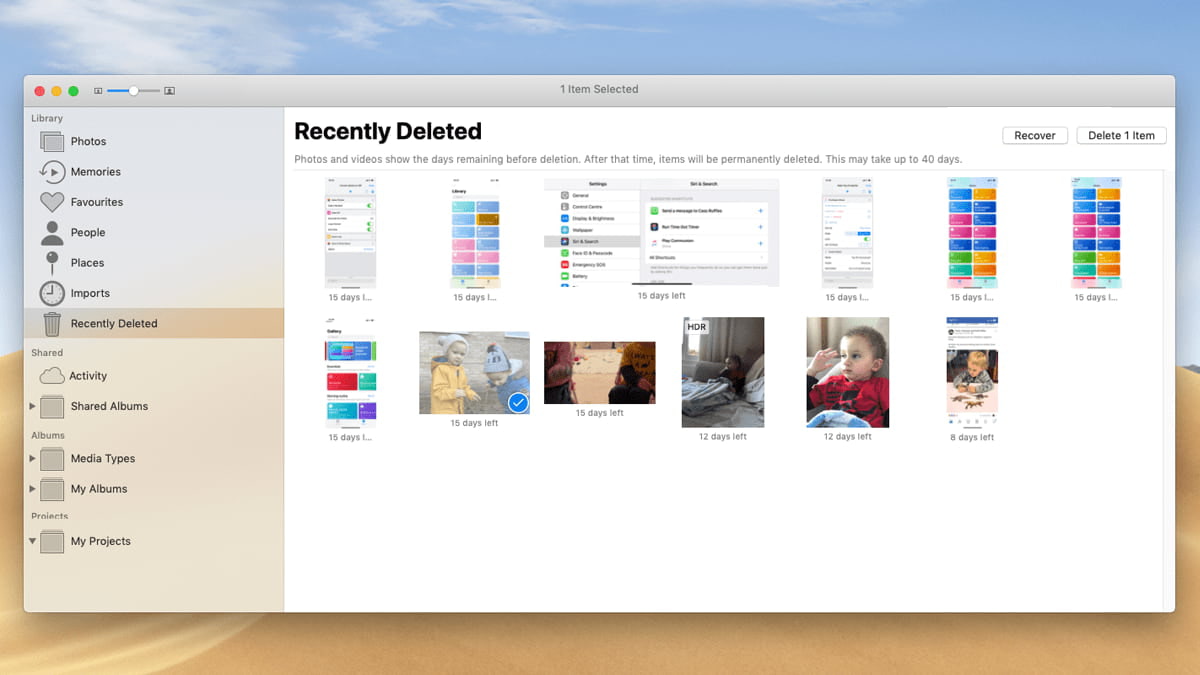
3. The deleted pictures will appear in the 'Recently Deleted' Album. You have to delete the photos from here to free up storage space in your iCloud account.
4. To recover deleted photos, check the sidebar and click on the 'Recently Deleted' Album, then select all the photos you just deleted.
5. Click the 'Delete Photos' button in the toolbar and click 'Delete'.
To free up storage space on iCloud, go to System Preferences on your Mac, click on Apple ID, then select "iCloud", and click on "Manage" next to "Photos". Select the photos you want to delete and click "Delete" to remove them from your iCloud Photo Library, making more storage space available on iCloud. Note that these photos will no longer be accessible on iCloud or any device using iCloud.
Part 3. How to Delete Photos from iCloud on your iPhone
To delete photos from iCloud on your iPhone, go to Settings, tap on your name, select "iCloud," and then choose "iCloud Storage & Backup." Tap on "Manage Storage" and select "Photos." Select the photos you want to delete and tap "Delete Photos." Alternatively, you can also delete photos from the Photos app on your iPhone. Open the Photos app, select the photo you want to delete, and tap the "Share" icon.
With this, you can free up storage space without investing in an additional storage plan. Here is how to delete photos from iCloud with iPhone.
1. Click on the 'Photos' icon on your iPhone device
2. Select all photos you want to delete from your device
3. To delete an app on your iPhone, click the trash can icon on the upper right corner of your screen, then tap the app you want to delete and click "Delete" to confirm.
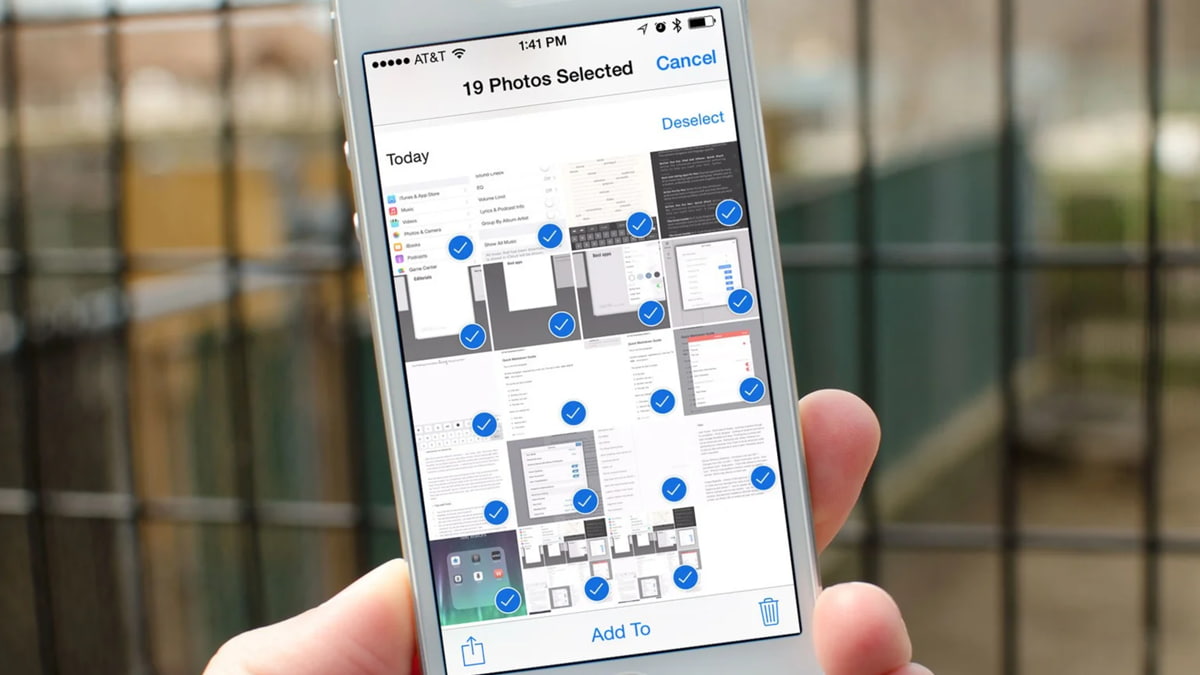
4. Confirm the deletion to remove the photos from your device.
After deleting photos from iCloud, they are stored in the "Recently Deleted Album" for 30 days. During this time, they can still be restored. However, after the 30-day period expires, it becomes impossible to recover the photos. If you prefer not to wait for the 30 days to pass before permanently deleting the photos, you can delete the content in the "Recently Deleted Album" instead. This is the process for deleting pictures from iCloud permanently.
Part 4. Qiling iPhone Data Recovery Software – a Must for iOS Devices
Deleting files from an iPhone, iPod, or iPad is a straightforward process, but what if you've accidentally deleted important photos or videos? While it's easy to delete documents and files, recovering them can be a challenge. To protect your data, consider using the Qiling iPhone Data Recovery Software, which can help you recover deleted files from your iOS device.
iMyfone D-Back is the best iPhone data recovery software that can recover lost or deleted data from iPhone, iPod, and iPad. You can get the free trial version of this iOS device recovery software now.
Main Features of Qiling iPhone Data Recovery
- The app supports all versions of iOS, including the latest updates such as iOS 12, iOS 13, and iOS 14.
- The app supports multiple file types, including photos, contacts, text messages, videos, calendar entries, call history, notes, and various app-specific data.
- This software works to recover data lost due to various issues, including accidental deletion, virus attacks, system crashes, damage, resets to factory settings, jailbreaks, and iOS updates, among others.
- This tool offers three recovery modes: recovering data from iOS devices, recovering data from iTunes backups, and recovering data from iCloud backups.
This post provides detailed solutions on how to delete photos from iCloud using a Macbook, Windows PC, or iPhone, as well as recovering documents when they are mistakenly deleted or lost. Additionally, the Qiling iPhone Data Recovery tool can be used to recover permanently deleted photos and videos from an iPhone device.
Related Articles
- [Solved] Photos Cannot Open in Windows 11/10
- Fixed: 100% Disk Usage on Windows 10 Task Manager (2019)
To fix 100% disk usage on Windows 10 Task Manager, you can refer to 9 effective and easy methods in this post and try one or more. - What to Do after Accidentally Marked Drive C Active in Windows 10
This guide explains What to Do after Accidentally Marked Drive C Active in Windows 10 with clear steps, key checks, and practical tips. - [Fixed] Apps and Features Move Greyed Out on Windows 10
When transferring files, you may encounter issues where Apps and features move greyed out. To solve this problem, follow these steps. First, ensure that the destination drive has enough free space to accommodate the files you're trying to transfer. - How to Image Windows Server 2012 (R2) to New Hard Drive
Learn how to Image Windows Server 2012 (R2) to New Hard Drive with clear steps, key checks, and practical tips. - Top 2 Ways to Migrate Windows Server 2012 R2 to New Hardware
Here are 3 ways to migrate Windows Server 2012 R2 to new hardware for different situations. You could choose one way to follow according to your situation.
Products
Articles & Tutorials
- Data Recovery
- Data Backup
- File Recovery
- File Backup
- File synchronize
- System Backup and Restore
- Disk and Partition Clone
- Technical articles
- Disk Master Help
- Windows Deleted File and Disk Recovery Tutorials
- Windows File and Data Recovery Tutorials
- More Windows Tutorials for Install, Security, Files, and PC Tips
- Windows Boot, Repair, and Recovery Environment Tutorials
- Windows Backup Tutorials
- Windows Restore Tutorials
- Windows Clone and Migration Tutorials
- Windows Server Backup, Recovery, and Management Tutorials
- Windows Disk, Partition, and Storage Management Tutorials