Corrupted Files Recovery – How to Recover Corrupted Files in Windows 10/11
Facing system crashes and file corruption can be frustrating, especially when you have unsaved or open files that are suddenly closed by force, potentially leading to corrupted files or even a corrupted drive. In such situations, your top priority is to recover corrupted files.
If the corrupted files are photos, this corrupted JPEG repair and recovery guide gives a more focused repair path.
Whether you're a filmmaker looking to recover corrupted video files or anyone else seeking to retrieve your files, knowing how to do so can significantly ease your life. Here, we'll discuss the different ways you can recover corrupted files on a Windows 10/11 PC.
- Quick Navigation
- Part 1. Why do Files Get Corrupted?
- Part 2. How to Recover Corrupted Files in Windows 11/10
- Part 3. Tips for Preventing Data from Getting Corrupted
- Part 4. FAQs
Why do Files Get Corrupted?
Files can become corrupted due to various reasons, and there is no single set of rules that dictates when and how this happens. It can occur to anyone, and the causes can be diverse, ranging from human error to software or hardware issues. Some common scenarios associated with file corruption include accidental deletions, software or hardware crashes, power outages, and virus infections, among others. These incidents can result in lost or damaged files, which can be frustrating and time-consuming to resolve. However, with the right tools and techniques, it's often possible to recover or repair corrupted files, minimizing the impact of such incidents.
- 🔌 The power outage or load-shedding that suddenly turns off your PC can be caused by a variety of factors, including electrical grid failures, power surges, or equipment malfunctions. When a sudden power outage occurs, it can cause your PC to shut down immediately, resulting in potential data loss and hardware damage.
- ⚠️ A crashed operating system resulting from various causes, typically displaying the Blue Screen of Death (BSOD).
- 📊 The app you're working on crashes due to either insufficient computer resources or a bug in the code, causing it to malfunction.
- ⚙️ File and driver compatibility issues when changing your PC.
- 📥 Incomplete or unsuccessful app installations.
Your files are now no longer usable due to the unknown reason. we're here to help you recover them. Whether you're dealing with a corrupted video file or any other type of file, we'll guide you through different ways to solve this problem and get your files back.
How to Recover Corrupted Files in Windows 10/11
If you've lost important data due to file corruption, you can try various methods to restore the corrupted files in Windows. Each method has its strengths and weaknesses, so choosing the correct one for the type of file is essential. You can try using the built-in Check Disk (chkdsk) tool, running a System File Checker (sfc) scan, or using a third-party file recovery software like Recuva or Deep Data Recovery Wizard. Additionally, you can try using the Windows built-in File History feature or the Previous Versions feature in File Explorer to restore previous versions of a file. In most cases, following these steps can help you recover your corrupted file.
1. Get a New Version from the Source
This method is the easiest, as it doesn't require effort or anticipation from your end. You can simply download a fresh copy of a file from its original source, such as a software vendor's website, cloud storage like Dropbox or OneDrive, or an email account. This process is straightforward and doesn't require any additional steps.
2. Change the File Format
One of the most exciting methods of Windows corrupted file recovery is to change the file format. Sometimes, the issue lies with the file itself rather than how the app reads it, so modifying the file extension, such as changing .png to .jpg, might resolve the problem.
For video files, you can use a file conversion tool or the "save as" option to change the file format. To convert open Word files, simply select a different format to save them, allowing you to easily change the file type.
- Go to the File menu located at the top of the open file.
- From the sidebar, select the option 'Save As.'
- To save a document as a PDF, click on the "Save As" button in the document editing software, select the desired location and file name, and choose "PDF" from the "Save as type" dropdown menu.
- To save the file, click the "Save" button on the window, which will save the file to the chosen location.
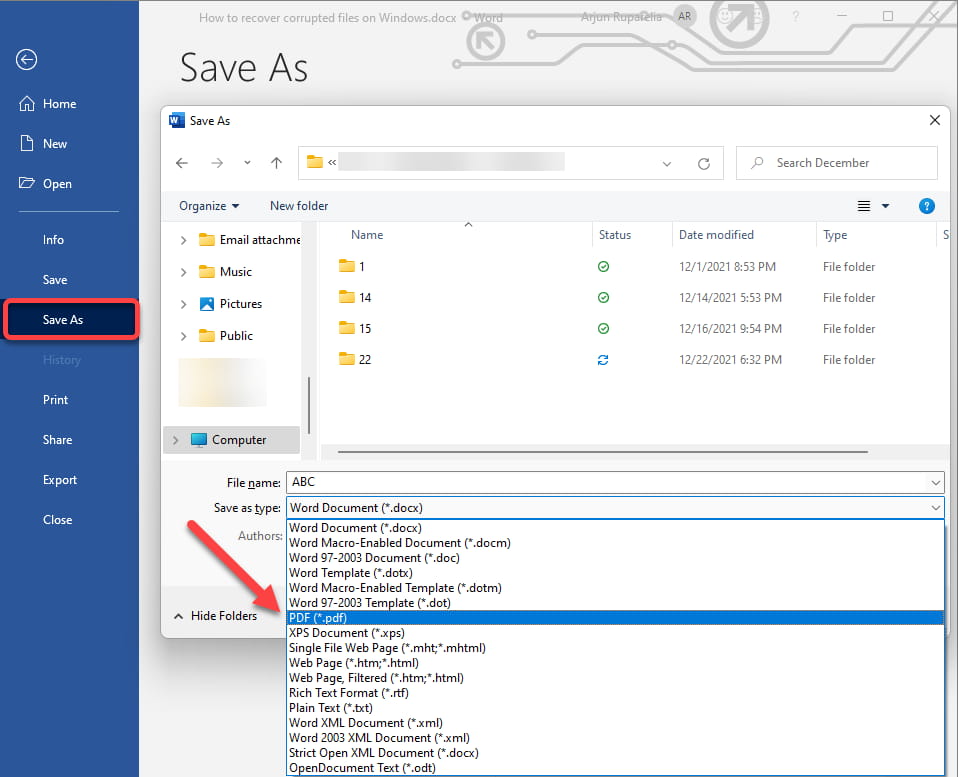
Now you should have a PDF version of the document. You can try to open it, and if everything is fine, you can convert it to a Word document again.
3. Recover Corrupted Files from a Backup
Windows 10 and Windows 11 have a feature called File History that regularly backs up your files, allowing you to easily find an older file version that is not corrupted. If you have File History enabled and accessible, you can recover corrupted files by following the necessary steps. However, this method only works if File History is enabled.
- To access the Backup feature on your computer, open the Start menu and search for "Backup". Alternatively, you can navigate to the Settings app, where you'll find the option under the "Update & Security" menu on the sidebar.
- To access more backup options, click on the hyperlinked text that says 'More options' under the File History open radio slide button in the Backup menu.
- In the new window, click on the hyperlinked text, "Restore files from a current backup".
- To view and save the latest backup of a file, go to the backup location and look for the file with the most recent date. This will ensure you have the most up-to-date version of the file.
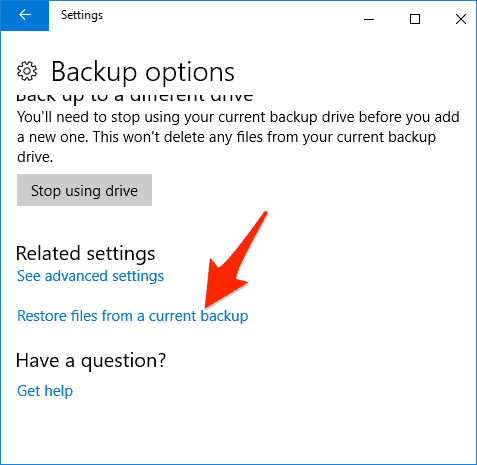
If you haven't enabled it, this method can't recover corrupted files in Windows 11 or 10. If you're reading this without any issues, we recommend enabling it right away. If not, there are still other ways to try.
4. Try the AutoRecover Feature in the Built-in App
The App features an AutoRecover function to prevent file corruption or loss in case the software quits unexpectedly. This safety feature, commonly found in popular software like MS Office and Adobe products, periodically creates backup files of the files you're working on, ensuring your data remains safe.
This excellent insurance policy can come in handy when you find yourself out of luck, especially when recovering corrupted files in Windows 10 and 11. For example, if you're using PowerPoint, you can use this policy to restore your files. To do this, you'll need to follow a specific set of steps.
- Open the PowerPoint app and select the File menu from the tab.
- Click on the 'Option' button or link to open a settings window.
- Click on the "Save" option in the window's sidebar.
- To find the AutoRecover file location, navigate to the "File" tab, click on "Options," then select "Save" from the left-hand menu. In the "Save" section, click on "AutoRecover file location" to find the backup file. This file can be used in case of a software crash or other issues.
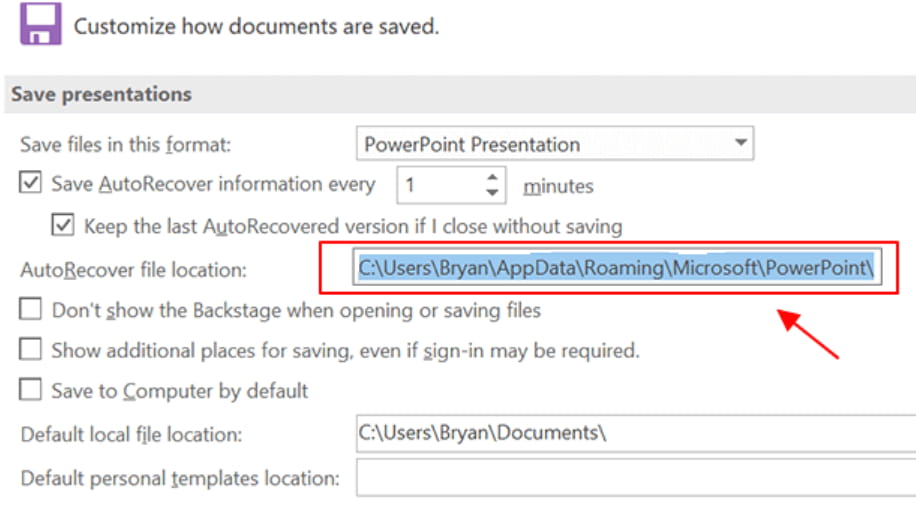
To ensure you have the latest file available, you can change the AutoRecover feature's frequency, which is set to every 10 minutes by default. You can adjust this to a smaller value to create more updated recovery files. Additionally, PowerPoint offers automatic recovery of unsaved files after you reopen the app following a file crash, allowing you to recover unsaved Word documents as well.
5. Recover Corrupted Files with Previous Versions
Windows allows users to create backups of the entire drive or OS as restore points, which can be used to recover files. This feature is enabled by default, but its reliability can be questionable. To use this method, follow these steps:
- To troubleshoot a corrupted file, open the folder where the file is located and right-click on it, which will display all available options for the file.
- Click on the option that says, 'Restore previous versions'.
- It will open a previous version of the file that was saved.
- Typically, you will find multiple backups available here. You can select the latest version for the most updated file or choose a different one if needed.
- To fix a corrupted file, click on the Restore button under the backups list, which will replace the corrupted file with a previous, intact version.
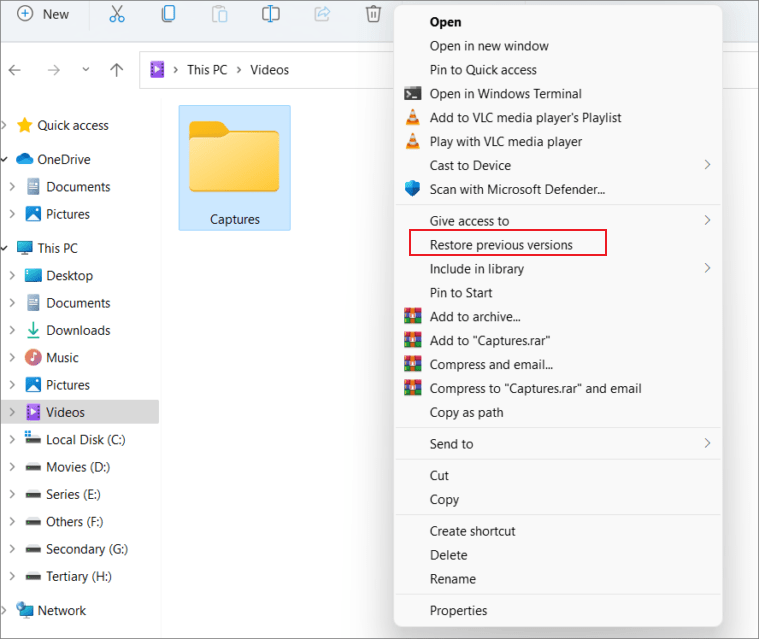
For many people, opening the Windows 10 restore option may be a gamble, as there's a good chance nothing will be available, leaving them to find alternative ways to restore corrupted files.
6. Use CHKDSK Utility
Sometimes files become unreadable or open as garbled characters, possibly due to file system errors or bad sectors. Fortunately, Windows 11 and 10 have a built-in feature called CHKDSK (Check Disk) that can diagnose and salvage affected files, making them usable again. This utility can be accessed through a CMD command and can recover corrupted files, allowing them to be opened normally. To use it, you can follow a series of steps.
- To run the Check Disk (CHKDSK) tool as an administrator, follow these steps: Open the Start menu, search for CHKDSK, and select the app. From the available options, choose the one that says "Run as Administrator".
- Once the tool is open, type the following command to recover corrupted files using CMD: "chkdsk c: /f /r /x".
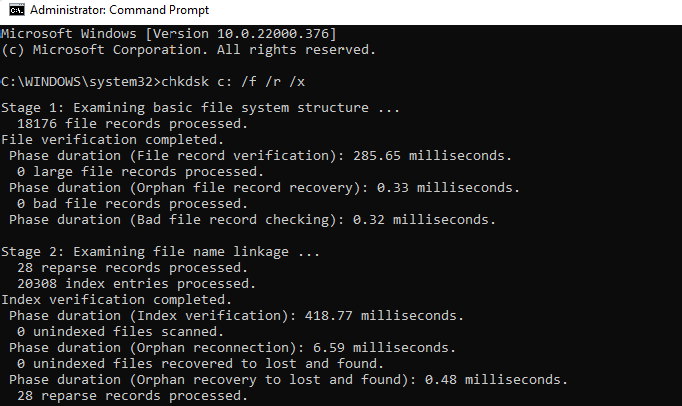
The utility will scan the drive, fix file system issues, and address bad sectors, making your files accessible again. If file systems get corrupt, you can use the SFC tool instead. Additionally, you can use this method to recover permanently deleted files using CMD.
7. Resume Corrupted Files with Data Recovery Software
If none of the methods above work or are too difficult, you can use third-party file recovery tools like Qiling Free Data Recovery to make the file recovery process more straightforward.
The software can automatically repair corrupted files during data extraction, and supports all major file systems and hundreds of file formats. The corrupted file recovery process is straightforward, and you can preview the files before saving them. You can also connect an external hard drive and get it scanned if needed, following a simple scanning process.
- To ensure the Qiling Free Data Recovery tool is installed and running on your computer, first, download the software from the official website. Once downloaded, run the installation file to install the tool on your computer.
- Select the drive that contains the corrupted files from the list of available drives on the tool.
- To search for a drive, hover your mouse over the drive you want to search for and click on the Scan button.
- The scanning process will start, and the tool will populate the window with all the recoverable files from the drive. You can preview individual files by clicking on them.
- Once you have selected all the files, click on the Recover button at the bottom right of the window, which will save the selected files to your computer's hard drive.
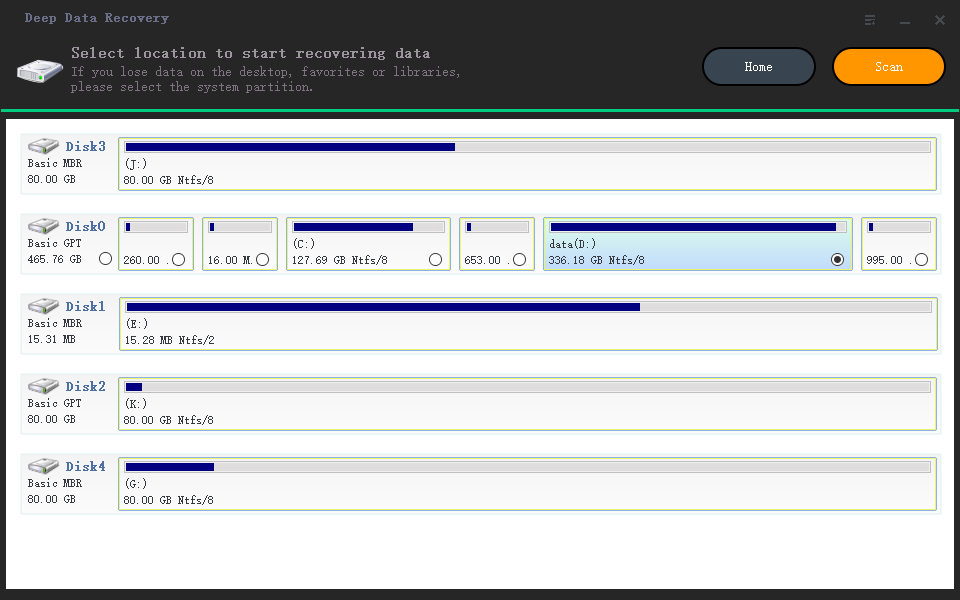

This tool is a cost-effective option for recovering data, with a free version available for small-scale recovery of up to 2GB. Beyond that, it offers a competitively priced full version for larger data recovery needs.
Tips for Preventing Data from Getting Corrupted
To avoid corrupted file recovery methods, consider taking preventative measures such as regularly backing up your data, using reputable software, and being cautious when downloading files. This can help minimize the risk of data loss and make recovery easier if issues do arise. Additionally, keeping your operating system and software up to date with the latest security patches can also help prevent corruption.
- 📤 Regularly back up your data to the cloud to ensure easy and fast recovery in case of any issues, and periodically check your backup files to ensure they are functioning correctly.
- ☣️ Be cautious with online activities to prevent data corruption. Avoid visiting suspicious websites and downloading files from unverified sources, as this can lead to data corruption. Even seemingly harmless links can cause problems.
- ⚒️ Regularly check the health of your hard drives to ensure they are functioning properly. Many manufacturers, such as Samsung, offer specialized tools to monitor and report on the health and usage of their drives. This can help identify potential issues before they become major problems.
- 🛡️ To protect your device from malware, use an antivirus software to scan for any suspicious files. If any malicious files are detected, remove them immediately to prevent further damage.
- 🗑️ To improve database accuracy, perform data scrubbing to automatically remove any inaccurate or incomplete information. This process helps maintain data integrity and ensures that only reliable data is stored and used for analysis or decision-making purposes.
FAQs
When a file becomes corrupted, it can be difficult to know how to proceed. You can try to fix the file yourself using data recovery software, but if that doesn't work, it's often best to seek professional help from a data recovery service or a computer technician. They have the expertise and specialized tools to recover corrupted files and prevent further damage. Additionally, if the file is critical or sensitive, it's usually best to seek professional help to ensure its integrity and security.
-
A corrupted file is a file that has become unusable or unreadable due to errors, making it unable to be opened or used as intended.
-
Corrupted files may exhibit odd behavior, such as freezing or crashing when opened, or displaying error messages.
-
In some cases, it may be possible to recover a corrupted file using free data recovery software for Windows 11, 10, and 7.
-
The chances of recovering a corrupted file depend on the extent of the damage, with small portions possibly being fixed, but entire files being irrecoverable.
-
If you're looking to recover a deleted file, you may want to try using a data recovery software or seeking professional help. The importance of the file and your level of comfort with computers should be considered before deciding on a course of action. If the file is not crucial and you're comfortable with computers, you may want to try recovering it yourself using a data recovery software. However, if the file is very important or you're not comfortable with computers, it may be worth paying for professional help.
-
The cost of recovering a corrupted file varies, with some methods being free and others being expensive, depending on the method used.
Conclusion
On a Windows 10/11 PC, recovering corrupted files is often possible with patience and perseverance. While there's no guarantee that all methods will work, taking action as soon as possible can help prevent further damage. Various options can be tried, and with persistence, it's usually possible to retrieve your data.
Related Articles
- How to Recover Deleted Archive Files in Windows 11/10
- Recover Permanently Deleted Files in Windows 11
- Sandisk Corrupted SD Card Recovery
- Recover Unsaved/Deleted Notepad Files in Windows 10/11
- Windows 7 End of Life: What Should You Do and How to Backup Your Files
Once Windows 7 support ends, consider upgrading to a newer version of Windows, such as Windows 10 or 11, to ensure continued security and feature updates. Alternatively, explore other operating systems like Linux or macOS, or consider a different device altogether. - Movie File Recovery | Recover Deleted Movie Files
Stop using your computer hard drive or external hard drive, USB once your lost movie files by deletion, formatting, or other reasons. The 2023 best movie file recovery software offered by Qiling is available here for you to download and apply to recover your lost movies in 3 simple steps.
Products
Articles & Tutorials
- Data Recovery
- Data Backup
- File Recovery
- File Backup
- File synchronize
- System Backup and Restore
- Disk and Partition Clone
- Technical articles
- Disk Master Help
- Windows Deleted File and Disk Recovery Tutorials
- Windows File and Data Recovery Tutorials
- More Windows Tutorials for Install, Security, Files, and PC Tips
- Windows Boot, Repair, and Recovery Environment Tutorials
- Windows Backup Tutorials
- Windows Restore Tutorials
- Windows Clone and Migration Tutorials
- Windows Server Backup, Recovery, and Management Tutorials
- Windows Disk, Partition, and Storage Management Tutorials