How to Recover Deleted Files from External Hard Drive [Free]
- Possible reasons for data loss from external hard drive
- How to recover deleted files from external hard drive (6 options)
- ▶ Option 1. Recover deleted files from external hard drive with Deep Data Recovery
- ▶ Option 2. How to recover deleted files from external hard drive without software
- ▶ Option 3. How to retrieve deleted files from external hard drive using CMD
- ▶ Option 4. Use system file checker to fix corrupted files on external hard drive
- ▶ Option 5. Recover deleted files on external hard drive using Windows File Recovery
- ▶ Option 6. Recover lost/deleted partition on external hard drive
- How to recover files from external hard drive not detected
- Signs of problems with external hard drive
- Bonus - best practice to protect files on external hard drive
- Conclusion
- FAQs about recover deleted files from external hard drive
External hard drives are primarily used to store personal data like photos, videos, music, and documents, or to create backups of system files. This allows users to access and share data across devices, providing great convenience. However, the more data stored on an external hard drive, the higher the risk of losing it.
When data is lost from an external hard drive, many people panic and wonder if it's possible to recover the data. Fortunately, deleted files on an external hard drive can be recovered, but it's essential to stop using the drive immediately to prevent data overwriting, which can reduce the chances of successful data recovery.
Next, refer to the following content to learn more information on how to recover deleted files from external hard drive.
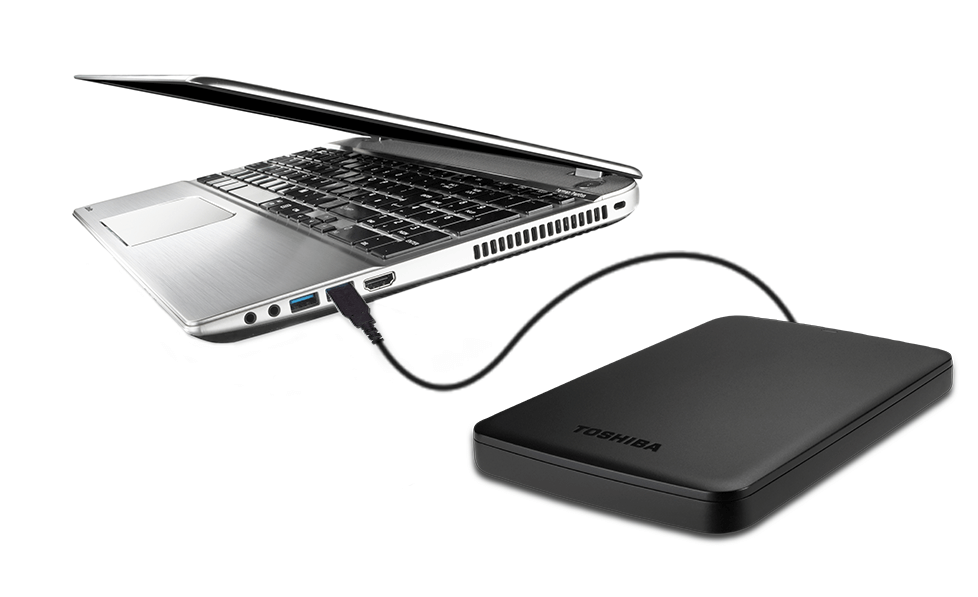
Possible reasons for data loss from external hard drive
Here are some common reasons why you might lose data on your external hard drive:
✦ Human error: Data loss can occur due to various mistakes, such as deleting files mistakenly, formatting the hard disk incorrectly, partitioning errors, or accidentally cutting data. Additionally, unplugging the hard disk during data transfer or experiencing power failure while the hard disk is in use can also lead to data loss.
✦ Virus infection: When a virus-infected computer connects to an external hard drive, the virus can spread to the hard drive, corrupting or deleting files and potentially leading to data loss.
✦ Hardware failure: Physical damage to an external hard disk, such as disk failure, warped heads, or scratched disks, can also cause data loss, as well as product quality issues.
✦ File system corruption: The file system on a hard disk can become corrupted due to factors like power failure or improper operation, leading to data not being read correctly.
You can recover deleted files from an external hard drive with the right methods, making it a relatively easy process regardless of the reason for the deletion.
How to recover deleted files from external hard drive (6 options)
The files deleted on external hard drive will be permanently deleted instead of moving to Recycle Bin. Here, I have provided 6 external hard drive data recovery ways that apply to recover deleted files from Seagate/WD/SanDisk/Samsung external hard drives.
▶ Option 1. Recover deleted files from external hard drive with Deep Data Recovery
If you accidentally delete files or format an external hard drive, you can use Deep Data Recovery software to easily recover files on Windows 11, 10, 8, 7, and Windows Server.
- Recover deleted or lost files with a high success rate and rapid scanning speed, utilizing advanced technology and user-friendly interface to minimize data loss and maximize recovery success.
- You can recover files from an external hard drive for free up to 500MB in total using a free data recovery software like Recuva or Deep Data Recovery Wizard. These tools can scan the external hard drive and recover deleted or lost files, but be aware that they may not work for severely damaged or corrupted drives.
- Recover lost Word documents, Excel files, PDFs, PPTs, photos, movies, and more than 200 file types with ease.
- Automatically start quick and deep scanning methods to find as many of your files as possible.
- The recovered files will be kept with their original names, format, and path as they were before the deletion, allowing for a seamless recovery process.
You can recover files not only from external hard drives, but also from formatted hard drives. To do this, connect your external hard drive and ensure it's detected. Then, download and launch Deep Data Recovery to see how to recover deleted files from your external hard drive.
Step 1. Locate your external hard drive.
To connect the external hard drive to the PC, plug it into a USB port. Then, open the software used for scanning the drive, such as Deep Data Recovery, and select the external hard drive as the drive to scan. Click the Scan button to initiate the scanning process.
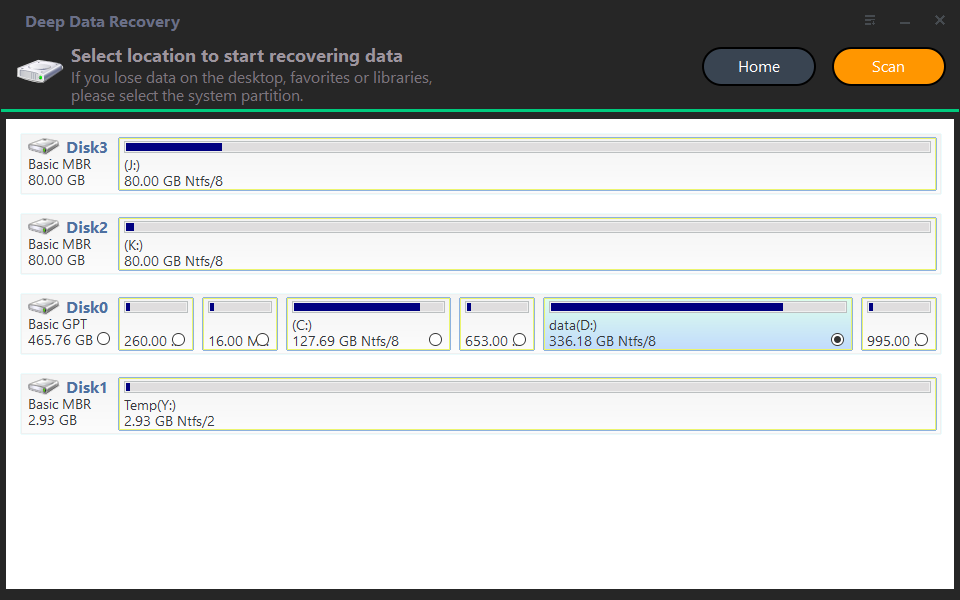
Step 2. Wait for the results of the scan.
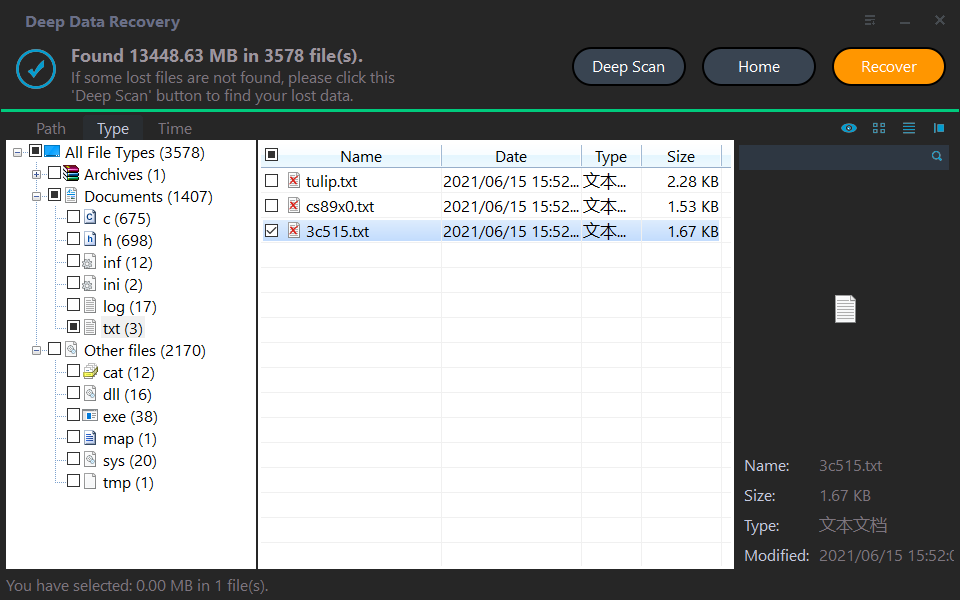
Once the scanning process is complete, you can select the files you want to recover and click "Recover" to save them to a safe location. This process allows you to recover specific types of files, such as photos or documents, using the filters provided. The recovered files will be saved in their original format, making it easy to access them again.
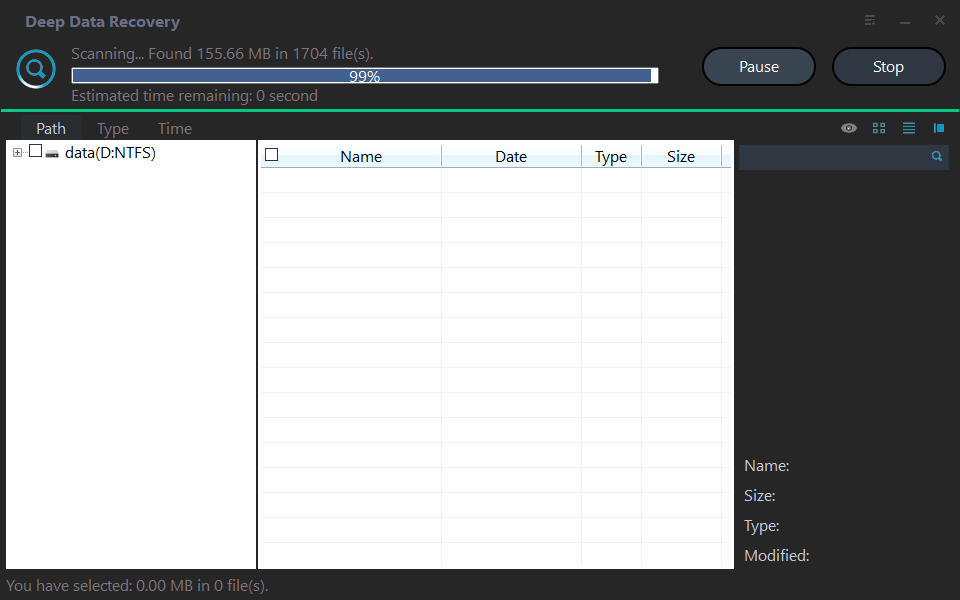
Tip: The scanning process is divided into a quick scan and a deep scan, with the quick scan helping to find deleted files quickly and the deep scan taking more time to search for more lost files.
Step 3. Choose the files you need to recover.
To find the target files, use the Filter function, then click Recover xx files and choose a new location to save the restored files, to avoid the deleted data being overwritten.
Notes:
★ Except for Word files, the software can also be used to restore Excel files, PPT, PDF, videos, music, and other types of files.
★ You can still recover deleted files in Windows Server, including versions 2016, 2019, and 2022, among others.
▶ Option 2. How to recover deleted files from external hard drive without software
If you use Backup and Restore to create a file backup, you can restore deleted files from an external hard drive, including all files and changes if the schedule backup feature is enabled.
Step 1. To recover permanently deleted files, navigate to the Control Panel, then System and Security, and select Backup and Restore (Windows 7). From there, click on "Restore my files" to selectively recover the deleted files.
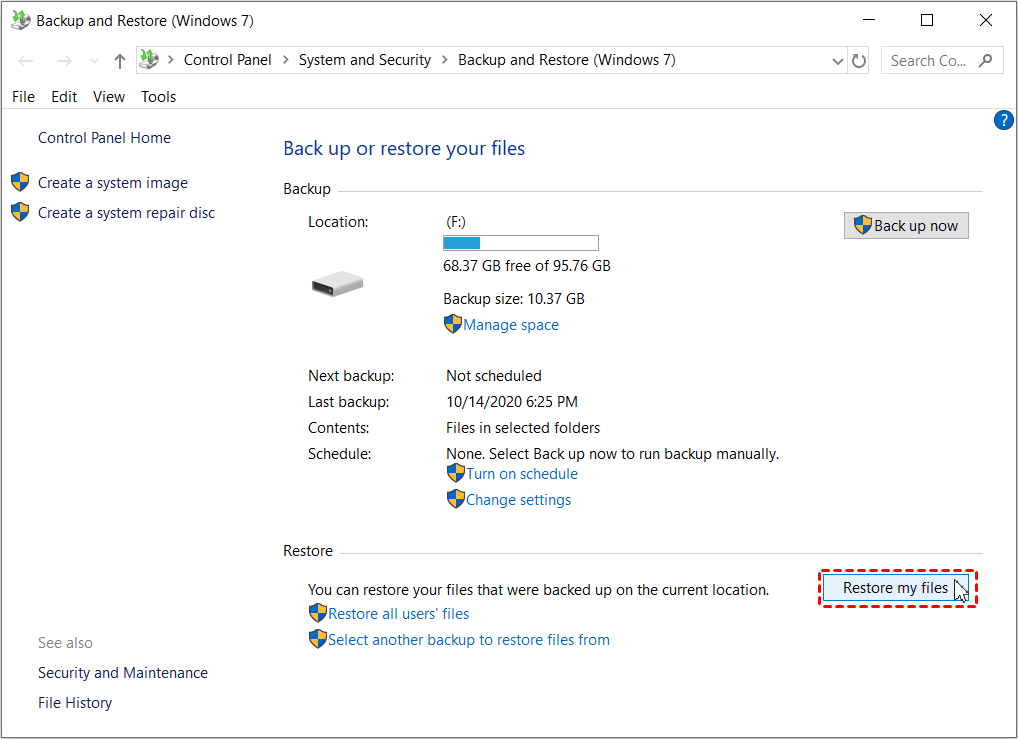
You can also choose Restore all users' files to get all deleted files back.
Step 2. Search for your deleted files or use the Browse for files or Browse for folders option to find it, then click Next.
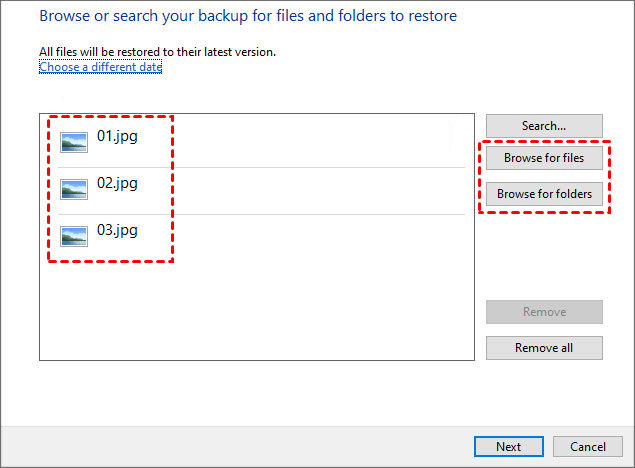
Note: The "Browse for files" option lists all deleted files, while the "Browse for folders" option lists folders containing deleted files.
Step 3. Choose the original or new location to save files in the backup and click Restore to recover deleted files from an external hard drive.
▶ Option 3. How to retrieve deleted files from external hard drive using CMD
You can recover deleted files from an external hard drive using the CHKDSK and Attrib command to deal with data loss due to a virus attack or file attributes loss, or to recover hidden files.
Step 1. Plug in your external hard drive into your computer and open Command Prompt as an administrator.
Step 2. To run a full check on your external hard drive, you can type the command `chkdsk G: /f` and press Enter, replacing "G:" with the actual drive letter of your external hard drive. This will initiate a thorough scan and repair process to identify and fix any errors or inconsistencies on the drive.
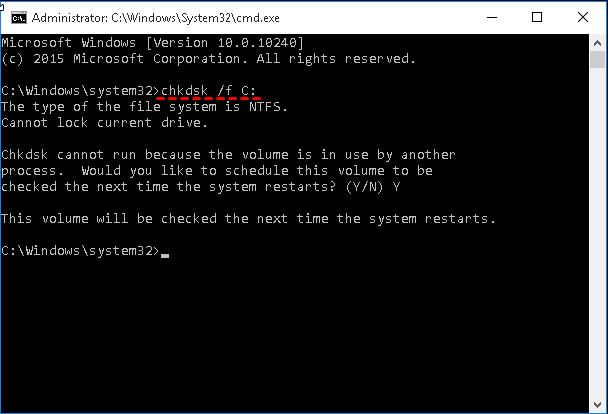
Step 3.Run chkdsk at the next system restart. Type Y if you are asked to run chkdsk at the next system restart. Type N if you do not want to run chkdsk.
Step 4. The command `attrib -h -r -s /s /d G:*.*` should be replaced with the actual drive letter of your external hard drive, for example, if it's the E drive, it should be `attrib -h -r -s /s /d E:*.*`. This command will remove the hidden, read-only, and system attributes from all files and subfolders on the external hard drive. The `/s` and `/d` switches are used to apply the changes to subfolders and their contents, as well as the root directory itself.
▶ Option 4. Use system file checker to fix corrupted files on external hard drive
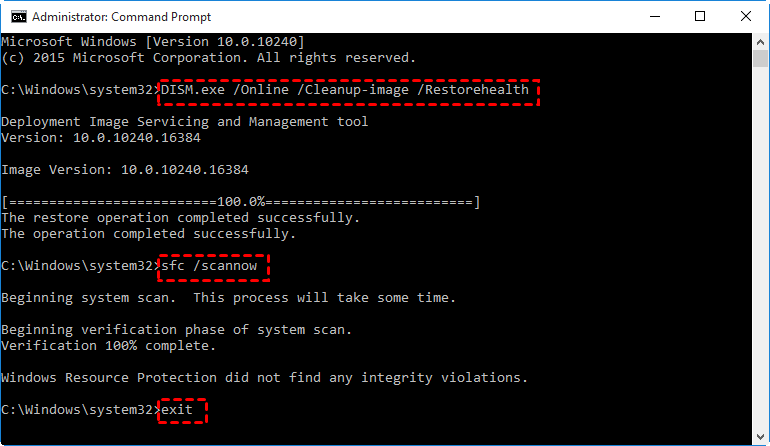
The System File Checker (SFC) is a tool in Microsoft Windows that scans the disk and repairs missing or corrupted system files.
- To prepare Windows 11/10/8.1/8 for the installation of a new version of Windows, you need to run Deployment Image Servicing and Management (DISM) beforehand.
- For Windows 7 and Vista, you can run the Windows System File Checker directly.
Step 1. Before proceeding, ensure that your external hard disk is properly detected. To do this, open the Command Prompt (CMD) with administrator privileges. This will allow you to execute commands with elevated permissions, which may be necessary for the next steps.
Step 2. Type DISM.exe /Online /Cleanup-image /Restorehealth and press Enter.
Step 3. Type sfc /scannow and press Enter.
Step 4. Type exit and press Enter to close this window.
▶ Option 5. Recover deleted files on external hard drive using Windows File Recovery
Microsoft's Windows File Recovery is a free command-line utility that helps you recover deleted or lost files from external hard disks. However, it requires you to learn its syntax, recovery mode, and switches, which can be a bit of a challenge. If you need more guidance, you can check out the instructions on how to use Windows File Recovery.
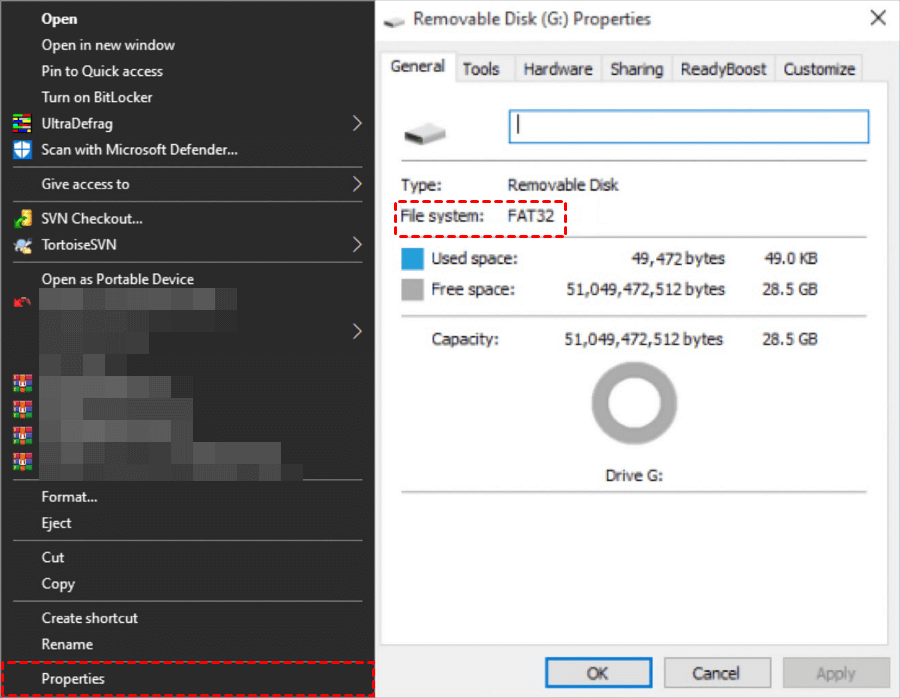
You need to access the file system of the partition containing the deleted files, which can be done by going to "This PC", right-clicking on the external drive containing the deleted files, and then clicking on "Properties".
Step 1. Download and install Window File Recovery from Microsoft Store and then open it.
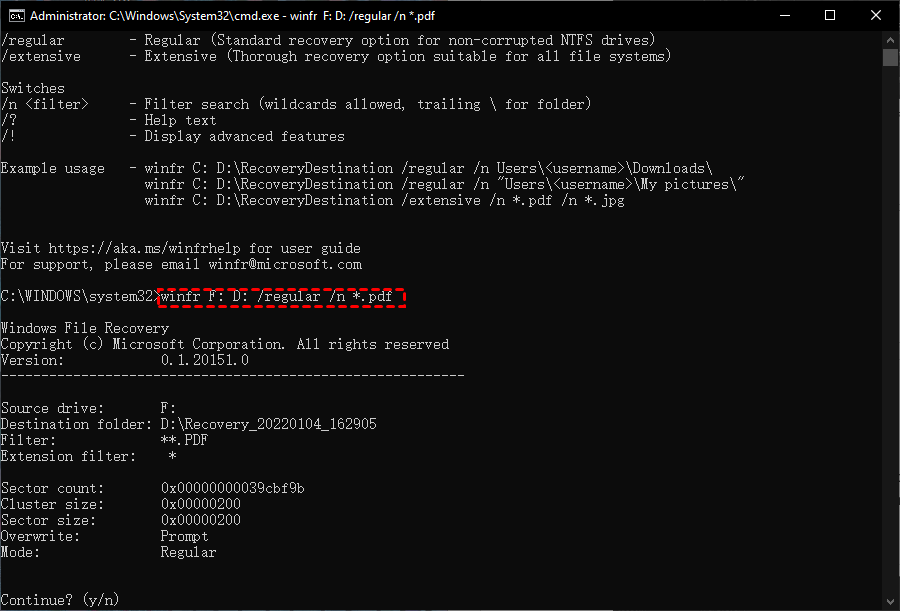
Step 2. Open CMD and run as administrator. Enter commands based on the following format and example:
winfr source-drive: destination-drive: [/mode] [/switches]
To recover deleted PDF files from F: drive to D: drive, the command would be something like: `copy F:\path\to\deleted\pdf\file.pdf D:\path\to\destination`.
winfr F: D: /regular /n *.pdf
- ★Tips:
- The source and target drives must not be the same.
- The tool only works with Windows 10 versions 2004 and up.
- Windows File Recovery can be a useful tool for recovering deleted files, but it may not always be successful and can sometimes require administrative privileges to run.
▶ Option 6. Recover lost/deleted partition on external hard drive
If the partitions on your external hard drive have disappeared due to accidental deletion or unknown reasons, the simplest method is to try partition recovery to save the partitions and files together.
Step 1. To recover data from a partition, go to the main interface and click on "Recover" then select "Partition Recovery". Choose the disk you want to recover data from and click "Next" to proceed.

Step 2. Select Fast Search first, as it's faster, but if that doesn't work, try Full Search.
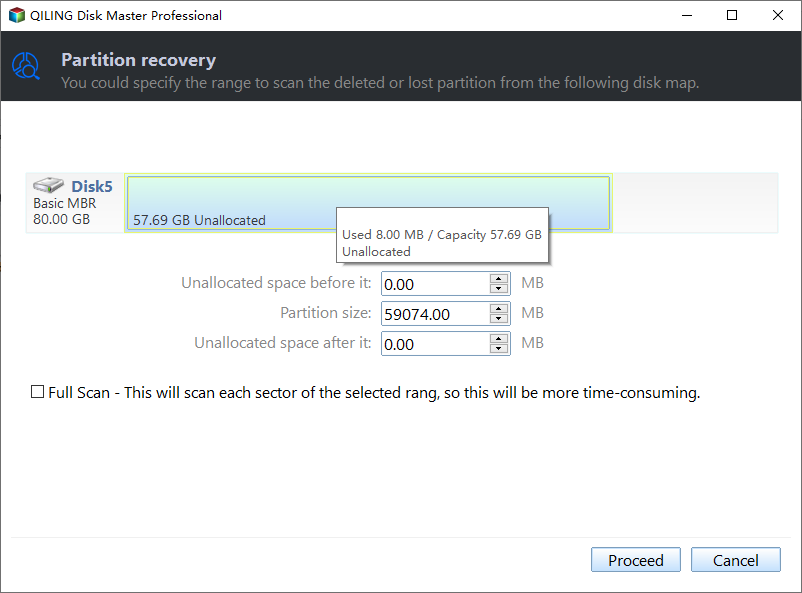
Step 3. Select the lost partition and click Recover.
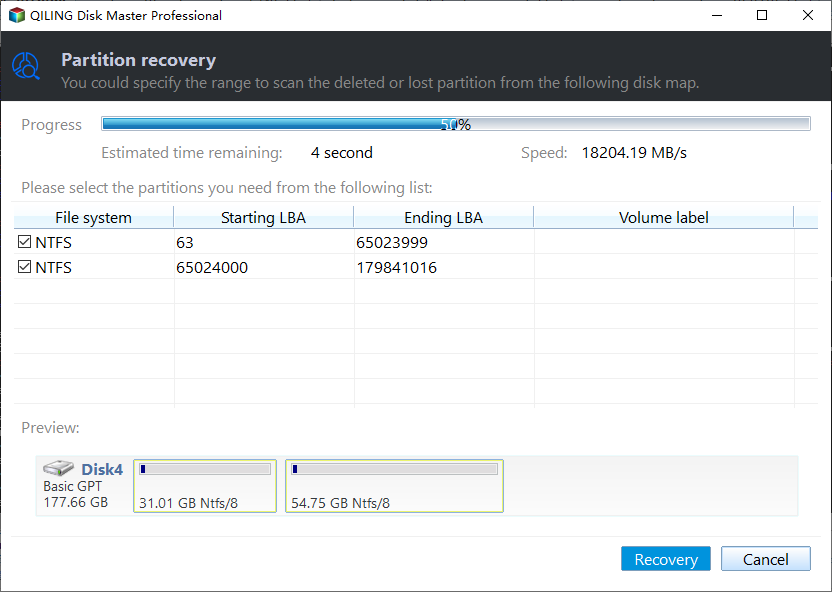
Step 4. Click Finish to exit this window after you see the congratulations message.
How to recover files from external hard drive not detected
If your external hard drive is not recognized, try making it available on your PC or Windows Explorer by restarting your computer, checking the USB port, and ensuring the drive is properly connected. You can also try using a different USB port or cable, and if that doesn't work, try booting your computer in Safe Mode or using a different computer to see if the issue is with the drive or the original computer. If none of these methods work, try checking for disk errors and running a disk check using the built-in Check Disk utility in Windows.
- Check the connection and cables. If your internet connection is loose, try reconnecting it. If the cable appears worn, consider replacing it with a new one. Alternatively, you can also try using a different cable to see if that resolves the issue.
- Try different USB port or computer.
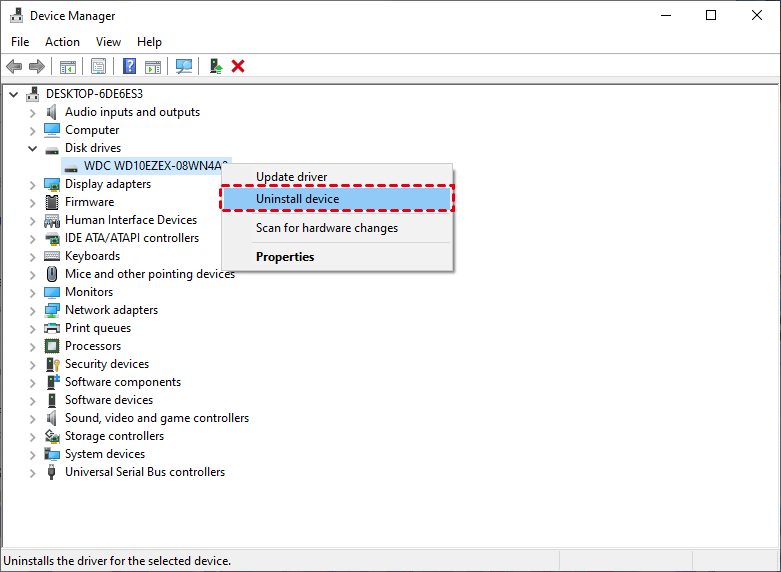
- Check the device drivers and update it. To uninstall and reinstall the external hard drive, open Device Manager by typing "devmgmt.msc" in the search box and pressing Enter. Locate the external hard drive, right-click it, and select "Uninstall device". Restart your PC, then plug in the external hard drive, which will automatically install the necessary drivers.
- Format a corrupt or RAW disk to make it recognized.
Signs of problems with external hard drive
Here are some signs to recognize your disk is experiencing problems:
● Scratching or clicking sounds coming from the external drive. A sign of physical components wearing out may indicate that the device is nearing the end of its lifespan. This could be due to various factors, such as mechanical stress, electrical wear, or material degradation.● Slow response time when accessing the drive.
● System or software crashes when using external disksA disk error is a type of error that occurs when the computer's operating system is unable to read or write data to a disk drive, such as a hard drive or solid state drive. This can be caused by a variety of factors, including a failing or damaged disk, a corrupted file system, or a problem with the disk's firmware. If you're experiencing disk errors, it's a good idea to run a disk check or repair the disk as soon as possible to prevent further damage and potential data loss.
● Unexplained errors when reading or writing to external disksThis may be a sign of physical disk damage or disk corruption.
If you're experiencing symptoms like data loss, system crashes, or hardware failure, it's recommended to create a disk backup with all your data on it.
Bonus - best practice to protect files on external hard drive
To prevent data loss on an external hard drive, consider implementing one or more of the following methods: regularly backing up your data, using a reliable and high-quality external hard drive, keeping the drive away from extreme temperatures and physical damage, and using a surge protector to protect against power surges. Additionally, consider using a cloud backup service to store a copy of your data online, and using software that can recover deleted files in case of accidental deletion.
● Label external hard drives to make it unique.● Keep your external disk out of direct sunlight and not subject to extreme temperature or moisture.
● Verify the files on external disk before deleting or formatting.
● Avoid interruption while transferring files from one hard drive to another one.
● Create a copy of your files automatically.
● Run antivirus software and scan all your external disks regularly.
Creating a scheduled file backup using free backup software is a great practice among the best. Options like Backup and Restore, File History, and third-party software like Qiling Disk Master Standard are great choices.
I prefer using the third-party software, because it is flexible and has rich features. For details, learn the Windows 10 backup utility. And I'll show you how to use it in simple steps.
Step 1. Download and install Windows backup software - Qiling Disk Master. Click Backup > Disk Backup to back up the entire disk and its data.

Step 2. Set the task name to differentiate backup tasks from each other. Click on "Disks" to select the external hard drive where you want to save the backup.

Step 3. Choose a location to save all your data from your external disk, such as a backup drive, network drive, NAS device, or cloud storage.

Step 4. To schedule automatic backups, click Schedule Backup and enable daily, weekly, monthly, event triggers, or USB plug-in options, ensuring that your disk is backed up regularly and you don't lose any changes made to it.

Step 5. Click Proceed to start the disk backup process, and wait for it to complete. Once finished, click Finish to exit the interface.
Conclusion
This post provides a solution to recover deleted files from an external hard drive for free on Windows 7, 8, 10, and 11. Whether you accidentally deleted files, formatted the disk, or lost files due to corruption or other reasons, you can find a suitable solution here to recover your deleted files without incurring any cost.
Instead of recovering files, it's suggested to prevent data loss beforehand. A good way to do this is by backing up files on an external hard drive using a free backup software like Qiling Disk Master Standard.
FAQs about recover deleted files from external hard drive
✍ What if I accidentally deleted files from my external hard drive?
If you've accidentally deleted files from an external hard drive, stop using it immediately and don't add any new data. The best time to recover files is as soon as you realize you've lost them. You should also refrain from formatting the disk, rebuilding the partition, or taking any other actions that could potentially overwrite the deleted files. This will help ensure the best chance of recovering your lost data.
✍ Does an external hard drive have a Recycle Bin?
To access the Recycle Bin folder on the external hard drive, you need to enable the "Show Hidden Files and Folders" feature in Windows Explorer. Once enabled, check if there is a folder named $recycle.bin.
✍ Can permanently deleted files be recovered?
Permanently deleted files remain on the disk, inaccessible, but can be recovered using data recovery software like Deep Data Recovery or restored from a file backup. Alternatively, methods such as CMD, previous version, and Windows File Recovery can be tried.
✍ What to do if your external hard drive is corrupt?
If your external hard drive is corrupt, you can try recovering data with a data recovery software like Deep Data Recovery, as it may be due to system or software failure, virus infection, bad sectors, or power loss.
✍ How can I recover deleted files from external hard drive on Mac?
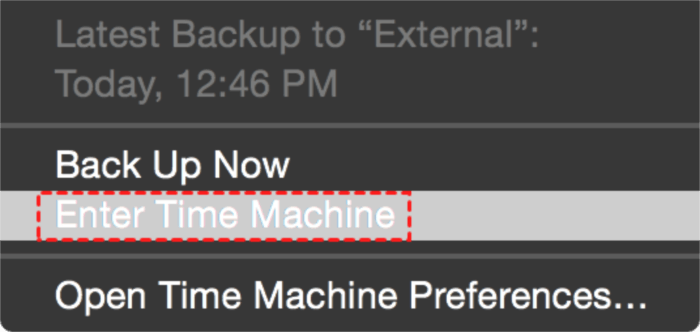
If you've deleted files from an external hard drive on your Mac, there are two ways to recover them. You can try putting the files back from the Bin, which is a temporary storage for deleted items. Alternatively, you can use the Time Machine, which creates automatic backups of your data on an hourly, daily, and weekly basis. This allows you to restore deleted files from a previous backup, making it a reliable way to recover lost data.
- To access Time Machine, click the Launchpad icon in the Dock, find Time Machine, and click Enter Time Machine.
- Use the up and down arrows to locate the deleted files.
- Click Restore to recover the selected files. The recovery process will restore the lost data to its previous location once it is complete.
Related Articles
- How to Delete a Corrupted File Windows 10? Simple Methods Here!
If you're having trouble deleting a corrupted file on Windows 10, there are still ways to get rid of it. You can try deleting the file using an administrator account, or booting into Safe Mode to see if that makes a difference. - [Unsaved & Deleted] How to Make Photoshop File Recovery
When you accidentally closed Photoshop file without saving, or when you lost Photoshop file due to program crash, you can learn how to recover unsaved Photoshop file with effective methods in this article. - How to Recover Data from Formatted Hard Disk in Windows 10/11
Recovering data from a formatted hard disk in Windows 10 is now a manageable task. With the best data recovery software, you can easily retrieve files from a formatted hard drive in Windows 10, 8, or 7. - How to Recover Files Lost in Cut and Paste
Deep Data Recovery Professional is a powerful software that can help you recover files lost in cut and paste operations, making it a reliable tool for data recovery. - How to Recover Deleted Files from Dell Laptop/Desktop
If your photos, videos, documents, music, and other files were lost from your Dell laptop or desktop, you can recover them using a Dell data recovery tool. This tool can help you retrieve deleted files from your Dell laptop or desktop. - Lenovo Data Recovery - How to Recover Deleted Files on Lenovo Laptop/Tablet
To recover deleted files from your Lenovo laptop or tablet, use Lenovo data recovery software to scan for lost photos, videos, music, and documents.
Products
Articles & Tutorials
- Data Recovery
- Data Backup
- File Recovery
- File Backup
- File synchronize
- System Backup and Restore
- Disk and Partition Clone
- Technical articles
- Disk Master Help
- Windows Deleted File and Disk Recovery Tutorials
- Windows File and Data Recovery Tutorials
- More Windows Tutorials for Install, Security, Files, and PC Tips
- Windows Boot, Repair, and Recovery Environment Tutorials
- Windows Backup Tutorials
- Windows Restore Tutorials
- Windows Clone and Migration Tutorials
- Windows Server Backup, Recovery, and Management Tutorials
- Windows Disk, Partition, and Storage Management Tutorials