How to Recover Lost Word Documents in Windows?
- Can you retrieve a Word document?
- How to recover Word files in Windows?
- Case A. Recover unsaved Word documents with AutoRecover
- Case B. How to recover deleted Word documents?
- Method 1. Recover deleted Word documents from the Recycle Bin
- Method 2. Recover deleted/lost/damaged Word documents from File History
- Method 3. Recover deleted/lost Word documents with data recovery software
- Further reading: How to repair corrupted Word documents?
- In conclusion
Can you retrieve a Word document?
Don't worry, recovering an unsaved Word document is possible in Windows 10. You can try checking the Word AutoRecover feature, which periodically saves a copy of your document in a hidden folder. To access it, go to the location where your Word document is saved, and look for a file with the same name but with the ".asd" extension. If you're unable to find it, you can also try using a third-party data recovery software like Recuva or Deep Data Recovery Wizard, which can scan your computer for deleted files and potentially recover your lost document. I hope this helps!
Unfortunately, once you empty the Recycle Bin, the deleted files are permanently removed from the Recycle Bin and may be overwritten by the operating system, making them unrecoverable. However, you can try using data recovery software to scan your hard drive for any remaining file fragments. There are many free data recovery tools available online that you can try. If the files were not overwritten, it's possible that the software can recover them. However, the success of data recovery depends on various factors, such as the type of file system, the amount of free space on the hard drive, and the time elapsed since the files were deleted.
If you accidentally deleted an unsaved Word document, you can try to recover it by checking the Recycle Bin or using a data recovery software to scan your computer for deleted files. This may help you recover the lost document.

To recover unsaved or deleted Word documents, stop using your PC immediately after data loss and avoid executing any tasks that could overwrite the lost files. This helps ensure the integrity of the data and increases the chances of a successful recovery.
How to recover Word files in Windows?
To recover lost Word documents, refer to the corresponding recovery solutions based on the data loss scenario: if the document was deleted or corrupted, use the "undelete" and "repair" features in Word; if the document was saved over, use the "previous versions" feature in Word or the "File History" feature in Windows; if the document was deleted due to a system crash or virus, use data recovery software to scan the affected drive and recover the lost document.
Case A. Recover unsaved Word documents with AutoRecover
AutoRecover is a built-in MS Office feature that automatically saves your Word files at a customized time interval, helping you recover unsaved Word documents or missing Excel files.
To manually activate the AutoRecover feature in Word, go to File > Options > Save, then check Save AutoRecover information every x minutes and Keep the last autosaved version if I close without saving. Click OK. This will ensure that your work is saved automatically at regular intervals, and you can recover it if you close without saving.
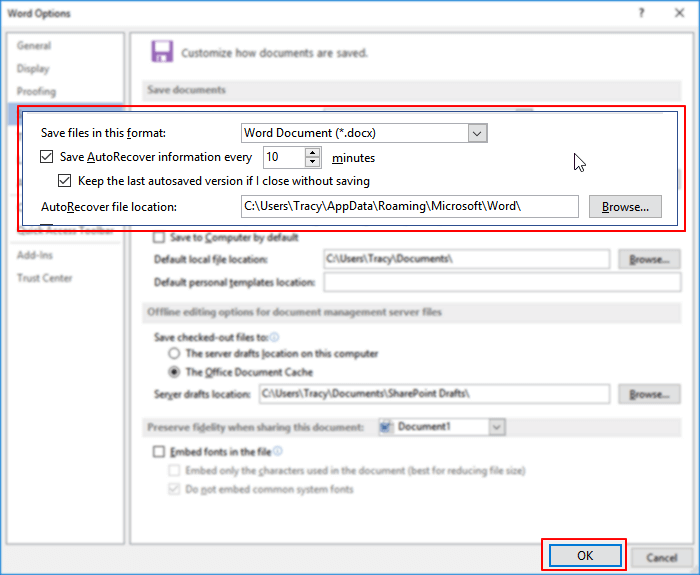
The following steps depict how to recover unsaved Word documents.
Step 1. Go to C:\Users\Username\AppData\Local\Microsoft\Office\UnsavedFiles.
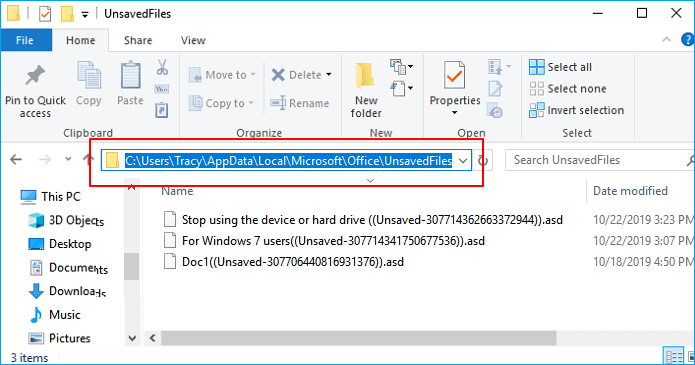
Step 2. You can try using the Windows Task Manager to find and restore the unsaved Word document. To do this, press Ctrl+Shift+Esc to open the Task Manager, then click on the "Processes" tab.
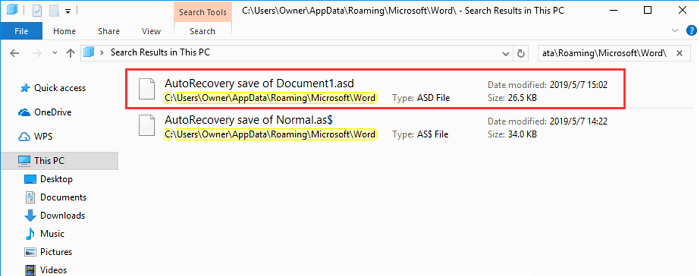
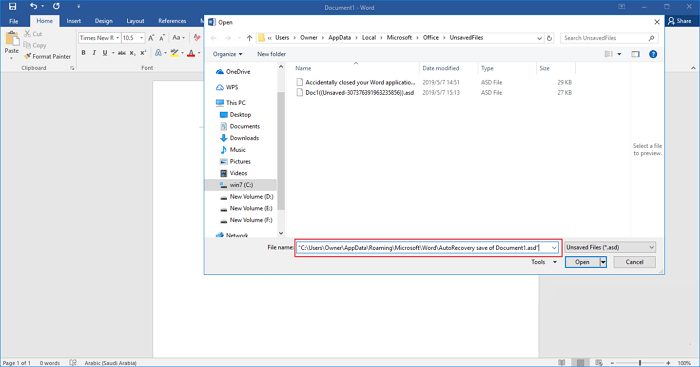
Step 3. Open Microsoft Word, click "File" > "Open" > "Recover Unsaved Documents", then click "Open" after pasting the copied file in the File name column.
To learn more methods, please recover unsaved Word document.
Case B. How to recover deleted Word documents?
If you accidentally deleted a Word document, act quickly. You can try the "Undo" feature first if the deletion just happened.
Method 1. Recover deleted Word documents from the Recycle Bin
After accidentally deleting a Word document, you can quickly undo the deletion by pressing the shortcut Ctrl + Z, which will restore the document to its last saved version.
If you haven't emptied your Recycle Bin or pressed "Shift + Delete" after deletion, you can recover deleted Word documents from the Recycle Bin. However, note that the Recycle Bin has a file size limit of 8998 MB.
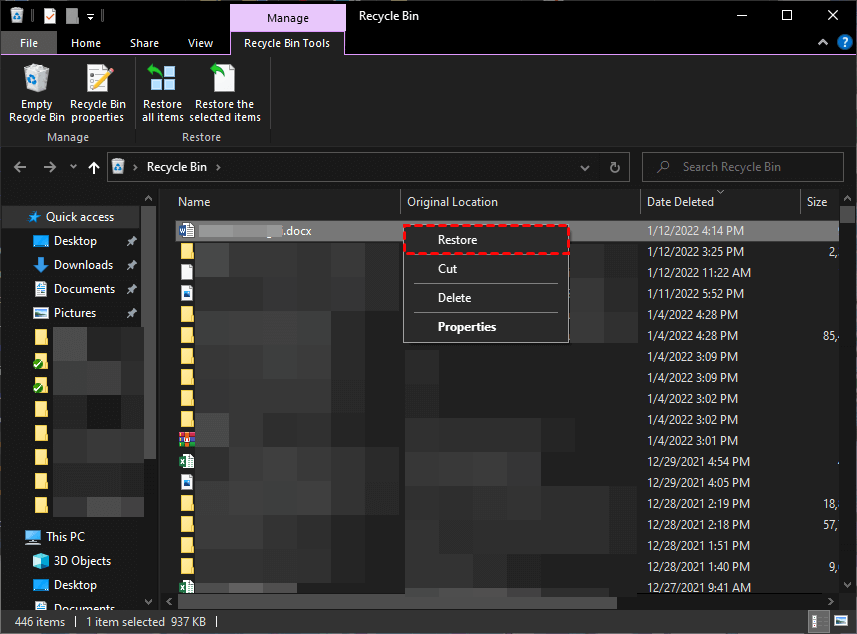
Step 1. To recover a deleted Word document, open the Recycle Bin, and locate your needed Word documents in it. From there, you can right-click on the file you want to recover and select 'Restore' to restore it to its original location.
Step 2. Right-click on your selected Word files, and restore them to their original saved path.
Method 2. Recover deleted/lost/damaged Word documents from File History
If you've made backups via Windows features, you can restore lost Word documents from these backups, as recovering deleted files from Recycle Bin after empty is not possible.
To recover deleted files, enable File History in Control Panel > System and Security, then follow the method.
File History can also backup files from the Pictures, Music, Videos, Desktop folders, and OneDrive offline files on your computer, allowing you to recover folders you accidentally deleted while organizing files.
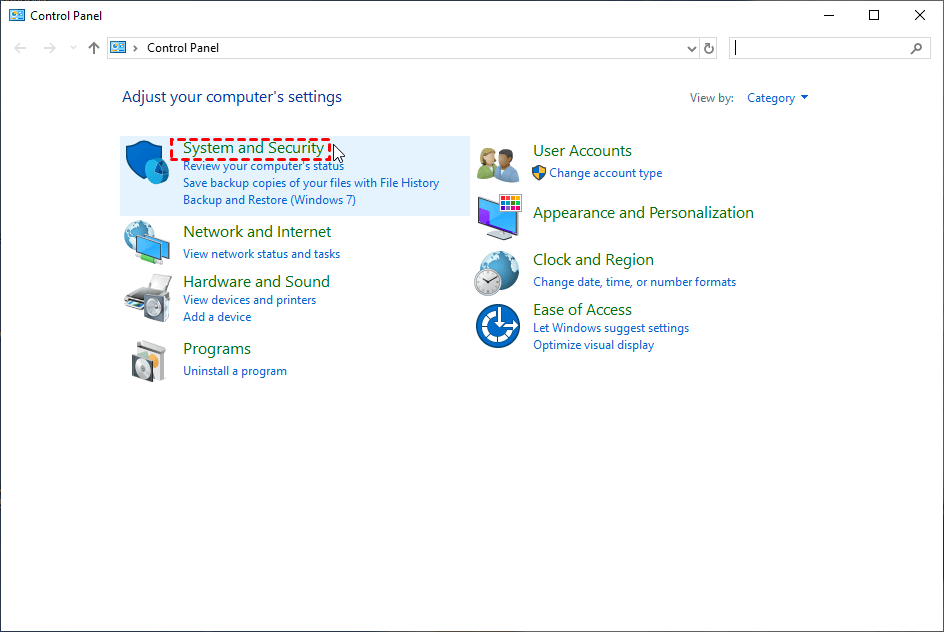
Step 1. To access the Control Panel, type "Control Panel" in the search bar, and then click on the "System and security" button.
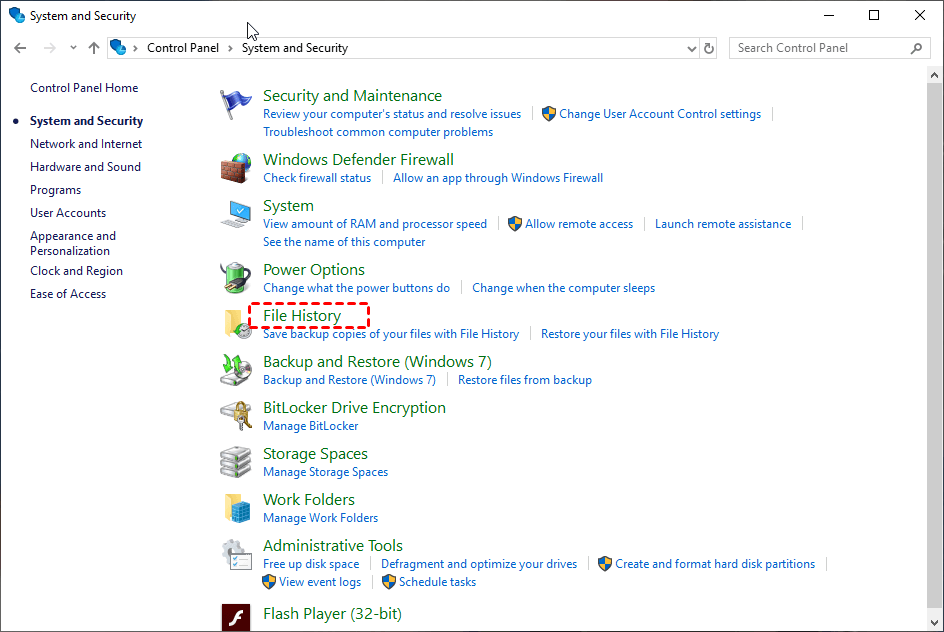
Step 2. After clicking "File History", select the "Restore your files with File History" option.
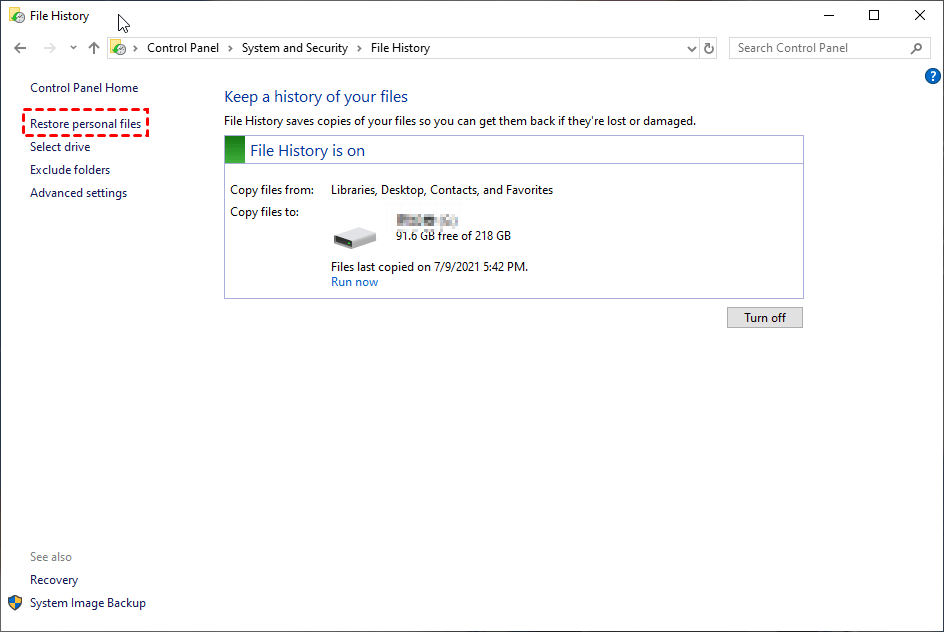
Step 3. Click the "Restore personal files" button.
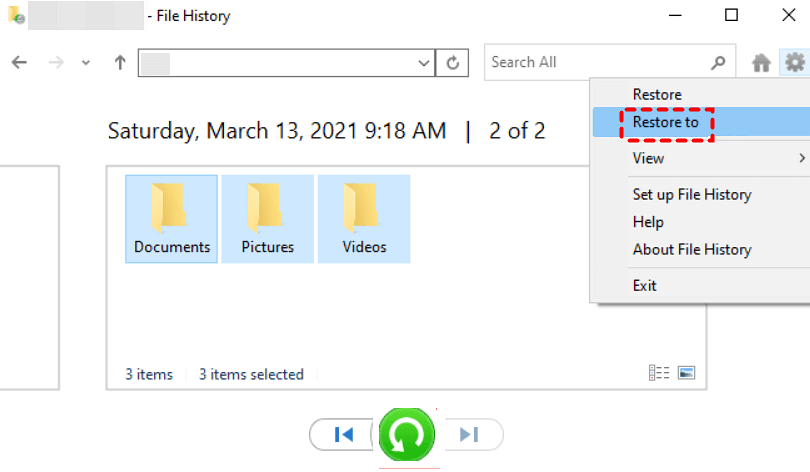
Step 4. You can restore your Word documents to their original location, or set a new destination for them to be saved to. To do this, right-click on the "Restore" option and select "Restore to" followed by the desired location.
Method 3. Recover deleted/lost Word documents with data recovery software
To recover lost Word documents with ease, consider using the best Word document recovery software. When selecting a trustworthy data recovery tool, functionality, compatibility, and user experience are good measurements to consider.
Perhaps Deep Data Recovery can cater to your needs. It offers a range of services, including data recovery, file repair, and disk formatting, with a focus on recovering data from damaged or corrupted storage devices. Its user-friendly interface and automated processes aim to make the data recovery process as smooth and efficient as possible.
▶Functionality:
- Besides HDD, you can use it to recover deleted/lost files from portable devices such as SSD, USB, and other storage devices.
- Recover over 200 types of data, including Word documents, Excel spreadsheets, PowerPoint presentations, photos, videos, audios, emails, web pages, and compressed files.
- To get the original path, filename, and format for the deleted data, open the Recycle Bin or Trash, right-click on the deleted file or folder, and select "Properties". In the Properties window, you'll see the original path, filename, and format, as well as other file properties like size, creation date, and last modified date.
- Run Quick Scan and Deep Scan automatically to find all deleted files and lost files on your computer, utilizing both Quick Scan and Deep Scan simultaneously.
▶Compatibility & User experience:
- The operating system supports NTFS, FAT32, exFAT, and ReFS file systems in Windows 7, 8, 10, 11, and Windows Server.
- With a user-friendly interface and clear instructions, anyone can successfully recover a Word document.
Are you worried about losing your data due to deletion, disk formatting, or other reasons? You can download Deep Data Recovery to resolve these concerns.
Step 1. Launch the recovery software on your PC. Hover the mouse over the partition/disk that contains your desired Word documents before data loss, and click Scan.

Step 2. You can search for specific Word documents by typing their filenames in the search bar during the scanning process. After running both Quick Scan and Deep Scan automatically, the tool will display all deleted files and raw files from the selected disk or partition.

Step 3. To restore deleted Word documents, go to the "Deleted files" section, select the desired files, and click the "Recover" button to save them in a new location.

If you can't find your lost Word documents in the Deleted files folder, try looking in the Raw files folder instead.
Further reading: How to repair corrupted Word documents?
If you're unable to open your Word documents, it's likely that they're corrupted. Fortunately, you can use Microsoft Office's built-in feature to repair them.
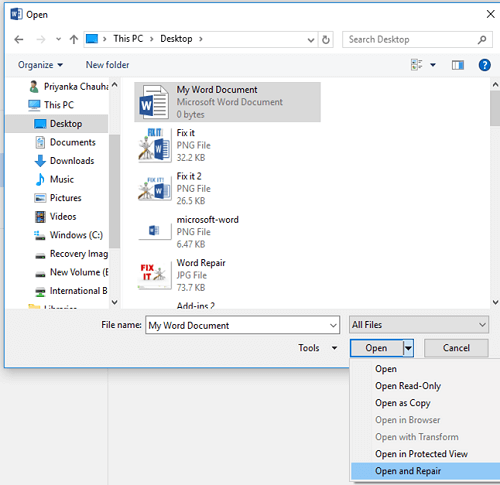
To recover a damaged Word file, open Word and click "File" > "Open" to locate the corrupted file. Then select the "Open and Repair" option, which can also be used to recover corrupted Excel files.
In conclusion
To recover lost Word documents, you can try various methods based on the data loss scenario. If you've deleted a Word file, consider using Deep Data Recovery. Alternatively, if your Word document was corrupted or unsaved, you can explore other solutions to retrieve the lost data. By choosing the right approach, you can recover your Word documents and minimize data loss.
To prevent data loss, consider using free Windows features or backup software to make regular backups. This way, you won't have to worry about recovering lost files, such as Word documents, in case of a crash. A suitable option for data loss prevention is the freeware Qiling Disk Master, which can help safeguard your data.
Related Articles
- 8 Fixes | Windows Text Not Showing up!
Learn how to fix Windows text not showing up via eight solutions and how to retrieve deleted texts via Windows features or data recovery software on this page. - Comprehensive Guide: How to Recover Permanently Deleted Photos Free?
Learn how to recover permanently deleted photos free via Windows features or photo recovery tools on this page. Moreover, you can get other relevant tips about photo recovery. - How to Recover Data from Hard Disk Which Is Not Detecting Easily
If your hard disk or external hard disk is not detecting, Qiling hard drive data recovery software can help you easily recover data from a hard disk or external hard disk that is not detected, recognized, or won't read. - How to Recover Permanently Deleted Files from Dropbox
You can recover permanently deleted files from Dropbox through two methods: recovering from Dropbox Trash, where you can restore files deleted within the past 30 days, or using Qiling file recovery software to retrieve files from Dropbox's temporary files. - How to Recover Deleted Photos from Canon DSLR Camera
If you've lost photos from your Canon DSLR camera, You can recover them using Canon DSLR photo recovery solutions. Follow these steps to retrieve your deleted photos from your Canon camera. - How to Recover Deleted Photos from Hide It Pro
Learn how to Recover Deleted Photos from Hide It Pro with clear steps, key checks, and practical tips.
Products
Articles & Tutorials
- Data Recovery
- Data Backup
- File Recovery
- File Backup
- File synchronize
- System Backup and Restore
- Disk and Partition Clone
- Technical articles
- Disk Master Help
- Windows Deleted File and Disk Recovery Tutorials
- Windows File and Data Recovery Tutorials
- More Windows Tutorials for Install, Security, Files, and PC Tips
- Windows Boot, Repair, and Recovery Environment Tutorials
- Windows Backup Tutorials
- Windows Restore Tutorials
- Windows Clone and Migration Tutorials
- Windows Server Backup, Recovery, and Management Tutorials
- Windows Disk, Partition, and Storage Management Tutorials