6 Best Ways to Recover Lost Game Data on PC/Steam/PS4
- 1. Recover Lost Game Data with Data Recovery Software
- 2. Recover Deleted Steam Game Data from Recycle Bin
- 3. Recover Lost Game Data from the Game Library
- 4. Recover Lost Game Data from Backups
- 5. Restore Lost Game Data from PC with File History
- 6. Restore Lost Game Data from the PC with System Restore
Losing your saved game and profile data can be a nightmare, especially after investing hours into completing levels or rankings. However, there is no need to panic if you have experienced a lost save file due to disk failure, accidental file deletion, or an unexpected glitch. Fortunately, there are ways to recover your hard-earned gaming accomplishments.
If game files were deleted from a Windows PC, start with Windows file and data recovery to choose a safe scan method.
If you have lost game data, do not worry -- we have got you covered! In this blog post, we will explore the 6 best methods to recover lost game data, making it easy to get back to gaming as soon as possible. Whether you are looking to resume a paused game or retrieve lost progress, we will show you how to do it with minimal hassle.
What Are the Causes of Game Data Loss
Game data loss on Steam, PS4, or PCs can be frustrating for gamers, often resulting from unexpected events. Some common causes include software glitches, hardware failures, power outages, and user error, which can lead to the loss of saved game data without warning.
Application crash: One of the common causes of the issue is an application or system crash caused by driver incompatibility or outdated files.
Hardware failures: Unexpected power and hard drive failures can result in the loss of saved games and other data.
Malware attacks: Malware attacks can downgrade a computer's settings, potentially leading to corrupted files.
Accidental deletions: Users can inadvertently cause game data loss when deleting game files while uninstalling apps or modifying registry entries, leading to potential data loss.
Incomplete installation: An incomplete installation of a game patch or DLC can lead to severe bugs that erase saved game data, hindering further gameplay.
To prevent game data loss on Steam and PC, it is crucial to take regular backups of save data and run antivirus software to protect against common causes of data loss.
6 Best Ways to Recover Deleted/Lost Game Data from Steam/PC
These causes are just the tip of the iceberg, but there are methods to recover lost game data from any device. To recover lost game data, follow the methods below.
Method 1. Recover Lost Game Data with Data Recovery Software (Recommended)
Data recovery software is the most effective way to restore lost game data, and Deep Data Recovery is a powerful program that can recover crashed, corrupted or lost games, providing an easy and comprehensive solution to restore data lost due to unexpected errors, system crashes, and more.
- Deep Data Recovery offers impressive results thanks to its ability to handle various file formats and flexible scanning options.
- Users can enjoy convenient features such as a deep scan recovery mode that thoroughly searches for any missed or hidden files and an image preview capability before restoring files.
- This software uses advanced algorithms to quickly analyze and recover deleted files, making it possible to retrieve them in a short time.
Download this tool to quickly and securely recover lost game data. It is a convenient solution for getting back your game progress and memories.
Step 1. Launch Deep Data Recovery on your computer, choose the file types you want to recover, and then click "Fast Scan" to begin the recovery process.

Note: You can choose different search modes based on where and why the data was lost.
Step 2. Choose the exact file location you want to scan and then click the "Scan" button to proceed.

Step 3. After the process, select the "Deleted Files" and "Other Lost Files" folders in the left panel. You can then apply the "Filter" feature or click the "Search files or folders" button to locate the deleted files.

Step 4. Click the "Recover" button and save the restored files, ideally using a different file name than the original one.
Method 2. Recover Deleted Steam Game Data from Recycle Bin
Recovering deleted game data from the Recycle Bin in Windows 10 can be a relatively straightforward and time-efficient process compared to restoring lost or corrupted data.
Step 1. To begin, open the Recycle Bin on your desktop and search for the game file(s) that you want to recover.
Step 2. If any files are present in the Recycle Bin that have been recently removed, right-click the file and choose "Restore" to bring them back.
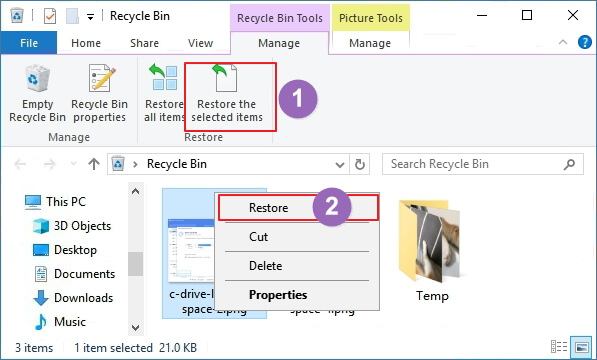
If you are having trouble finding your deleted game data, it is a good idea to check all folders, as sometimes accidentally deleted files can be stored in other places. However, if after reviewing all folder locations within the Recycle Bin you still cannot find your data, it is likely been permanently erased and cannot be recovered using this method.
Method 3. Recover Lost Game Data from the Game Library
To recover lost Steam game data, go to the Steam website, sign in with your account, and click on "Settings" (represented by a gear icon). From there, navigate to the "Cloud" tab and click on "Restore a backup" to restore your game data from a previous backup. If you do not see the "Restore a backup" option, try clicking on "Cloud" and then on "Update Cloud Saves" to see if that resolves the issue.
Step 1. To access the Steam game player on your device, open up the Steam app. Then, navigate to the Library section, which is typically found on the left-hand side of the screen or by clicking on the "Library" tab at the top of the screen.
Step 2. To find the lost game name on the left panel, such as Dota 2, right-click on it and select "Properties".
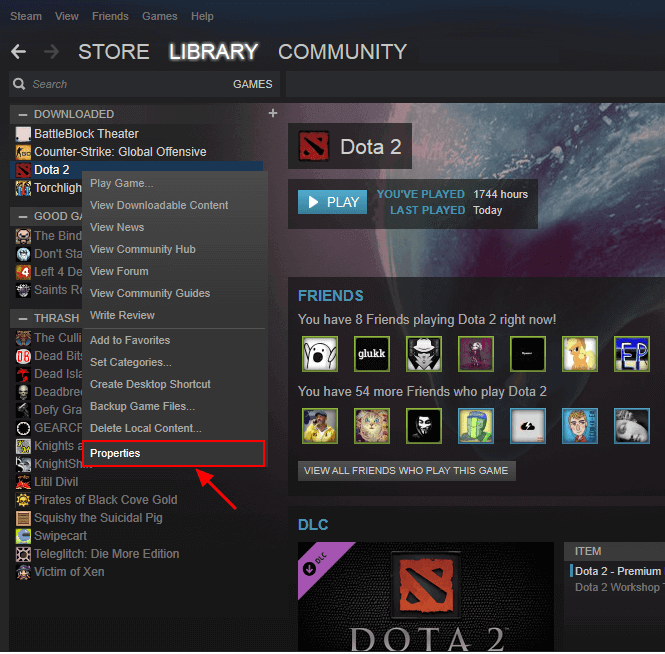
Step 3. To verify the integrity of game files, go to the Properties window, click on "LOCAL FILES" and select "VERIFY INTEGRITY OF GAME FILES..." from the dropdown menu. This will check for any corrupted or missing files in the game and attempt to repair them.
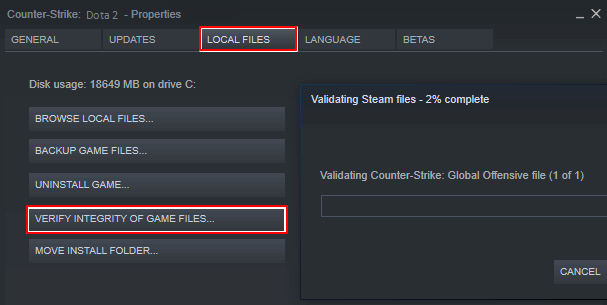
After the steps, you can try to open the game again to see if you have restored the lost game data.
Method 4. Recover Lost Game Data from Backups
Usually, you can create backups for your games. Thus, you can restore lost game data with backups when you lose game data. Here are the steps to recover lost game data from Steam backups.
Step 1. Go to "Steam > Backup and Restore Games".
Step 2. Choose "Restore a Previous Backup".
Step 3. To restore a Steam backup, click "Restore a Steam Backup" in the Steam client. Then, click "Browse" and find your backup in the Steam backups folder. Hit "Next".
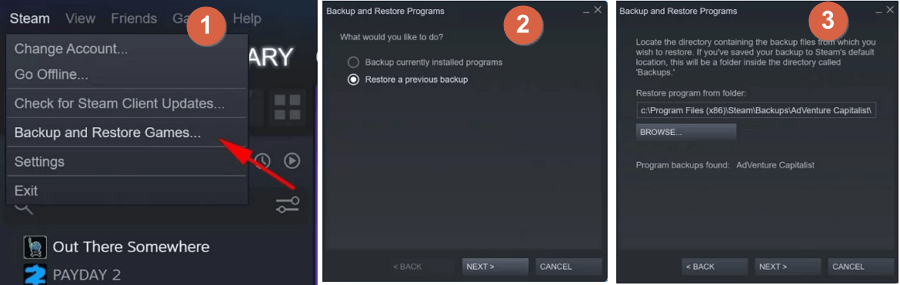
Then, follow the on-screen instructions.
Method 5. Restore Lost Game Data from PC with File History
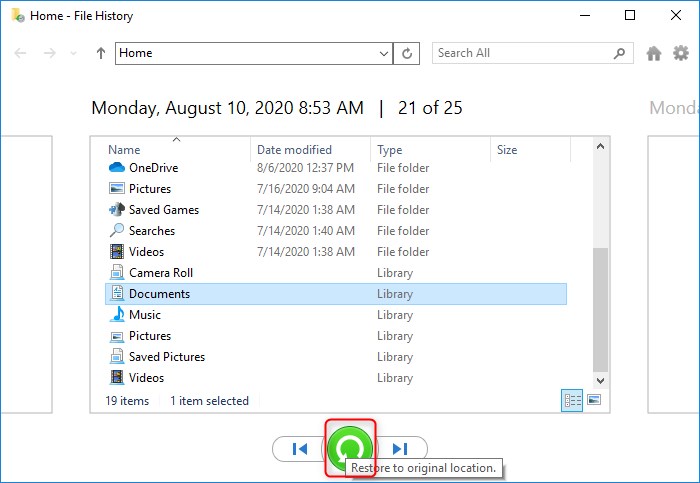
If you cannot recover lost game data with the solutions above, try File History, a built-in data backup tool that can back up specific files, including Documents, Pictures, Videos, Music, or offline OneDrive files. To recover lost game data on a PC with Windows 10 File History, follow these steps: enable File History, set a backup location, and restore files from the backup. This may help you recover lost game data.
Step 1. Open Control Panel.
Step 2. Go to "File History > Restore personal files".
Step 3. To recover deleted files, click the green "Restore" button.
Method 6. Restore Lost Game Data from the PC with System Restore
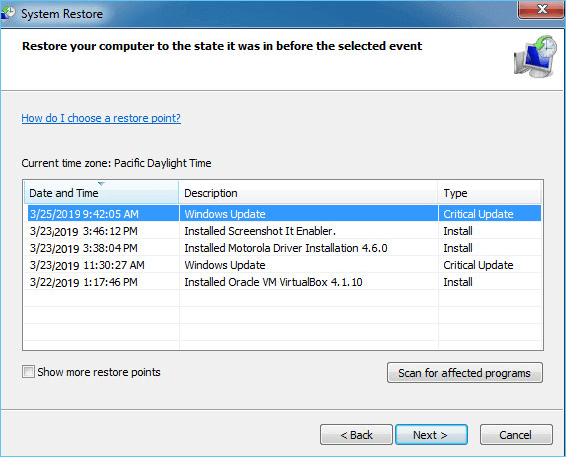
You can restore the game backups stored with System Restore by following these steps: 1) Go to Start, then type "System Restore" and select the option to open it. 2) Click on "Next" and then select the restore point that was created before the game was deleted. 3) Confirm the restore point and then click on "Finish" to begin the restoration process.
Step 1. Press the Windows key + R in Windows 10/8/7 to open the Run dialog box.
Step 2. To restore your system to a previous state, type rstrui.exe in the empty box and hit Enter, which will open System Restore.
Step 3. Select "Choose a different restore point" and click "Next".
Step 4. To restore your game files, select the restore point where your game files have not been deleted or lost. This will ensure that your game data is recovered without any issues.
Conclusion
If you have lost game data on your PC, Steam, or other devices, you can recover it with the help of Qiling data recovery software. This software allows you to recover lost or deleted game data with just a few clicks, making it a simple and effective solution. Whether you have a backup or not, Qiling data recovery software is the best way to restore your lost game data. You can download it and get started with recovering your lost game data right away.
Recover Lost Game Data FAQs
If you still have problems, read the questions and answers below to get additional help.
1. Can you recover deleted game data?
A professional recovery tool like Qiling hard drive recovery software can be the best solution if your game files are missing on Windows 11/10/8/7 and you have never backed them up, allowing you to recover kinds of files from a hard drive, SD card, flash drive, etc.
2. Does Steam back up game data?
Steam can back up game data, allowing users to reinstall a game without having to download the full game again after uninstalling it.
3. How do I restore Steam game saves?
Here are the steps:
- To access the Steam Library Folder, launch Steam and navigate to Steam > Settings > Downloads, then click on the 'Steam Library Folder' option.
- This will open all your current Steam Library folders.
- To add a library folder, click on the "Add Library Folder" button. This will allow you to select the folder that contains your installed games.
- After adding the games, your installed games that appeared uninstalled will show up in your Steam Library.
Related Articles
- Netgear NAS Recovery: Safe Software to Restore NAS Data
- Elden Ring Stuck on Loading Screen on PC/PS4/XBOX
- Btrfs Recovery Software: Recover Deleted/Lost Files from Btrfs Drives Synology/QNAP
- 2023 Tips: How to Stop Windows 11 from Automatically Deleting Files
- How to Recover Deleted Cyberlink Youcam Videos
If you do not know how to recover deleted Cyberlink Youcam videos, then try the step-by-step guide for how to recover videos from Youcam on Mac or Windows with Youcam video recovery tool. - How to Recover Data after Blue Screen of Death
Here are the simple steps for how to recover data after blue screen of death, helping you avoid data loss from the computer.
Products
Articles & Tutorials
- Data Recovery
- Data Backup
- File Recovery
- File Backup
- File synchronize
- System Backup and Restore
- Disk and Partition Clone
- Technical articles
- Disk Master Help
- Windows Deleted File and Disk Recovery Tutorials
- Windows File and Data Recovery Tutorials
- More Windows Tutorials for Install, Security, Files, and PC Tips
- Windows Boot, Repair, and Recovery Environment Tutorials
- Windows Backup Tutorials
- Windows Restore Tutorials
- Windows Clone and Migration Tutorials
- Windows Server Backup, Recovery, and Management Tutorials
- Windows Disk, Partition, and Storage Management Tutorials