2023 Tips: How to Stop Windows 11 from Automatically Deleting Files
Windows 11 Deleting Automatically .exe Files
Microsoft's Windows OS has a feature where it suggests deleting files that are considered unnecessary or redundant, but it does so without informing the user. This has led to users expressing frustration and feeling taken advantage of, as they are not given the opportunity to review or decide what files to keep or delete. The user is questioning Microsoft's practice of judging what files are important or not without user input.
Many Windows 11 users are unaware of how their operating system works, but are familiar with the frustration of important files and folders suddenly disappearing. If you've noticed this happening to your documents, photos, or other vital data, there is a way to prevent it from occurring again: by learning how to stop Windows 11 from automatically deleting files. By following the necessary steps, you can keep your vital data safe and sound.
First-aid Recover Automatically Deleted Files in Windows 11
Before fixing the Windows 11 deleting files without asking error, it's essential to recover any deleted files first. This can be done using various methods, but a reliable data recovery tool is the most effective way to restore lost data. I recommend using Deep Data Recovery for this purpose. Once the deleted files have been recovered, you can then proceed with fixing the underlying issue causing the files to be deleted without asking.
Qiling File Recovery Software
- This hard drive recovery software can easily recover lost documents, photos, videos, and other files.
- It helps to recover data from various storage devices, including hard drives, SD cards, SSDs, memory cards, and USB flash drives.
- Whether you're using Windows 11/10/8/7 or a macOS 13.0 - OS X 10.9 system, you can recover data with this tool.
To recover Windows 11 data, download a reliable data recovery software that can restore files from any device, allowing you to access and retrieve your lost or deleted data.
Step 1. Choose file types and click "Next" to start
Launch the Deep Data Recovery software on your PC, select the desired file types, and click "Fast Scan" to initiate the recovery process.

Note: You can choose different search modes based on where and why the data was lost.
Step 2. Select a location and start scanning
To recover deleted files, hover over the partition/drive where the deleted files were stored. Then, click "Scan" to initiate the search for lost files.

Step 3. Select the files you want to recover
When the scanning has finished, select the deleted files you want to recover by clicking on them. You can filter the results to display only specific file types, or search for a file by name in the "Search files or folders" box. This is the fastest way to find the target file.

Step 4. Preview and recover deleted files
After previewing the recoverable files, choose the ones you want to restore and click "Recover" to save them at a new location, rather than the original disk where the data was lost.
5 Ways to Stop Windows 11 from Automatically Deleting Files
Yes, a computer can delete files by itself, which is a common issue among Windows users. This phenomenon occurs due to various reasons, including file system corruption, disk errors, or software bugs that can cause the computer to delete files without user consent. Additionally, some antivirus software and disk cleanup tools may also inadvertently delete files if not configured properly. Furthermore, certain system updates or driver installations can also lead to file deletions, making it essential for users to be cautious and regularly back up their data to prevent such incidents.
- The antivirus detects the EXE file as a virus.
- You are using a misconfigured Windows Defender or a temporary user account.
- It seems like there's an issue with your system files. They might be corrupted or damaged in some way.
- Your computer is running low on storage space, so it's automatically cleaning up your Downloads folder to free up some space.
To prevent Windows 11 from automatically deleting files, follow these solutions. First, ensure that your Windows 11 is updated to the latest version, as outdated versions may cause issues. Next, check if Storage Sense is enabled, as it may be deleting files automatically to free up space.
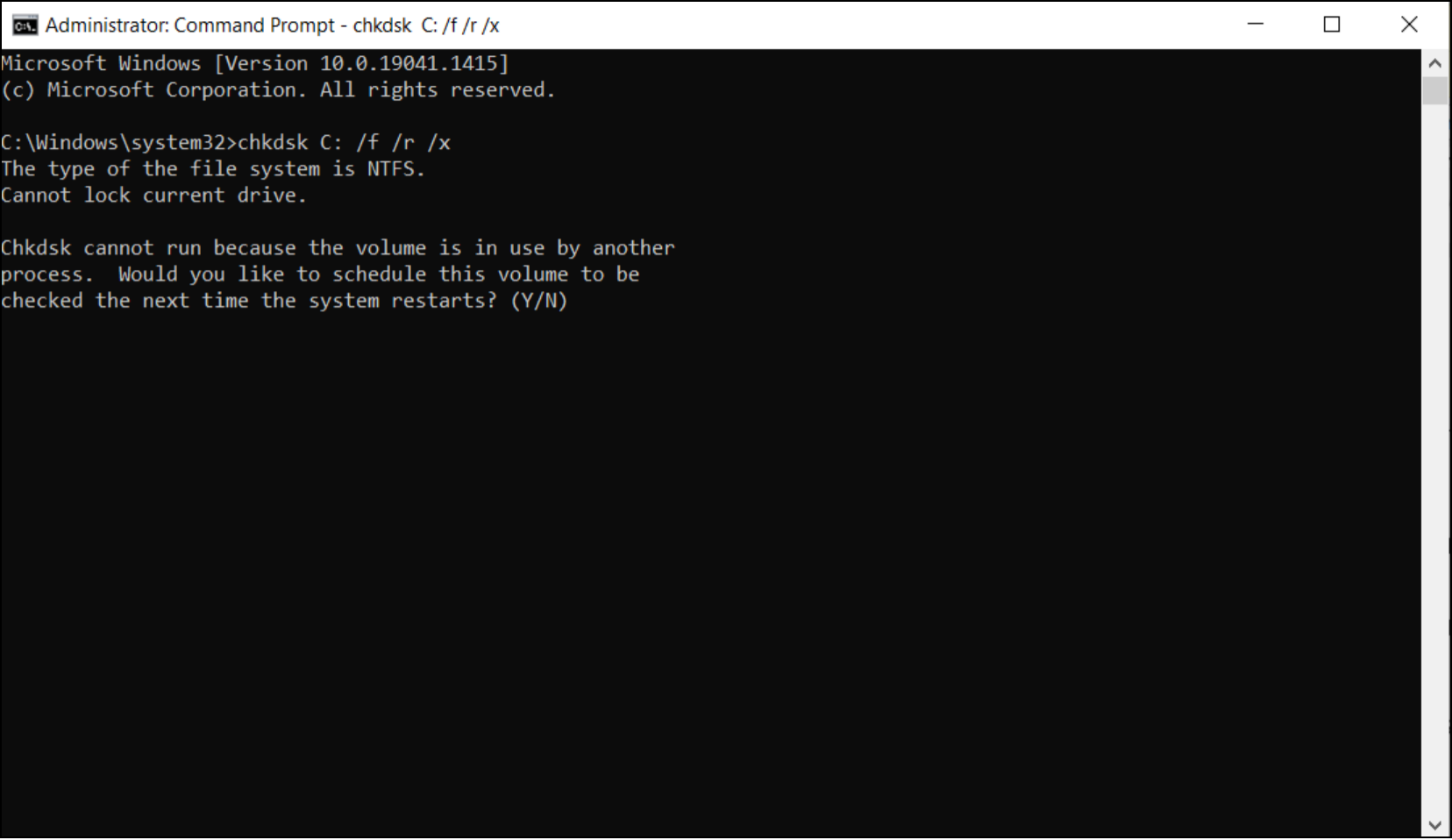
Method 1. Check the Corrupted System Files with CHKDSK
Corrupted system files may be the cause, so repairing them can resolve the issue of Windows 11 deleting files without asking.
Step 1. To open the Command Prompt, press the Windows key, and type cmd in the search box, then select the "Command Prompt" result from the search results, or press Enter to open it.
Step 2. Right-click on "Command Prompt" and select "Run as administrator".
Step 3. The command prompt should open. Enter the following command and hit Enter.
chkdsk [drive letter]: /f /r /x
Replace the "drive letter" with the specific name of the targeted drive, such as C, D, E, etc. Then, wait till the process gets to 100% completion.
Method 2. Run CHKDSK Alternative to Repair Corrupted Files
If you don't want to run CMD, you can turn to a file system repair tool like Qiling Disk Master, which can optimize your system and fix file system errors with simple clicks.
To resolve file system errors on your computer, download and install Qiling CleanGenius, and then let's proceed with checking and fixing the issues.
Step 1. Click "File Showing" to enter the next step.
Step 2. Choose the target device, select the option to "Check and fix file system error", and click "Execute" to begin fixing the device's file system issues.
Step 3. Once the repair process is finished, you can access and utilize your device by clicking on the provided link.
Method 3. Stop Windows Defender from Deleting Files Automatically
Windows Defender and other anti-virus programs may delete files without asking, so you can try to stop Windows Defender from deleting files automatically.
Step 1. Open "Windows Defender > Virus & threat protection".
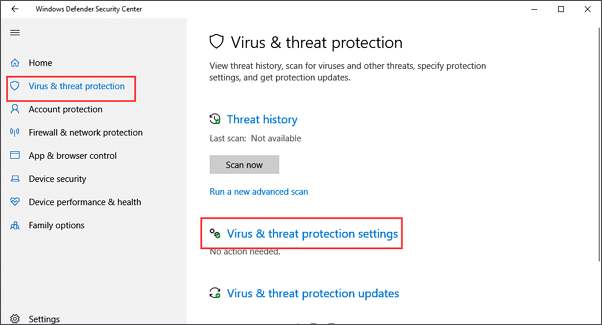
Step 2. Click the "Virus & threat protection" settings
Step 3. Scroll down to "Exclusions" and click "Add or remove exclusions".
Step 4. To add an exclusion to Windows Defender, click on the + plus icon and select the type of file you want to exclude, such as .exe files or .dll files, which are typically programs and dynamic link libraries that you don't want to get deleted or removed.
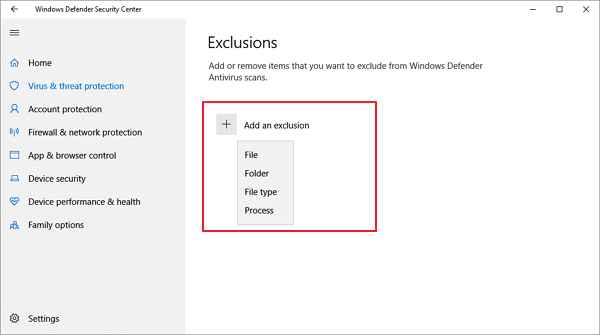
After adding the exclusions, Windows Defender will stop automatically deleting those specific file types. You can verify that the changes have been applied by checking the exclusions list.
Method 4. Disable Storage Sense to Stop Windows 11 Deleting Files Automatically
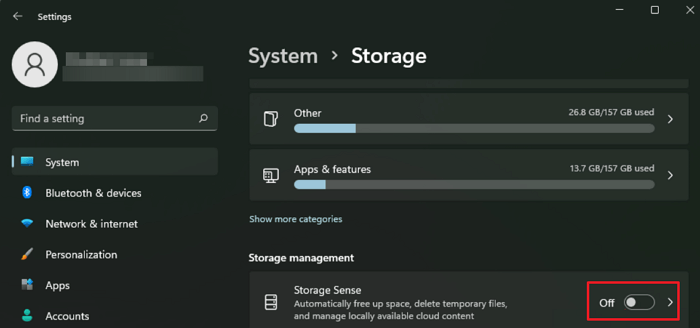
When you enable Storage Sense, your Windows 11/10 will automatically delete unused files when the computer is low on disk space. Thus, you can disable Storage Sense to stop Windows 11 from automatically deleting files.
Step 1. Press Windows + I to open Settings.
Step 2. Navigate to System and select Storage.
Step 3. Click on the Toggle Switch to turn off Storage Sense.
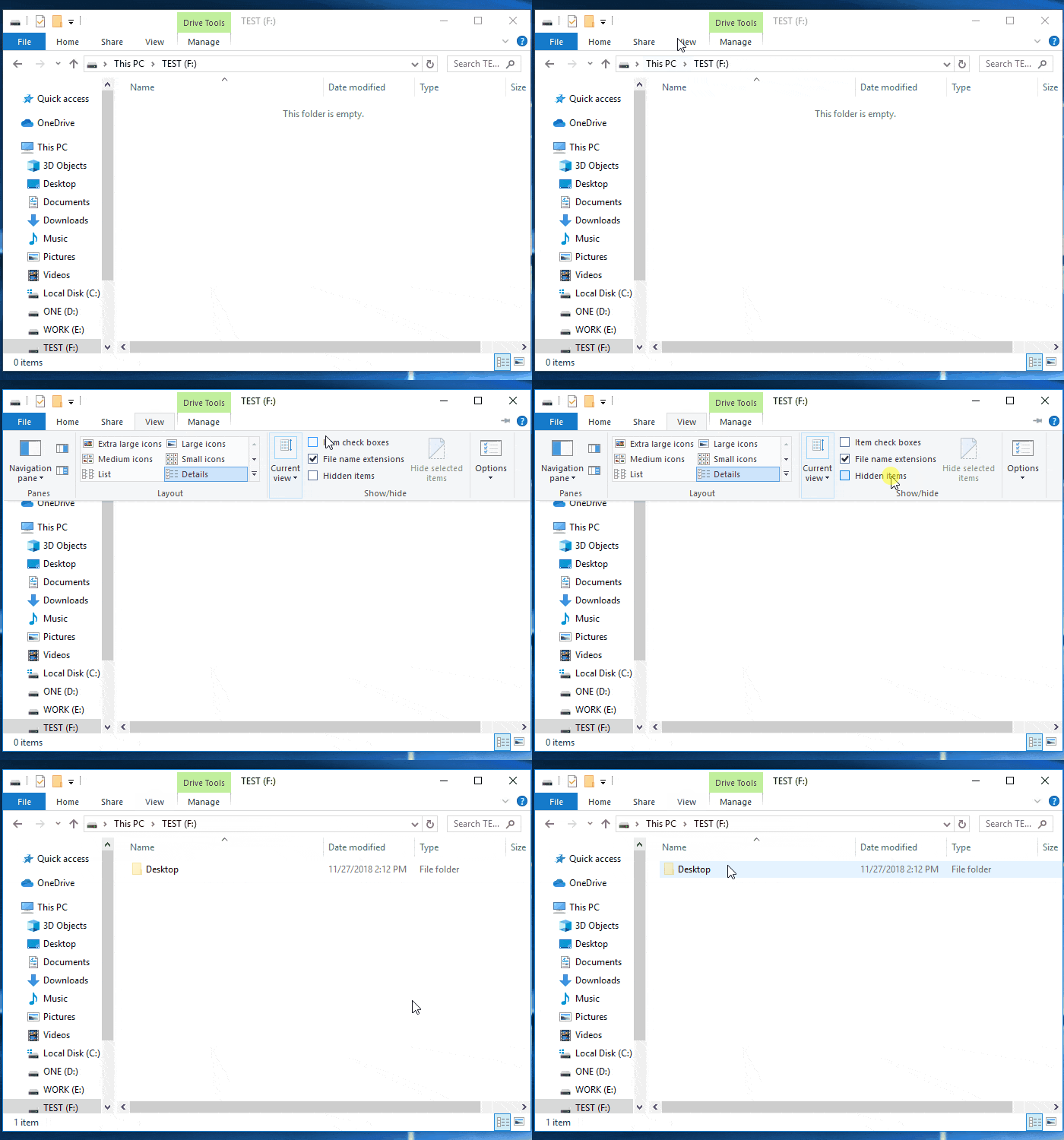
Method 5. Show Hidden Files in Windows 11 to Fix the Error
To resolve the Windows 11 deleting files without asking error, try showing hidden files by going to File Explorer, clicking on the three dots in the top right corner, selecting "Settings", and then clicking on "View". From there, check the box next to "Hidden items" to make hidden files visible. This may help you locate and recover deleted files.
Step 1. Open the folder that contains the hidden files.
Step 2. Go to "View", and check "Hidden items".
Conclusion
To prevent Windows 11 from deleting files, try recovering deleted files first using a tool like Deep Data Recovery, which can retrieve lost data in Windows 11/10/8/7. Once you've restored your lost files, you can then use the solutions above to stop Windows 11 from automatically deleting files.
If files have already been removed permanently, follow this guide to recover permanently deleted files in Windows 11 before making more system changes.
When files are hidden instead of deleted, check how to show hidden files in Windows 11 before running another recovery scan.
Windows 11 Deleted My Files Automatically FAQs
To get additional help, read the questions and answers below.
1. Why does Windows 10 keep deleting files?
Windows 10 may automatically delete files due to various reasons. The operating system may delete files that are no longer needed, such as temporary files, system logs, or cache files. Additionally, Windows 10 may delete files that are infected with malware or viruses, as part of its built-in security features.
- Storage Sense is turned on
- The drivers for your mouse are faulty
- There is a shortcut virus
- Files are hidden in Windows 10
2. How do I change the delete settings in Windows 10?
To change the delete settings in Windows 10, follow these steps: you can adjust the delete settings to suit your needs by going to File Explorer, clicking on the "View" tab, selecting "Show" and then "Hidden items", and then clicking on "Options" and selecting the "Delete" tab to change the settings for permanently deleting files and emptying the Recycle Bin. This will allow you to customize the delete process to fit your preferences.
- On the desktop, navigate to the Recycle Bin folder
- Right-click on the Recycle Bin folder
- Click on the Properties option
- Select the Display delete confirmation dialog option
- Click the Apply button to proceed
3. Why are my files getting permanently deleted?
If your files are permanently deleted, it's likely due to one of the following reasons:
- You press the shift + delete option
- You have emptied the Recycle Bin
- You have formatted your hard drive
Related Articles
- Top 10 Best Free SD Card Data Recovery Software (100% Working)
- Sony Data Recovery Software: Recover Deleted Files from Sony SD Card
- How to Recover Files from Corrupted External Hard Drive
- How to Undo Quick Format on Hard Disk
- How to Recover Data from HP Simplesave External Hard Drive
with Deep Data Recovery Software, you can easily recover your data on Mac or Windows, even if the drive is damaged, deleted files have been lost, or the drive has been formatted. - Kingston Recovery Tool - Recover Data from Kingston SSD/USB Drive/SD Card
Kingston recovery tool software enables you to repair and recover Kingston SSD, USB drive, memory/SD card or flash card data on Windows or Mac due to deleted, formatted or RAW Kingston drives.
Products
Articles & Tutorials
- Data Recovery
- Data Backup
- File Recovery
- File Backup
- File synchronize
- System Backup and Restore
- Disk and Partition Clone
- Technical articles
- Disk Master Help
- Windows Deleted File and Disk Recovery Tutorials
- Windows File and Data Recovery Tutorials
- More Windows Tutorials for Install, Security, Files, and PC Tips
- Windows Boot, Repair, and Recovery Environment Tutorials
- Windows Backup Tutorials
- Windows Restore Tutorials
- Windows Clone and Migration Tutorials
- Windows Server Backup, Recovery, and Management Tutorials
- Windows Disk, Partition, and Storage Management Tutorials