3 Ways to Show Hidden Files/Folders in Windows 11
Windows 11 Hidden Files Not Showing, Why?
Windows 11 users may encounter a situation where files are either hidden or not showing due to various reasons.
If files are not hidden but deleted, see deleted file not in Recycle Bin for recovery options.
- Files are hidden because of a shortcut virus.
- Windows Defender is blocking access to certain folders.
- In Windows 11, some system files and folders are hidden by default to prevent accidental modifications or deletions that could cause system instability or crashes. This is a security feature that helps protect the operating system and user data.
- In Windows File Explorer, some files may have their "hidden" attribute enabled, making them invisible or not easily accessible.
If you need to show hidden files and folders in Windows 11, don't worry, you're not alone. With the growing demand to access these hidden contents, there are simple ways to locate them. You can try three methods to reveal and access those tucked-away files in Windows 11, making it easier to open hidden files that are not easily visible on your computer.
Method 1. Show Hidden Files in Windows 11 with File Explorer
To show hidden files in Windows 11, follow these steps: open File Explorer, click on the "View" tab, and select the "Show" dropdown menu. From the dropdown menu, select "Hidden items" to display hidden files and folders. Alternatively, you can press the "Ctrl + Shift + E" keys on your keyboard to toggle the display of hidden files.
Step 1. Open File Explorer.
Step 2. Press the three dots on the top.
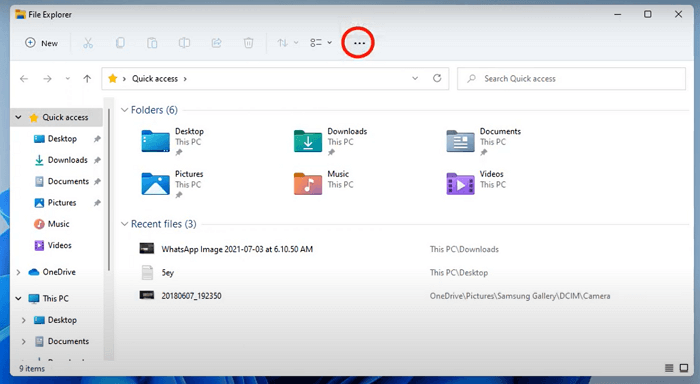
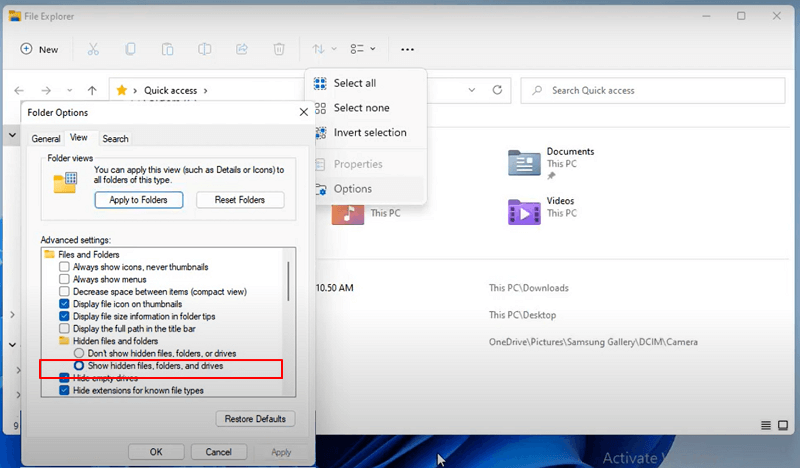
Step 3. Go to "Options > View > Hidden files and folders".
Step 4. In Windows 11, select "Show hidden files, folders, and drives" to view hidden files.
Method 2. Show Hidden Files in Windows 11 with CMD Alternative
Another way to show hidden files in Windows 11 is by using Qiling Disk Master, an alternative method in addition to the built-in File Explorer options.
Manual execution of command lines is not recommended due to the risk of causing harm with incorrect commands. For security and usability, we suggest using an automatic command line alternative like Qiling CleanGenius, which allows you to check and fix file system errors, enable/disable write protection, and update your system with a single click, eliminating the need for intricate command lines.
Follow these simple steps to show hidden files using this 1-click-fix software: simply use the software to easily reveal hidden files.
Step 1. DOWNLOAD Qiling CleanGenius for Free.
Step 2. Start Qiling CleanGenius, choose "Optimization" on the left panel. Next, click "File Showing" on the right panel.
Step 3. Select the hard drive and click "Execute".
Step 4. After the operation completes, click the here link to check the hidden files.
Method 3. Show Hidden Files with Data Recovery Software
If you still cannot see hidden files in Windows 11, you can ask data recovery software for help. A tool like Deep Data Recovery can quickly retrieve lost data or show hidden files in Windows 11, making it a great choice for both experienced and novice users.
- With this feature, restoring lost data is extremely fast, as it eliminates the need to manually locate, scan, and find each file, saving time that can be spent elsewhere.
- This hard drive recovery software is highly efficient in showing hidden files that may have been accidentally deleted or corrupted due to various causes.
- This software utilizes cutting-edge technology to quickly recover lost files or data in just a few minutes. It allows users to download and utilize it to view hidden files.
Step 1. Choose file types and click "Next" to start
Run Qiling virus file recovery software on your Windows PC. Choose file types and click "Fast Scan" to start the recovery process.

Note: You can choose different search modes based on where and why the data was lost.
Step 2. Select the virus infected drive to scan
To scan for lost or hidden files, select the disk that was attacked by the virus, as this will help you identify any files that may have been compromised or deleted by the malware.
- If you're dealing with a computer infected by a virus that's hidden or deleted files, it's best to install the software on a separate volume or an external USB drive to prevent the virus from overwriting data.
- If the infected device is an external hard drive, flash drive, or memory card, it's okay to install the software on the local drive of the computer instead.

Step 3. Check all scanned results
Deep Data Recovery will immediately start a scan process to find deleted or hidden files on the virus-infected hard drive, allowing users to quickly locate wanted files using features like filtering or type grouping to display specific types of files, such as pictures, videos, documents, or emails.

Step 4. Preview and recover deleted/hidden files
When the scanning process is complete, you can preview the recovered files. Choose the files you want to recover and click the "Recover" button. Save the restored files to a different secure location on your computer or external storage device, avoiding the original lost location.
Conclusion
To show hidden files in Windows 11, you can try the solutions above. The most effective method is to use the first method, which allows you to show hidden files with simple clicks. If you've lost files or they're missing in Windows 11, you can run Qiling data recovery software to scan and restore missing data.
Show Hidden Files in Windows 11 FAQs
You can get additional help if you read the questions and answers below.
1. How can I find my hidden file on a USB?
Follow the steps below to show hidden files on USB:
Step 1. Press Windows + E to open Windows Explorer in Windows 10/8/7.
Step 2. In the Folder Options or File Explorer Options window, click the View tab, then under Hidden files and folders, click the Show hidden files, folders, and drives option.
2. How can I find hidden files in Windows 10?
Here are the steps to unhide files in Windows 10:
Step 1. To access the Control Panel, go to the Start menu, type "control panel" in the search bar, and press Enter.
Step 2. To change the settings for File Explorer, follow these steps: Select Appearance and Personalization from the Control Panel, then click on File Explorer Options.
Step 3. To view hidden files and folders, click on the "View" tab in the File Explorer window, then select the "Hidden files and folders" option from the menu. This will allow you to see files and folders that are normally hidden from view.
Step 4. To access the hidden files, folders, and drives on your computer, you can follow these steps: click on the Start menu, then select File Explorer, and finally click on the View tab. In the Show/hide section, check the box next to Hidden items.
3. How do I hide files and folders in Windows 11?
To hide files in Windows 11:
To access the context menu, go to any folder in the File Explorer and click on the More button (three dots) on the top.
To access the View tab in the Folder Options dialog, select Options from the context menu and head over to the View tab.
Click the Don't show hidden files, folders, or drives option and click Apply > OK to save the changes.
4. How to fix Windows 10 show hidden files not working?
To fix the issue with Windows 10 not showing hidden files, you can try the following solutions:
- Run SFC
- Adjust Registry
- Recover Hidden Files
Related Articles
- How to Fix 'Python Setup.py egg_info' Failed with Error Code 1
- Free PDF Recovery: Recover Deleted, Unsaved, and Corrupted PDF File
- How to Force Delete a Folder or File in Windows 10/Windows 11
- How to Restore Lost Data with Easy Recovery Essentials Free Alternative
- Damaged Partition Recovery Software Free Download - Recover Data from Damaged Partition
Damaged partition recovery: whenever your partition is damaged, the very first thing is to recover the data from the damaged partition and create a new partition to transfer data. Learn the recover damaged partition steps. - How to Recover Data from Dead SSD
If your SSD is dead, you must learn how to recover data from dead SSD. Otherwise, you'll lose all the files. Here is the guide for how to recover files from dead SSD in Windows 10/8/7/XP or Mac.
Products
Articles & Tutorials
- Data Recovery
- Data Backup
- File Recovery
- File Backup
- File synchronize
- System Backup and Restore
- Disk and Partition Clone
- Technical articles
- Disk Master Help
- Windows Deleted File and Disk Recovery Tutorials
- Windows File and Data Recovery Tutorials
- More Windows Tutorials for Install, Security, Files, and PC Tips
- Windows Boot, Repair, and Recovery Environment Tutorials
- Windows Backup Tutorials
- Windows Restore Tutorials
- Windows Clone and Migration Tutorials
- Windows Server Backup, Recovery, and Management Tutorials
- Windows Disk, Partition, and Storage Management Tutorials