6 Solutions to External Hard Drive Not Initialized in Windows 11, 10, 8, 7
- "External hard drive not initialized" symptoms
- Why is a hard drive not initialized?
- How to fix external hard drive not initialized in Windows
- Method 1. Try to initialize the hard drive
- Method 2. Switch connection cables
- Method 3. Fix MBR for external hard drive
- Method 4. Scan your computer for virus and unwanted malware
- Method 5. Clean the external hard drive with DiskPart
- Method 6. Diagnose the external hard drive
- Conclusion
"External hard drive not initialized" symptoms
If you use an external hard drive for data storage or as a backup drive, you may eventually encounter an issue where it stops showing up in Windows File Explorer. To troubleshoot this, you can open Disk Management to check the drive's status.
You may see the external hard drive marked as "Unknown, Not initialized", shown as unallocated space, or displayed without capacity. This usually means Windows cannot read the disk information correctly. Before initializing or formatting the drive, confirm whether you need to recover data from it because some repair methods may erase files.

Why is a hard drive not initialized?
To identify the cause, recall what happened before Windows stopped recognizing the external hard drive. The problem may appear after an interrupted partition operation, a sudden system crash, unsafe removal, cable failure, virus infection, or physical disk damage.
If your hard disk is not initialized or becomes unknown, common causes include:
1. File system corruption.
2. Virus infection.
3. Bad blocks and sectors.
4. MBR damage.
5. Connection problem.
How to fix "external hard drive not initialized" in Windows 11, 10, 8, 7?
Because this error can be caused by software, connection, partition table, or hardware problems, try the following methods one by one. If the drive contains important data, avoid destructive methods until you have recovered or backed up the files.
Solution 1. Try to initialize the hard drive
If you've backed up the data or don't mind losing it, you can initialize the external hard drive in Disk Management.
1. Open Disk Management.
2. Right click on the disk that needs initializing.
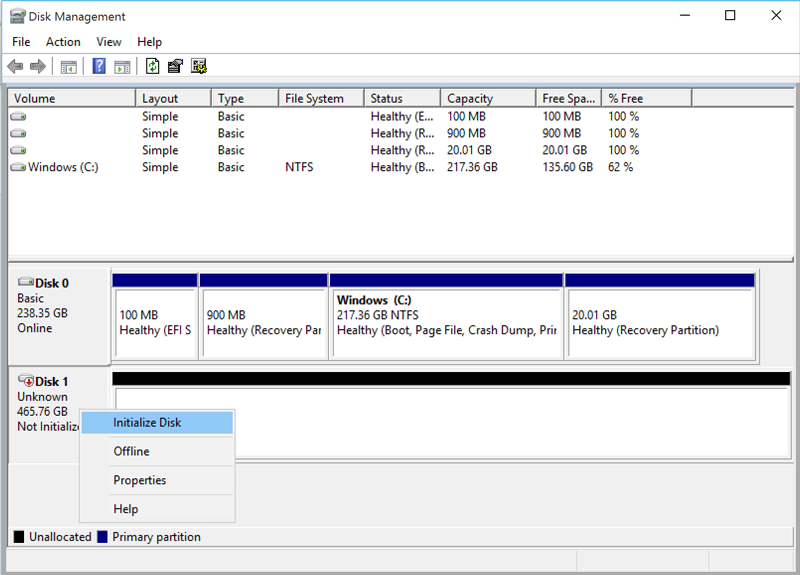
3. Click the "Initialize Disk" option and follow the wizard to initialize the disk as MBR or GPT. Choose MBR for older BIOS-based systems, or GPT for modern UEFI systems and disks larger than 2TB.
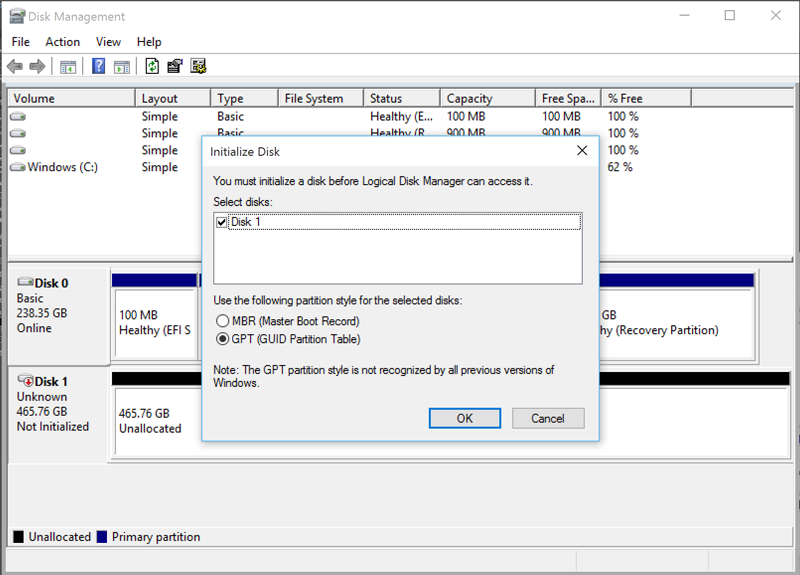
Initializing a hard drive may make existing data inaccessible. If the drive contains important files, recover the data first or use recovery software before writing new data to the disk. For Seagate hard drives, Seagate recovery software or its recovery service can be used, while SanDisk recommends Ontrack EasyRecovery or FILERECOVERY software for SanDisk external SSDs.
Solution 2. Switch connection cables
If you're trying to initialize an external drive and get an error saying the request couldn't be completed due to an I/O device error, it might be caused by a connection issue. Try using a different cable to connect the drive, or plug it into a different computer if possible, to see if that resolves the issue.
Solution 3. Fix MBR for the external hard drive
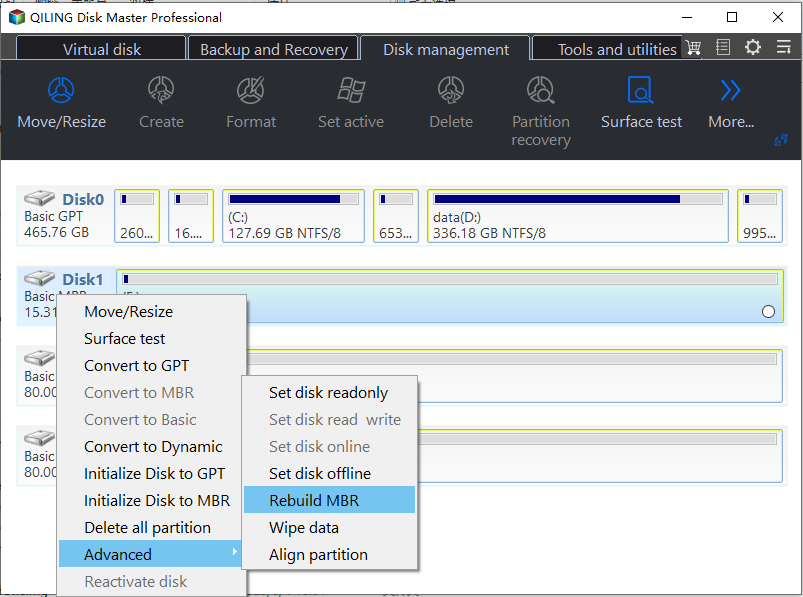
If the MBR of the hard drive is corrupted, Windows may not access the data on the drive and may show the external drive as "Disk unknown, not initialized, unallocated". You can use free disk partition software, such as Qiling Disk Master, to rebuild the MBR and recover from this state.
1. Install and run Qiling Disk Master. Click the disk, and click "Rebuild MBR" on the right navigation pane.
2. Select your system type.
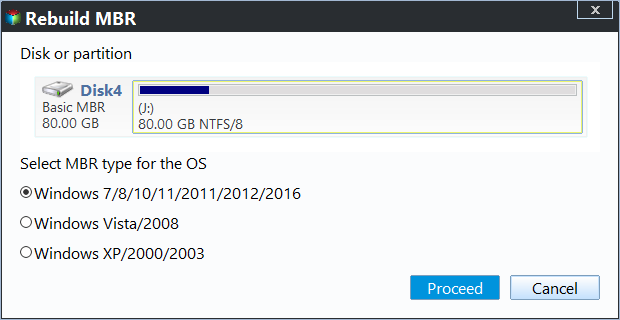
3. Click the "Proceed" button to apply this operation.
After rebuilding the MBR, reconnect the external drive and check whether it appears correctly in Disk Management and File Explorer.
Solution 4. Scan your computer for virus or unwanted malware
Your hard drive may show as not initialized or fail to initialize in Windows 11, 10, 8, or 7 if malware keeps writing data or blocks normal access. Run a full scan with Windows Defender or third-party anti-virus software to detect and remove threats.
Solution 5. Clean the external drive with DiskPart
To recover your external hard drive, you can use the built-in Windows tool DiskPart.exe. If you don't need to keep the data, you can clean the hard drive and initialize it using DiskPart, which should make the drive visible in File Explorer again.
1. Press Windows + R and type in "diskpart.exe".
2. In the pop-up window, type "list disk".
3. If the external hard drive that cannot initialize is shown as disk 1, type "select disk 1" in the command prompt. If it is shown as a different number, replace 1 with that number.
4. Type "clean all".
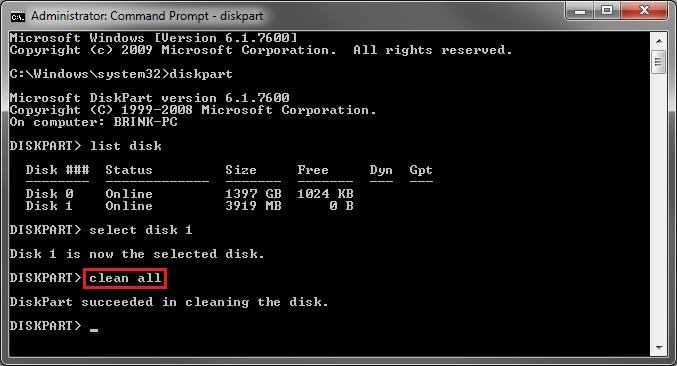
5. After the clean process finishes, use Disk Management to initialize the disk, create a new volume, and format it for use.
Solution 6. Diagnose the external hard drive
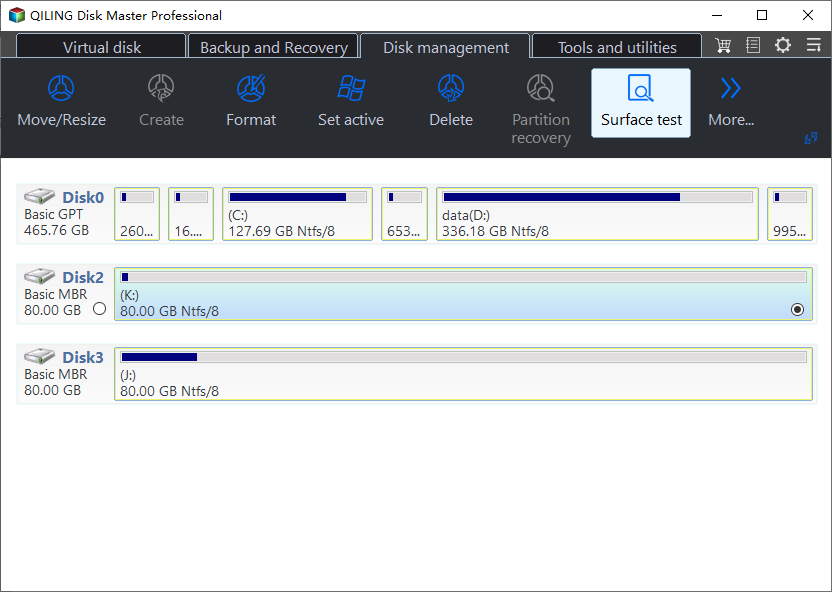
If you've completed the steps and still can't initialize your external hard drive, it may be due to bad sectors or physical damage. You can run a Disk Surface Test using Qiling Disk Master to diagnose the issue.
Step 1. To run a surface test on an external hard drive, click the drive in the main interface, select the "Disk management" tab, and choose "Surface Test".
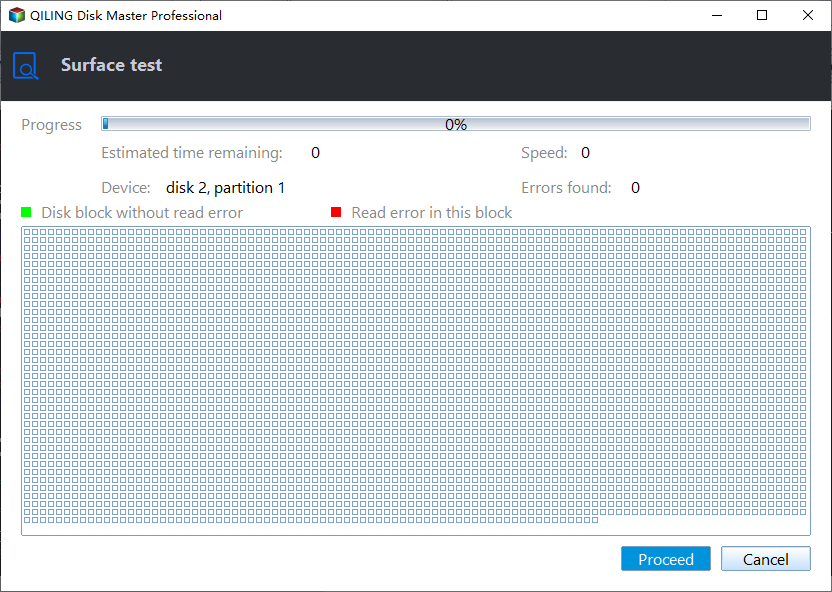
Step 2. Click "Proceed" to start the test. Bad sectors, checking progress, and other details will be displayed in the dialog.
Conclusion
If your external hard drive is not initialized in Windows 11, 10, 8, or 7, the 6 methods above can help you check connection problems, repair MBR errors, scan malware, clean the disk, or diagnose physical issues. If data loss occurs during repair, use the Recover Data function to retrieve lost files.
If none of these methods work, the external drive may have serious bad sectors or physical damage. In that case, stop writing data to the disk, consider professional recovery if the files are important, and replace the drive if it is no longer reliable.
Related Articles
- Can't Change Drive Letter in Windows Server
If you cannot change Windows drive letters, this guide explains practical ways to complete the task safely. - How to Delete FAT32 Partition [Step-by-Step Guide]
Deleting a FAT32 partition is sometimes necessary. You can use built-in disk management tools or a third-party partition tool with a user-friendly interface and advanced partition features. - How to Run SFC and DISM in Windows 11 [2023 Guide]
Review How to Run SFC and DISM in Windows 11 with setup requirements, preparation steps, and tips to avoid installation or boot problems. - How to Stop Disk Checking and Stock CHKDSK on Startup in Windows 11
It is a very time-consuming process when chkdsk runs automatically every time startup of Windows 11 - looking for solutions on how to stop disk checking in windows 11. Here is a detailed guide for you to stop chkdsk on startup. - Can I Format the System Partition? How to Fix System Partition is Not Allowed to Be Formatted
This article addresses an error message that appears when users attempt to format the system partition, which is not allowed to be formatted. If you're experiencing this issue, reading this article may help you resolve the problem. - The Disk Check Could Not Be Performed" Solutions
If your external hard drive shows 0 bytes in Properties, you may encounter an error message saying that Windows cannot access the disk, preventing a disk check.
Products
Articles & Tutorials
- Data Recovery
- Data Backup
- File Recovery
- File Backup
- File synchronize
- System Backup and Restore
- Disk and Partition Clone
- Technical articles
- Disk Master Help
- Windows Deleted File and Disk Recovery Tutorials
- Windows File and Data Recovery Tutorials
- More Windows Tutorials for Install, Security, Files, and PC Tips
- Windows Boot, Repair, and Recovery Environment Tutorials
- Windows Backup Tutorials
- Windows Restore Tutorials
- Windows Clone and Migration Tutorials
- Windows Server Backup, Recovery, and Management Tutorials
- Windows Disk, Partition, and Storage Management Tutorials