Windows Boot Sector Repair: BIOS and UEFI Methods Explained
Boot sector repair is often used as a general name for fixing Windows startup, but modern PCs do not all start in the same way. A BIOS/MBR system uses legacy boot code, while UEFI starts a loader from an EFI System Partition.
Messages such as BOOTMGR is missing, an invalid boot partition, or a BCD error can have different causes. The repair should match the disk layout and the exact error.
Prepare recovery media and identify the target
- Keep a copy of the BitLocker recovery key if encryption is enabled. Record firmware boot settings before changing them.
- Start compatible Windows installation media. Choose Repair your computer and run Startup Repair first where available.
- If automatic repair fails, open recovery Command Prompt. Run
diskpart,list disk, andlist volume, thenexit. - Identify the actual Windows directory with
dir D:\Windows, substituting the correct letter. Check the GPT column and confirm which physical disk contains that installation. - If the disk is missing, RAW, or unexpectedly unallocated, stop startup-write repairs until storage access and data recovery have been assessed.
Repair confirmed BIOS and MBR startup faults
For a legacy installation, the following commands have different purposes. Do not run all of them simply because a tutorial lists them.
bootrec /fixmbrreplaces legacy master boot code. It does not recreate lost partition entries.bootrec /fixbootwrites a Windows-compatible volume boot sector to the system partition. An Access is denied result needs diagnosis rather than forced formatting.bootrec /scanoslooks for compatible installations absent from the current boot configuration.bootrec /rebuildbcdallows a discovered installation to be added to the boot configuration.
Run the command appropriate to the identified fault from recovery Command Prompt and record its response. If rebuilding BCD offers installations, select only the intended one. Remove the repair USB and test the internal disk afterward.
The active flag applies to legacy MBR startup. Do not mark a random partition active: the system partition may be separate from the volume holding Windows.
Handle UEFI boot files separately
On a GPT/UEFI system, confirm that the existing EFI System Partition belongs to the Windows disk. Size or FAT32 format alone is not enough to distinguish it from a removable drive.
A technician can assign a temporary letter to the confirmed EFI partition and use BCDBoot to rebuild its Windows boot files. The source must be the installed Windows directory and the destination must be the correct EFI partition. Do not delete or format the EFI partition as a default step, especially on a multiboot machine.
When using BCDBoot's explicit system-partition option, remember that copying files and creating a firmware boot entry are separate considerations. Microsoft documents the behavior in the BCDBoot reference. If the disk layout is uncertain, get layout-specific assistance rather than adapting drive letters by guesswork.
Keep a recovery image of the repaired system
After successful repair, create a backup of the complete working system disk with Qiling Disk Master. This gives you a known recovery point for future boot-file or disk changes.
Step 1. Attach separate backup storage and open Disk/Partition backup.
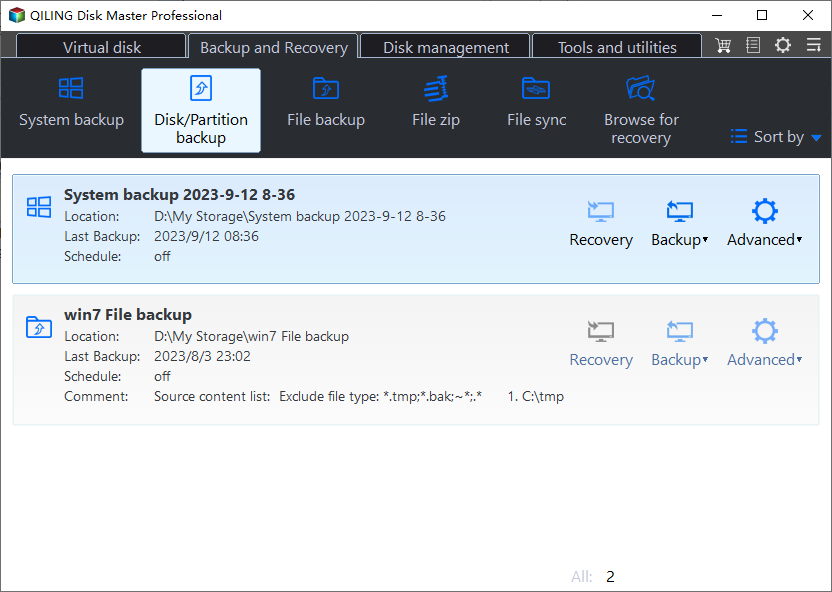
Step 2. Select the Windows disk together with its boot partitions. Verify that you have not selected only the personal-data volume.
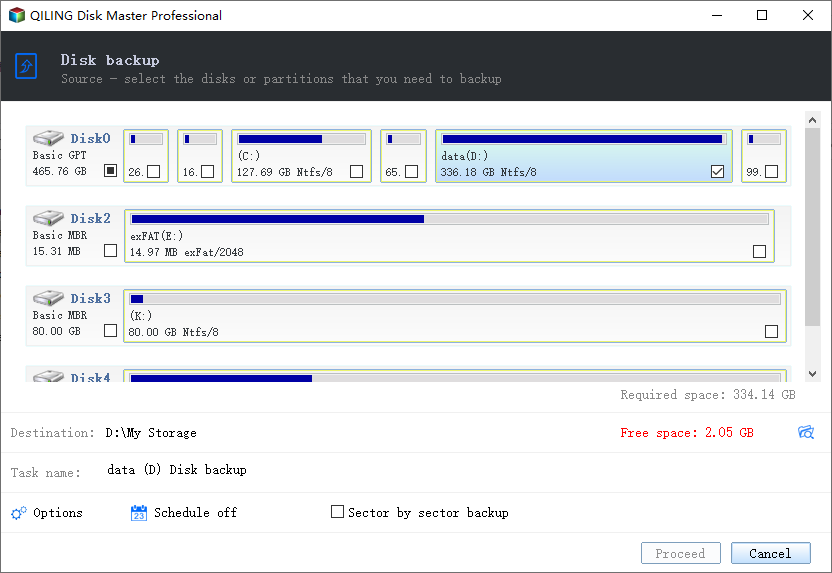
Step 3. Set the image destination on the separate drive and click Proceed. Keep compatible recovery media and confirm it can detect the image storage.
Test another normal restart. If boot corruption recurs, inspect disk health and recent software changes; repeatedly rewriting boot code does not address an underlying failing drive.
Related Articles
- Invalid or Damaged Bootable Partition
Check the selected startup device before modifying boot records. - BOOTMGR Is Missing
Follow the diagnosis for a missing Windows boot manager message.
Products
Articles & Tutorials
- Data Recovery
- Data Backup
- File Recovery
- File Backup
- File synchronize
- System Backup and Restore
- Disk and Partition Clone
- Technical articles
- Disk Master Help
- Windows Deleted File and Disk Recovery Tutorials
- Windows File and Data Recovery Tutorials
- More Windows Tutorials for Install, Security, Files, and PC Tips
- Windows Boot, Repair, and Recovery Environment Tutorials
- Windows Backup Tutorials
- Windows Restore Tutorials
- Windows Clone and Migration Tutorials
- Windows Server Backup, Recovery, and Management Tutorials
- Windows Disk, Partition, and Storage Management Tutorials