Invalid or Damaged Bootable Partition: Diagnose the Disk Before Repair
The message Invalid or damaged bootable partition means the current startup path cannot load Windows. It does not prove that all files have been lost. The firmware may be starting the wrong disk, or the disk may be readable even though its startup files are damaged.
Work from the least disruptive checks to repairs that write to the disk. If the drive disappears from firmware, clicks, or repeatedly disconnects, stop boot repair and protect the data first.
Check which device the computer is trying to start
- Shut down the computer and remove nonessential USB storage and memory cards. Leave the internal Windows disk connected.
- Open the manufacturer's one-time boot menu. Use the key shown on the startup screen or in the model's manual.
- For a UEFI installation, choose the Windows Boot Manager entry associated with the Windows disk. For a legacy installation, choose the actual system disk.
- If this works, correct the persistent boot order in firmware and restart again. If the disk is not detected at all, check its connection and manufacturer diagnostics before changing partition settings.
Do not toggle Legacy/CSM and UEFI at random. Record the original setting. A previously working installation normally needs its original boot mode unless the disk was deliberately converted.
Inspect the layout without deleting partitions
Start from Windows installation media and choose Repair your computer > Troubleshoot > Advanced options > Command Prompt on Windows 10/11. Older recovery screens use different labels. Keep the BitLocker recovery key available if encryption is enabled.
diskpart
list disk
list volume
exit
Photograph the output. An asterisk in DiskPart's GPT column identifies a GPT disk. Match the disk by capacity and partitions; do not assume Disk 0 is always the target. In recovery, Windows may be D: rather than C:. Check candidate volumes with dir D:\Windows, substituting the letter you actually found.
If a formerly populated disk is entirely unallocated or the Windows volume is RAW, do not create a new partition or format it. That is a partition or file-access problem that needs recovery assessment before boot repair.
Choose the repair that matches the startup configuration
First try Startup Repair
Return to Advanced options, choose Startup Repair, and select the Windows installation. Record any failure details. Remove the installation USB for the next startup test so that you test the repaired disk.
For a confirmed BIOS/MBR installation
The active primary partition must be the one that actually holds the boot files. It may be System Reserved rather than C:. Do not mark a recovery or data partition active based only on its size. If you cannot identify the original system partition, stop here and seek a layout-specific repair.
For damaged legacy boot code, open recovery Command Prompt and run bootrec /fixmbr. This replaces boot code, not a missing partition table. To look for a Windows installation absent from the boot configuration, use bootrec /scanos, then bootrec /rebuildbcd and add only the installation you recognize.
For a confirmed UEFI/GPT installation
Do not use the active flag or treat an MBR rewrite as an EFI repair. The EFI System Partition and Windows partition must both be present. Review the UEFI boot-file repair prerequisites before having the identified disk's EFI files rebuilt. Do not format a small partition merely because it is FAT32.
Create a recovery copy after Windows starts
Once the machine starts reliably, use Qiling Disk Master to preserve the working layout before more partition changes. This is a backup step, not a claim that the software can reconstruct every damaged boot record.
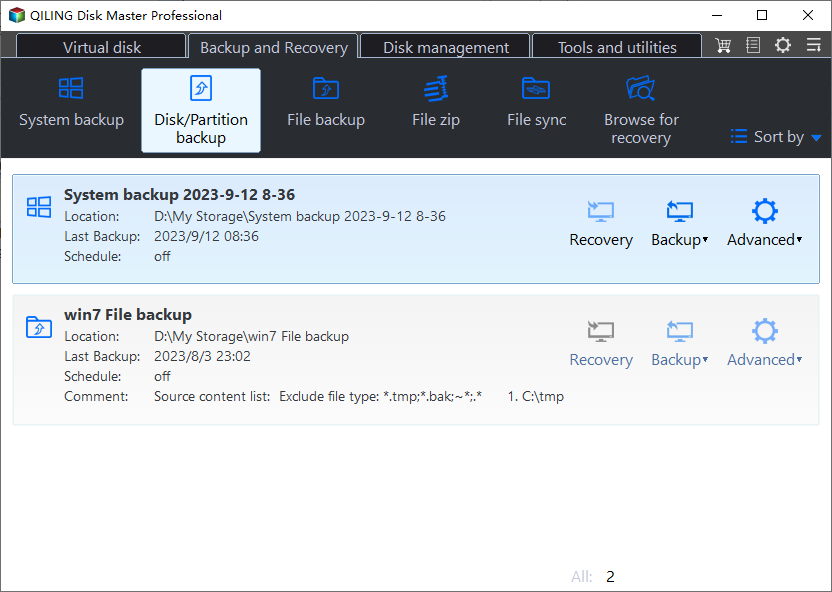
Step 1. Connect a separate backup drive. Open Backup and Recovery > Disk/Partition backup.
Step 2. Select the physical Windows disk and all its system-related partitions, including the small boot partition. Confirm the disk model and capacity.
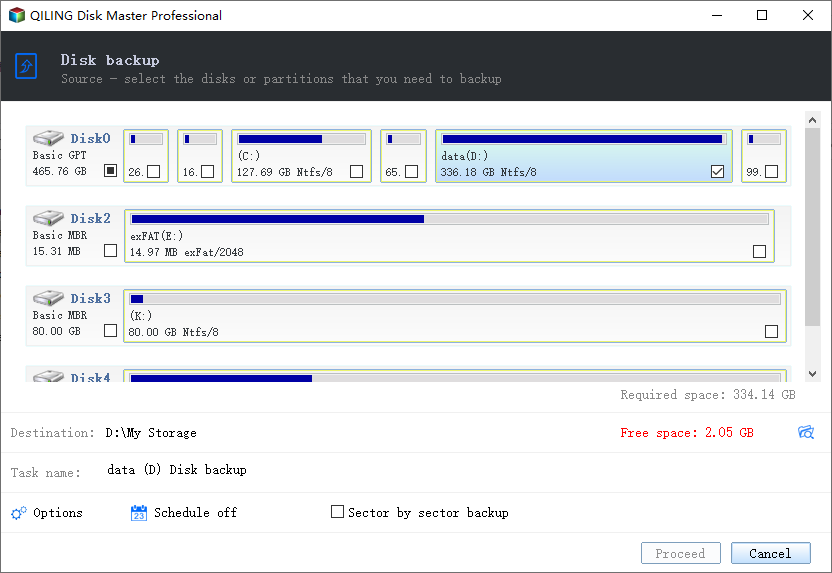
Step 3. Choose a destination on the separate drive, review the selection, and click Proceed. Wait for a successful result and retain the image with compatible recovery media.
Test another restart without the installation USB. A machine that starts only while a second disk is connected may still depend on boot files on that disk.
Related Articles
- BOOTMGR Is Missing
Check a missing Windows boot manager separately from disk detection. - Boot Manager Failed to Find OS Loader
Diagnose a loader error after the boot manager has already started.
Products
Articles & Tutorials
- Data Recovery
- Data Backup
- File Recovery
- File Backup
- File synchronize
- System Backup and Restore
- Disk and Partition Clone
- Technical articles
- Disk Master Help
- Windows Deleted File and Disk Recovery Tutorials
- Windows File and Data Recovery Tutorials
- More Windows Tutorials for Install, Security, Files, and PC Tips
- Windows Boot, Repair, and Recovery Environment Tutorials
- Windows Backup Tutorials
- Windows Restore Tutorials
- Windows Clone and Migration Tutorials
- Windows Server Backup, Recovery, and Management Tutorials
- Windows Disk, Partition, and Storage Management Tutorials