Convert FAT32 to exFAT in Windows Without Confusion
FAT32 works with many devices, but it cannot store a single file larger than 4GB. exFAT is often better for USB drives, SD cards, and external drives used between Windows and modern devices.
Understand the problem
Windows does not provide a direct non-destructive FAT32-to-exFAT conversion command like convert.exe for NTFS. The practical method is to back up files, format to exFAT, and copy files back.
- Confirm the target disk, partition, drive letter, file system, and capacity before changing anything.
- Back up or recover important files before formatting, deleting, resizing, converting, or reinstalling Windows.
- For boot-related repairs, check BIOS or UEFI mode, boot order, and disk style before editing system partitions.
Use Windows built-in tools
Use File Explorer when the device is healthy.
- Copy all files from the FAT32 device to another safe location.
- Right-click the device in File Explorer and choose Format.
- Select exFAT, keep Quick Format checked, and start formatting.
- Copy files back after formatting finishes.
- Test the device on the target computer or device.
Use Qiling tools for guided steps
 Qiling Disk Master
Back up and format a FAT32 device to exFAT with clear source and destination checks.
Function. Back up important files before making changes
Step 1. Connect an external drive or choose another safe location with enough free space for the files on the FAT32 device.
Step 2. Open Qiling Disk Master and choose File Backup. This protects documents, photos, downloads, and project files before you change Windows settings or disk layout.

Step 3. In the tree control, select the files and folders related to the FAT32 device. Back up all folders before formatting because file system conversion requires rewriting the partition.

Step 4. Select the external drive, another internal disk, or a network folder as the destination. Avoid saving the backup on the same partition that will be changed.

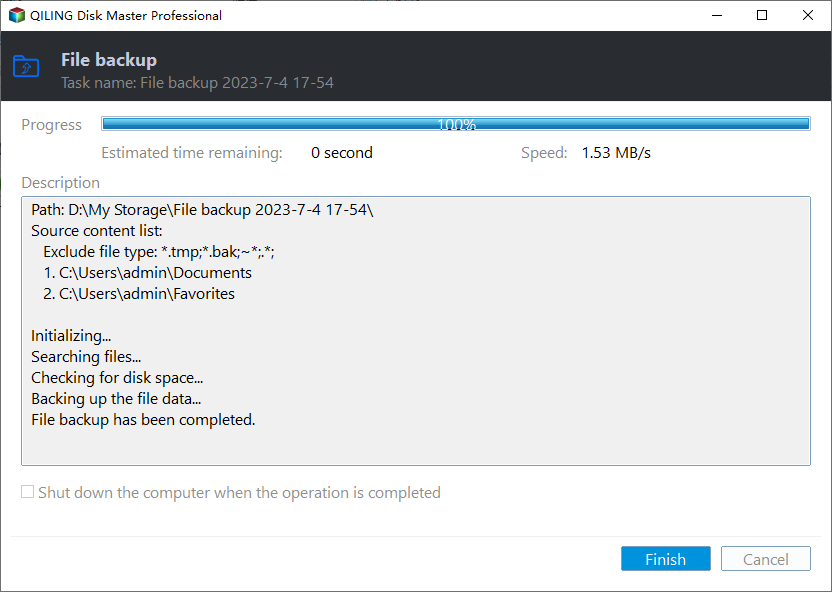
Step 5. Review the task name, source, and destination. Click Proceed and wait until the backup finishes.
Function. Format the FAT32 device with the needed file system
Step 1. Connect the FAT32 device and make sure Windows can detect it. Back up recoverable files first because formatting removes existing data.
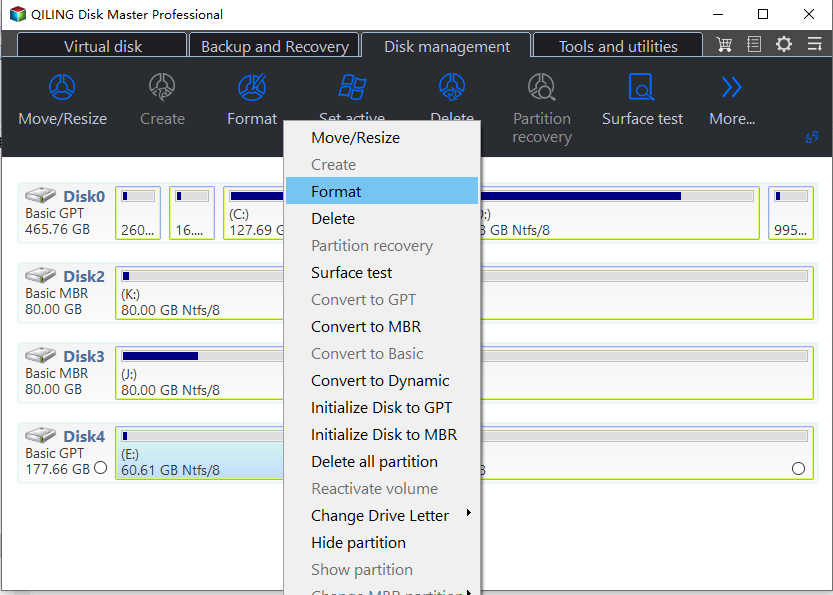
Step 2. Open Qiling Disk Master. Right-click the partition on the FAT32 device and choose Format.
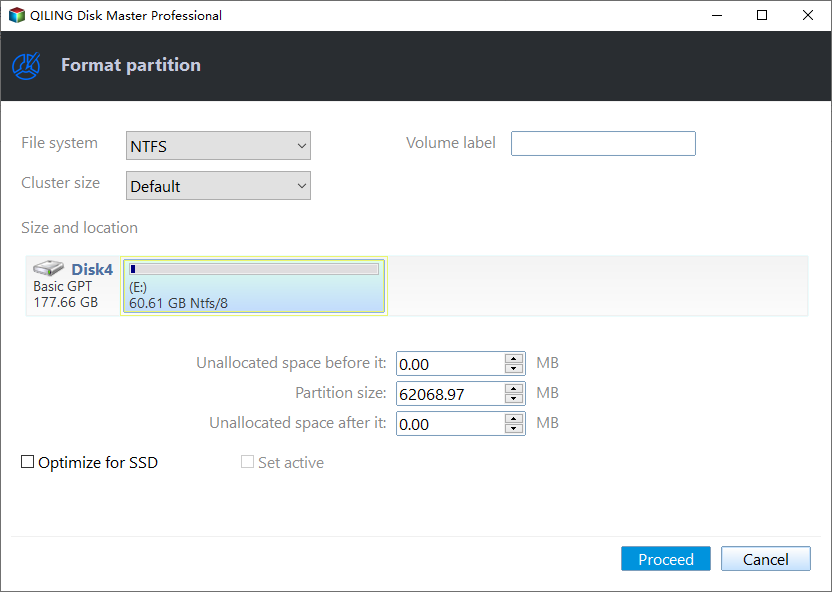
Step 3. Enter a clear partition label, choose exFAT as the file system, and keep the default cluster size unless you have a specific requirement.
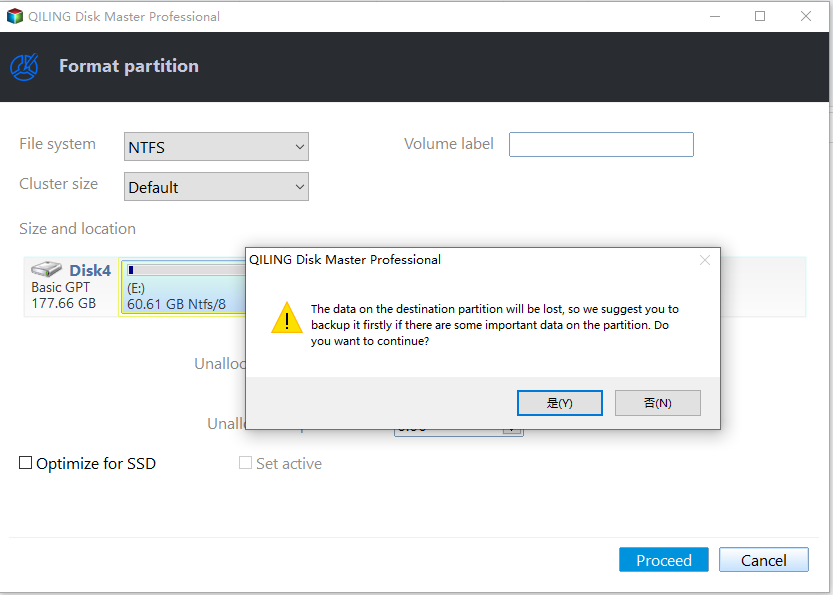
Step 4. Confirm the preview. If the correct partition is selected, click Proceed to apply the format operation.
Step 5. After formatting, reconnect the device and copy a small test file to confirm that Windows and the target device can read it.
Check the result
Check the device Properties and confirm the file system is exFAT. Copy a file larger than 4GB to verify that the conversion goal is met.
Related Articles
-
Format SD Card to exFAT
Format an SD card to exFAT for large files and modern devices. -
Convert External Drive to FAT32
Choose FAT32 or exFAT based on device compatibility and file size needs.
Products
Articles & Tutorials
- Data Recovery
- Data Backup
- File Recovery
- File Backup
- File synchronize
- System Backup and Restore
- Disk and Partition Clone
- Technical articles
- Disk Master Help
- Windows Deleted File and Disk Recovery Tutorials
- Windows File and Data Recovery Tutorials
- More Windows Tutorials for Install, Security, Files, and PC Tips
- Windows Boot, Repair, and Recovery Environment Tutorials
- Windows Backup Tutorials
- Windows Restore Tutorials
- Windows Clone and Migration Tutorials
- Windows Server Backup, Recovery, and Management Tutorials
- Windows Disk, Partition, and Storage Management Tutorials