How to Convert an External Hard Drive to FAT32
Some TVs, cameras, consoles, and older devices require FAT32. Windows may not offer FAT32 for large external hard drives.
Background and causes
FAT32 has broad compatibility but does not support single files larger than 4GB. Choose it only when device compatibility is more important than large-file support.
- Confirm the exact disk, partition, drive letter, file system, and capacity before changing anything.
- Recover or back up important files before formatting, deleting, converting, or recreating partitions.
- For boot-related changes, check BIOS/UEFI mode and boot order before editing disk layout.
Use Windows built-in tools
Back up the external drive first. If Windows can open the drive and show files, copy or back up files directly. If Windows detects the partition but cannot open it, create a partition backup before formatting. Then use File Explorer, Disk Management, or a partition tool to format the drive as FAT32.
Use Qiling tools for guided steps
 Qiling Disk Master
Back up readable files or the whole partition before formatting an external drive to FAT32.
Function 1. Choose the correct backup method
Use File backup if Windows can open the external hard drive and display files. Use Disk/Partition backup if Windows can detect the partition but cannot open the drive or list its files. Store the backup on another disk, not on the external drive you plan to format.
Situation 1. Windows can read files on the external drive
Step 1. Open Qiling Disk Master and go to Backup and Recovery. Click File backup.

Step 2. Select the folders and files on the external hard drive that you need to keep.

Step 3. Choose a destination on another disk, external drive, NAS, or network location. Make sure it has enough free space.

Step 4. Review the source list and destination path, then click Proceed to start the file backup.
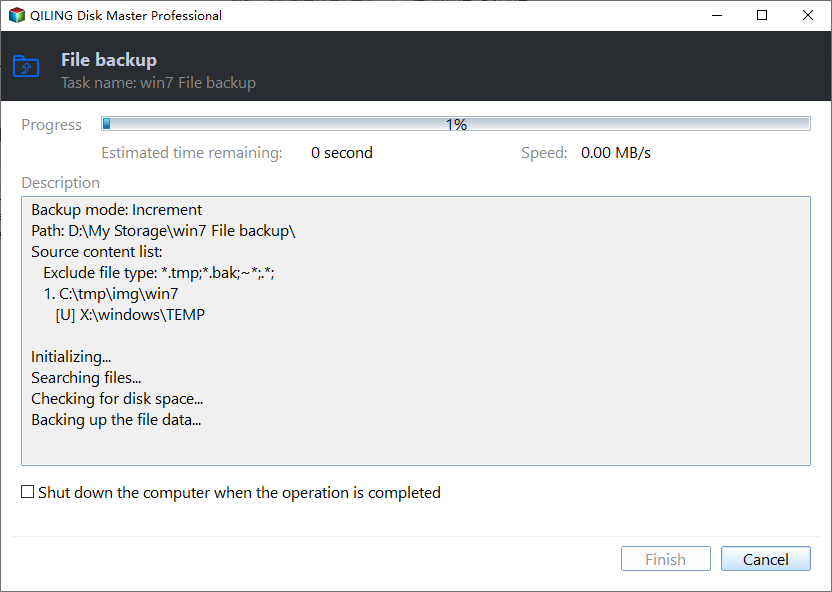
Situation 2. Windows detects the partition but cannot read files
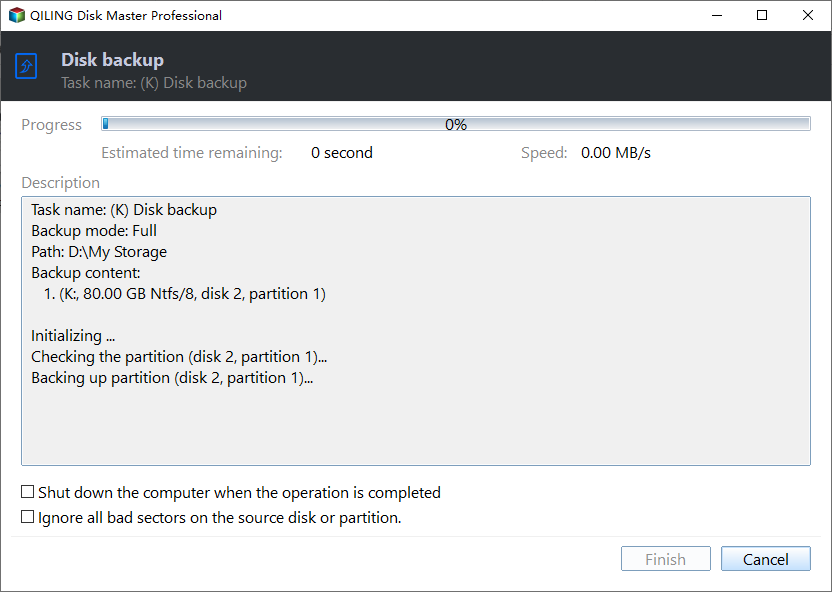
Step 1. Open Qiling Disk Master and go to Backup and Recovery. Click Disk/Partition backup.
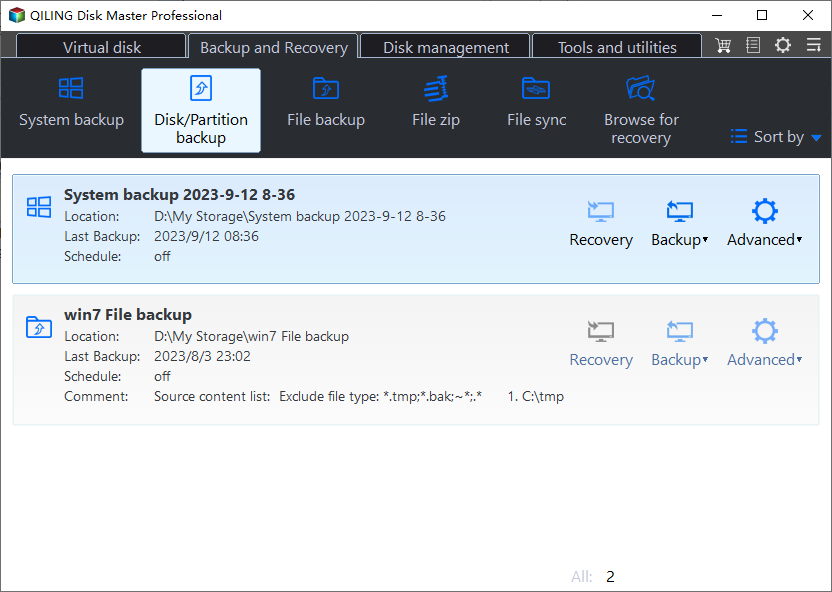
Step 2. Select the external hard drive partition by disk number, size, and position. Do not select the backup destination disk by mistake.
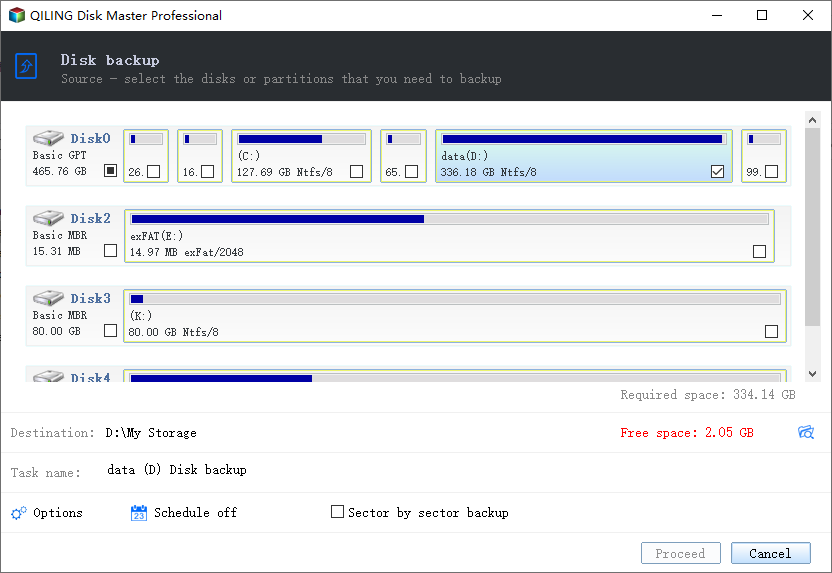
Step 3. Choose a backup destination on another disk, NAS, or network folder.
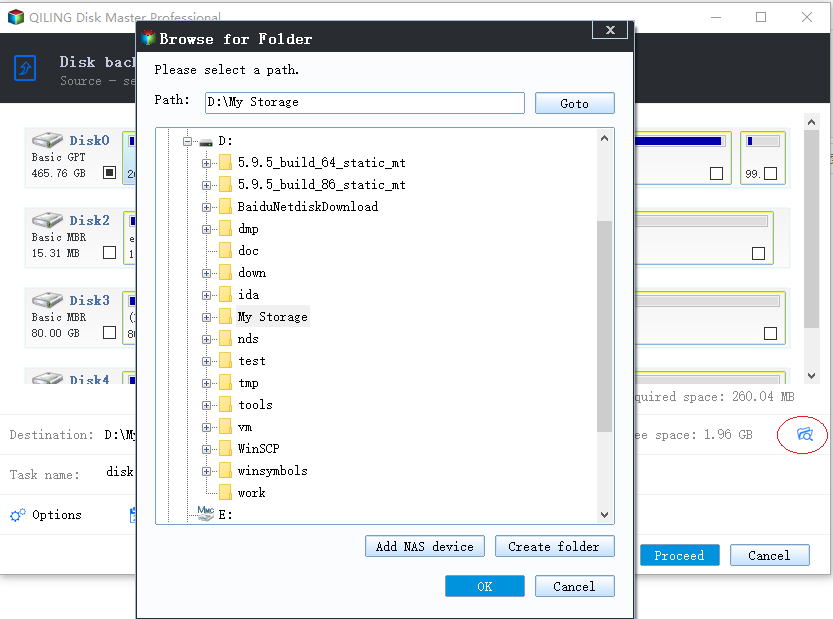
Step 4. Review the partition source and destination path, then click Proceed to start the partition backup.
Function 2. Format the external hard drive to FAT32
After confirming that the backup is complete, format the target external drive to FAT32.
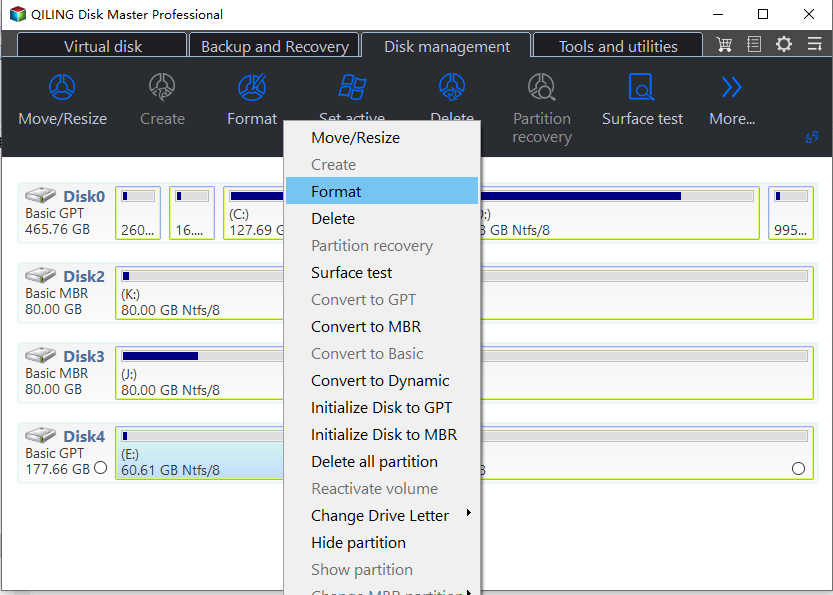
Step 1. Select the external hard drive partition and choose the format operation.
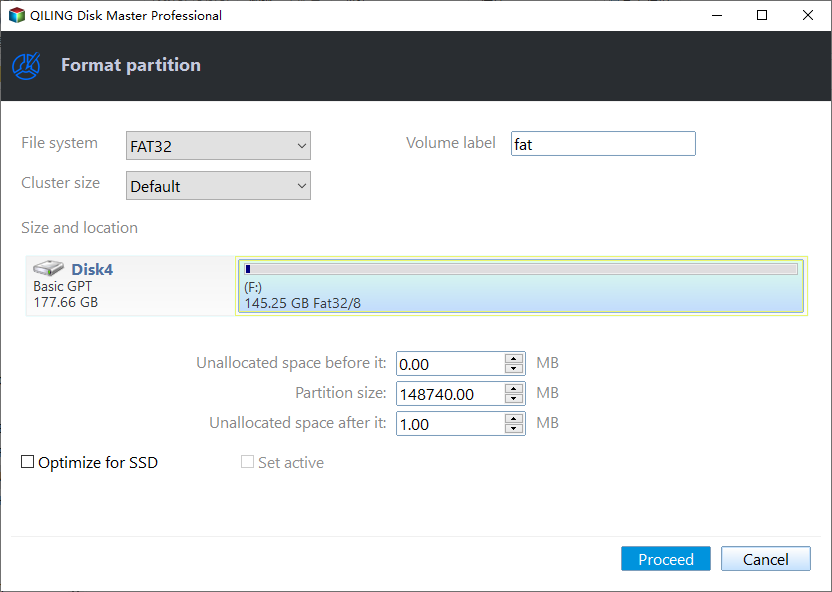
Step 2. Set the file system to FAT32. Confirm the volume label, cluster size, and selected drive before continuing.
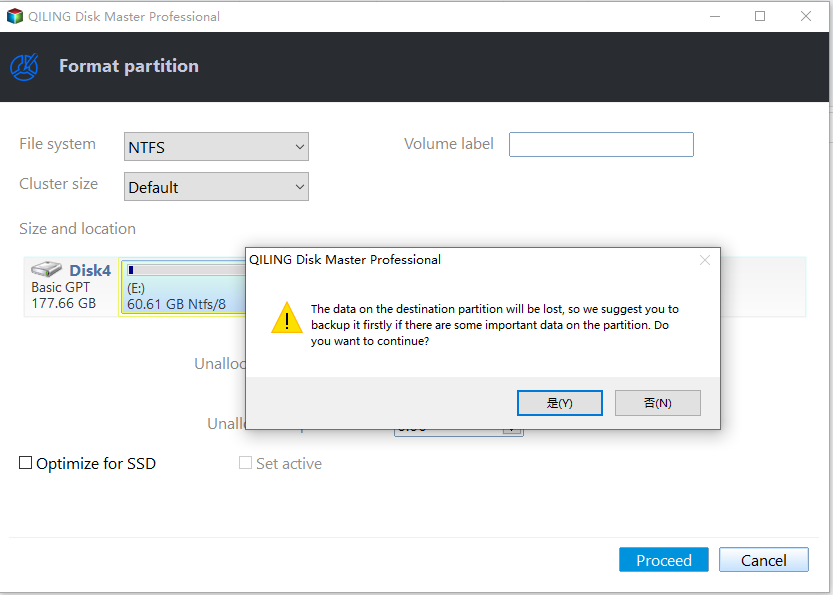
Step 3. Review the pending operation and click Proceed to apply the FAT32 format.
Function 3. Restore files and test compatibility
Copy the backed-up files back to the FAT32 drive only if each file is smaller than 4GB. Then reconnect the drive to the TV, camera, console, or other target device and copy a small test file to confirm compatibility.
Check the result
Reconnect the drive to the target device and copy a small test file to confirm compatibility.
Related Articles
- How to Partition a Dell Hard Drive
Create, resize, and protect disk partitions without touching recovery partitions. - We Could not Create a New Partition
Fix Windows Setup partition errors with boot-mode and disk-layout checks. - PS3 Cannot Read an NTFS USB Drive
See why a PS3 may reject an NTFS USB drive and how to prepare compatible FAT32 storage after backing up files.
Products
Articles & Tutorials
- Data Recovery
- Data Backup
- File Recovery
- File Backup
- File synchronize
- System Backup and Restore
- Disk and Partition Clone
- Technical articles
- Disk Master Help
- Windows Deleted File and Disk Recovery Tutorials
- Windows File and Data Recovery Tutorials
- More Windows Tutorials for Install, Security, Files, and PC Tips
- Windows Boot, Repair, and Recovery Environment Tutorials
- Windows Backup Tutorials
- Windows Restore Tutorials
- Windows Clone and Migration Tutorials
- Windows Server Backup, Recovery, and Management Tutorials
- Windows Disk, Partition, and Storage Management Tutorials