Create a Second Partition on an SD Card Safely
A second SD card partition can separate media files, app data, Linux storage, or camera files. The main risk is compatibility: not every camera, phone, or embedded device can read multiple SD card partitions.
Understand the problem
Before changing the SD card, check whether the target device supports multiple partitions and which file systems it accepts. Back up the card because repartitioning can make old files inaccessible.
- Confirm the target disk, partition, drive letter, file system, and capacity before changing anything.
- Back up or recover important files before formatting, deleting, resizing, converting, or reinstalling Windows.
- For boot-related repairs, check BIOS or UEFI mode, boot order, and disk style before editing system partitions.
Use Windows built-in tools
Windows can create a new volume if the SD card has unallocated space.
- Copy important photos, videos, and documents from the SD card to another drive.
- Open Disk Management and identify the SD card by capacity.
- Shrink the existing partition if free space is available.
- Create a new simple volume in the unallocated space.
- Format it with the file system required by the target device.
Use Qiling tools for guided steps
 Qiling Disk Master
Create or resize SD card partitions with a preview before applying changes.
Function. Create a new partition on the SD card
Step 1. Connect the SD card and back up important files. If the device has no unallocated space, shrink an existing partition first.
Step 2. Open Qiling Disk Master. Right-click the unallocated space on the SD card and choose Create Partition.
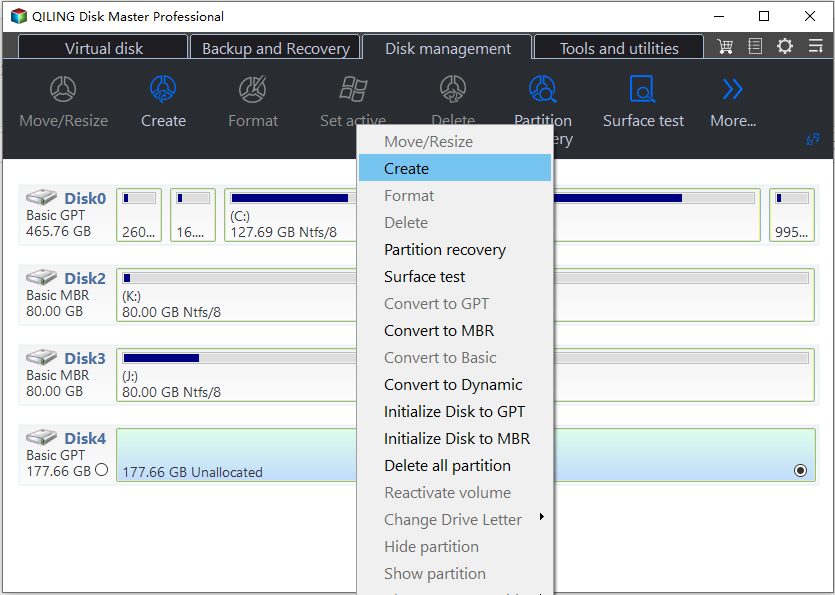
Step 3. Set the partition size, drive letter, file system, and label according to camera files, phone storage, or separated transfer space. Use clear labels so each partition is easy to recognize later.
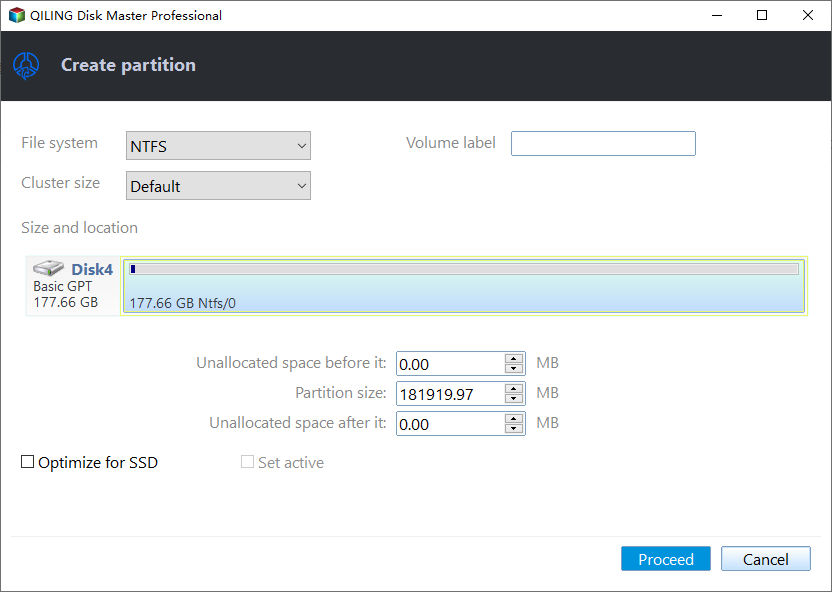
Step 4. Check the preview and click Proceed. After the operation finishes, open File Explorer and confirm that the new partition appears.
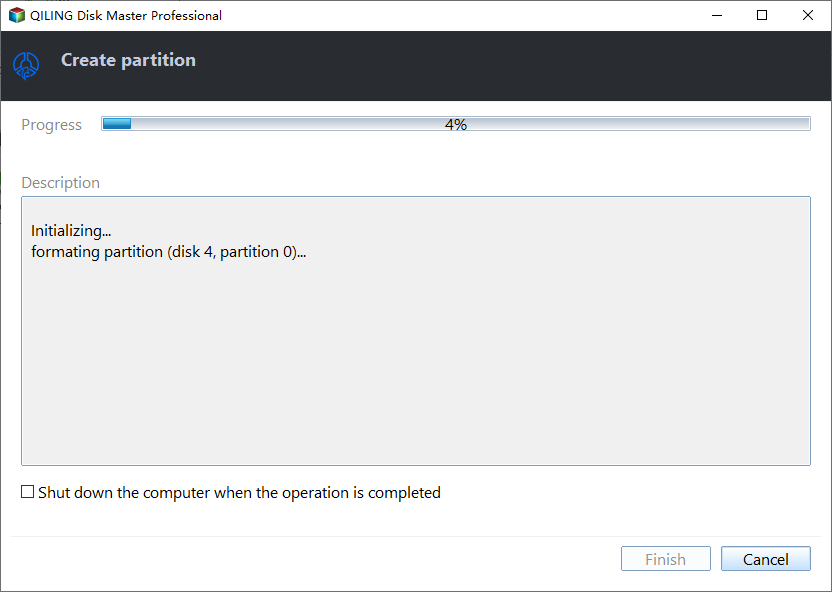
Check the result
Safely eject and reconnect the SD card. Confirm the partitions in File Explorer and test the card in the device that will use it.
Related Articles
-
Create Partition
Create a new partition with clear size, label, and file system settings. -
Recover Lost SD Card Partition
Recover files when an SD card partition is lost or no longer visible.
Products
Articles & Tutorials
- Data Recovery
- Data Backup
- File Recovery
- File Backup
- File synchronize
- System Backup and Restore
- Disk and Partition Clone
- Technical articles
- Disk Master Help
- Windows Deleted File and Disk Recovery Tutorials
- Windows File and Data Recovery Tutorials
- More Windows Tutorials for Install, Security, Files, and PC Tips
- Windows Boot, Repair, and Recovery Environment Tutorials
- Windows Backup Tutorials
- Windows Restore Tutorials
- Windows Clone and Migration Tutorials
- Windows Server Backup, Recovery, and Management Tutorials
- Windows Disk, Partition, and Storage Management Tutorials