Fix Delete Partition Override Not Working
The DiskPart command delete partition override may fail when the partition is in use, protected, encrypted, damaged, or located on a disk with access problems.
Understand the problem
Force deleting the wrong partition can remove recovery, EFI, or data partitions. Identify the partition by disk number, size, and label before you use DiskPart or any partition tool.
- Confirm the target disk, partition, drive letter, file system, and capacity before changing anything.
- Back up or recover important files before formatting, deleting, resizing, converting, or reinstalling Windows.
- For boot-related repairs, check BIOS or UEFI mode, boot order, and disk style before editing system partitions.
Use Windows built-in tools
Use DiskPart only when you are certain about the partition.
- Open Command Prompt as administrator.
- Run diskpart, then list disk and select disk n.
- Run list partition and select partition n.
- Run detail partition to verify the target.
- Try delete partition override only after backing up needed files.
Use Qiling tools for guided steps
 Qiling Disk Master
Delete a selected partition from a visible disk map instead of relying only on command numbers.
Function. Delete the partition with a preview first
Step 1. Back up or recover files from the partition that DiskPart cannot delete before deleting it. Deleting a partition removes its drive letter and file records.
Step 2. Open Qiling Disk Master. Right-click the partition that DiskPart cannot delete and choose Delete Partition.
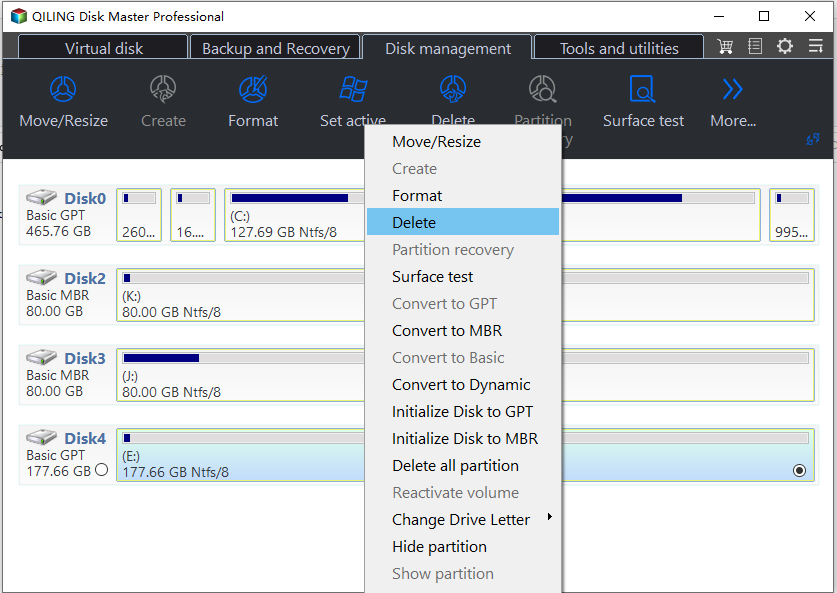
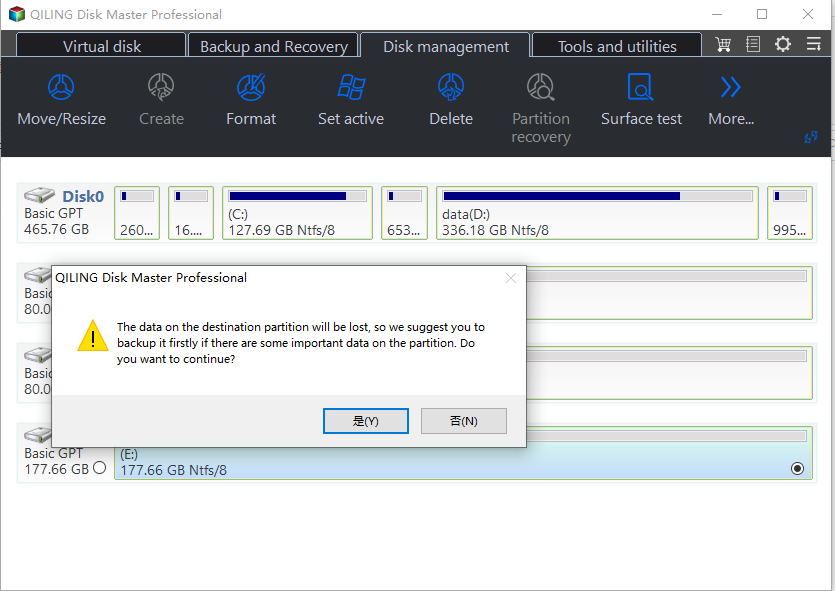
Step 3. Read the warning message carefully. Confirm that the selected partition is the one you intend to remove.
Check the result
Reopen Disk Management and confirm that the deleted space is shown as unallocated. Do not create a new volume until you are sure no files need to be recovered.
Related Articles
-
Delete Partition
Delete a partition with a clear preview and safer confirmation steps. -
Delete Partitions on External Drive
Remove partitions from an external drive after checking the correct disk.
Products
Articles & Tutorials
- Data Recovery
- Data Backup
- File Recovery
- File Backup
- File synchronize
- System Backup and Restore
- Disk and Partition Clone
- Technical articles
- Disk Master Help
- Windows Deleted File and Disk Recovery Tutorials
- Windows File and Data Recovery Tutorials
- More Windows Tutorials for Install, Security, Files, and PC Tips
- Windows Boot, Repair, and Recovery Environment Tutorials
- Windows Backup Tutorials
- Windows Restore Tutorials
- Windows Clone and Migration Tutorials
- Windows Server Backup, Recovery, and Management Tutorials
- Windows Disk, Partition, and Storage Management Tutorials