Diskpart: Format Drive to NTFS in Windows 11, 10, 8, 7
Scenario
"I just got a 32GB USB flash drive from my brother, formatted to be FAT32. When I was transferring a 5 GB file to it, it failed and popped up an error message saying 'File is too large for the destination file system'. I googled it and knew that is about file size restriction. And I need to format it to NTFS to break out its 4GB size limitation on a single file. So can I use Diskpart to format NTFS in Windows computer and how to do it in detail?"
What is the use of DiskPart command?
DiskPart is a command-line utility for Microsoft operating systems that allows users to view, create, delete, and format disk partitions. To use DiskPart, you must first list and select an object, giving it focus, so that subsequent commands will act on that object. This enables users to manage their disk partitions in a detailed and precise manner.
Use Diskpart to format drive to NTFS (Command Line)
When Windows users encounter formatting errors, such as "Windows was unable to complete the format" or "The format did not complete successfully", formatting a hard drive to NTFS via Diskpart can be an alternative solution. To format a disk to NTFS using Diskpart, follow the steps below.
Warning: Formatting a drive will erase everything on the drive you select, so it's essential to choose the correct drive and back up any important data before proceeding.
1. To open Command Prompt as an administrator, press the Windows key + X on your keyboard, and from the Power User menu, select "Command Prompt (Admin)".
In Windows 7, to access the Command Prompt, click the "Start" button, type "cmd" in the search box, right click the Command Prompt icon and select "Run as administrator".
2. Type "Diskpart" in the Command Prompt and press "Enter".
3. Then execute the following commands in sequence:
- list disk: list all disks recognized by the OS.
- select disk 1: select the disk that contains the partition you need to format. For example, if you want to format a partition on disk 1, you would select that disk.
- list partition: list all partitions on the selected disk.
- select partition 1: select the target partition. Here we select partition 1.
- format fs=ntfs quick: format the partition to NTFS file system.
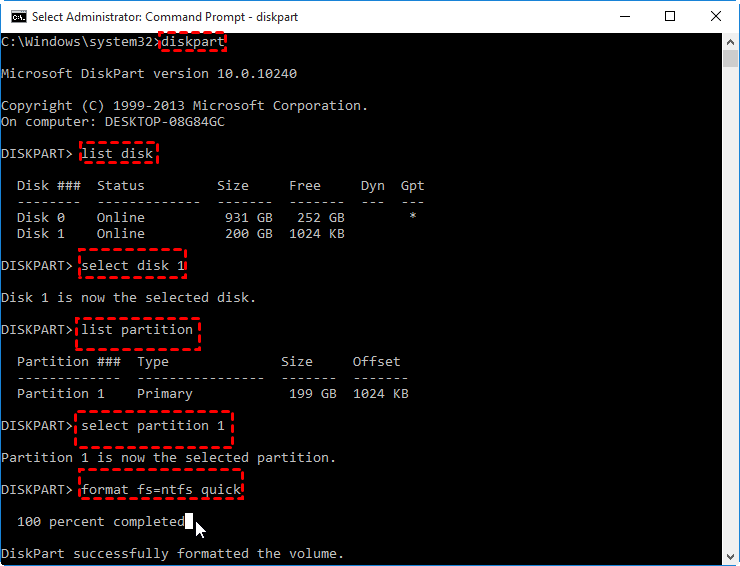
When the formatting process is completed, you can close DiskPart by running the "exit" command.
Notes:
▸ If the hard drive is currently formatted with FAT32 and you want to convert it to NTFS without losing data, you can use the Command Prompt to run the command "convert [drive letter]: /fs:ntfs" (e.g., "convert D: /fs:ntfs").
▸ To format the C drive in Command Prompt, you need to boot your computer from the installation media and perform the formatting task in WinPE mode.
Alternative to DiskPart: format partition to NTFS more easily
When formatting a hard drive, you can usually use Diskpart to format it to NTFS or FAT32. However, if the hard drive is corrupted or stuck in a RAW file system, you may encounter difficulties. In such cases, a free partition manager like Qiling Disk Master Standard can be a useful alternative.
For Windows 10/8/7 users, a free and powerful disk formatting tool allows formatting hard drives to various file systems, including NTFS, FAT32, Ext4, Ext3, Ext2, and exFAT, even when the drive is RAW or write-protected due to a damaged file system. This tool enables users to format a disk partition to NTFS.
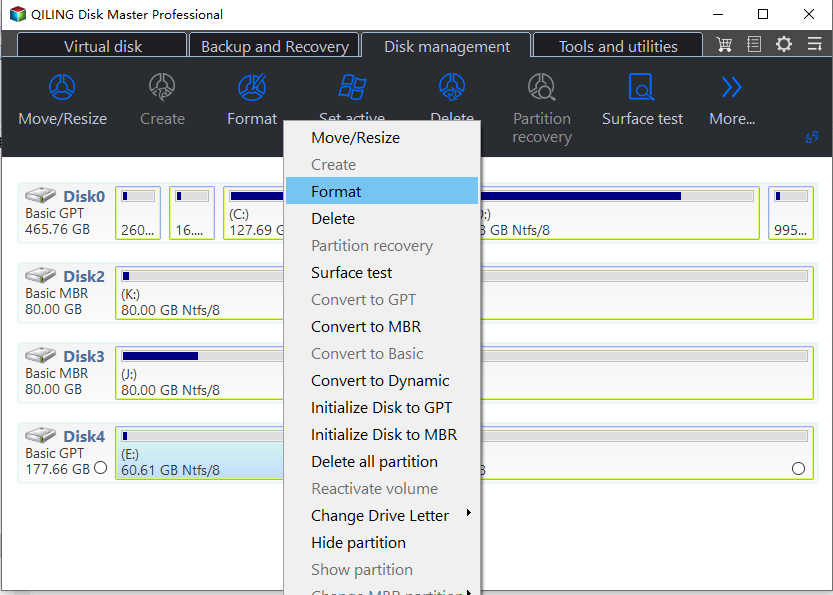
1. Install and launch Qiling Disk Master. Right-click the partition you plan to format and choose "Format Partition".
2. In the mini window, select "NTFS" from the available File System options.
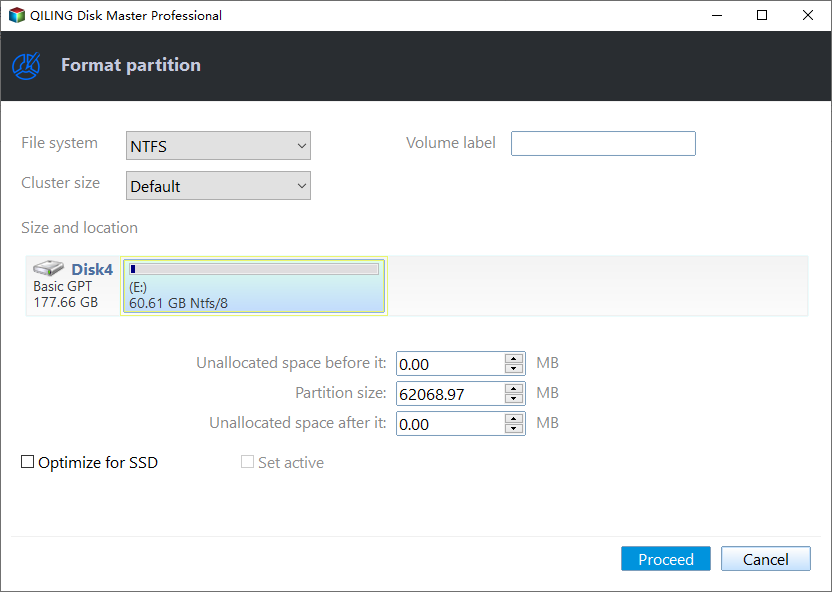
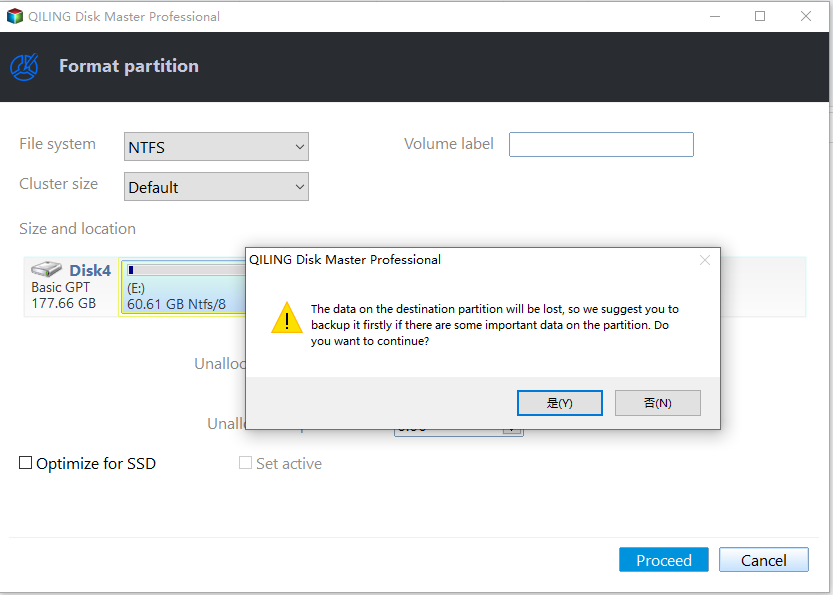
3. Click "Proceed" to start the formatting process.
If you need to change from FAT32 to NTFS, you can use a converter that allows you to switch between the two file systems without losing your data. This way, you can keep your files intact while updating the file system.
Other amazing functions of Qiling software:
1. Merge Partitions: combine two adjacent partitions or merge one or more pieces of unallocated space into another existing partition.
2. Create Partition: create a new partition on either unallocated space or an existing partition by determining the size and location, selecting a drive letter or mount point, and formatting the partition with a file system such as NTFS or FAT32.
3. Clone Partition: copy partition to another hard drive.
4. Move Partition: change the location of a partition.
5. Migrate OS: migrate the OS from an MBR disk to a GPT disk by creating a bootable USB drive with a Linux distribution that supports GPT partitioning, then using a tool like gdisk or parted to create a GPT partition table on the destination disk.
6. Convert Disk Style: convert a data disk between MBR and GPT partition styles using the built-in Disk Management tool in Windows or third-party software like Qiling Partition Master, without deleting existing partitions or losing important data.
Sum up
If you find running Diskpart to format NTFS too complicated, consider using Qiling Disk Master instead. The Professional edition offers advanced features, including allocating free space between partitions, converting the system disk from MBR to GPT for Windows 11, extending the system drive, and recovering lost partitions.
Qiling Disk Master Server is compatible with Windows Server, including Windows 10/8/7, and Windows Server 2019/2016/2012/2008/2003.
Related Articles
- Diskpart: Fix RAW Partition in Windows 10/8/7
This page focuses on how RAW drive comes and how to use Diskpart to fix RAW partition. If you want to fix RAW partition without formatting, please try Qiling Disk Master Standard. - Easily Format External Hard Drive to NTFS without Data Loss in Windows 10/8/7
This guide explains Easily Format External Hard Drive to NTFS without Data Loss in Windows 10/8/7 with clear steps, key checks, and practical tips. - How to Resize NTFS Partition in Windows 11/10 [Full Guide]
This article will introduce how to resize NTFS partition on Windows 11/10. And you will learn three different ways to resize NTFS partition without losing data. You will get the Windows built-in tools and the best third-party software to finish the task. - How to Burn ISO to USB? 2024 Complete Guide
You can burn an ISO image to a USB drive, and this page will guide you through a simple process to do so. Follow the steps to learn how to create a Windows ISO bootable media in USB on your own. - How Do I Use Unallocated Free Space in Disk Management | 2022 Windows Tutorial
The unallocated space in Disk Management refers to a section of the hard drive that is not assigned to a specific partition or drive. This space can be utilized in various ways, such as creating a new partition or drive, expanding an existing partition, or even recovering lost data. - [Fixed] Windows Media Creation Tool Can't Find USB Error: We Can't Find a USB Flash Drive
Fix Windows Media Creation Tool Can't Find USB Error: We Can't Find a USB Flash Drive with clear Windows repair steps and precautions to protect your system or data.
Products
Articles & Tutorials
- Data Recovery
- Data Backup
- File Recovery
- File Backup
- File synchronize
- System Backup and Restore
- Disk and Partition Clone
- Technical articles
- Disk Master Help
- Windows Deleted File and Disk Recovery Tutorials
- Windows File and Data Recovery Tutorials
- More Windows Tutorials for Install, Security, Files, and PC Tips
- Windows Boot, Repair, and Recovery Environment Tutorials
- Windows Backup Tutorials
- Windows Restore Tutorials
- Windows Clone and Migration Tutorials
- Windows Server Backup, Recovery, and Management Tutorials
- Windows Disk, Partition, and Storage Management Tutorials