Convert RAW to NTFS Using CMD Without Losing Data
A RAW drive has a file system Windows cannot read. CMD can format it to NTFS, but formatting removes file access records, so data recovery must come first.
Understand the problem
If the drive contains important data, do not run format immediately. RAW can be caused by file system damage, unsafe removal, bad sectors, or partition table problems.
- Confirm the disk, partition, file system, Windows version, boot mode, or update state before making changes.
- Back up or recover important files before conversion, deletion, formatting, cleanup, reimage, or boot repair.
- For boot-related work, check BIOS or UEFI mode, boot order, system partition status, and recovery media first.
Use Windows built-in tools
Use CMD only after protecting files.
- Check the drive letter and make sure it is the RAW volume.
- Try chkdsk only if Windows allows it; RAW often rejects chkdsk.
- Recover files to another disk first.
- Use format X: /fs:ntfs only when data is already safe.
- Assign a drive letter and test the formatted volume.
Use Qiling tools for guided steps
 Deep Data Recovery
Recover files from the RAW drive before formatting it to NTFS.
Function. Recover files with Fast Scan
Step 1. Stop writing new data to the RAW drive or partition. If possible, install Deep Data Recovery on another drive.
Step 2. Launch Deep Data Recovery and choose Fast Scan first. Fast Scan may find file records quickly; use deeper recovery if the RAW damage is severe.
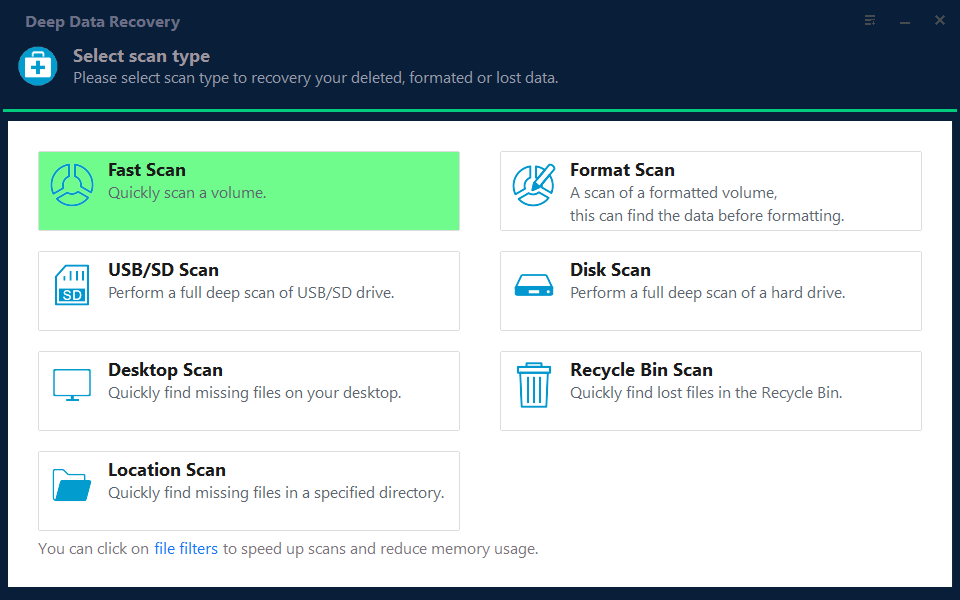
Step 3. Select the RAW drive or partition as the scan location. If the exact folder is missing, scan the whole partition.

Step 4. Wait for the scan to complete. Use file type, name, path, and date filters to narrow the results.
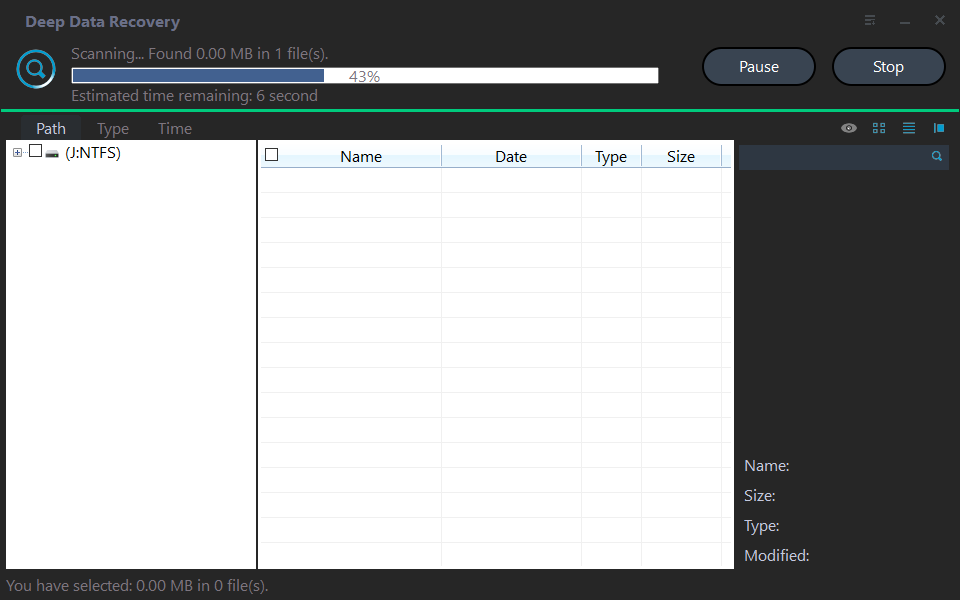
Step 5. Preview files, select the items you need, and recover them to another disk or external drive.

Function. Format the partition after files are protected
Step 1. Confirm the recovered RAW partition is the correct target and recover or back up files first.
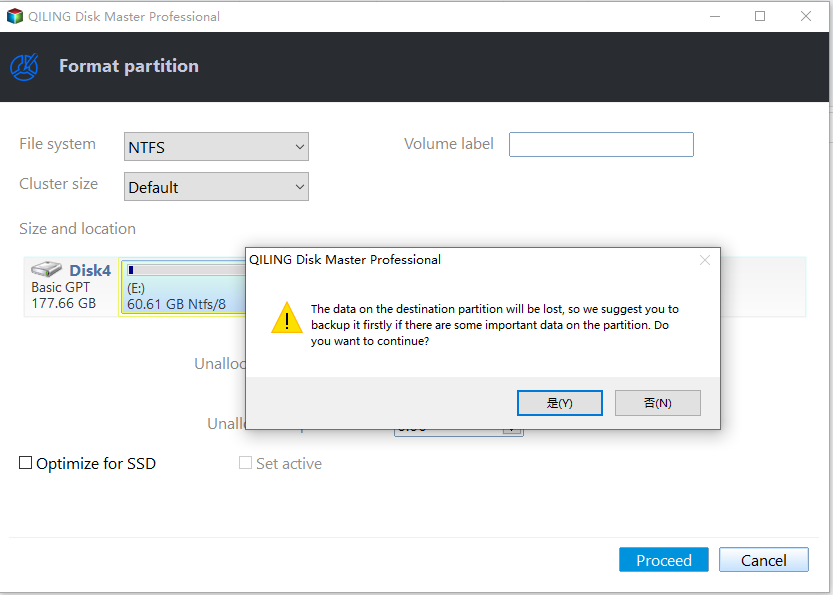
Step 2. In Qiling Disk Master, right-click the partition and choose Format.
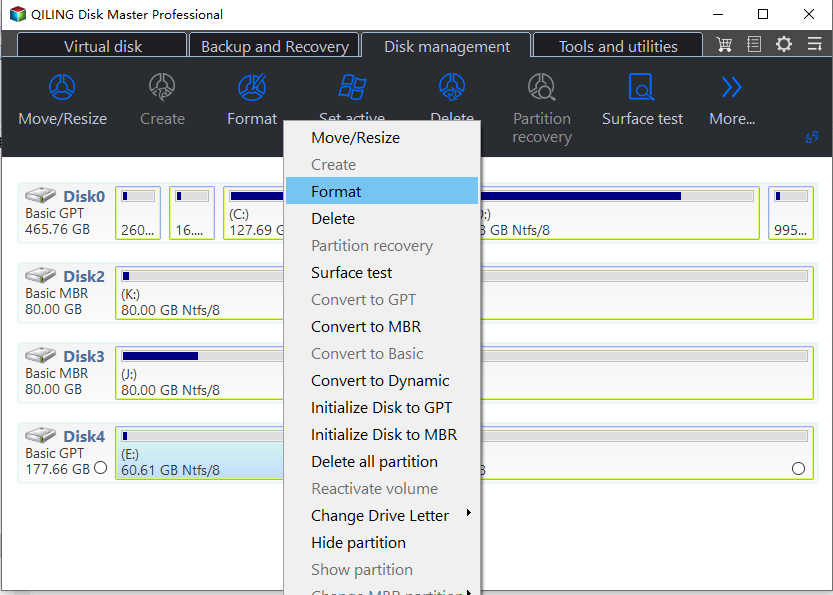
Step 3. Enter a clear label, choose NTFS, and keep the default cluster size unless a device requires another value.
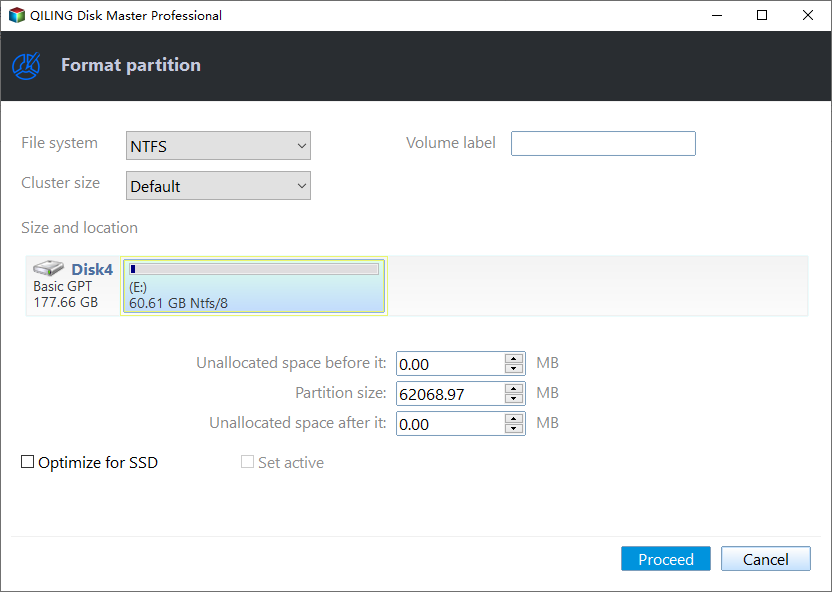
Step 4. Review the preview and click Proceed to apply the operation.
Check the result
After formatting, copy a test file to the NTFS volume. Keep recovered files on another disk until the repaired drive proves stable.
Related Articles
-
Convert RAW to NTFS Without Losing Data
Recover files before converting a RAW partition back to NTFS. -
Convert RAW to FAT32 Using CMD
Understand CMD formatting choices for RAW removable drives.
Products
Articles & Tutorials
- Data Recovery
- Data Backup
- File Recovery
- File Backup
- File synchronize
- System Backup and Restore
- Disk and Partition Clone
- Technical articles
- Disk Master Help
- Windows Deleted File and Disk Recovery Tutorials
- Windows File and Data Recovery Tutorials
- More Windows Tutorials for Install, Security, Files, and PC Tips
- Windows Boot, Repair, and Recovery Environment Tutorials
- Windows Backup Tutorials
- Windows Restore Tutorials
- Windows Clone and Migration Tutorials
- Windows Server Backup, Recovery, and Management Tutorials
- Windows Disk, Partition, and Storage Management Tutorials