How to Remove GPT Partition Style Safely
Removing GPT partition style usually means converting a GPT disk to MBR. This may be needed for older computers, Legacy BIOS installation, or tools that do not support GPT.
Understand the problem
GPT is not an error by itself. Only remove it when the target computer or installation mode requires MBR. System disks need extra caution because boot mode and boot files must match.
- Confirm the exact disk, partition, drive letter, file system, and capacity before changing anything.
- Back up or recover important files before formatting, deleting, converting, resizing, or recreating partitions.
- For boot-related changes, check BIOS or UEFI mode, boot order, and system partition status before editing disk layout.
Use Windows built-in tools
Windows built-in conversion methods may require deleting partitions, so back up first.
- Open Disk Management and confirm whether the disk is GPT.
- If it is a data disk, back up all partitions before conversion.
- Use DiskPart clean and convert mbr only when you accept that existing partitions will be removed.
- For a system disk, confirm the computer will boot in Legacy BIOS mode after conversion.
- Restore files or reinstall Windows only after the disk style is correct.
Use Qiling tools for guided steps
 Qiling Disk Master
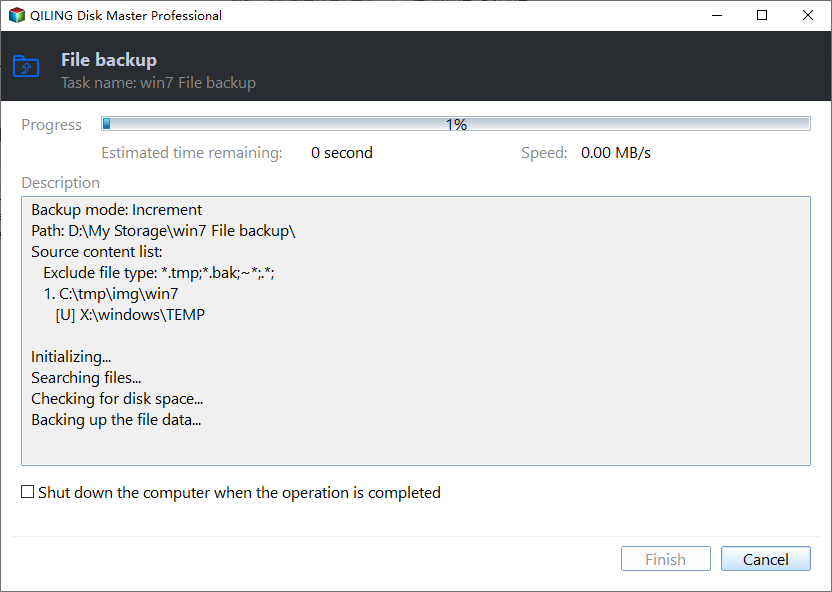
Back up the disk before removing GPT partition style or converting disk style.
Function. Back up files before changing locations or programs
Step 1. Open Qiling Disk Master and choose Backup and Recovery > File backup.

Step 2. Select all partitions on the GPT disk, including desktop files and personal folders and any related configuration folders that you may need later.

Step 3. Choose a destination on another disk, external drive, or network location. Avoid saving the backup to the disk you are about to modify.

Step 4. Review the source and destination, then click Proceed. Keep the backup until the new location or new program path is verified.
Check the result
Open Disk Management and confirm the disk shows MBR. If it is a boot disk, restart and verify the firmware boot mode matches MBR.
Related Articles
-
Convert to MBR Disk Not Available
Fix unavailable MBR conversion options and protect data first. -
Free MBR to GPT Converter
Understand disk-style conversion choices before changing boot disks.
Products
Articles & Tutorials
- Data Recovery
- Data Backup
- File Recovery
- File Backup
- File synchronize
- System Backup and Restore
- Disk and Partition Clone
- Technical articles
- Disk Master Help
- Windows Deleted File and Disk Recovery Tutorials
- Windows File and Data Recovery Tutorials
- More Windows Tutorials for Install, Security, Files, and PC Tips
- Windows Boot, Repair, and Recovery Environment Tutorials
- Windows Backup Tutorials
- Windows Restore Tutorials
- Windows Clone and Migration Tutorials
- Windows Server Backup, Recovery, and Management Tutorials
- Windows Disk, Partition, and Storage Management Tutorials