Using Diskpart to Initialize Disk into MBR/GPT Format
Why do you want to initialize a disk?
When you use a new disk, you'll receive a message that says "You must initialize a disk before Logical Disk Manager can access it," prompting you to do so. Alternatively, you might want to prepare a disk for reuse. So, how does one go about initializing a disk? Here are three methods to go about it.
3 methods to initialize disk in Windows
Method 1. Use Diskpart to initialize disk
Diskpart is a basic Windows utility that utilizes command lines to manage disks, partitions, and volumes. With its specialized commands, such as create, delete, format, extend, shrink, initialize, and convert, it offers more functionality than Windows Disk Management, making it a powerful tool for disk management.
Initializing a disk with Diskpart can be a viable option for either using a new disk or wiping an existing one, effectively resetting it for further use.
Step 1. Press "WIN+R" and type "cmd" to open the Command Prompt. Then, type diskpart in the prompt and press "Enter".
Step 2. Type the following commands and press "Enter" after each:
• list disk
• select disk x (replace x with the disk number you want to initialize)
• attributes disk clear readonly (clears the read-only attribute so you can proceed smoothly)
• online disk (brings the disk online if it is offline)
• convert mbr or convert gpt (depending on your specific requirements)
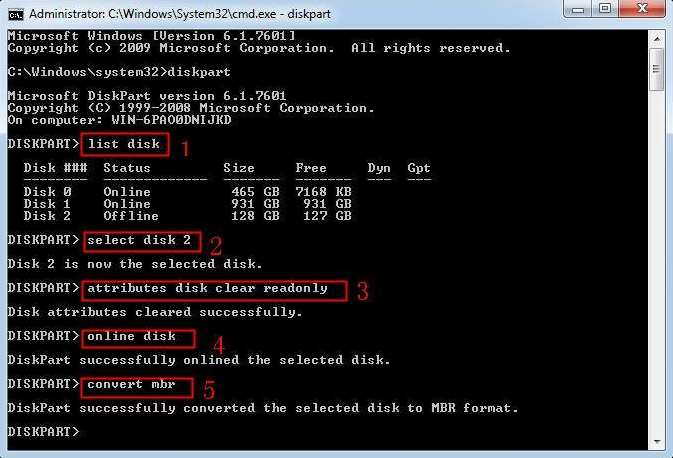
Once you initialize the disk and convert it to MBR or GPT format, you can create a partition on it, which is a practical next step. You can use Diskpart to create a partition for your convenience.
Method 2. Initialize a disk with Qiling Disk Master (GUI)
Diskpart does offer a convenient way to initialize a disk. However, there are alternative methods to achieve this. For instance, using Qiling Disk Master to initialize a hard disk can be a simpler and more efficient approach. If you prefer a graphical interface or encounter issues with Diskpart, Qiling Disk Master Professional is a viable alternative.
It comes with a command-line utility called Partassist.exe, which can serve as a replacement for Windows' Diskpart, and also offers a graphical interface for initializing a disk. Additionally, it provides a streamlined interface for initializing disks, allowing you to accomplish this task with just a few mouse clicks. This GUI approach can be a more user-friendly alternative to using Diskpart commands.
Step 1. To initialize a disk using Qiling Disk Master, launch the program and select the disk you wish to initialize. Right-click on the selected disk and choose either "Initialize Disk to GPT" or "Initialize Disk to MBR" from the context menu that appears. This will initiate the disk initialization process.
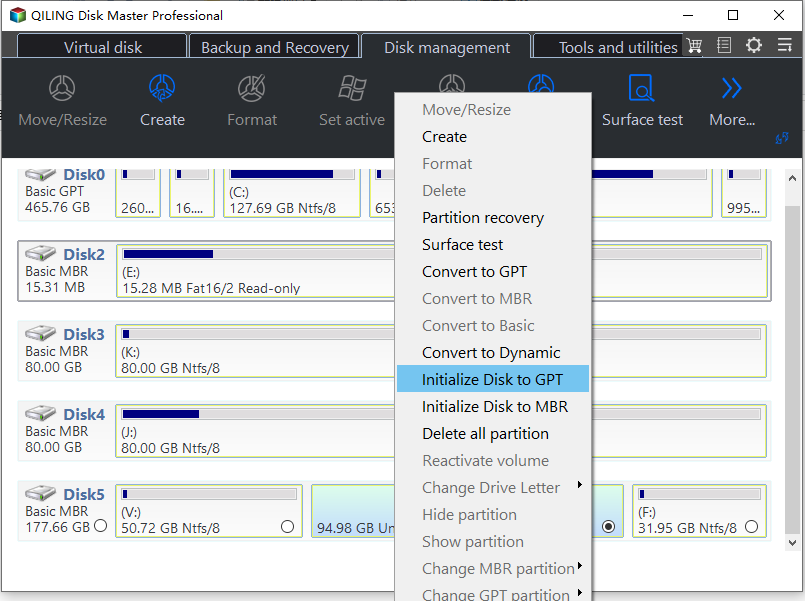
Step 2. Allow the Disk Master to complete the disk initialization process. This may take a few moments, depending on the size of the disk and the speed of your system.
Initializing a disk with Qiling Disk Master is significantly easier than using Windows Diskpart. This user-friendly interface makes the process straightforward. Additionally, Qiling Disk Master offers more features, such as partitioning a hard drive. It supports most Windows systems, and for Windows Server systems, the Server Edition is available.
Conclusion
If you prefer not to use diskpart commands to initialize a disk, Qiling Disk Master is a viable alternative. This tool also allows you to convert the partition style of an initialized disk to GPT or MBR without losing any data, whether the target disk is a system disk or a data disk. This feature is particularly useful if you need to change the partition style of an existing disk.
Related Articles
- Mark Partition as Active in 4 Ways [Step-by-Step Guide]
This guide explains Mark Partition as Active in 4 Ways with clear steps, key checks, and practical tips. - How to Fix Selected File Is Not a Proper BIOS [4 Ways]
Learn 4 effective methods with our expert troubleshooting guide to resolve the selected file is not a proper BIOS issue easily to get your system running smoothly again. - Tutorial | Separate OS from Programs Without Losing Data
This guide explains Tutorial | Separate OS from Programs Without Losing Data with clear steps, key checks, and practical tips. - Your Best Guide for SSD Speed Test on Windows 10 | Step-by-Step Guide 2024
The performance of the operating system mainly depends on the speed of the disk drive that is installed in the computer. In this short tutorial, we will show you how to check the speed of SSD and HDD drives on Windows 10 through your laptop or computer. - Windows 10 Boot Drive Size & How to Create a Windows 10/11 Bootable Drive
Creating a Windows boot drive is a great option if you need to repair or fresh install Windows on your PC. There are three simple ways to create a bootable USB drive, which can be easily followed. - Windows 10 Bootable USB Tool: Auto-Download Windows 10 ISO to USB
Qiling OS2Go automatically downloads a Windows 10 iso image file to a USB drive and allows for installation or running a portable version of Windows 10.
Products
Articles & Tutorials
- Data Recovery
- Data Backup
- File Recovery
- File Backup
- File synchronize
- System Backup and Restore
- Disk and Partition Clone
- Technical articles
- Disk Master Help
- Windows Deleted File and Disk Recovery Tutorials
- Windows File and Data Recovery Tutorials
- More Windows Tutorials for Install, Security, Files, and PC Tips
- Windows Boot, Repair, and Recovery Environment Tutorials
- Windows Backup Tutorials
- Windows Restore Tutorials
- Windows Clone and Migration Tutorials
- Windows Server Backup, Recovery, and Management Tutorials
- Windows Disk, Partition, and Storage Management Tutorials