Merge C Drive and D Drive in Windows Safely
When C drive is full and D drive has plenty of space, merging or reallocating space may look simple. The safe method depends on whether D drive sits directly after C drive and whether it contains important files.
Understand the problem
Deleting D drive to extend C drive removes its data. A safer plan is to back up D drive first, then decide whether to move files, resize partitions, or truly merge the storage.
- Confirm the exact disk, partition, drive letter, file system, boot mode, or Windows version before changing settings.
- Back up or recover important files before formatting, deleting, resizing, converting, reinstalling, or cleaning a drive.
- For boot or installation tasks, check BIOS or UEFI mode, disk style, boot order, and device compatibility first.
Use Windows built-in tools
Disk Management can extend C drive only in a strict layout.
- Back up all files on D drive.
- Open Disk Management and check whether D drive is directly after C drive.
- If you delete D drive, its space becomes unallocated.
- Right-click C drive and choose Extend Volume only when the unallocated space is adjacent.
- If another partition blocks the space, use a preview-based resize method instead.
Use Qiling tools for guided steps
 Qiling Disk Master
Move or resize partitions with a preview before extending C drive with space from D drive.
Function. Back up important files before changing Windows or disk settings
Step 1. Connect an external drive or choose another safe destination with enough space for files on D drive.
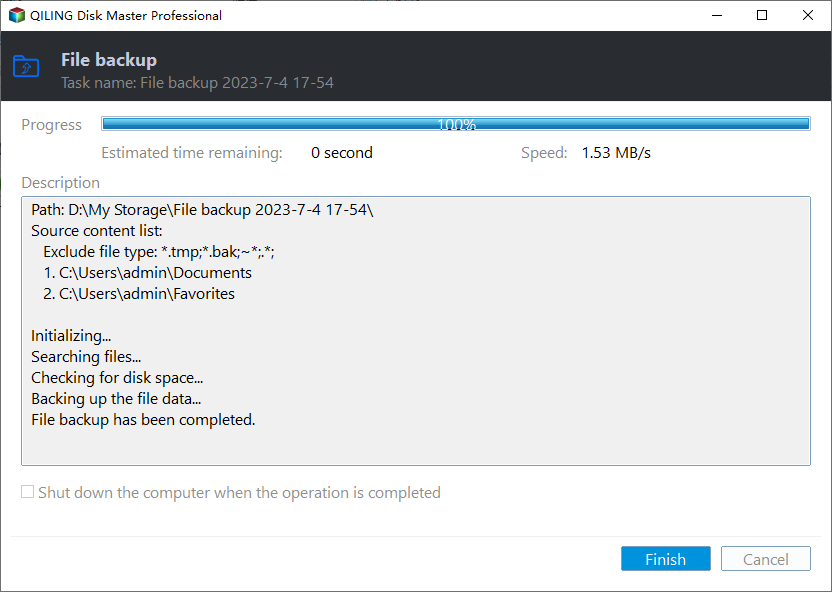
Step 2. Open Qiling Disk Master and choose File Backup. This keeps a copy of important files before you change partitions, boot settings, cleanup options, or Windows installation files.

Step 3. In the tree control, select the files and folders that must be protected. Back up all folders because merging or deleting D drive can remove its data

Step 4. Choose another internal disk, external drive, NAS folder, or network path as the destination. Avoid saving the backup to the partition that will be changed.

Step 5. Review the source and destination, then click Proceed. Wait until the backup completes before continuing with the repair or setup task.
Function. Resize or move the partition with preview
Step 1. Open Qiling Disk Master and check the disk map. Identify C drive by drive letter, capacity, file system, and position.
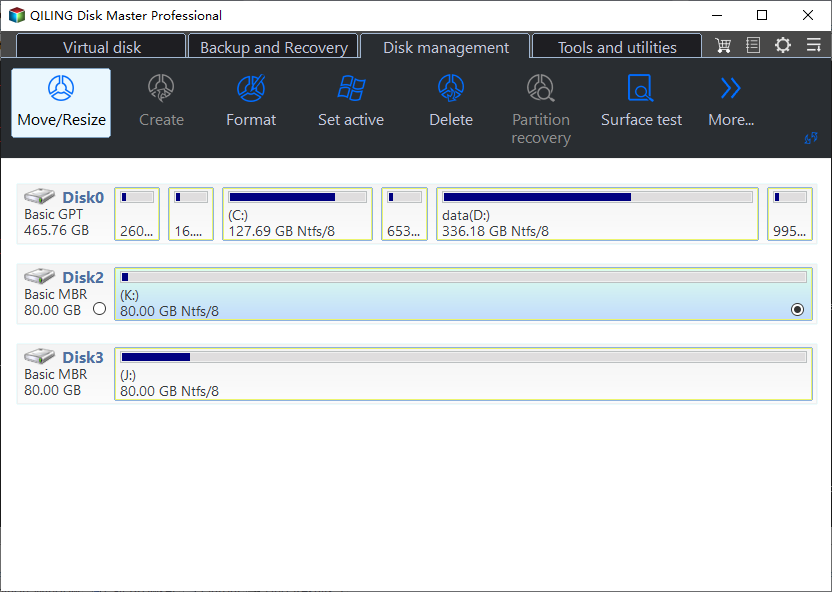
Step 2. Select the partition that needs adjustment and click Resize/Move. If another partition blocks the target space, move or resize it first in the preview.
Step 3. Drag the border or enter the exact size to extend C drive with available space from D drive. Keep enough free space for Windows updates, temporary files, and application data.
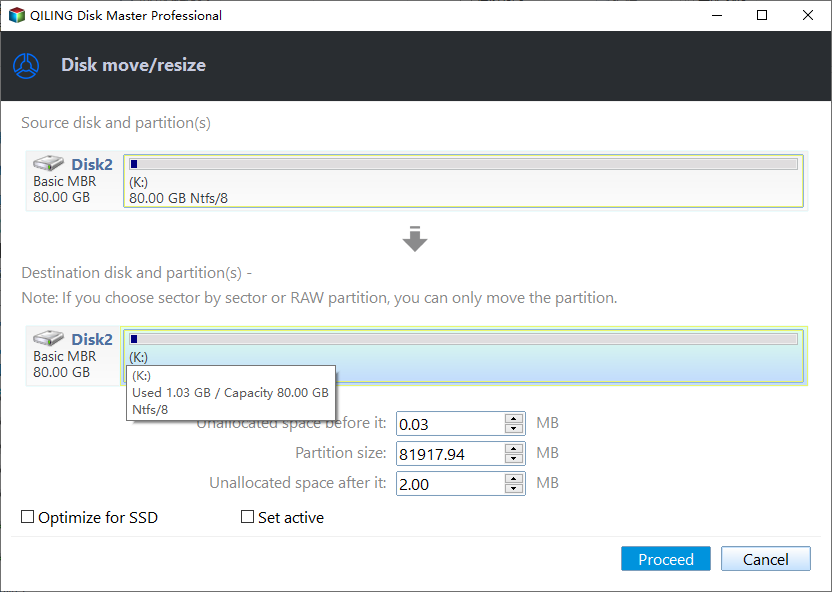
Step 4. Review the pending operations in order. Confirm that the correct disk and partition will be changed.
Step 5. Click Proceed and wait for the operation to finish. Do not interrupt the computer while partitions are being moved or resized.
Check the result
After resizing, confirm C drive capacity and open several files that were moved or restored from D drive. Keep the backup until everything is verified.
Related Articles
-
Merge C and D in Windows 10
Merge or reallocate C and D drive space in Windows 10 safely. -
Merge Partitions Without Losing Data
Compare safer ways to combine partitions without losing files.
Products
Articles & Tutorials
- Data Recovery
- Data Backup
- File Recovery
- File Backup
- File synchronize
- System Backup and Restore
- Disk and Partition Clone
- Technical articles
- Disk Master Help
- Windows Deleted File and Disk Recovery Tutorials
- Windows File and Data Recovery Tutorials
- More Windows Tutorials for Install, Security, Files, and PC Tips
- Windows Boot, Repair, and Recovery Environment Tutorials
- Windows Backup Tutorials
- Windows Restore Tutorials
- Windows Clone and Migration Tutorials
- Windows Server Backup, Recovery, and Management Tutorials
- Windows Disk, Partition, and Storage Management Tutorials