Easily Merge C and D drive in Windows 10 without Losing Data
Merge C drive and D partition in Windows 10 to get more free space on C drive
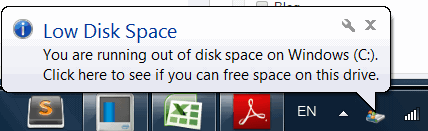
A typical Windows PC has multiple partitions, labeled C, D, E, and so on. The C drive is usually the system partition, where Windows OS files and applications are stored.
As you store more files on your C drive, available space will dwindle, potentially causing your PC to freeze or run slowly. Upgrading to a newer Windows version can further exacerbate the issue, as it requires more space to store system files. This can lead to a C drive running out of space, making it essential to manage your storage effectively.
You can't combine the C and D drives to extend your system partition because they are separate drives with different purposes. The C drive typically contains your operating system and programs, while the D drive is usually used for data storage.
How to merge C drive and D drive in Windows 10
Merging the C drive and D partition in Windows 11/10/8/7 can be a good way to enlarge the C drive, and there are two effective methods to achieve this.
1. Merge C drive and D partition in Windows 10 with Disk Management
Windows operating system provides a tool Disk Management to manage disks, but it doesn't allow merging two partitions into one directly. However, you can delete the D drive and add its volume to the C drive to enlarge it, effectively merging the two partitions into one.
✍Tips: If you don't want to lose data on your D drive, please backup the D partition or migrate all data from the D drive to another drive in advance. If you're looking for a way to merge the C and D drives in Windows 10 without losing data, click here for a safer method.
Step 1. Right-click This PC > Manage > Disk Management.
Step 2. After entering Disk Management, right-click D drive and then click the "Delete Volume" option.
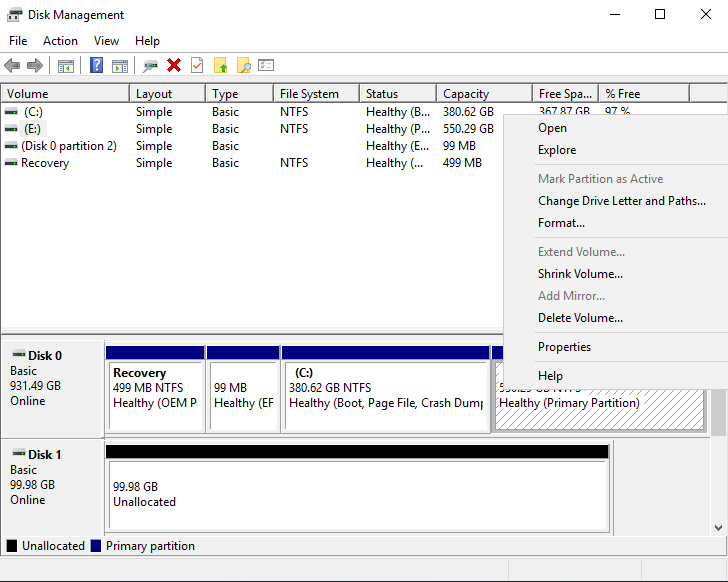
Step 3. After deleting the files and folders, the D drive will appear as an unallocated volume. To reclaim the space, right-click on the C drive and select the "Extend Volume" option, which will extend your C drive with the newly unallocated space.
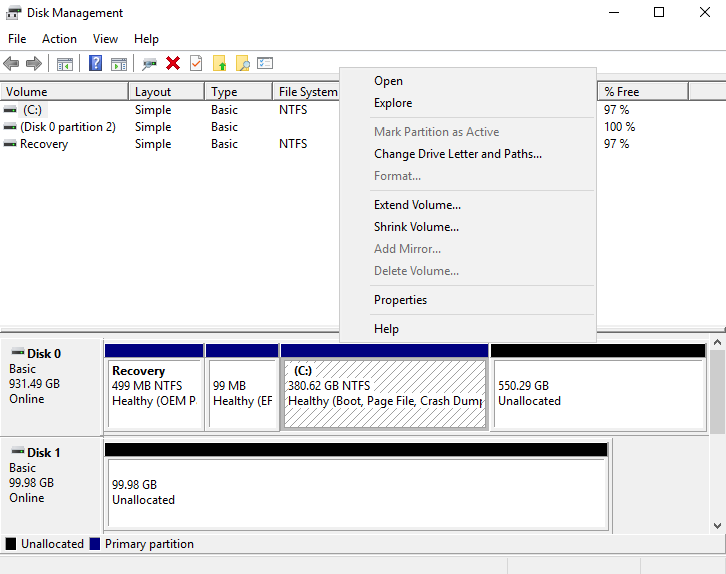
After extending the partition, you will find that the original D drive has been added to C drive.
2. Safely Merge C drive and D partition without losing data
To merge C and D drives without losing data, we recommend using the freeware Qiling Disk Master Standard, a powerful software for disk management. With it, you can easily resize and merge C, D, E, or any other partitions with just a few clicks, and also create, split, format, move, and more.
To resize C drive, install and launch Qiling Disk Master Standard, then right-click on C drive and select "Move/resize Partitions".
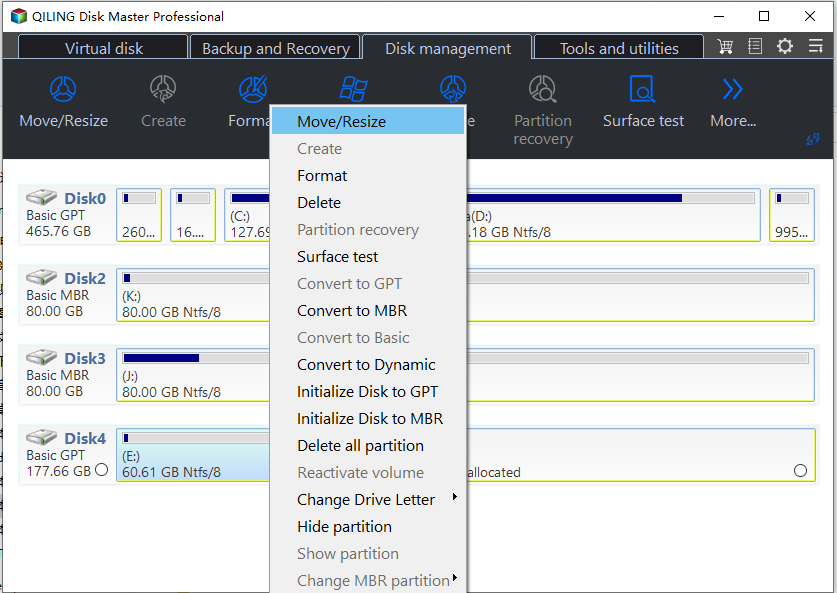
Step 2. To merge the partitions, you will move to the window where you can select the partitions to merge. Check the box in front of C and D drive, as shown in the picture, to select them for merging.
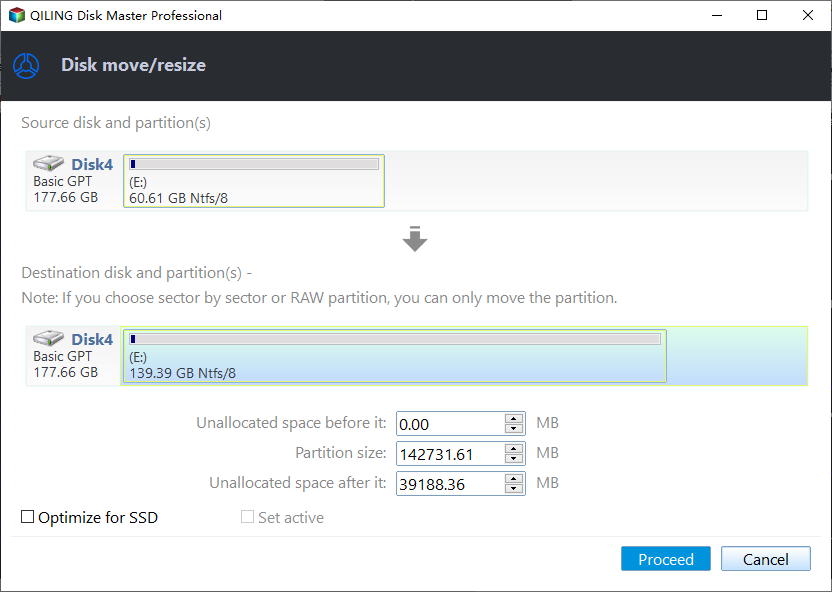
Step 3. Click "Proceed" to submit all operations.
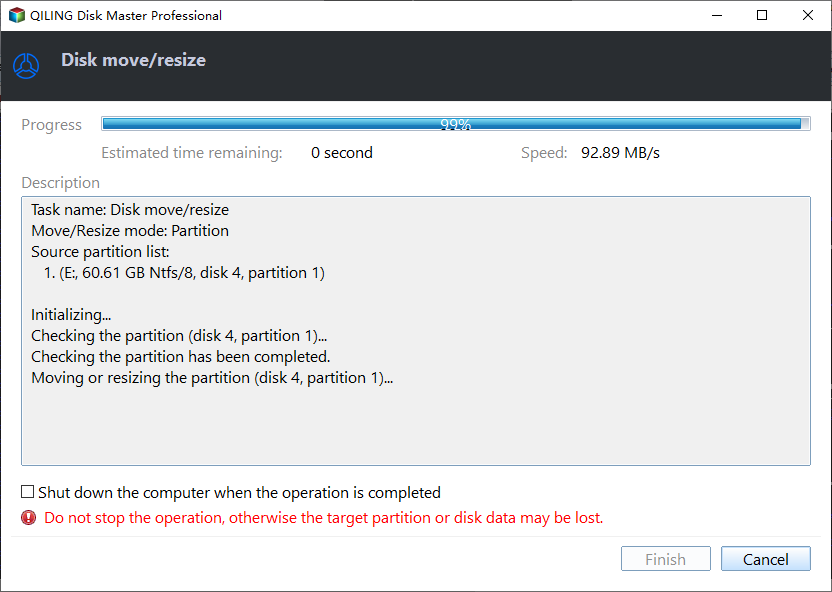
After merging the C drive and D partition in Windows 10, the C drive has been extended, eliminating the risk of running out of space. The operating system can now be used normally, and all data previously stored on the D drive has been saved in a folder named "D:". The process is now complete.
To sum up
To merge C drive and D drive in Windows, you can use either of two methods. One way is to use the built-in Disk Management tool in Windows, which allows you to extend the C drive by taking space from the D drive.
Qiling Disk Master offers a range of features, including converting dynamic disk to basic disk and vice versa, converting primary partition to logical and vice versa, and more. Upgrading to the Professional Edition unlocks all these features, plus additional utilities, making it a comprehensive disk management tool.
Qiling provides a suitable edition for IT professionals, system administrators, technicians, and consultants to serve new revenue streams by offering charged technical services to clients.
Related Articles
- How to Move Unallocated Space to C Drive in Windows 10/8/7 (3 ways)?
Learn how to move unallocated space to C drive in Windows 11, 10, 8, 7, so that the system drive can be extended. This article provides you many ways for moving unallocated space. - How to Increase C Drive Space in Windows Server 2003 without Data Loss?
You can increase Server 2003 (R2) C drive space using Diskpart utility or Qiling Disk Master Server. - How to Increase C Drive Space from D Drive?
Learn how to Increase C Drive Space from D Drive with clear steps, key checks, and practical tips. - DiskPart: Convert to GPT in Windows 11, 10, 8, 7
Here, we will show how to use DiskPart to convert MBR to GPT step by step. Besides, a more powerful tool will be shared to convert MBR to GPT without data loss as well. - 5 Methods to Fix Bootrec /Fixboot Access Is Denied Windows 11
This guide explains 5 Methods to Fix Bootrec /Fixboot Access Is Denied Windows 11 with clear steps, key checks, and practical tips. - How to Burn ISO to USB on Windows 8 Efficiently
Learn how to efficiently burn an ISO to a USB drive on Windows 8 with our step-by-step guide, making it easy to create bootable USB drives for installation or backup purposes. -
Merge C Drive and D Drive
Back up D drive and extend C drive safely when Windows storage is unbalanced.
Products
Articles & Tutorials
- Data Recovery
- Data Backup
- File Recovery
- File Backup
- File synchronize
- System Backup and Restore
- Disk and Partition Clone
- Technical articles
- Disk Master Help
- Windows Deleted File and Disk Recovery Tutorials
- Windows File and Data Recovery Tutorials
- More Windows Tutorials for Install, Security, Files, and PC Tips
- Windows Boot, Repair, and Recovery Environment Tutorials
- Windows Backup Tutorials
- Windows Restore Tutorials
- Windows Clone and Migration Tutorials
- Windows Server Backup, Recovery, and Management Tutorials
- Windows Disk, Partition, and Storage Management Tutorials