Merge Partitions with Qiling Disk Master
Merging partitions can combine unused space and reduce the number of drive letters on a Windows disk. It is commonly used when the C: drive is short of space or when two adjacent data partitions should become one. Before merging, check the disk layout and back up important files.
Before merging partitions
- Back up files from both partitions, especially the partition that will be merged into another one.
- Do not merge EFI, Recovery, MSR, or OEM partitions into a data partition.
- Confirm that the two partitions are on the same disk.
- Close running programs that may be using files on either partition.
Merge partitions step by step
 Qiling Disk Master
Merge adjacent partitions or merge unallocated space into a partition with a preview before applying changes.
Step 1. Open Qiling Disk Master and locate the disk that contains the partitions you want to combine.
Step 2. Right-click the partition that will receive the space and choose Merge Partitions.
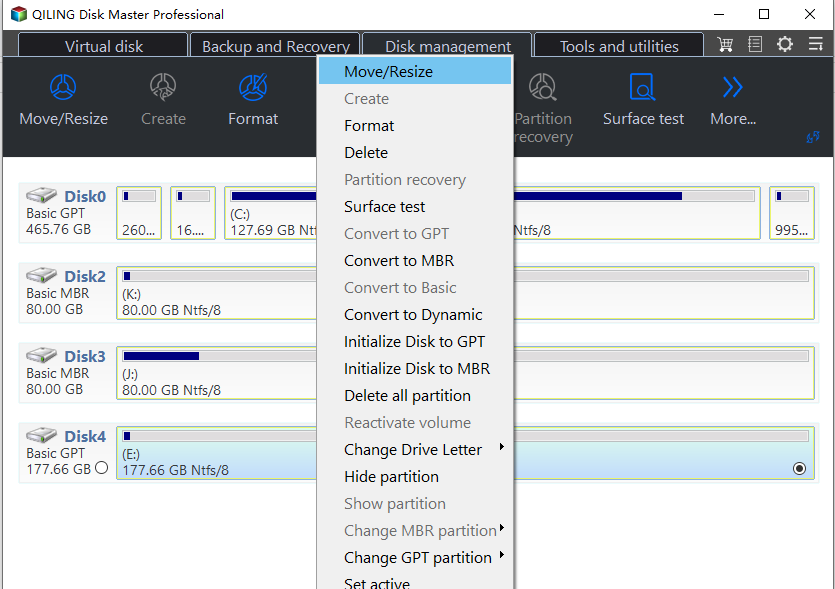
Step 3. Select the adjacent partition or unallocated space that should be merged. Read the note about how files will be kept.
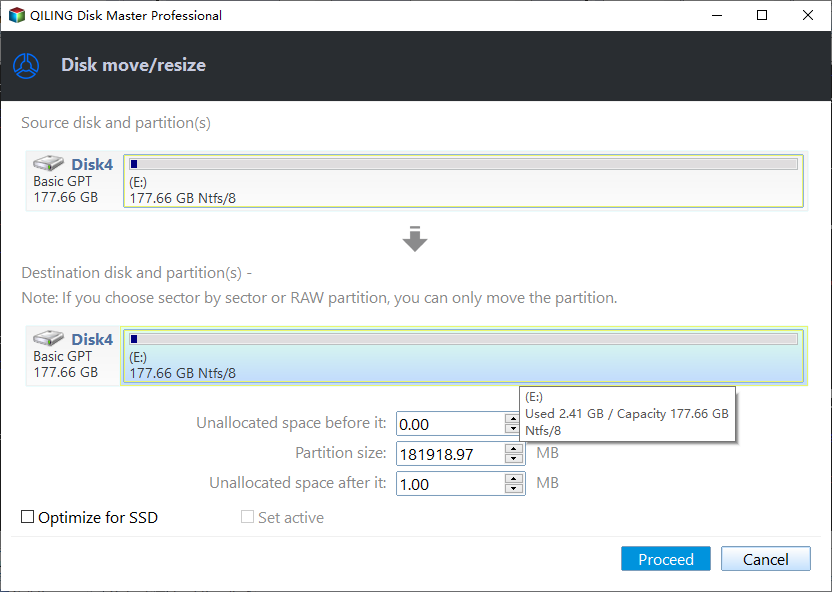
Step 4. Confirm the target partition, drive letter, and final size in the preview window.
Step 5. Click Proceed and wait until the operation finishes. Do not power off the computer during the merge.
When merging is not the best choice
If the partitions are not adjacent, if the second partition contains a separate operating system, or if the disk has recovery partitions between them, extending or moving partitions may be safer. For a system drive, check boot and recovery partitions before changing the layout.
Conclusion
Qiling Disk Master can merge partitions with a preview-based workflow. The important part is to select the correct disk, avoid system-reserved partitions, and keep a backup before applying the operation.
Related Articles
-
Merge Partitions Without Losing Data
Combine adjacent partitions while checking disk layout and protecting important files. -
Extend Partition in Windows
Increase partition size when unallocated space is available or can be moved safely.
Products
Articles & Tutorials
- Data Recovery
- Data Backup
- File Recovery
- File Backup
- File synchronize
- System Backup and Restore
- Disk and Partition Clone
- Technical articles
- Disk Master Help
- Windows Deleted File and Disk Recovery Tutorials
- Windows File and Data Recovery Tutorials
- More Windows Tutorials for Install, Security, Files, and PC Tips
- Windows Boot, Repair, and Recovery Environment Tutorials
- Windows Backup Tutorials
- Windows Restore Tutorials
- Windows Clone and Migration Tutorials
- Windows Server Backup, Recovery, and Management Tutorials
- Windows Disk, Partition, and Storage Management Tutorials