[Tutorial]: How to Use DiskPart Extend Partition in Windows 11, 10, 8, 7
Why use Diskpart extend partition?
Windows users may experience a low disk space warning due to a partition or volume running out of space, leading to a slower computer and apps not loading smoothly.
To free up space on your PC, you can delete unnecessary files, uninstall unused programs, move apps to another drive, or extend the partition or volume using the built-in Diskpart tool in Windows. This allows you to manage your storage without altering the data on your PC.
Step-by-step: Extend partition with Diskpart
As a command-line tool, Diskpart is harder to use than most software on the market. Because it lacks a graphical user interface, users need to have certain computer experience to type the corresponding commands accurately. But don't worry, I will show the whole process of using Diskpart to extend a partition or volume in detail here.
Step 1. Press "WIN+R", type "diskpart" and hit Enter to open it.
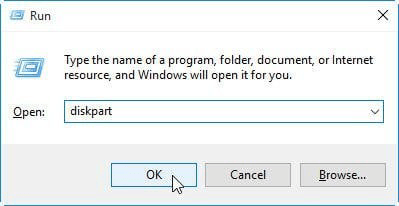
Step 2. At the Diskpart prompt, type the following commands one after another and press Enter after each.
● list disk
● select disk 0 (0 is the number of the disk where the partition is located)
● list partition
● select partition 4 (4 is the number of the target partition)
● extend size=100 (100 is the size in MB you want to extend the partition by)
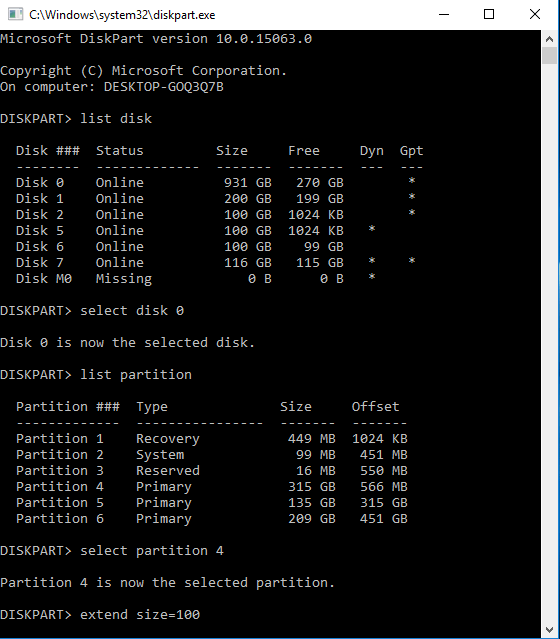
When you're finished, type exit to end the process. If you are extending volumes on a dynamic disk, you can use "volume" to replace "partition" in the commands above.
However, Diskpart has the following restrictions when extending partitions:
✍ This command will only work if there is unallocated free space contiguously behind the target partition. Otherwise, you will receive the error "Diskpart failed to extend the volume".
✍ The target partition must use a RAW or NTFS file system.
Extend partition with free GUI software
You have seen the whole process of using Diskpart to extend a partition. It not only has various shortcomings, but also lacks a friendly interface. If you type the command incorrectly, the operation will fail. Worse, it may have unpredictable consequences. So, do you still want to extend the partition using Diskpart?
Fortunately, there is a third-party alternative: Qiling Disk Master Standard is a free GUI-based tool that offers a more powerful and user-friendly experience. It provides a graphical interface that allows users to extend partitions with ease, making up for the limitations of Diskpart.
To extend a partition using Qiling Disk Master Standard, launch the software and select the "Resize Partition", "Move Partition", or "Merge Partitions" option to make the necessary adjustments.
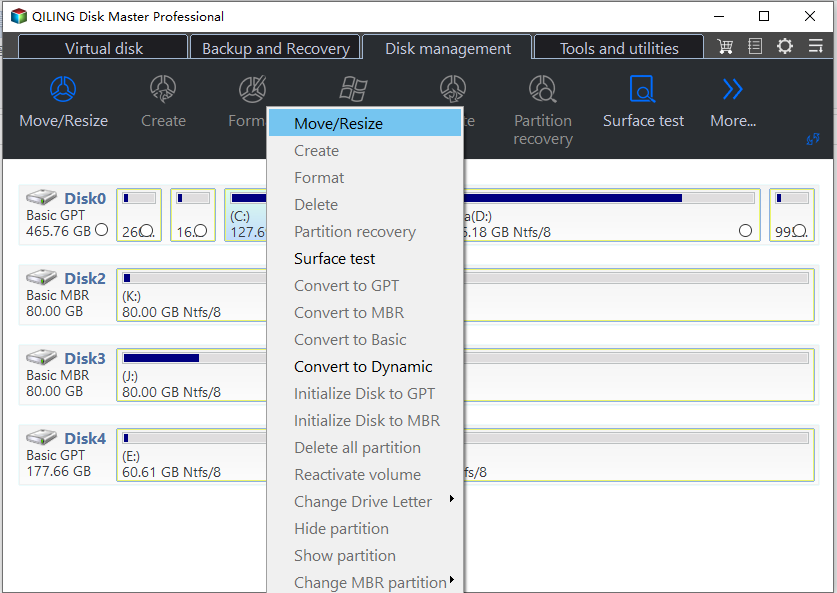
1> If there is an unallocated partition adjacent to the partition you want to extend, you can extend the partition by right-clicking on it and selecting "Move/Resize Partition" to add the unallocated space to it.
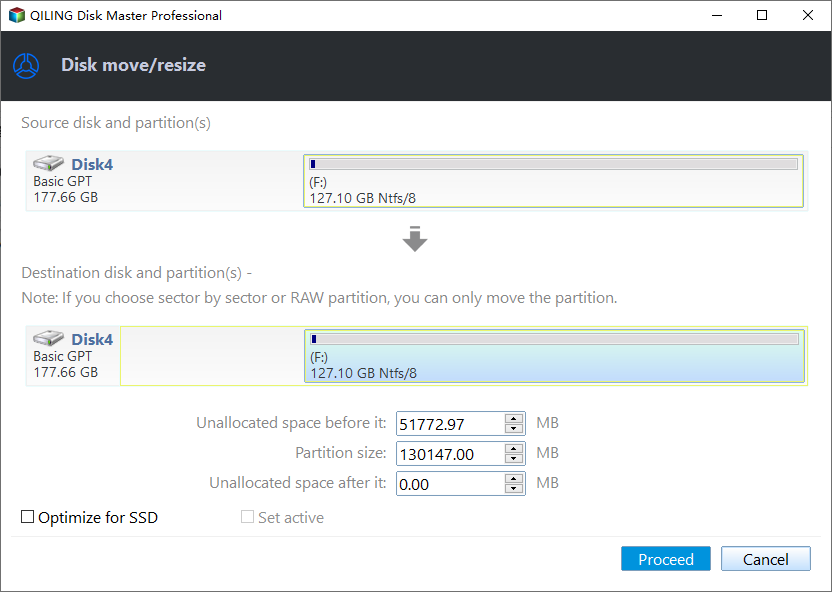
Drag the partition bar to the right to extend the partition into the unallocated space.
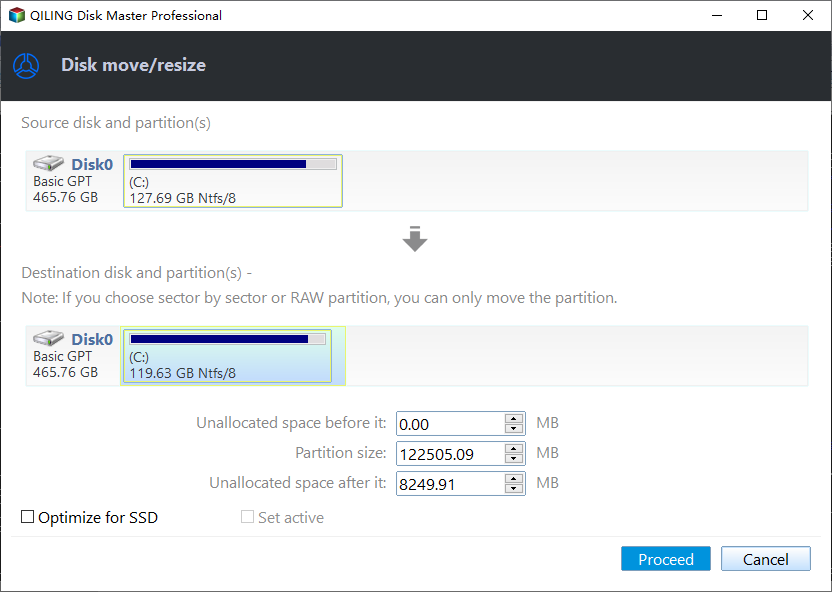
2> If the unallocated space is not adjacent to the partition you want to extend, right-click the partition that is near the unallocated space and select "Move/Resize Partition" to move the unallocated space closer to the desired partition. Then, use the "Resize Partition" option to expand the target partition to the new size.
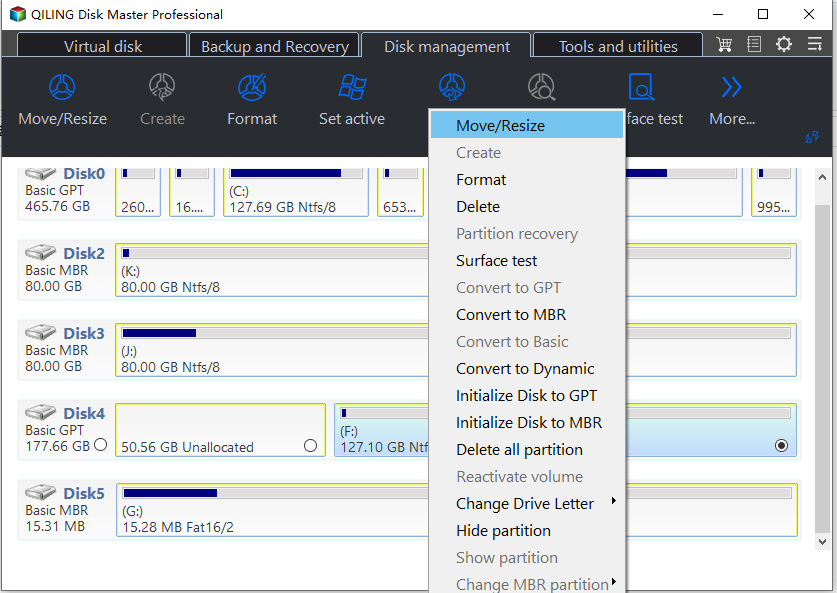
To resize the partition, click on the partition you want to resize and drag the right edge of the partition to the right. This will increase the size of the partition by consuming the adjacent unallocated space.
3> The most effective way is using Merge Partitions to extend the partition. You can right-click the partition you want to extend, select "Advanced" > "Merge Partitions", whether there is unallocated space or not.
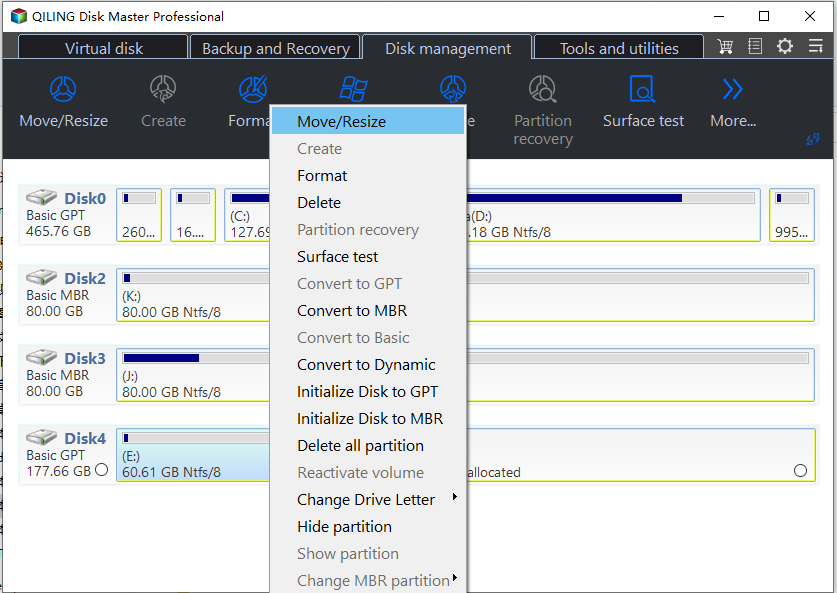
To extend a partition, you can select the unallocated space or other existing partitions to merge into the partition you want to extend.
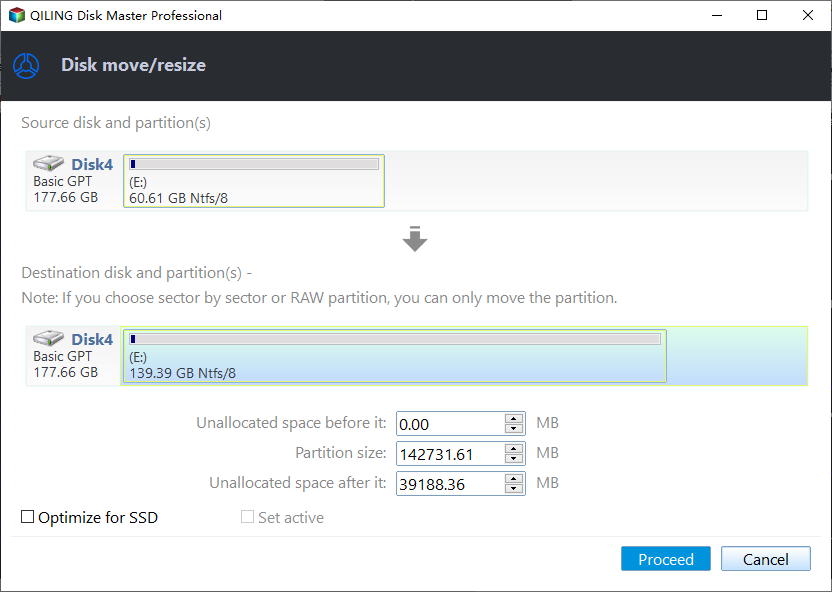
Note: To execute each operation, you need to click the "Apply" button on the toolbar after selecting it.
Bonus Reading: Easily extend encrypted partition with Qiling software
If you need to shrink or extend an encrypted partition, but are unable to do so via Disk Management, Qiling Disk Master Standard can be a game-changer.
Step 1. Open Qiling software and right-click the BitLocker encrypted partition and select "Resize/Move Partition".
Step 2. When a window pops out, enter your password to unlock BitLocker quickly.
Step 3. Drag the bar towards the right to extend the partition, and follow the steps to complete the operation.
Wrap things up
If you're struggling with Diskpart, consider using Qiling Disk Master Standard instead. Alternatively, if there's no unallocated space on your disk, you can utilize the Allocate Free Space feature to allocate unused space from one partition to another. This can be a helpful option if you need to extend a partition without having unallocated space available.
Related Articles
- Diskpart Has Encountered an Error: The Media Is Write Protected
When you meet the Diskpart clean error: Diskpart has encountered an error the media is write protected during cleaning your disk using Diskpart, here you can find the reason and the corresponding solution. - How to Assign and Remove Drive Letter with Diskpart in Windows 11, 10, 8, 7?
This post will show you how to use Diskpart assign drive letter in Windows 11, 10, 8, 7. In addition, another free GUI software will be introduced to assign or remove the drive letters. - Steps to Run DiskPart Clean All Command to Erase SSD Drive
In this post, you will learn how to use Diskpart "clean all" command to wipe SSD, as well as a better way to secure clean SSD drive in Windows 11/10/8/7. - Can't Delete Recovery Partition? Fix It Now!
If you're having trouble deleting your recovery partition, our step-by-step guide shows you how to quickly and safely delete it using either DiskPart or a third-party partition manager. - What Is Format SD Card, Everything You Are Concerned About
This guide explains What Is Format SD Card, Everything You Are Concerned About with clear steps, key checks, and practical tips. - What is Seagate Discwizard? How Can I Use It and Its Alternative?
If you're looking for a suitable alternative to Seagate DiscWizard, Qiling Partition Master is a great option. This software offers a range of essential features that can help ease your troubles.
Products
Articles & Tutorials
- Data Recovery
- Data Backup
- File Recovery
- File Backup
- File synchronize
- System Backup and Restore
- Disk and Partition Clone
- Technical articles
- Disk Master Help
- Windows Deleted File and Disk Recovery Tutorials
- Windows File and Data Recovery Tutorials
- More Windows Tutorials for Install, Security, Files, and PC Tips
- Windows Boot, Repair, and Recovery Environment Tutorials
- Windows Backup Tutorials
- Windows Restore Tutorials
- Windows Clone and Migration Tutorials
- Windows Server Backup, Recovery, and Management Tutorials
- Windows Disk, Partition, and Storage Management Tutorials