Diskpart Has Encountered an Error: The Media Is Write Protected
About this error
When you use Diskpart clean or clean all command on USB drive, you may receive the following error message.
Diskpart has encountered an error the media is write protected
See the system event log for more information
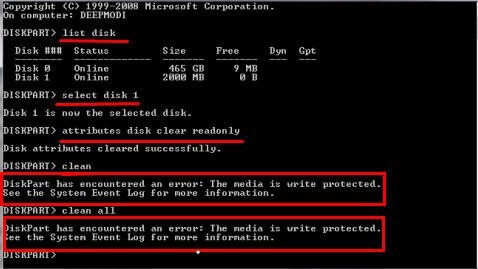
This error message will occur when using the command on various storage devices, including SD cards, HDDs, SSDs, SanDisk drives, and more.
Causes of "DiskPart has encountered an error the media is write protected"
On the market, there are mass storage devices that provide a write-protection function to safeguard files and folders. However, despite this feature, issues may still arise, preventing access to files and folders. Furthermore, some drives lack a physical write-protection switch but can still be set to read-only mode. This can occur due to various reasons, which will be explored in the following discussion.
▶ Your storage media is damaged by virus or malware.
▶ You accidentally set the read-only switch to ON side and the media becomes un-writable.
▶ You set the disk to read-only in Property or Registry.
▶ Your drive has physical damages, such as bad sectors.
Solutions to "Diskpart has encountered an error the media is write protected"
To resolve the error, it's recommended to back up your files first, as some of the following solutions may result in data loss. After backing up your data, you can try the solutions one by one, starting with the least invasive ones. This will help prevent any potential data loss and ensure the security of your files.
- 1. Change the value of Write-protect key in Registry
- 2. Type attributes disk clear readonly command first
- 3. Repair the corrupted file system
- 4. Change Read-only mode
- 5. Format the write protected media for reuse
▌1. Change the value of Write-protect key in Registry
Step 1. Type regedit in the Run window.
Step 2. Navigate to the following sub-key and find the WriteProtect key on the right panel, where you can toggle the write protection on or off.
HKEY_LOCAL_MACHINE\SYSTEM\CurrentControlSet\Control\StorageDevicePolicies
Step 3. If there is no StorageDevicePolicies key, you need to create one by right-clicking on "Control", selecting "New" and then "Key", then naming it as "StorageDevicePolicies."
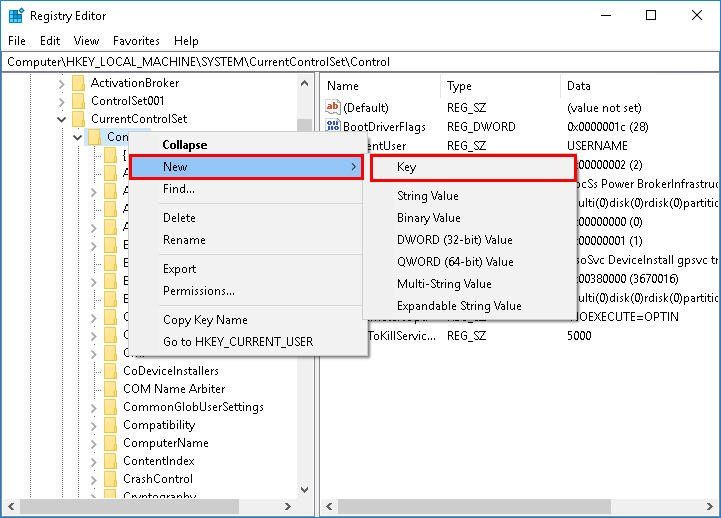
Step 4. To disable write protection on a storage device, create a new DWORD value in the StorageDevicePolicies registry key and name it "WriteProtect".
Step 5. Right-click the newly created WriteProtect key and change the Value to 0, then click OK to exit the window.
Step 6. Check if you can access your storage device and data.
▌2. Type attributes disk clear readonly command first
When using Diskpart's clean command on a USB/SD card/HDD/SSD, but getting an error message saying "Diskpart has encountered an error: The media is write protected", you can first type "attributes disk clear readonly" before running the clean or clean all command. This can help resolve the issue.
Step 1. To open the Command Prompt as an administrator, start by typing "cmd" into the search box. Once the Command Prompt appears in the search results, right-click on it and select the "Run as administrator" option. This will open the Command Prompt with elevated privileges, allowing you to run commands and perform tasks that require administrative access.
Step 2. Type diskpart in the pop-up window and press Enter.
Step 3. Run the following commands in order and hit Enter to execute each one:
▶ list disk
▶ select disk n (where n is the disk number of the write-protected device you want to clean)
▶ attributes disk clear readonly
▶ clean
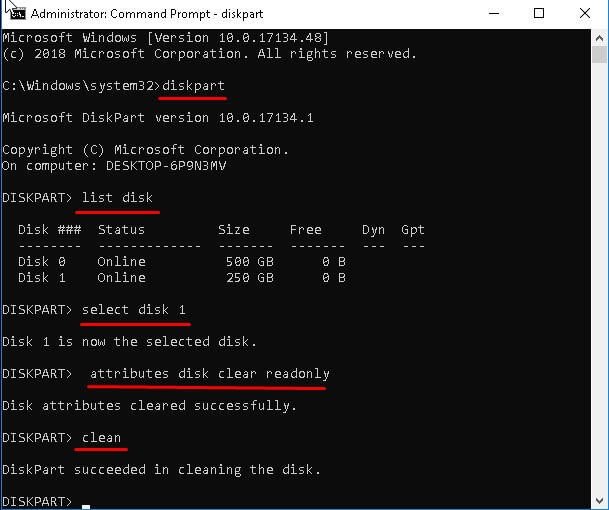
Step 4. Exit this window and check if it works.
▌3. Repair the corrupted file system
If your drive has a corrupted file system, you can use Diskpart to remove all write-protection file attributions from the disk and then reformat it. This can help resolve the issue.
Step 1.Open cmd and type diskpart in the window.
Step 2. Type the commands below and press Enter.
▶ list disk
▶ select disk m (m refers to the drive containing corrupted file system)
▶ attributes disk clear readonly
▶ clean
▶ create partition primary
▶ format fs=fat32 (or format fs=ntfs)
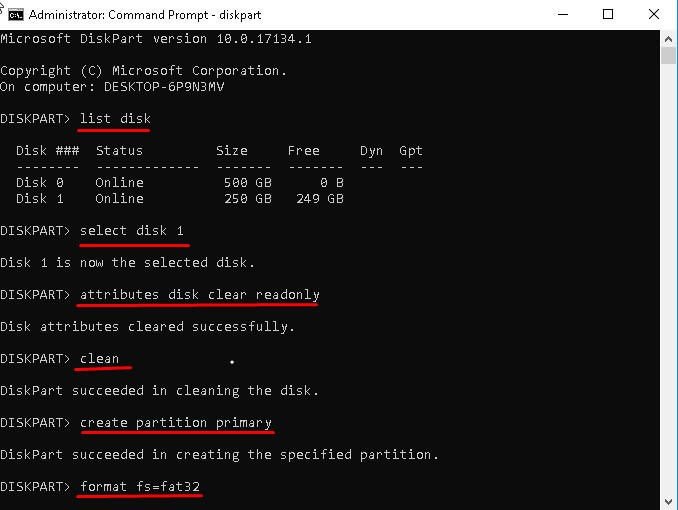
Step 3. Exit this window and then see if you can access your device and data.
▌4. Change Read-only mode
If the device is in read-only mode, you need to check it first, and then change the Current Read-only State from Yes to No.
Step 1. Open cmd window and type diskpart in the command prompt.
Step 2. Type the following commands and hit Enter.
▶ list disk
▶ select disk r ( r refers to the disk you want to clean)
▶ attribute disk
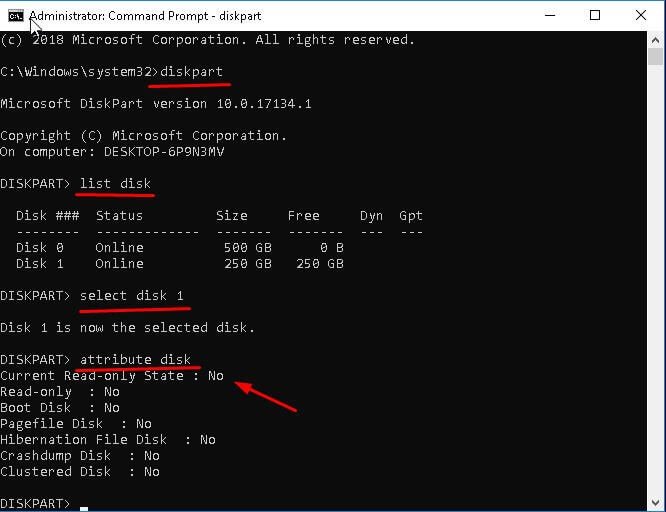
This command checks if your device is in read-only mode. If it is, you'll need to see Step 3. If not, you'll need to format the media for reuse.
Step 3. To clear the readonly attribute from a disk, open the Command Prompt and type the command `attributes disk clear readonly` and press Enter. This will remove the readonly attribute from the disk, allowing you to make changes to the disk and its contents.
- Notes:✎...
- 1. If your disk is locked by an active process, you still need to reboot the computer.
- 2. If your device is a USB drive, you still need to check the write-protect switch.
Step 4. Try the clean command again and see if this error occurs again.
▌5. Format the write protected media for reuse
Formatting a partition is the last resort to resolve write-protected issues, but it comes with the risk of data loss if you don't have a file backup. To fix the Diskpart clean error: "Diskpart has encountered an error, the media is write-protected," you can use a free partition manager like Qiling Disk Master Standard. This software can format write-protected USB drives, SD cards, HDDs, or SSDs due to corrupted file systems, and the steps are easy to follow, even for beginners.
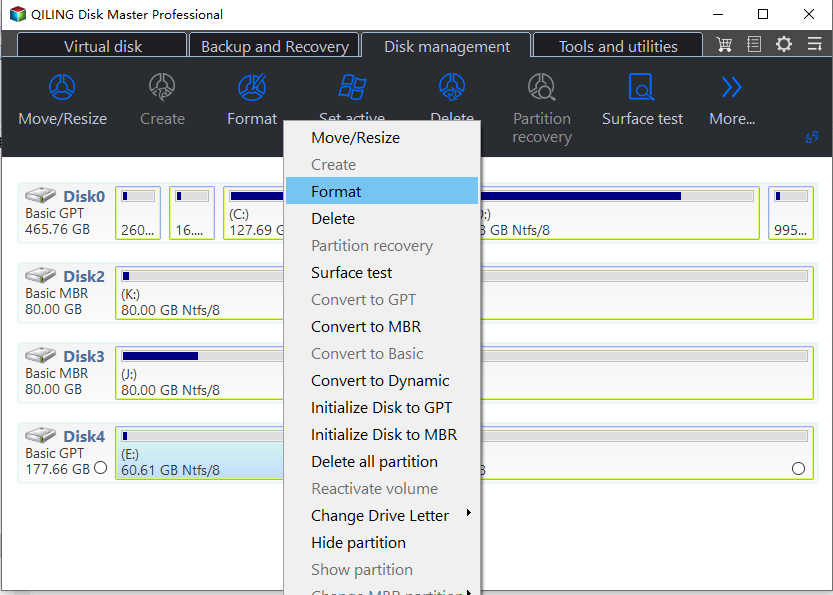
Step 1. Download the free Qiling Disk Master tool, run it, and right-click the write-protected media in the main page, then select Format Partition.
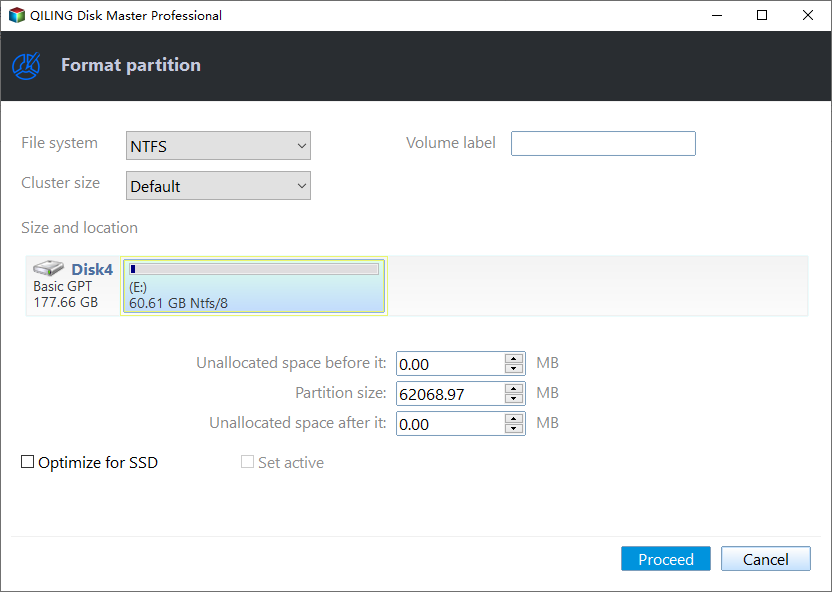
Step 2. Select NTFS or FAT32 file system from the drop-down menu.
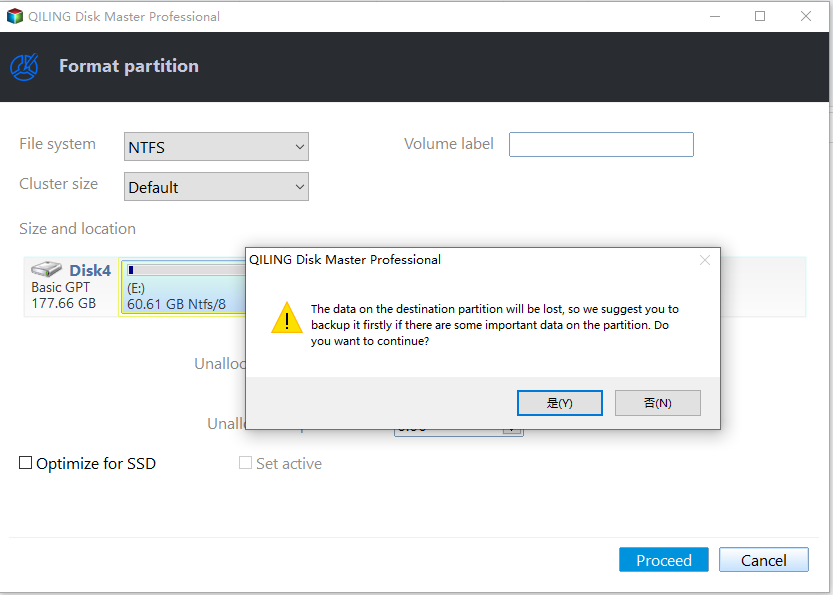
Step 3. Click Proceed to start the pending operation.
Qiling Disk Master allows you to perform various operations beyond just resizing partitions, including moving partitions to the end of the disk, cloning Windows to a USB drive, and more. It can also assist in resolving issues such as virtual disk service errors caused by large volume sizes, greyed-out volume extension options, and Diskpart errors due to access being denied.
Qiling Disk Master, the free version of partition manager, meets basic needs, but for more features and problem-solving capabilities, upgrade to Qiling Disk Master Professional or Server. The advanced versions offer additional features such as converting MBR to GPT without deleting partitions, allocating free space, and converting dynamic disks to basic ones without data loss.
Wrapping things up
To resolve the "Diskpart has encountered an error the media is write-protected" issue, you can try modifying the Writeprotect key in the Registry, clearing the readonly attribute and then running a disk clean and repair operation to fix the corrupted file system on the media, and finally change the read-only mode from Yes to No.
If none of the above methods work for you, you can try formatting the partition with Qiling Disk Master. This software makes the process easy and safe, eliminating the risk of data loss that comes with manual formatting commands. With Qiling Disk Master, all steps are predetermined and straightforward, reducing the likelihood of making a mistake.
Related Articles
- Use DiskPart to Convert Disk from MBR to GPT in Windows 10, 8, and 7
In this post, you will learn how DiskPart convert to GPT from MBR disk in detailed steps. In addition, you can use a better tool to convert MBR to GPT without losing data in Windows 11, 10, 8, and 7. - How to Assign and Remove Drive Letter with Diskpart in Windows 10, 8, 7?
This post will show you how to use Diskpart assign drive letter in Windows 11, 10, 8, 7. In addition, another free GUI software will be introduced to assign or remove the drive letters quickly and safely. - Diskpart: Format Drive to NTFS in Windows 10, 8, 7
In this article, we will show you how to use DiskPart to format drive to NTFS file system in Windows 11, 10, 8, 7. Besides, a GUI tool will also be shared to help format NTFS more easily. - C Drive Full, D Drive Empty - How to Fix
If your C drive is almost full and your D drive is empty, you can allocate free space from the D drive to extend the space on your C drive. By following the steps outlined in this article, you can learn how to do this and free up valuable space on your C drive. - Fix "We could not complete the Updates/Undoing changes" Error Windows 11
- Western Digital VS Seagate: A Detailed Comparison Guide
Learn how to Fix "We could not complete the Updates/Undoing changes" Error Windows 11 Western Digital VS Seagate: A Detailed Comparison Guide with clear steps, key checks, and practical tips.
Products
Articles & Tutorials
- Data Recovery
- Data Backup
- File Recovery
- File Backup
- File synchronize
- System Backup and Restore
- Disk and Partition Clone
- Technical articles
- Disk Master Help
- Windows Deleted File and Disk Recovery Tutorials
- Windows File and Data Recovery Tutorials
- More Windows Tutorials for Install, Security, Files, and PC Tips
- Windows Boot, Repair, and Recovery Environment Tutorials
- Windows Backup Tutorials
- Windows Restore Tutorials
- Windows Clone and Migration Tutorials
- Windows Server Backup, Recovery, and Management Tutorials
- Windows Disk, Partition, and Storage Management Tutorials