Run Windows 8 from USB Step by Step
Running Windows 8 from a USB drive is useful when you need a portable workspace, want to test Windows without touching the internal disk, or need a repair environment for a computer that cannot start normally. The key is to use a fast and reliable USB drive and create it with the correct boot mode.
Before you start
- Use a USB 3.0 or faster drive with enough capacity for Windows and applications.
- Back up files on the USB drive because the creation process may erase it.
- Check whether the target computer uses UEFI or Legacy BIOS.
- Prepare a Windows 8 ISO or installation source that matches your license.
Method 1. Create a bootable Windows 8 USB for installation or repair
Step 1. Connect the USB drive to a working computer and confirm that Windows can detect it.
Step 2. Open a reliable bootable USB creator, select the Windows 8 ISO, and choose the USB drive as the target device.
Step 3. Select the partition style according to the computer you plan to start: GPT for UEFI or MBR for Legacy BIOS.
Step 4. Start the creation process and wait until the tool finishes writing all boot files.
Step 5. Restart the target computer, enter the boot menu, and choose the USB drive. If it does not boot, switch the boot mode or recreate the USB with the matching partition style.
Method 2. Create a portable Windows USB with Qiling Disk Master
When you need Windows to run from USB rather than only install or repair Windows, create a portable Windows drive. This keeps the internal disk unchanged and lets you boot a familiar system on compatible computers.
 Qiling Disk Master
Create bootable or portable Windows USB media with a guided workflow and a final confirmation step.
Step 1. Connect the USB drive and open Qiling Disk Master. Make sure the USB drive is the device you intend to use because it may be formatted.
Step 2. Open the bootable media or portable Windows creation feature from the tool menu.
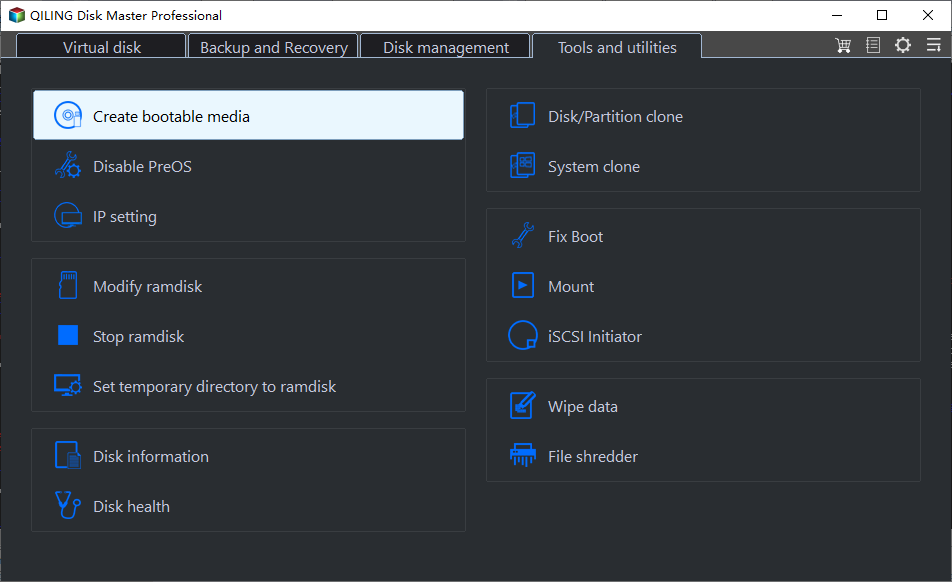
Step 3. Select the Windows 8 installation source or system source required by the wizard.
Step 4. Select the USB drive as the destination and confirm the boot mode. Use UEFI/GPT for modern computers and Legacy/MBR for older systems.
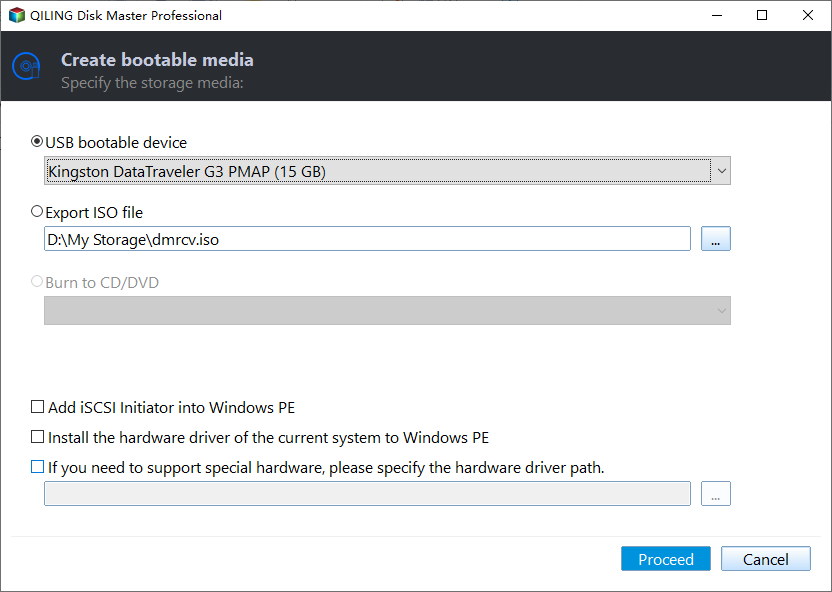
Step 5. Review the warning, click Proceed, and wait for the USB creation to complete.
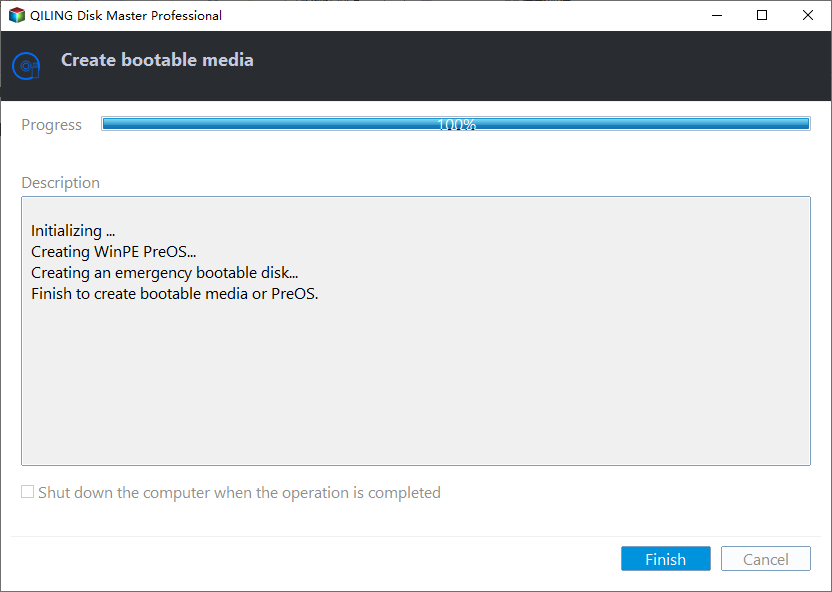
Boot and test the USB drive
Restart the computer, press the boot menu key, and select the USB drive. After Windows starts, install storage, network, and chipset drivers if required. Test shutdown and restart once so you know the USB can boot reliably before using it for real work.
Conclusion
A bootable USB is suitable for installation and repair, while a portable Windows USB is better when you want to run Windows 8 directly from an external drive. Match the boot mode, use a fast USB drive, and test it on the target computer.
Related Articles
-
Clone Windows to USB Drive
Create a bootable Windows USB by cloning a working system to an external USB drive. -
Copy Windows 10 to USB Drive
Make a bootable USB drive for Windows installation, repair, or portable startup tasks.
Products
Articles & Tutorials
- Data Recovery
- Data Backup
- File Recovery
- File Backup
- File synchronize
- System Backup and Restore
- Disk and Partition Clone
- Technical articles
- Disk Master Help
- Windows Deleted File and Disk Recovery Tutorials
- Windows File and Data Recovery Tutorials
- More Windows Tutorials for Install, Security, Files, and PC Tips
- Windows Boot, Repair, and Recovery Environment Tutorials
- Windows Backup Tutorials
- Windows Restore Tutorials
- Windows Clone and Migration Tutorials
- Windows Server Backup, Recovery, and Management Tutorials
- Windows Disk, Partition, and Storage Management Tutorials