3 Methods to Copy Windows 10 to USB Drive (Bootable)
The benefits of creating Windows 10 bootable USB
With the rapid evolution of technology and frequent updates to Windows operating systems, it's inevitable that your device will eventually run a newer OS version. This shift creates a need for portable bootable media, such as a Windows 10 USB drive, which can be used for various purposes, including booting up a new OS, troubleshooting issues, or even creating a recovery environment.
- Clean install Windows 10 on new hardware or computer.
- Upgrade the operating system from an older version to the latest version, such as from Windows 7 to Windows 10.
- Boot crashed computer into Windows 10 recovery environment for troubleshooting.
A bootable USB is superior to other media due to its portability and versatility. It is the lightest and most portable option, making it ideal for use on devices such as thin laptops without optical drives, and can be used on a variety of devices.
In this post, I'll introduce 3 methods to copy Windows to USB for free.
- How to copy Windows 10 from PC to pendrive (bootable)
- Method 1. Copy Windows 10 to USB for upgrading or clean installing
- Method 2. Copy Windows 10 to USB for troubleshooting or reinstallation
- Method 3. Easier & safer way to create bootable USB and repair Windows 10
How to copy Windows 10 from PC to pendrive (bootable)
Windows 10 comes with a built-in Backup and Restore utility, but it can only backup system files as data, not as a bootable drive. If you want to use a USB drive as a bootable drive, you'll need to use alternative methods. These methods will produce functionally different results.
◉ To install Windows 10 via USB, copy the Windows 10 ISO file to the USB drive, making it bootable. This allows you to perform a clean install of Windows 10 on the same or another computer using the USB drive.
◉ A Recovery USB is a portable device that contains advanced recovery options to troubleshoot Windows 10, even when the PC won't boot. It can also be used to reinstall Windows 10 if system files have been backed up to the USB, but this typically only applies to the same computer.
◉ You can use various tools to create a bootable USB or other media, and choose the one that suits your needs. For example, the Create Bootable Media tool in Qiling Disk Master allows you to start a crashed computer into WinPE and restore Windows 10 to an earlier state, or even add a boot option for system recovery without any media.
1. Copy Windows 10 to USB for upgrading or clean Installing
Preparations:
☛ To copy Windows 10 installation to USB, you need to download the MediaCreationTool, find the "Create Windows 10 installation media" option, and click on "Download tool now" below it.
☛ To prepare a USB flash drive, start by ensuring it has at least 8 GB of storage. If the drive is not empty, be aware that any data currently stored on it will be erased during the preparation process. To avoid losing important information, it's recommended to back up any existing data before proceeding with the preparation.
☛ You'll need your 25-character product key to activate Windows.
How to copy Windows setup to the USB flash drive:
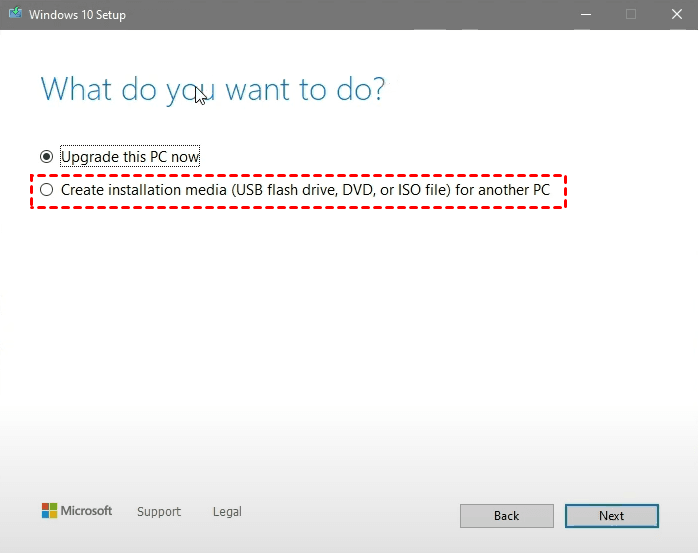
1. Open the MediaCreationTool, choose either "Upgrade this PC now" to upgrade or reinstall the current computer immediately, or "Create installation media for another PC" to create installation media for another computer, and click "Next".
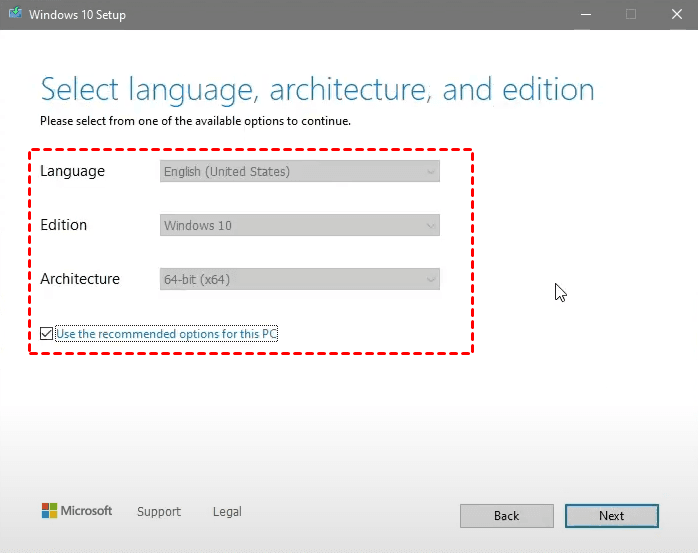
2. To download the Windows 10 ISO, select the desired configurations. If you want to use the USB on the same computer, choose the recommended options for this PC. Otherwise, uncheck the box to select the configurations based on your specific needs.
Check your system type in Control Panel > System > System type to determine if your architecture is 32-bit or 64-bit.
3. To copy Windows 10 ISO to a USB flash drive, select USB flash drive as the destination and click Next. This will allow you to boot from the USB drive and install or reinstall Windows 10 on the same or another computer.
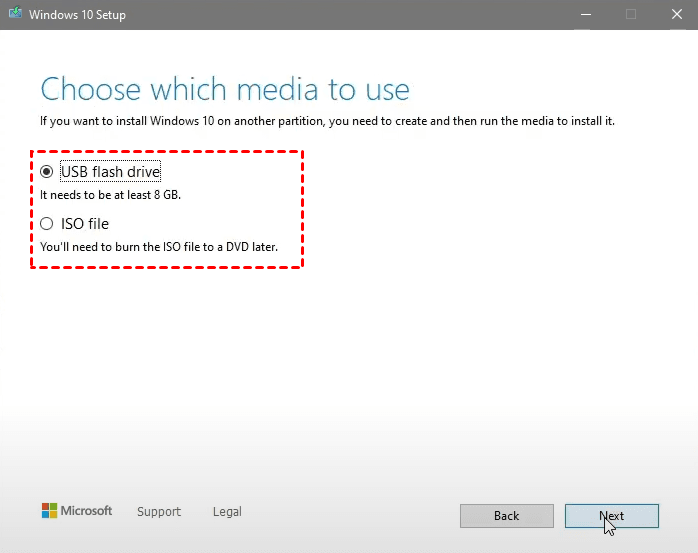
To install Windows 10 from a USB drive, connect it to the computer, enter the BIOS settings, set the USB drive as the first boot option, select the language and keyboard layout, enter the product key, and follow the on-screen instructions to complete the installation.
2. Copy Windows 10 to USB for troubleshooting or reinstallation
Preparations:
☛ You need a USB drive with at least 16 gigabytes of space to create a recovery drive.
☛ Make sure the USB drive is empty before transferring data to it, or the data on it will be erased. You can also back up files to the USB drive first if you want to be safe.
☛ Connect the USB to your computer.
How to copy Windows 10 to USB and make it bootable:
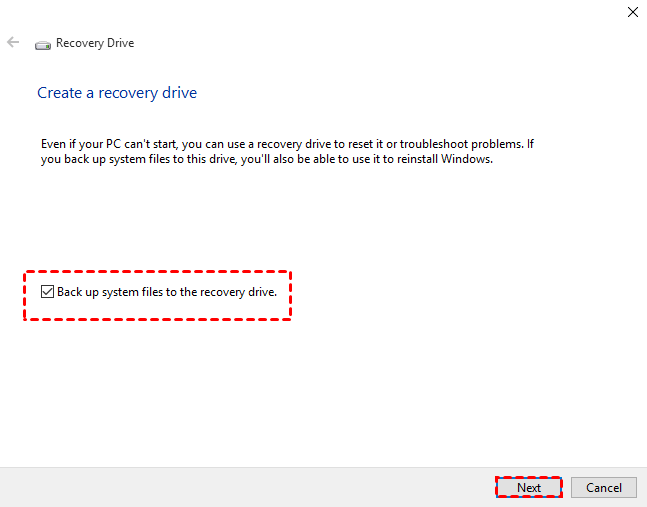
1. To create a recovery drive, search "recovery drive" on the taskbar to run the tool. Select the option to backup system files to the recovery drive, as this will allow the USB to be used for reinstalling Windows 10. Click next to proceed.
2. Wait until your USB is detected. Select it and click Next.
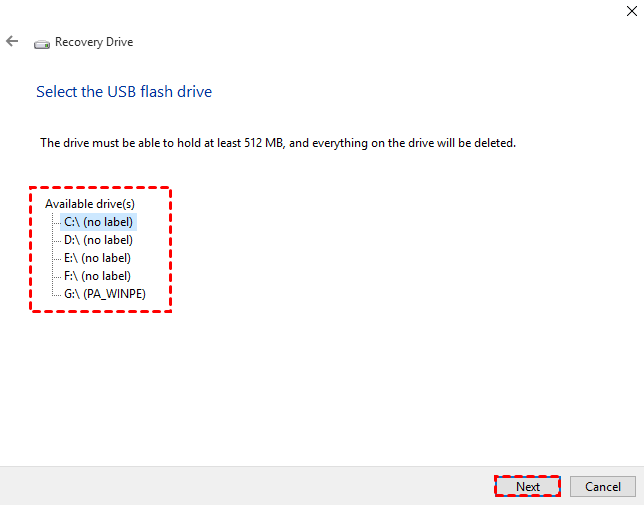
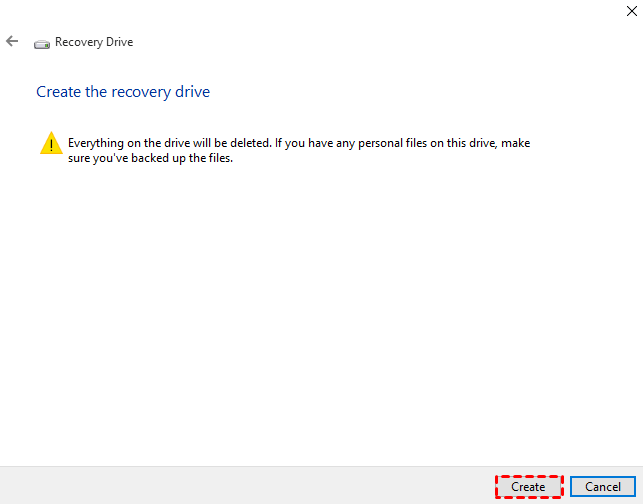
3. To create a recovery drive, start the process and let it complete before removing the USB. Once finished, safely eject the drive.
If you're unable to create a recovery USB, you can find troubleshooting help in the post about "can't backup system to USB drive".
When the computer breaks down, insert the USB, restart the PC, press the required key to enter BIOS, set the bootable USB as the first boot option, save settings and exit, choose keyboard layout, and then choose Troubleshoot.
You can either select "Advanced options" to troubleshoot Windows 10 with various recovery tools, or select "Recover from a USB" to reinstall Windows and choose whether to remove personal files or fully clean the drive.
3. Easier & safer way to create bootable USB and repair Windows 10
A bootable USB drive can be used to repair or reinstall Windows 10, making it a useful tool for troubleshooting and recovery.
To repair Windows 10, you can restore it to a normal state using the system backup and restore feature of Qiling Disk Master. Alternatively, you can create a bootable USB or boot option to recover a crashed computer in WinPE, which is a simpler alternative to System Image Recovery in Windows.
When reinstalling Windows, there's a risk of data loss, and the process from a USB drive may even explicitly state that it will remove files. To avoid this, it's recommended to take precautions before reinstalling, such as backing up important files, partitions, system, or the entire disk using a tool like Qiling Disk Master.
✎Tips: If you don't want to reinstall Windows 10, you can simply clone or image the installation to a new HDD or SSD, effectively moving it to the new drive. Alternatively, the Universal Restore feature (available in advanced editions) allows you to restore the system to a different computer with different hardware.
The free standard edition of the software can be downloaded, which already includes most of the necessary features, such as system backup and restore, as well as creating a bootable USB.
Preparations:
Install the software to create a system backup, which can be set to run automatically at a scheduled time, such as daily, weekly, or monthly, for added protection on Windows 10.
How to create Windows 10 bootable USB:
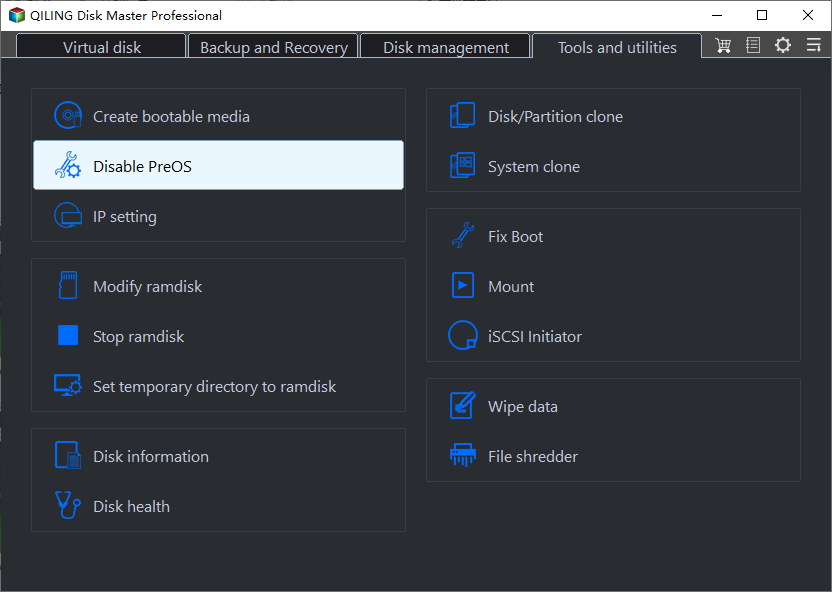
1. To create bootable media, navigate to the Tools tab and select Create Bootable Media from the list.

2. Select the USB drive as the destination for copying the ISO file, and click "Proceed" to initiate the process.

You've successfully created a bootable USB drive, which allows you to rescue an unbootable computer and restore Windows 10 from USB. This can be a lifesaver when your computer is no longer booting properly.
If you want to perform Windows 10 recovery on the same computer:
You can add a boot option of recovery environment using Qiling Disk Master Professional, which works like bootable media and doesn't require a USB or CD/DVD.
1. Click Enable Recovery Environment in Tools tab.
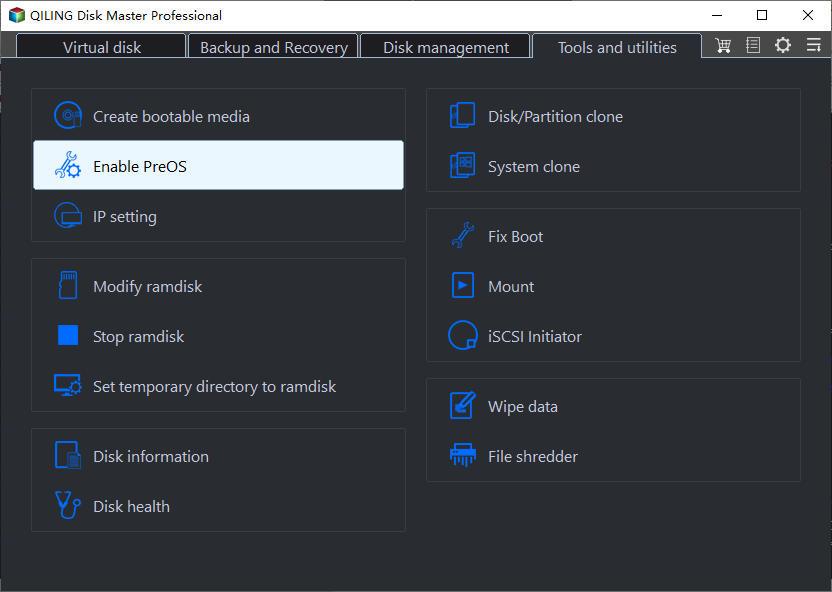
2. To enable the boot option of Qiling Disk Master recovery environment, you simply need to tick the relevant option, which will then automatically create the recovery environment. This process is straightforward and doesn't require any additional steps or manual intervention.
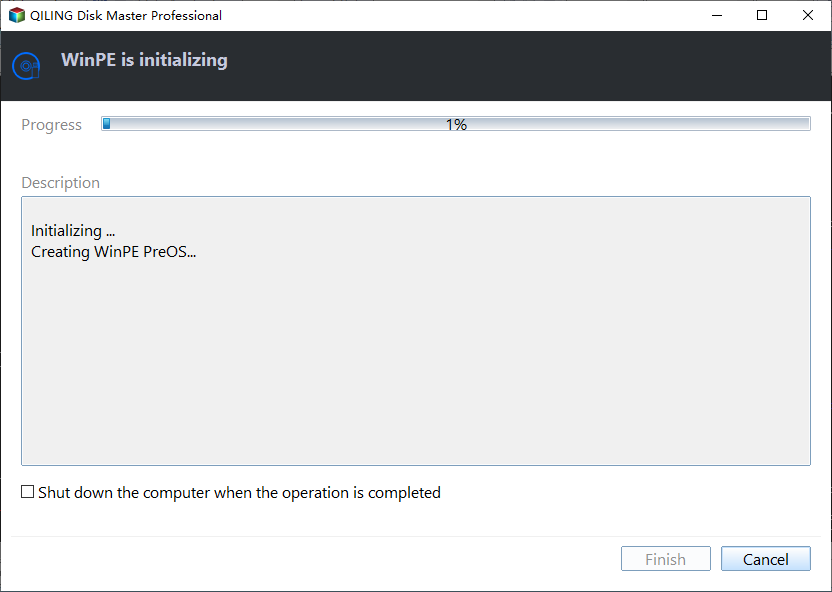
3. You can cancel the boot option anytime just by unchecking the option and clicking Disable PreOS.
The recovery environment is a bootable USB that only works on the current PC.
Conclusion
You can create a bootable Windows 10 USB using the MediaCreationTool or Recovery Drive utility, but for better system protection and simpler operation, consider using Qiling Disk Master. This tool allows you to auto-backup your operating system, making it easy to recover a faulty computer using the bootable USB whenever you need it.
This software enables you to migrate Windows 10 to a new hard drive, allowing you to transfer the operating system without a clean install, making it suitable for transferring Windows from an HDD to an SSD.
If you prefer to use Disk Master system and perform a quick restore without USB or any other media, you could also try Qiling Disk Master.
Related Articles
- (Free) Copy Bootable USB to another USB in Windows 7/8/10 Efficiently
Copy a bootable USB to another USB in Windows and keep the target drive bootable. - Windows 10 Recovery Tools Guide and Free Download | 2021
Compare Windows 10 recovery tools and create recovery media for repair, restore, or troubleshooting. - Windows 10 Bootable USB Not Working - Fix or Replace it
Fix a Windows 10 bootable USB that is not working or create a replacement bootable drive. - How to Create Windows 10 Bootable Clone for Free (Video)?
You will learn the best way to create a bootable clone of Windows 10 or 11 and boot from it successfully. You don't need to reinstall Windows. - Create Windows 10 Bootable USB from Current System
Learn how to create a Windows 10 bootable USB from your current system using the Media Creation Tool or another practical method without an installation disc. - 3 Ways to Fix Windows Could Not Find Recovery Environment
Fix Windows could not find the recovery environment by enabling WinRE or creating recovery media.
Products
Articles & Tutorials
- Data Recovery
- Data Backup
- File Recovery
- File Backup
- File synchronize
- System Backup and Restore
- Disk and Partition Clone
- Technical articles
- Disk Master Help
- Windows Deleted File and Disk Recovery Tutorials
- Windows File and Data Recovery Tutorials
- More Windows Tutorials for Install, Security, Files, and PC Tips
- Windows Boot, Repair, and Recovery Environment Tutorials
- Windows Backup Tutorials
- Windows Restore Tutorials
- Windows Clone and Migration Tutorials
- Windows Server Backup, Recovery, and Management Tutorials
- Windows Disk, Partition, and Storage Management Tutorials