How to Fix USB Flash Drive Not Showing Up in Windows 10
When a USB flash drive does not appear in File Explorer, start with non-destructive checks. The issue may be a port problem, missing drive letter, damaged partition, RAW file system, or failing flash memory.
Background and causes
A USB drive can be visible in Device Manager but missing in File Explorer, or it may appear as RAW or unallocated in Disk Management. Each state needs a different repair path.
- Confirm the exact disk, partition, drive letter, file system, and capacity before changing anything.
- Recover or back up important files before formatting, deleting, converting, or recreating partitions.
- For boot-related changes, check BIOS/UEFI mode and boot order before editing disk layout.
Use Windows built-in tools
Try another port and computer, open Disk Management, assign a drive letter if the partition is healthy, update the USB driver in Device Manager, and avoid formatting when the drive shows RAW or unallocated.
Use Qiling tools for guided steps
 Qiling Disk Master
Recover files before formatting, deleting, or rebuilding the problem partition.
Step 1. Open Deep Data Recovery and choose Fast Scan.
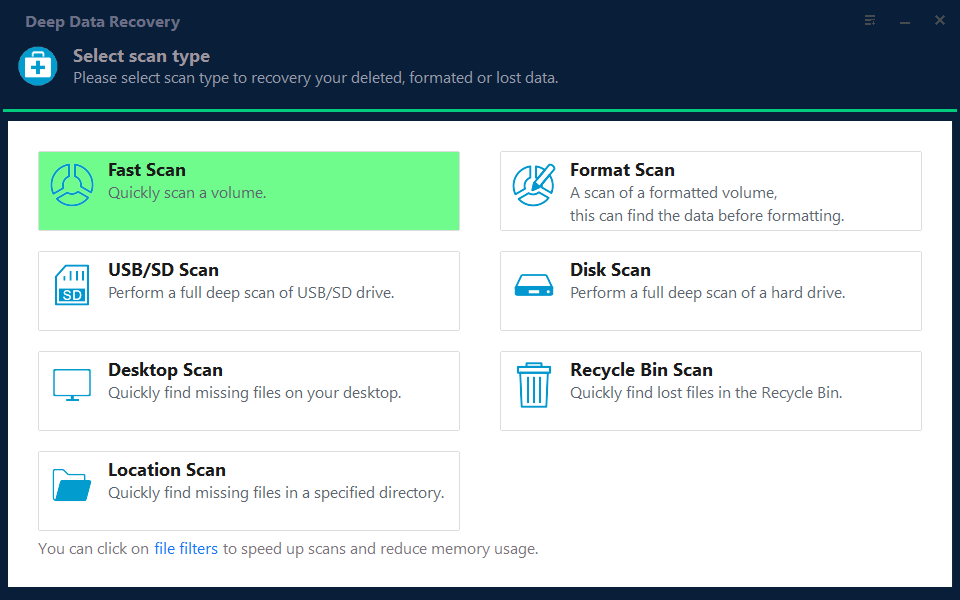
Step 2. Select the lost, RAW, or unallocated location and start scanning.

Step 3. Preview files and recover them to another healthy disk.

Check the result
Reconnect the USB drive and confirm that it appears in File Explorer with the expected capacity and files.
Related Articles
-
How to Recover Data
Recover lost files before formatting, deleting, or rebuilding a partition. -
Unallocated Partition Recovery
Recover data from a partition that becomes unallocated or invisible.
Products
Articles & Tutorials
- Data Recovery
- Data Backup
- File Recovery
- File Backup
- File synchronize
- System Backup and Restore
- Disk and Partition Clone
- Technical articles
- Disk Master Help
- Windows Deleted File and Disk Recovery Tutorials
- Windows File and Data Recovery Tutorials
- More Windows Tutorials for Install, Security, Files, and PC Tips
- Windows Boot, Repair, and Recovery Environment Tutorials
- Windows Backup Tutorials
- Windows Restore Tutorials
- Windows Clone and Migration Tutorials
- Windows Server Backup, Recovery, and Management Tutorials
- Windows Disk, Partition, and Storage Management Tutorials