Using Command Line Prompt to Clone System and Disk
Why clone disk via command line
Cloning is a useful tool that can solve various problems. It allows users to create a copy of their entire disk, external hard drive, or system, which can be helpful in case of data loss due to accidents. Cloning can also be used to restore a system when something goes wrong or to migrate the system to another disk or computer. Additionally, cloning can be applied to specific partitions, making it a versatile and widely used feature.
For users with less computer experience, cloning a hard drive using a graphical user interface (GUI) may be simpler and more straightforward. However, for IT experts and advanced users, cloning via command prompt can be a more efficient option, saving time and effort by avoiding the need to navigate through multiple clicking steps and potentially reducing errors.
How to perform command line clone in Windows
For Windows users, we recommend using Qiling Disk Master, a software that allows you to clone disks, partitions, and systems using a command line interface.
To begin, install and launch Qiling Disk Master Professional, which has a special Server edition for Windows Server users.
To open the command line prompt as an administrator, you can either click Start, type "cmd" in the search box, right-click on it, and select "Run as Administrator". Alternatively, press the "WIN+R" keys to open the "Run" window, type "cmd" and press enter to open the command line prompt with administrator privileges. This will allow you to run commands with elevated permissions.
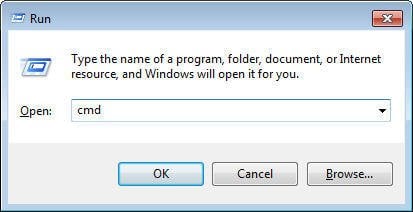
To get in Qiling Disk Master command line prompt, you need to type in the `qiling` command and press Enter.
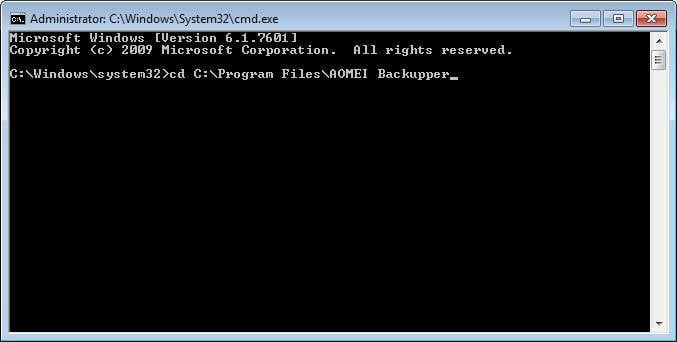
Open the path "C:\Program Files\Qiling Disk Master" and replace C: with the actual drive where Qiling Disk Master is installed.
The parameters for cloning can be followed to create a new copy of the original. You can then use the cloned item according to your requirements.
For clone, there are many required parameters:
{/c}: clone system, partition, disk or dynamic volume;
{/t}{system | disk | part}: "Specify the clone type: 'system' for a system clone, 'disk' for a disk clone, or 'part' for cloning a partition or dynamic volume."
[/s] {0 | 0:0 | D}: To clone a system, specify the source to be cloned using the /s option, followed by the disk or partition number. For example, /s 0 clones disk 0, while /s 0:0 clones partition 0 on disk 0. If the source is a dynamic disk or partition, use /s D.
{/d} {0 | 0:0 | D}: The /d option is used to specify the destination location of a disk or partition. It can be used with a number, which represents the disk or partition number, such as /d 0 for disk 0, /d 0:0 for partition 0 on disk 0, or /d D for partition D or dynamic volume D.
[/k]: specify to use Sector by sector clone;
[/a]: specify to use partition alignment to optimize for SSD;
[/l] {A~Z}: specify the drive letter of the new partition after cloning;
[/f]{fill | original}: The command allows adjusting the size of the destination partition, with options to either fill the entire destination partition after cloning or keep the same size as the source partition after cloning. This feature is not available for dynamic disks.
[/o] {yes | no}: The program will automatically execute the next operation when interactive operation is needed, unless the user chooses to cancel it by selecting "no".
To clone a system using command line, you can utilize various parameters, which can be taken as an example in the system clone command.
Clone with CMD
To clone a system to a partition in use with Qiling Disk Master CMD, you can use the following command and press Enter to complete the operation without interactive prompt. This allows the cloning process to run automatically.
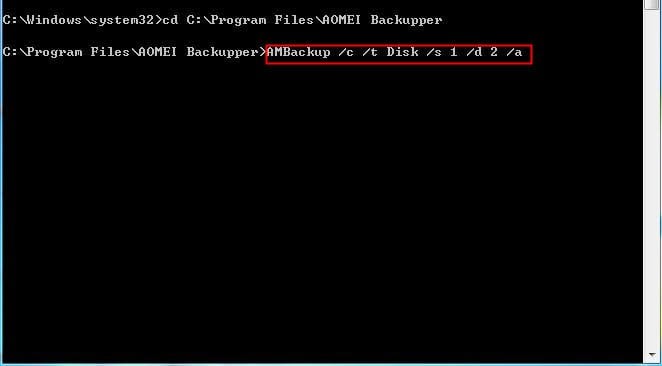
As the picture shows:
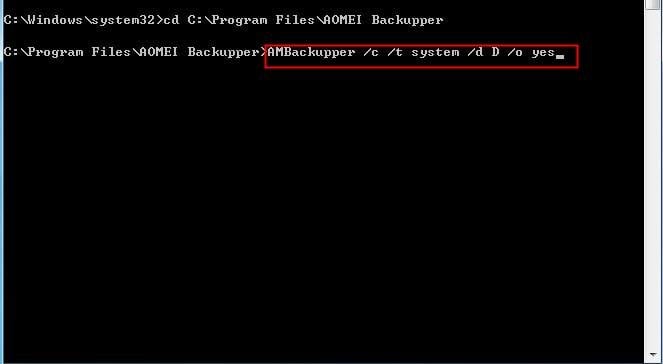
You can clone a system to partition 1 on disk 2 using the following command.
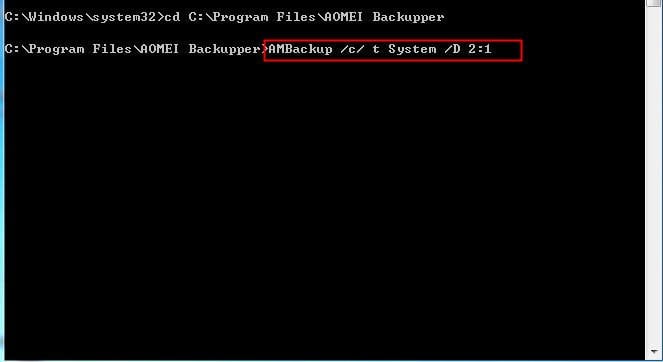
You can clone a system, partition, or disk, and use partition alignment to optimize for an SSD by specifying the parameter. For example, to clone disk 1 to disk 2 with partition alignment, you can use this parameter.
Using the command line to clone a hard drive is a convenient option as it can complete the process with just a few inputs, eliminating the need for multiple steps in the interface. However, knowing the required parameters is necessary. Alternatively, using the GUI is recommended for Windows users, requiring only a few clicks. Both Qiling Disk Master GUI and command line support Windows 10/8/7. Additionally, the interface can be used for other operations, such as copying one hard drive to another.
Related Articles
- How to Clone Hard Drive via Command Prompt in Windows 10/8/7 Simply?
- Safely Backup Hard Drive from Command Prompt | 4 Ways
- How to Copy Files Using Command Prompt in Windows 7?
- 4 Ways to Backup Files from Command Prompt in Windows 10
- Best Free Arq Backup Alternative - Qiling Disk Master
Learn the key steps, checks, and practical tips for this related guide. - Auto Sync Files to External Hard Drive with Best Free Tool
Whether you want to auto sync files to external hard drive or sync two external hard drives in Windows 11/10/8/7, you can use the best free external hard drive sync software. Get it and the stepwise guide below.
Products
Articles & Tutorials
- Data Recovery
- Data Backup
- File Recovery
- File Backup
- File synchronize
- System Backup and Restore
- Disk and Partition Clone
- Technical articles
- Disk Master Help
- Windows Deleted File and Disk Recovery Tutorials
- Windows File and Data Recovery Tutorials
- More Windows Tutorials for Install, Security, Files, and PC Tips
- Windows Boot, Repair, and Recovery Environment Tutorials
- Windows Backup Tutorials
- Windows Restore Tutorials
- Windows Clone and Migration Tutorials
- Windows Server Backup, Recovery, and Management Tutorials
- Windows Disk, Partition, and Storage Management Tutorials