How to Delete Large Files Command Line Windows 10?
Need to delete large files Windows 10
You can use Command Prompt in Windows 10 to delete large files quickly. Open Command Prompt as an administrator, go to the target folder, and use the del command carefully. Because command-line deletion may bypass the Recycle Bin, always confirm the path and file name before pressing Enter.
On a Windows 10 computer, it's common to accumulate large files during use. When the disk runs out of available storage space, a low disk space warning is triggered. To free up space, users can consider disk cleanup, which involves deleting unnecessary files. Apart from moving apps and folders to a different drive or removing temporary files, deleting large files can also be an effective way to get more free space.
Deleting large files on Windows 10 can be challenging due to the operating system's limitations. The traditional method of dragging files to the Recycle Bin or right-clicking to delete may not work efficiently, and using File Explorer can be time-consuming. This can lead to frustration when trying to free up space on your computer.
Using Command Prompt can be a quick and efficient way to delete large files on Windows 10, allowing you to easily remove various types of files such as pictures, videos, music, and documents.
How to delete large files command line Windows 10?
Deleting large files on Windows 10 using the command line can be done efficiently by following a specific process. By using the command line, you can delete large files much faster than through the graphical user interface. To do this, you will need to follow a series of steps that will allow you to utilize the command line's capabilities to quickly delete large files.
✉ Warning: Be extremely cautious when inputting file paths, as incorrect entries can result in permanent loss of files in unintended locations, and this process is irreversible. Therefore, please double-check the command line throughout the entire process to avoid any potential data loss.
Step 1. Type Command Prompt on the search bar, right-click the result, and select the Run as administrator option.
Step 2. Navigate to the file or folder you want to delete and copy its path from the address bar.
Step 3. Input cd path to locate the folder that contains the files you want to delete in Command Prompt, e.g. cd C:\Users\New folder.
Step 4. Type del /f/q/s *.* > nul command to delete all the files in that folder and press "Enter".
✍ The parameters of del /f/q/s *.* > nul command:
del -- is the command line for deleting files.
/f -- forces the deletion of read-only files.
/q -- deletes files without asking for confirmation.
/s -- runs the command on files in the selected folder and its subfolders.
*.* -- deletes all files in the current command scope.
> nul -- hides console output to make the process faster and cleaner.
Step 5. Type cd.. to go back to one level in the folder path and press "Enter".
Step 6. Type rmdir /q/s foldername command to delete the folder and all its subfolders and press Enter.
✍ The parameters of rmdir /q/s foldername command:
rmdir -- is the command for removing directories.
/q -- Quiet mode, won't prompt for confirmation to delete folders.
/s Run the operation on all folders of the selected path, including any subfolders.
foldername You can specify the absolute path or relative folder name, for example, o:/backup/test1 or test1.
An easier way to delete large files in Windows 11/10/8/7
If you're not comfortable with the command line, consider using a third-party file deletion tool like Qiling Disk Master Professional, which is compatible with all Windows editions, including Windows 10, 11, 8, 7, XP, and Vista. This software provides a safer and easier way to delete large files.
Qiling software's graphical interface provides clear information about your disks. Its "Delete Large Files" feature is user-friendly and helps you find large files more efficiently.
- This software can automatically scan files larger than 16MB, list, and delete up to 1,000 files simultaneously, making it efficient for managing large files.
- To protect your Windows, it avoids scanning large system files.
- It will highlight some files in red to prevent accidental deletion by indicating which ones are not recommended to delete.
- In case of any wrong deletion, it will ask you to tick the files by yourself and confirm the operation again before committing.
To delete large files on Windows 10/11/8/7/XP/Vista, download the demo version and see how it works.
Further reading: How do I delete files that won't delete Windows 10?
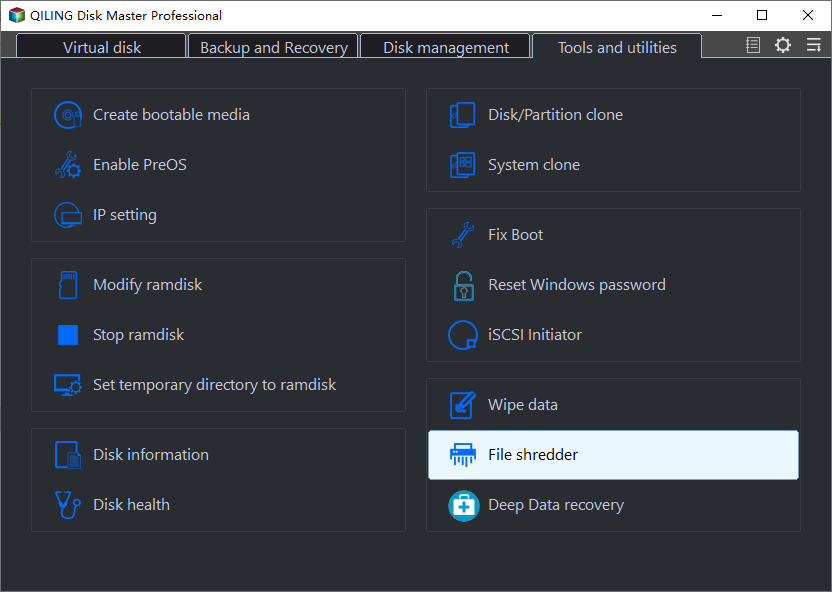
Sometimes, you may fail to directly delete some files that are protected, corrupted, or infected by viruses. To prevent destroying other files on the same hard drive, a secure file shredder like Qiling software can help you securely erase files.
Step 1. Open this powerful disk manager, click "Tools" and "Shred Files".
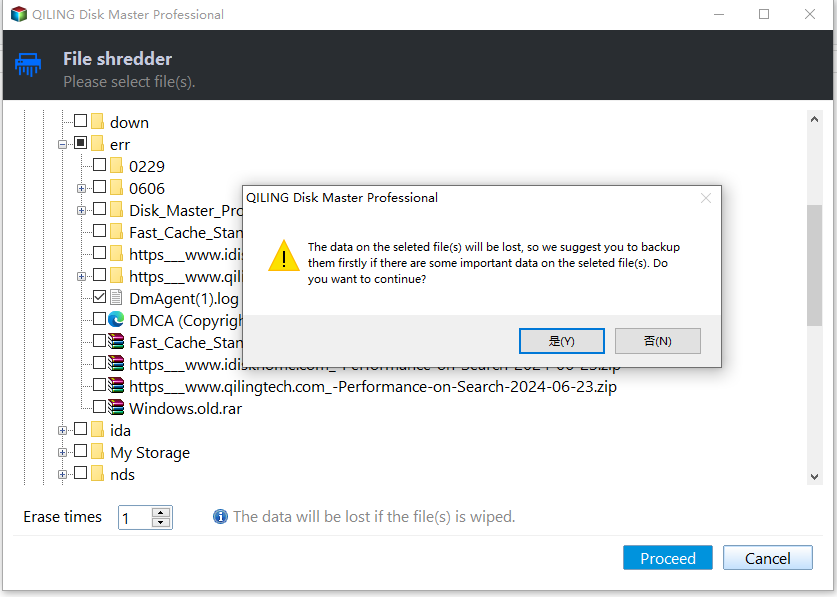
Step 2. Select Files or Folders to delete and choose the shredding method.

Step 3. Select "Proceed" and "Yes" to begin force deleting the ticked files or folders.
Conclusion
To delete large files in Windows 10, you can open Command Prompt, navigate to the file location, and use the del or rmdir command carefully. If you are not comfortable with command-line operations, a visual file deletion program is a safer alternative.
Qiling Disk Master Professional not only helps with deleting large files on Windows 10, but also offers various features to boost computer performance, including upgrading to SSD without restarting, allocating free space, recovering lost data, and migrating the OS to SSD without reinstalling.
Related Articles
- How to Force Delete Corrupted Folder Windows 10?
If you fail to delete a corrupted folder or file in Windows 11, 10, 8, 7, you can read this post to figure out why the corrupted folder cannot be deleted and how to force delete it in a secure way. - How to Delete Files from External Hard Drive Permanently in Windows
In this post, we will show you how to delete files from external hard drives in Windows 11, 10, 8 and Windows 7. You will learn 4 methods to remove files on external drive successfully. - How to Wipe and Partition Hard Drive?
When you find your disk performance gets slow, but you don't want to replace it, you could try to wipe and partition hard drive so that you can start from scratch. The detailed tutorial is presented in this passage. - How to Fix Hard Drive Won't Boot [Top 6 Fixes🏅]
If your hard drive won't boot and shows a disk boot failure message, follow this guide to check causes and try practical fixes for startup problems. - How to Boot Samsung Laptop From USB on Windows 10/11
Learn how to create a bootable USB, enter Samsung BIOS or boot menu, set the USB drive as the first boot option, and start your laptop from USB. - How to Burn ISO to USB? 2024 Complete Guide 🔥
You can burn an ISO image to a USB drive, and this page will guide you through a simple process to do so. Follow the steps to learn how to create a Windows ISO bootable media in USB on your own.
Products
Articles & Tutorials
- Data Recovery
- Data Backup
- File Recovery
- File Backup
- File synchronize
- System Backup and Restore
- Disk and Partition Clone
- Technical articles
- Disk Master Help
- Windows Deleted File and Disk Recovery Tutorials
- Windows File and Data Recovery Tutorials
- More Windows Tutorials for Install, Security, Files, and PC Tips
- Windows Boot, Repair, and Recovery Environment Tutorials
- Windows Backup Tutorials
- Windows Restore Tutorials
- Windows Clone and Migration Tutorials
- Windows Server Backup, Recovery, and Management Tutorials
- Windows Disk, Partition, and Storage Management Tutorials