How to Force Delete Corrupted Folder Windows 10?
Can't delete corrupted folder in Windows 10
A user is trying to delete a large folder on their Windows 10 computer, but they are unable to do so because the folder is corrupted. They are looking for a solution to free up disk space by deleting this folder, but are having trouble due to its corrupted state.
To force delete a corrupted folder on Windows 10, you can try using the Command Prompt or PowerShell with administrator privileges. First, open Command Prompt or PowerShell as an administrator. Then, navigate to the parent directory of the corrupted folder using the 'cd' command. Once you're in the correct directory, you can use the 'rd' command followed by the folder's name to delete it. For example, if the corrupted folder is named 'FolderName', you would type 'rd /s /q FolderName' and press Enter.
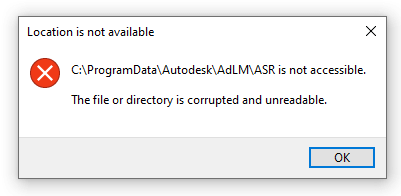
A corrupted file or folder is damaged and can't perform its intended function, making it unusable. If not removed, it can pose a risk to your hard drive's stability and even result in the loss of important data. Therefore, it's essential to delete corrupted files to prevent any potential harm.
Possible causes for the failure of deleting a corrupted folder.
In Windows 11, 10, 8, or 7, you may encounter issues deleting a corrupted folder or file due to several reasons. The most common causes include file system corruption, permissions issues, or the file being in use by another program or process. Additionally, the file might be locked by the operating system or a third-party application, or it could be a system file that cannot be deleted.
✫ The corrupted folder or file is in use by other programs or system processes, which is preventing it from being deleted or modified.
✫ Your computer was improperly shut down.
✫ Your hard drive has disk errors.
✫ Recycle Bin's space is full.
✫ The file or folder is read-only.
✫ Malware or virus infection.
How to force delete corrupted folder Windows 10?
If you encounter a corrupted, unreadable, or damaged folder, you can try deleting it by clicking the "Delete" button, pressing the "Shift+Delete" key, or dragging it to the recycle bin. However, if these methods fail, you may need to force delete the folder in Windows 11, 10, 8, or 7. In such cases, you can try deleting the folder in safe mode, using the Command Prompt (CMD), or employing a professional file shredder to ensure a safe and secure deletion process.
- Method 1: Use "DEL" command in CMD
- Method 2: Run Windows 10 in safe mode
- Method 3: Turn to a free file./folder shredder
Method 1: Use "DEL" command in CMD
The Command Prompt, also known as CMD or "cmd.exe", is a command-line tool based on Windows operating systems that allows users to complete various operations, including force deleting files, checking hard disk drives, formatting disk partitions, and more.
Step 1. Open Command Prompt.
To open the Command Prompt as an administrator, press the "Windows + S" keys simultaneously, type "cmd" in the search bar, and then right-click on the "Command Prompt" result and select "Run as administrator".
Step 2. Type the order.
In the new window, type "del /f /q /a the file directory" and hit the "Enter" key.
- ★Notes:
- /f: Force delete the folders or files
- /q: Quirt mode. Turn off the delete affirmation.
- /a: Delete archived files and folders.
- the file directory: The location of corrupted folders, for example, "C:\Users\Lovejeet\Desktop\infected.txt".
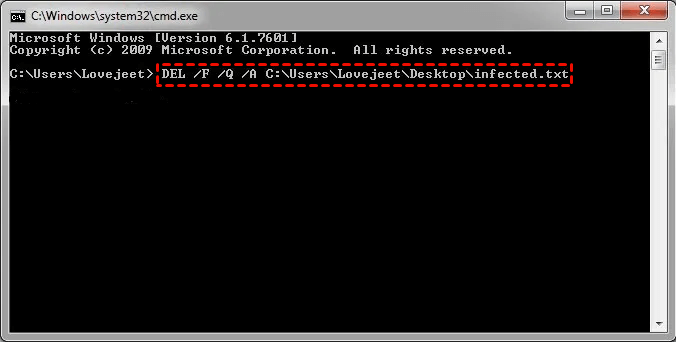
Note that when you forcibly delete corrupted folders or files using the Command Prompt (CMD), they won't be sent to the Recycle Bin, making it impossible to recover them directly from there like other files.
Method 2: Run Windows 10 in safe mode
To start your computer in safe mode, you can follow these steps:
Step 1. Restart your Windows 10.
To access the Windows recovery environment, go to Start, then Settings, then Update & Security, then Recovery, and select Restart now under Advanced Startup.
Step 2. Navigate to Startup Settings.
Click Troubleshoot> Advanced options> Startup Settings> Restart.
Step 3. Boot into Safe Mode.
In the Startup Settings window, you can press F4 or F5 to boot into safe mode in Windows 10.
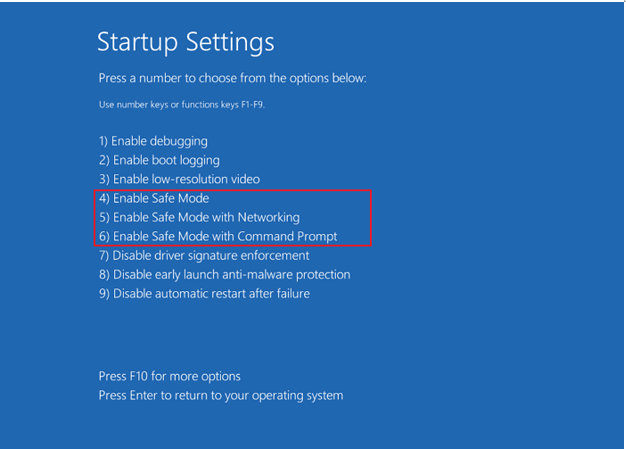
Step 4. Find the corrupted file or folder and delete it in Windows 10 safe mode.
Step 5. Restart Windows 10 and your computer will exit safe mode automatically.
Method 3: Turn to a free file./folder shredder
If previous methods were unsuccessful, you can use a safe and easy-to-use file shredder like Qiling Disk Master Standard, which is a free and powerful partition manager that can securely delete corrupted folders or files.
To remove corrupted files or folders from your PC, use a professional file shredder. With just four easy steps, you can get rid of them permanently. First, download the freeware.
Warning: The "Shred files" function will completely delete folders or files, making them unrecoverable even with data recovery software, so use it only when you're sure you want to delete them.
Step 1. Install and run Qiling Disk Master Standard.
In the main console, click "Wipe" and select "Shred Files".
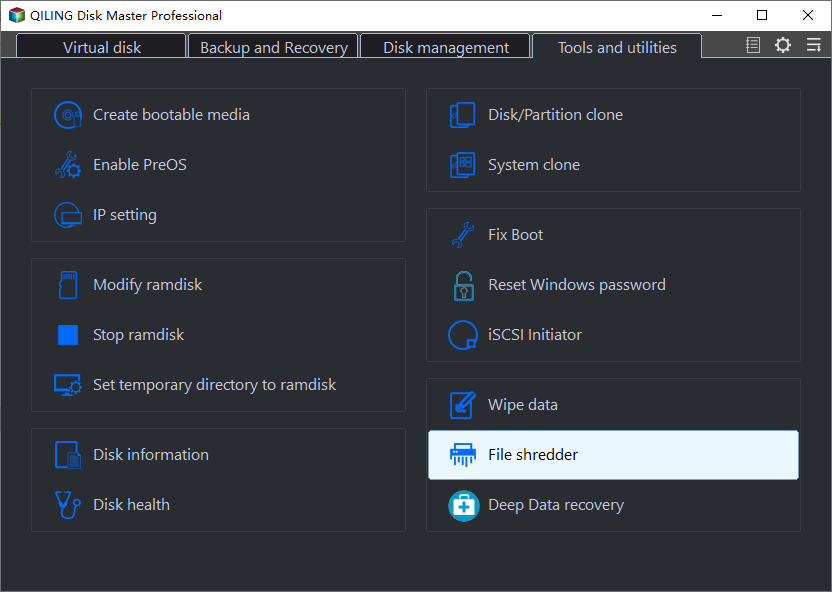
Step 2. Add files or folders.
In the small window, click "Add Files" or "Add Folder" to select the file or folder you wish to delete forcefully.

Step 3. Choose shredding methods.
In the Professional edition, four shredding methods are available, but only "Write Zero" is supported in the standard version. The other three methods are only accessible in the Professional edition.
Step 4. Confirm the note.
To shred a document, click the "Shred" button and confirm the action by clicking "Yes" in the pop-up confirmation note.
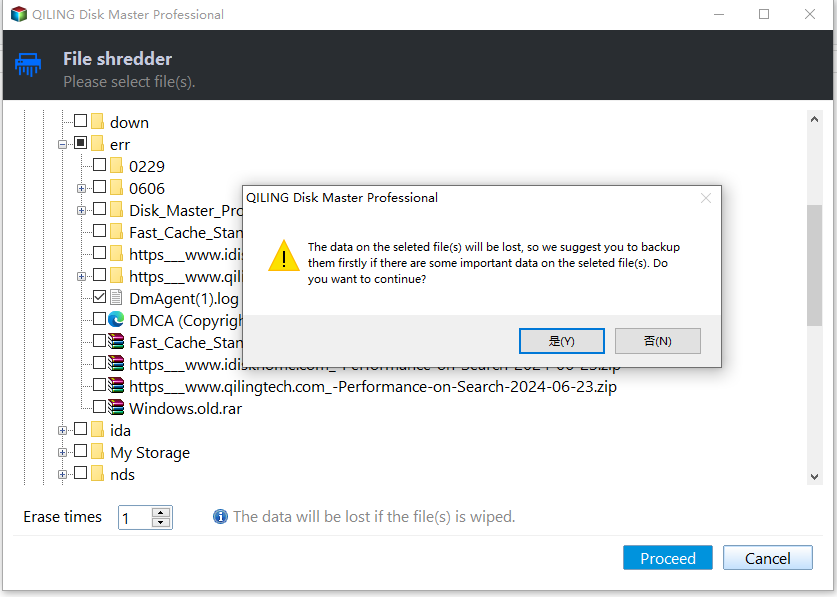
This tool can also be used to delete large files effortlessly, and if all files on your hard drive are useless, wiping the entire hard drive may be a more effective way to delete corrupted files Windows 10.
Conclusion
If you're dealing with corrupted folders or files on your Windows 10 computer, deleting them can be a challenge. The usual method may not work, leaving you wondering how to force delete the corrupted folder. Fortunately, there are three feasible ways to resolve this issue, and at least one of them is likely to work for you.
Qiling software is a recommended method for cleaning and optimizing a PC, as it doesn't require restarting the computer or inputting command lines, making it user-friendly. It also offers additional features like speeding up the PC, adding space to the C drive, and moving folders to a different drive.
Related Articles
- How to Fix Corrupted Hard Drive Using CMD in Windows 11/10/8/7?
This page will demonstrate how to fix corrupted hard drive using CMD elaborately. A reliable tool-Qiling Disk Master, which offers easier ways to repair the corrupted hard drive, will also be introduced. - Complete Fix: Lenovo Stuck in Boot Loop Error in Windows 7/8/10
Fix a Lenovo boot loop in Windows 7/8/10 with startup repair, boot settings, and recovery options. - How to Format Lexar USB Drive to Use Full Capacity Easily?
Learn how to format a Lexar USB JumpDrive from NFTS to FAT32 and use its full capacity with a free USB format tool in Windows 7, XP, 10, 8, or Vista. - How to Low Level Format USB Flash Drive?
Low level format a USB flash drive when standard formatting fails, after backing up or recovering needed files. - How to Unboot USB Drive to Normal in Windows 10/8/7(3 methods)?
Return a bootable USB drive to normal storage in Windows 10/8/7 with three practical formatting methods. - How to Upgrade HDD to SSD without Reinstalling Windows
You can upgrade your HDD to SSD without reinstalling Windows by using Qiling Disk Master to clone the OS partition or entire HDD to the SSD.
Products
Articles & Tutorials
- Data Recovery
- Data Backup
- File Recovery
- File Backup
- File synchronize
- System Backup and Restore
- Disk and Partition Clone
- Technical articles
- Disk Master Help
- Windows Deleted File and Disk Recovery Tutorials
- Windows File and Data Recovery Tutorials
- More Windows Tutorials for Install, Security, Files, and PC Tips
- Windows Boot, Repair, and Recovery Environment Tutorials
- Windows Backup Tutorials
- Windows Restore Tutorials
- Windows Clone and Migration Tutorials
- Windows Server Backup, Recovery, and Management Tutorials
- Windows Disk, Partition, and Storage Management Tutorials