Best Free PC Cleaner for Windows OS [2022]
Common junk files in Windows OS
Even a Windows computer with ample storage can eventually run out of room because of downloads, caches, installers, and other files created during daily use. These junk files often build up silently and may slow down the disk over time.
▶ Cache files
Cached data is used to load an app or website quickly for each subsequent visit, storing files, pictures, and relevant data on your device after the first access. It can be found in applications, software, and hardware, such as the CPU's RAM Cache.
▶ Temporary system files
System files are created when you turn on or off your computer to activate or shut down critical functions or programs. These files become outdated once they've completed their purpose, but they don't get cleaned up automatically.
▶ Installer files
These files are created to help install programs and apps. Once installation is complete, many of them become unnecessary and can be removed if you no longer need the installer.
▶ Thumbnails
Thumbnails can be helpful for faster photo loading, but they often waste space and time, as they are created every time you revisit the image.
Why do you need a PC disk cleaner?
Even if you have a massive hard drive with TB capacity, it's only a matter of time before you run out of space.
When you have too many files and programs, it can be overwhelming to organize and find what you need, especially if you do it manually.
PC disk cleaners help eliminate unwanted files, improving computer efficiency by removing temporary files, unused downloads, and Recycle Bin contents, and also compressing unmodified files to save space.
Download the best free PC cleaner for your Windows PC
Regular disk and system maintenance helps keep your device in good condition. Windows built-in tools can remove some junk files, but manual cleanup takes time. A free PC cleaner can make the process easier for desktop and laptop users.
Many free PC cleaners and optimizers claim to provide quicker performance, but not all live up to the hype. We recommend using Qiling Disk Master Standard, a free disk and partition manager for all Windows PC users.
This tool is a multifunctional disk management app that supports various Windows OS versions, including Windows 11/10/8/8.1/7/XP. It features a "PC Cleaner" tool that scans your device, identifies junk files, and sorts them for deletion. After the scan, you can choose to clean all junk files or selectively delete unwanted files based on your preferences.
The operation is straightforward and easy for all users. Additionally, this tool offers various functions to help manage and optimize your computer, including defragmenting your hard drive, and even completely wiping your hard drive if needed, making it suitable for resale or transfer to another user.
Secure erase SSD
Allocate free space to C drive
Migrate OS to another disk without reinstalling
Move installed large programs
Convert partition style
...
Bonus tips: Windows built-in PC cleaning service
If you still want to use Windows built-in tools for PC cleaning, you can choose from three ways to clean system files and temp files.
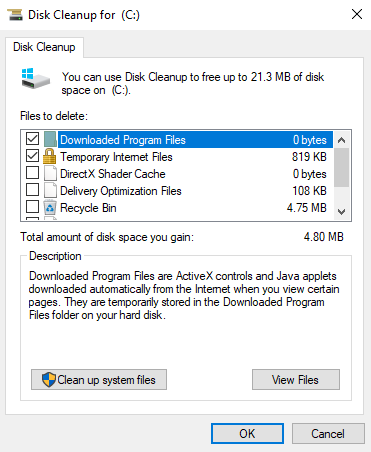
1. Disk Cleanup
To run the Disk Cleanup tool, press Windows + S, search for Disk Cleanup, and double-click the search result. Select the drive you want to clean up from the drop-down menu, click OK, and wait for the tool to scan the drive. Then, click Clean up system files to scan for more system cache, being careful not to delete crucial system files.
2. Storage Sense
To turn on Storage Sense, click "Start" and "Settings" in turn, then click "System", followed by "Storage", and finally toggle on "Storage Sense".

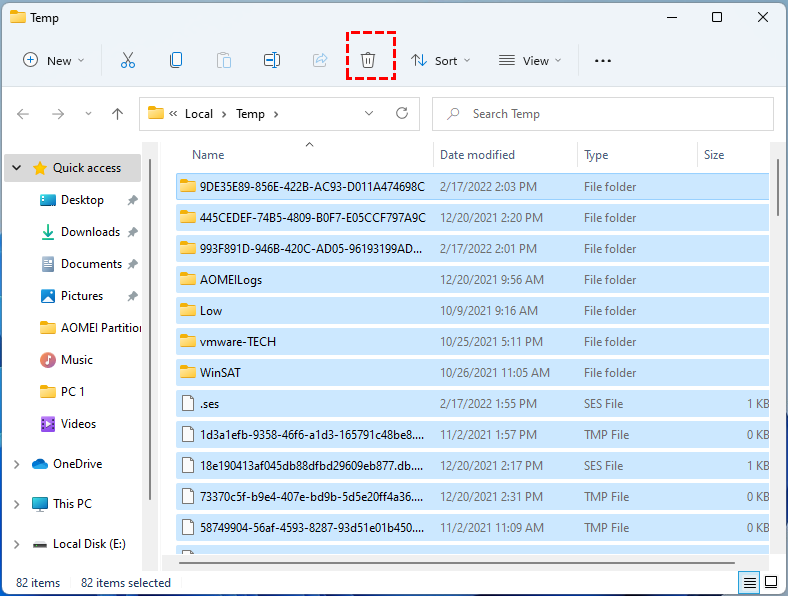
3. File Explorer
Open File Explorer and navigate to the path C:\Users\Admin\AppData\Local\Temp, then delete all files in this folder.
To sum up
If you need a reliable free PC cleaner for your Windows computer, Qiling Disk Master can offer you the best PC cleaning service. In addition to cleaning your PC, it can also help you manage your devices. The tool is compatible with all Windows PCs, including Windows Server, and you can choose the Server Edition to efficiently manage your Windows Server 2022/2019/2016/2012(R2)/2008(R2)/2003.
Related Articles
- Free PC Cache Cleaner— Clean Your PC Quickly and Securely
In this post, you'll see how to thoroughly clean the cache files and other junk data on your disk with a handy PC cache cleaner. - The C Drive is Full and How to Empty It in 6 Ways
This guide explains The C Drive is Full and How to Empty It in 6 Ways with clear steps, key checks, and practical tips. - How to Install M.2 SSD [Beginner's Guide⭐]
Discover the step-Installing an M.2 SSD is a straightforward process that can be completed in a few simple steps. First, locate the M.2 slot on your motherboard, which is usually labeled as an M. - Can Windows 11 Run MBR? Your Guide to Install Windows 11 on MBR in 2024
Learn whether Windows 11 can run on an MBR disk, what Legacy BIOS or CSM means, and when GPT is the better choice for Windows 11 installation. - Can't Delete Files from SD Card? Try 2024 Best Solution
In this passage, you will find solutions to can't delete files from sd card problem. Discover helpful techniques and tips to resolve this issue effectively on Windows. - Can't Delete Recovery Partition? Fix It Now!
Learn how to delete a recovery partition safely with DiskPart or a third-party partition manager when you need to free up disk space.
Products
Articles & Tutorials
- Data Recovery
- Data Backup
- File Recovery
- File Backup
- File synchronize
- System Backup and Restore
- Disk and Partition Clone
- Technical articles
- Disk Master Help
- Windows Deleted File and Disk Recovery Tutorials
- Windows File and Data Recovery Tutorials
- More Windows Tutorials for Install, Security, Files, and PC Tips
- Windows Boot, Repair, and Recovery Environment Tutorials
- Windows Backup Tutorials
- Windows Restore Tutorials
- Windows Clone and Migration Tutorials
- Windows Server Backup, Recovery, and Management Tutorials
- Windows Disk, Partition, and Storage Management Tutorials