How Often Should PC Be Cleaned?
Why should I clean my PC?
My computer becomes slow after long-term use, and the C drive is often nearly full. How often should I clean my PC, and what tools can help remove junk files or dust safely?

Many Windows users are puzzled by the issue of junk files accumulating on their PC over time, leading to slower computer performance and potentially causing freezes. To address this, regular cleaning of the computer is necessary.
Normally, cleaning a computer is divided into internal cleaning and external cleaning. Internal cleaning involves cleaning the interior components of the computer, such as the CPU, motherboard, and RAM, while external cleaning involves cleaning the exterior components, such as the case, keyboard, and monitor.
★ Internal: Delete unnecessary files on your computer's hard drive, including program installation files, temporary files, log files, and junk files.
★ External: Dust accumulation in computers and hard drives can cause physical damage to hardware, leading to system crashes and data loss. Regular cleaning of computers and hard drives is essential to prevent this damage.
How often to clean a PC?
PCs should be cleaned regularly. For light home use, cleaning every 6-12 months may be enough. For office computers, gaming PCs, or devices used every day, cleaning every 1-3 months is more suitable.
Step by Step: 2 ways to clean up the PC
To keep your PC running smoothly, clean both unnecessary files and physical dust regularly. The following two methods focus on file cleanup in Windows.
│Method 1. Clean the PC via Storage Sense
When your C drive is full, you can use the PC file cleaner, Storage Sense, to find and delete junk files such as temporary files and files left by the installation system, freeing up space on your computer.
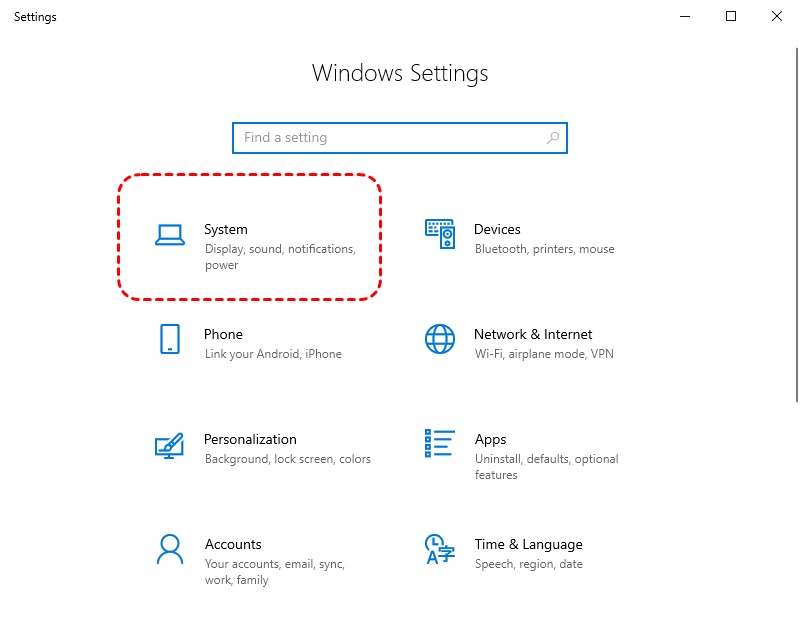
Step 1. Open the "Windows Settings" and click "System".
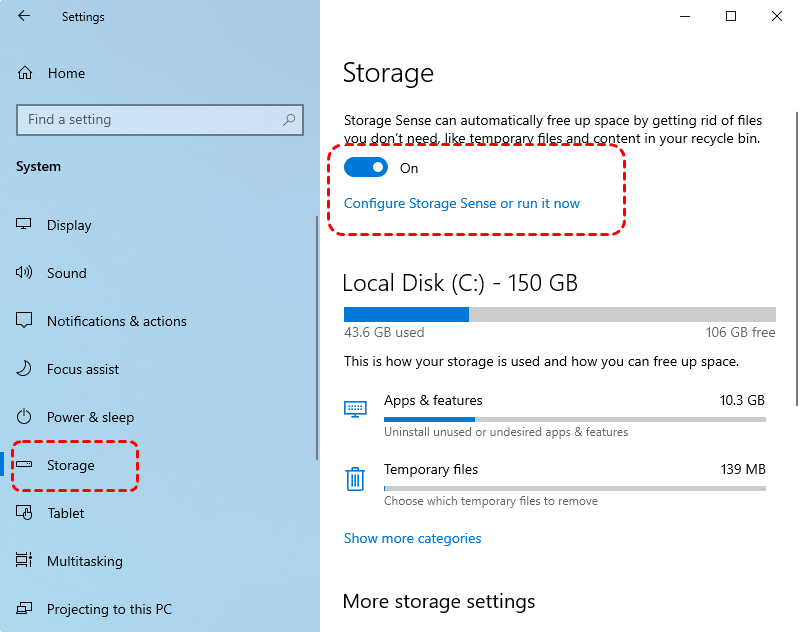
Step 2. To set up Storage Sense, select "Storage" in the left taskbar and turn it on, then click "Configure Storage Sense or run it now" to choose when you want to run it.
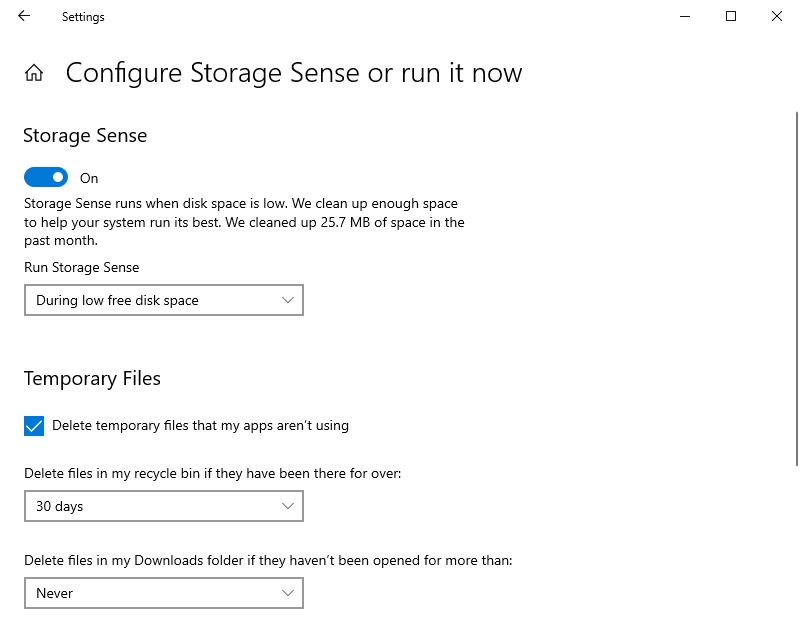
Step 3. You can clean your PC as often as you want, but the recommended time to run Storage Sense is every 7 days, every 30 days, or every 90 days, depending on your preference. This can be set in the "Configure Storage Sense or run it now" window.
│Method 2. Clean up PC with a free PC cleaner
If the computer's running speed doesn't improve after turning on Storage Sense, consider using Qiling Disk Master Standard, a disk cleanup expert that can completely remove junk files and improve the computer's running speed.
This freeware has a user-friendly interface that guides you through the cleaning process. You can select specific areas to clean, such as the Recycle Bin, temporary files, log files, and system activity traces, or choose to clean everything at once.
If you want to extend the usable space of your system drive, you can also use disk management features such as merging partitions or resizing partitions, depending on your specific needs.
Please download this freeware to clean up your PC.
Conclusion
This tutorial has likely taught you how often to clean your PC and provided two effective ways to do so. Through comparison, you may have also discovered that Qiling Disk Master can help solve computer problems comprehensively.
In the Professional version, you can convert dynamic disks to basic, migrate OS to SSD, allocate free space, and more. Additionally, if you're a Windows Server user, be sure to check out the Server Version.
Related Articles
- [6 Ways] How to Free up Space on Windows 11
Learn 6 practical ways to free up space on Windows 11 when your computer is running out of storage. - Fix Genshin Impact Insufficient Storage Space | Best Ways 🏆
If you're planning to download and play Genshin Impact, you might encounter the 'insufficient storage space Genshin Impact' error on your device, whether it's a PC, Android, or iPhone. To resolve this issue, you can refer to this post for guidance on how to fix it. - Lenovo SSD Upgrade: 2024 Step-by-Step Tutorial on How
This article introduces the process of upgrading the SSD in a Lenovo laptop. Discover step-by-step instructions and essential considerations for successfully performing a Lenovo SSD upgrade - What Is the Best MBR to GPT Convert Tool? Your Checklist Here
Find a reliable MBR to GPT converter for your storage device, compare key pros and cons, and choose the tool that best fits your conversion needs. - Can't Merge USB Partitions? 2 Proven Fixes Here
Manage can't Merge USB Partitions 2 Proven Fixes Here with safer disk and partition steps to avoid data loss or boot problems. - Fixed: Change Block Size From 4K to 64K | 2024 Full Guide
If you want to change your block size from 4K to 64K but don't know how, then this article is for you. Continue reading for a step-by-step guide and understand the background of this tutorial.
Products
Articles & Tutorials
- Data Recovery
- Data Backup
- File Recovery
- File Backup
- File synchronize
- System Backup and Restore
- Disk and Partition Clone
- Technical articles
- Disk Master Help
- Windows Deleted File and Disk Recovery Tutorials
- Windows File and Data Recovery Tutorials
- More Windows Tutorials for Install, Security, Files, and PC Tips
- Windows Boot, Repair, and Recovery Environment Tutorials
- Windows Backup Tutorials
- Windows Restore Tutorials
- Windows Clone and Migration Tutorials
- Windows Server Backup, Recovery, and Management Tutorials
- Windows Disk, Partition, and Storage Management Tutorials