A Powerful PC Junk Cleaner for Windows 10 And 11
Why do we need PC junk cleaner in Windows 10?
As time passes, a computer's hard drive can become cluttered with junk files, including cache files, temporary system files, installer files, and registry junk, which can cause problems if they continue to accumulate.
Deleting junk files regularly is essential to maintain your PC's performance, as they can take up a lot of storage space and cause your computer to slow down or experience other issues when your hard drive is full. To accomplish this, you need a reliable PC junk cleaner in Windows 10 or 11.
Clean the PC manually with built-in cleaner
Windows 10 has a built-in PC cleaner to help you clean up junk files. You can use the Disk Cleanup tool to remove temporary files, system logs, and other items you don't need. Additionally, Storage Sense can automatically delete temporary files and other items you haven't used in a while, freeing up space on your PC.
▶ Clean junk files with Disk Cleanup
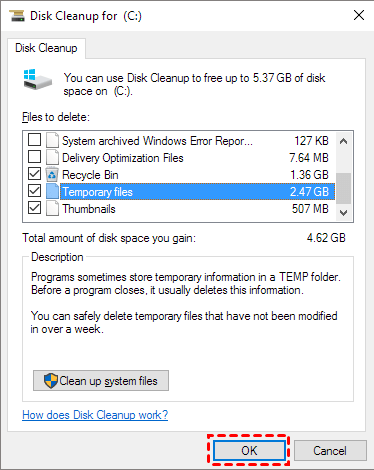
Disk Cleanup can help users remove unnecessary files such as Temporary Files, Thumbnails, and Delivery Optimization Files from the target drive.
Step 1. Type "disk cleanup" in the search bar and press "Enter".
Step 2. Select the target drive and click "OK".
Step 3. Select the file types you want to remove, then click "OK" to delete them with Disk Cleanup.
▶ Clean junk files via Storage Sense
Storage Sense, a feature in Windows 10, automatically frees up space by deleting files you don't need.
Step 1. Open Windows Settings first.
Step 2. Then, click on "System" on the main interface.
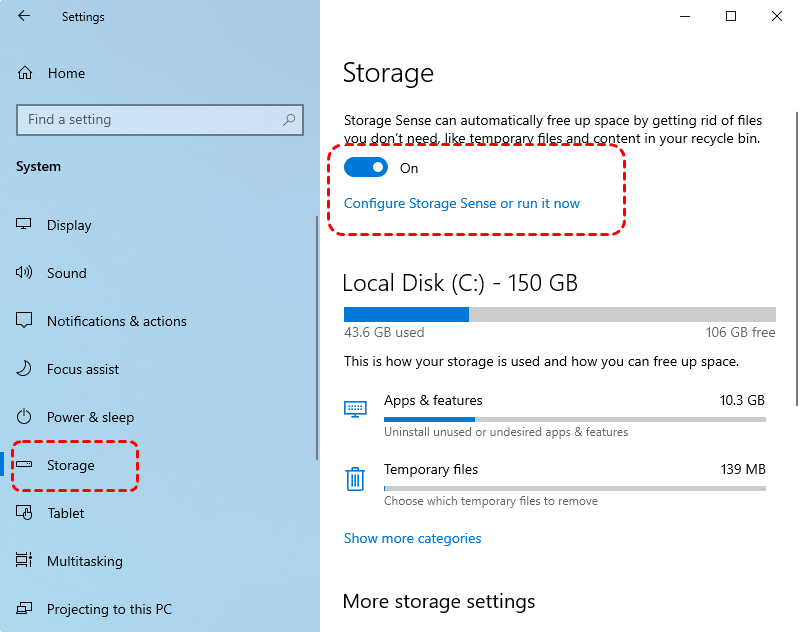
Step 3. Select "Storage" option and turn "Storage Sense" button "On".
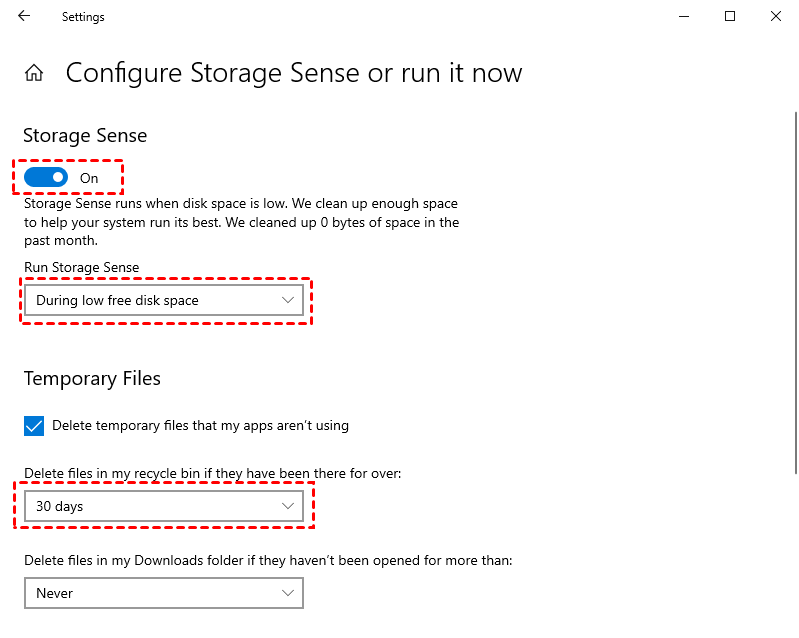
Step 4. The Storage Sense settings can be adjusted on the "Configure Storage Sense or run it now" page, allowing you to tailor it to your preferences.
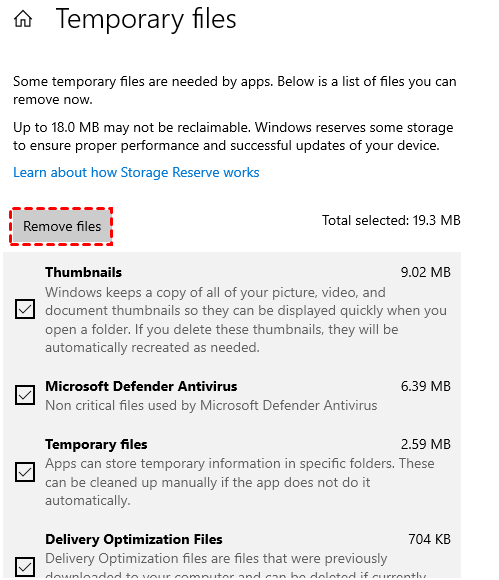
Step 5. If you need to manually delete files, click "Temporary files", select the types of files you want to delete, and then click "Remove files".
Download the best PC junk cleaner for free (hot)
Regularly cleaning up your disk is essential to keep your device in good running condition. This can be achieved by removing all the junk from your PC, and I highly recommend using Qiling Disk Master Standard to do so.
This PC cleaner is a free tool for Windows 10, 8, 7, and 11 that scans and sorts junk files, allowing users to easily remove them to free up space.
Tip: If you want to free up space by moving installed programs/folders to another drive, you should upgrade to Pro Edition.
Conclusion
Qiling Disk Master Standard is a powerful PC junk cleaner for Windows 10 and 11 that can also perform other functions such as formatting partitions, merging partitions, and disk defragmentation, making it a versatile tool for maintaining your computer's performance.
Upgrading to the Pro Version unlocks advanced features like allocating free space between drives, upgrading a HDD to an SSD without reinstalling, and converting a system disk from MBR to GPT.
Related Articles
- Best Free PC Cleaner for Windows OS [2022]
- Best PNY USB Flash Drive Format Tool Free Download👍
If you're looking for a PNY USB flash drive format tool, you'll find four reliable free format tools in this post. Follow the detailed guide to format your PNY USB flash drive. - How to Rebuild BCD | All You Should Know 🔥
If BCD is corrupted or missing, rebuild it to repair boot problems. This guide covers Windows installation media and Command Prompt methods. - Tutorial: How to Resize External Hard Drive on Windows 10/11
Follow this guide to resize an external hard drive on Windows 10/11, from preparation to execution, while keeping partition changes clear. - How to Crack Windows 10 Password - 3 Ways
Discover efficient methods to crack your Windows 10 password quickly and securely. You can learn how to easily crack your Windows password using various methods, allowing you to regain access to your account with minimal hassle. - Can I Delete Dynamic Volume on GPT or MBR Disk? Your Guide Here [2024 Tutorial]
Learn whether you can delete a dynamic volume on GPT or MBR disk, and follow Disk Management steps to remove it safely when deletion is allowed.
Products
Articles & Tutorials
- Data Recovery
- Data Backup
- File Recovery
- File Backup
- File synchronize
- System Backup and Restore
- Disk and Partition Clone
- Technical articles
- Disk Master Help
- Windows Deleted File and Disk Recovery Tutorials
- Windows File and Data Recovery Tutorials
- More Windows Tutorials for Install, Security, Files, and PC Tips
- Windows Boot, Repair, and Recovery Environment Tutorials
- Windows Backup Tutorials
- Windows Restore Tutorials
- Windows Clone and Migration Tutorials
- Windows Server Backup, Recovery, and Management Tutorials
- Windows Disk, Partition, and Storage Management Tutorials