Perform Acer Boot System Recovery in 5 Steps
What Is "Acer Boot Recovery"?
Acer boot recovery refers to the process of restoring an Acer system to its original state when it fails to boot up. This method is used when the original OS is unbootable and the user cannot access Windows to perform recovery operations. On the other hand, if the user can enter into Windows, it indicates that their current OS is functioning, and system restoration is not necessary.
Recovering the OS is not necessary at boot up, as the shortcut key (Alt + F10) can be used to enter the recovery environment, where the Acer eRecovery Management tool is available, allowing for system recovery only when needed.
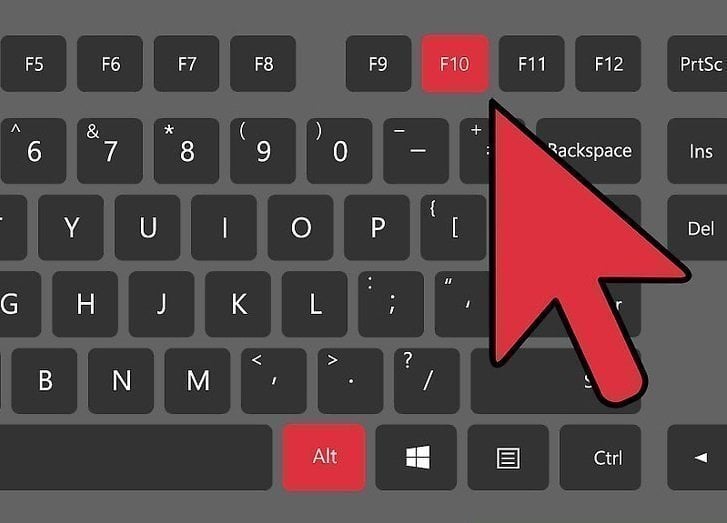
How to Do Acer Boot recovery Easily with Alt + F10 key
Acer system recovery can be done in two ways - boot recovery and system recovery when the machine is off. Boot recovery is used to recover the system when the computer is already on, while system recovery when the machine is off is used to recover the system when the computer is turned off. To recover the system when the computer is off, follow the steps below.
1. To access the Acer recovery environment, power on the computer and immediately start pressing the "Alt + F10" keys repeatedly when the Acer logo appears. This will prompt the Acer PC recovery environment to load, and the eRecovery Management program will automatically launch, marking the beginning of the Acer boot recovery process.
2. To restore your Google account, go to the main interface and select "Restore" from the left side. You will then have three options to choose from.
- Restore Factory Settings: This will erase all the data on system C Partition and make it looks like the first time you get your computer.
- Customized Restore (Retain User Data): The recovery process will reinstall the operating system while transferring user account data to a backup file, but it won't remove existing viruses or malware, leaving the new system vulnerable to attacks.
- Reinstall Drivers or Applications: This will only reinstall factory default drivers or applications.
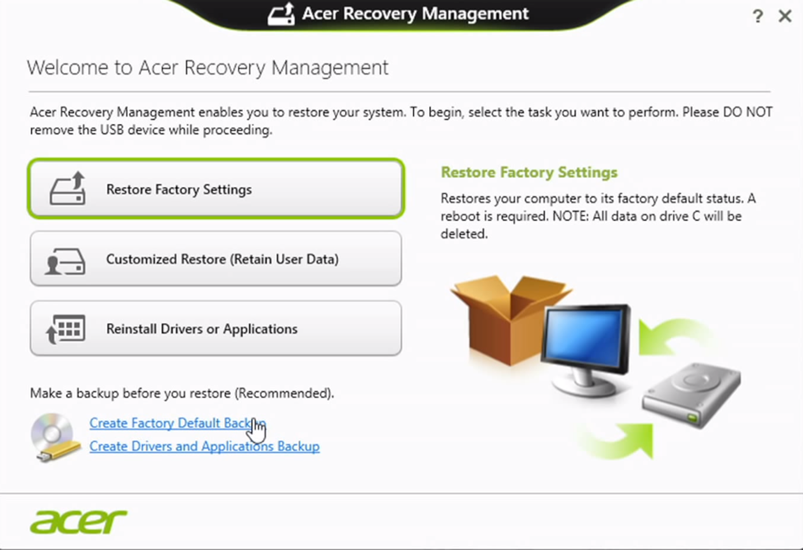
3. Here, I will take Customized Restore for example. But if you want to restore Acer system to factory default, select Restore Factory Settings.
4. After selecting "Customized Restore", a message will appear, showing what will be removed and what will be kept. Click "Next" to proceed.
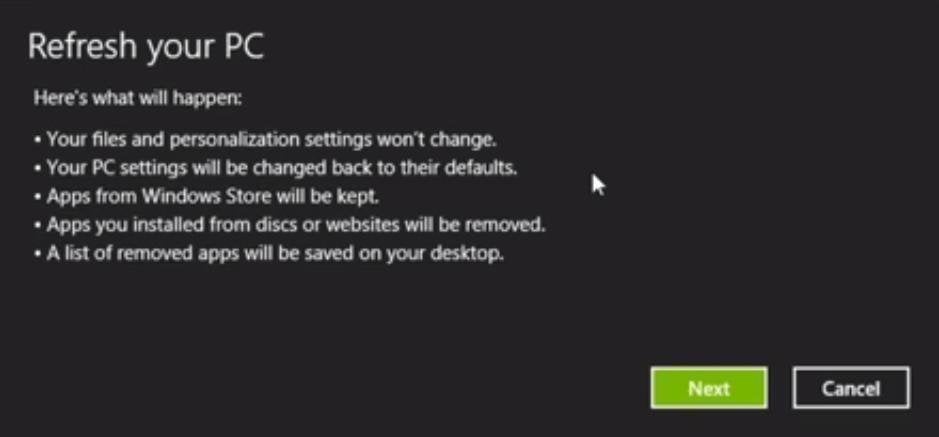
5. To confirm, you will select the "Refresh" option in the confirmation message that appears.

The computer will restart and display a refreshed operating system, requiring configuration of some settings.
Another way to perform Acer System Recovery (No data loss)
If your computer stops working or is not responding, Acer Recovery Management can be helpful, but be aware that restoring to factory settings or customizing the restore will delete your personal data and installed programs. To avoid losing data after system recovery, consider using a reliable backup and restore software like Qiling Disk Master instead.
With this software, you can backup your system to the recovery partition and other locations like an external hard drive. It also allows you to schedule backups daily, weekly, or monthly, ensuring you have everything stored on the system partition and can recover it if something goes wrong. Additionally, you can enable the fast recovery key (F11 or A) or boot menu to access the software quickly and easily.
To perform an Acer system recovery, you can follow these simple steps. If you have created a system recovery partition, you can access the recovery options by booting from the partition. This will take you to the Acer recovery environment, where you can select the type of recovery you need, such as restoring the system to its default settings or reinstalling the operating system.
1. To get into Qiling recovery environment, power on the computer and select the "Disk Master Recovery Environment" when its logo appears, and press until it responds. This will take you into the Qiling recovery environment, where OneKey Recovery will automatically pop up.
2. In its main window, select "OneKey System Recovery" to proceed.

3. Select from where to restore system, Qiling Disk Master partition or a system image file, depending on where you have stored the system backup you have created or your personal preference, such as choosing Qiling Disk Master partition.

4. The message will notify you about the restoration destination being overwritten. You will be asked to confirm this and then click "Proceed" to proceed with the Acer PC recovery process.

The process of restoring a system backup will take a few minutes and involve multiple restarts of the computer, ultimately resulting in a fresh, newly restored operating system, similar to the state it was in when the system backup was created.
Summary
In today's network environment, threats can damage your system at any moment. To protect your OS, consider using built-in computer tools, but also have a third-party program as a backup. This way, you'll be better prepared to defend against potential threats.
And usually, the third-Party software is more powerful and feature-rich, supporting various brands such as Lenovo, Dell, Toshiba, Samsung, Sony, HP, and Asus, and offering options to compress or encrypt backup images and schedule system backups at specific intervals.
If you don't have a backup, you can download this software and create one right now!
Related Articles
- Acer eRecovery Hard Drive Configuration Is Not Set the Factory Default
Solutions for Acer eRecovery Management problem - Acer eRecovery hard drive configuration is not set to the factory default, restore aborted. - Acer eRecovery Management Missing Fixed [2 Ways]
This guide explains Acer eRecovery Management Missing Fixed with clear steps, key checks, and practical tips. - How to Perform Acer Aspire Recovery in Windows 10, 8, 7
Learn how to Perform Acer Aspire Recovery in Windows 10, 8, 7 with clear steps, key checks, and practical tips. - 3 Top Ways to Move Photos from Google Drive to Google Photos - Qiling
This page covers 3 top methods widely applied to help you move photos from Google Drive to Google Photos anytime and anywhere. Follow and learn how to free up space in your Google Drive by immediately moving photos to Google Photos. - Why you need System Backup Software?
With backup software, you will be able to regain hundreds of GBs of data in just a few minutes without interrupting your ongoing tasks. - How to Do System Clone or System Migration to HDD/SSD?
This guide mainly talks about what system clone is, why need to migrate/clone system to HDD or SSD, and how to carry out system clone with QILING Disk Master.
Products
Articles & Tutorials
- Data Recovery
- Data Backup
- File Recovery
- File Backup
- File synchronize
- System Backup and Restore
- Disk and Partition Clone
- Technical articles
- Disk Master Help
- Windows Deleted File and Disk Recovery Tutorials
- Windows File and Data Recovery Tutorials
- More Windows Tutorials for Install, Security, Files, and PC Tips
- Windows Boot, Repair, and Recovery Environment Tutorials
- Windows Backup Tutorials
- Windows Restore Tutorials
- Windows Clone and Migration Tutorials
- Windows Server Backup, Recovery, and Management Tutorials
- Windows Disk, Partition, and Storage Management Tutorials