Why Extend Volume Greyed Out and How to Fix Successfully?
Disk Management Extend Volume greyed out
The "Extend Volume" option in Disk Management may be greyed out on Windows due to various reasons, such as insufficient contiguous free space on the same disk, or the disk being too full, or the disk being dynamic. This means that the feature cannot be used to extend volume on Windows 11, 10, 8, 7, Vista, and XP, and alternative solutions, like using third-party disk management tools or reinstalling the operating system, may be necessary.
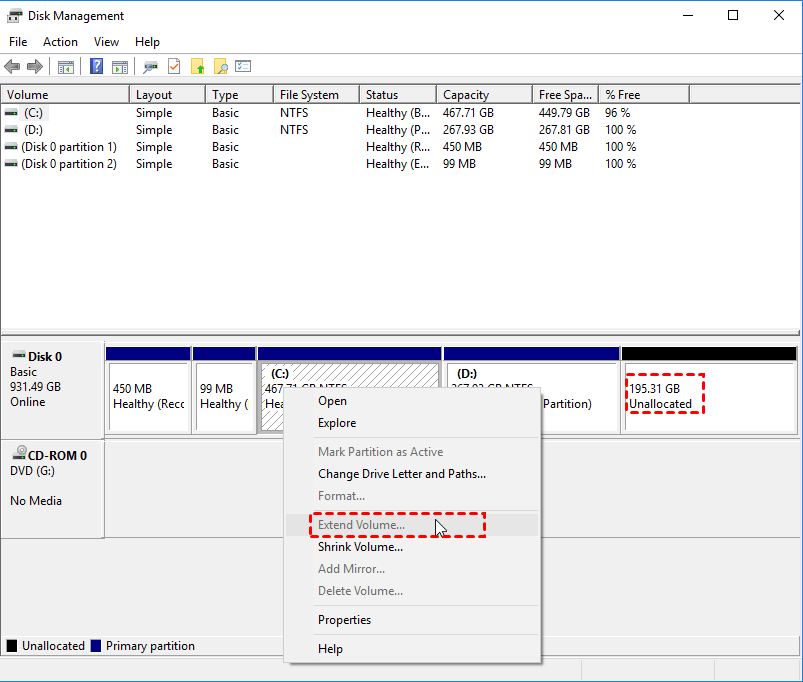
Why extend volume grayed and how do I fix extend volume is greyed out?
To extend the C partition, we need contiguous unallocated space behind it, but since there is no such space, we can't use the "Extend Volume" option. We can't shrink the D partition to create unallocated space behind the C partition because the unallocated space would be behind the D partition, not the C partition, and we can't move it.
Many users are looking for a workaround to fix the "extend volume greyed out" issue without losing data and wasting time. The only solution is to make the drive (D) an unallocated space by deleting it, but this would result in data loss. To avoid this, users can back up the D partition beforehand, which is a time-consuming process. As a result, users are searching for an alternative shortcut to resolve this issue without compromising their data or spending too much time.
Solve "Extend Volume" greyed out issue easily and quickly
Here, Qiling Disk Master Professional is highly recommended due to its powerful functions, including resize/move partition, split partition, merge partitions, allocate free space, dynamic disk management, create partition, wipe hard drive and partition, and more. It also allows creating a bootable USB drive to manage disk partitions without loading Windows, such as formatting the system drive.
When the "extend volume" is not available, you can try the "Merge Partitions" feature of Qiling Disk Master Professional.
Before you do:
① If the partition has running applications, Qiling Disk Master will suggest closing them or performing the operation in PreOS Mode.
② You can merge data partitions into the system boot drive, but not the other way around, and the "System Reserved" partition cannot be merged.
③ You can only merge 2 adjacent partitions every time, but you can merge any unallocated space into a partition.
Step 1. Install and launch the software, then locate the unallocated space next to the D drive on the main interface. If no unallocated space is available, use Resize Partition to create some.
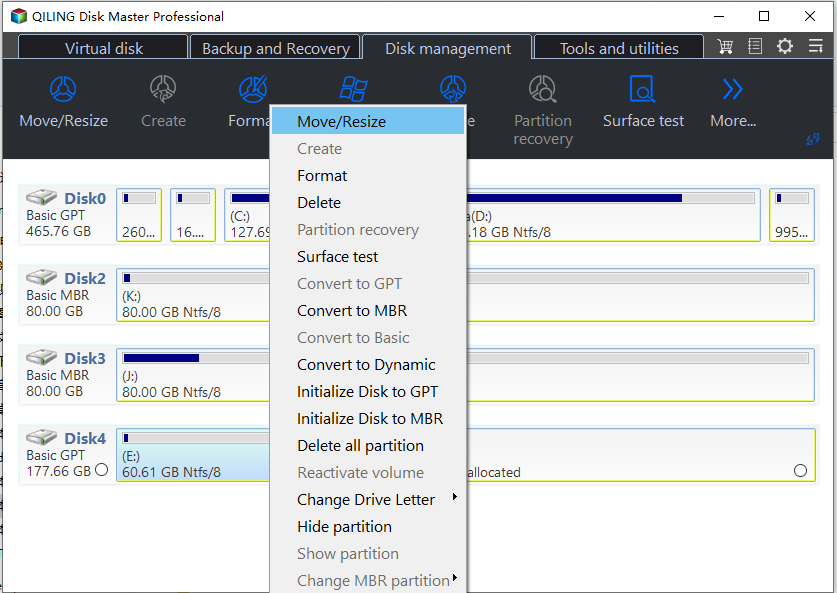
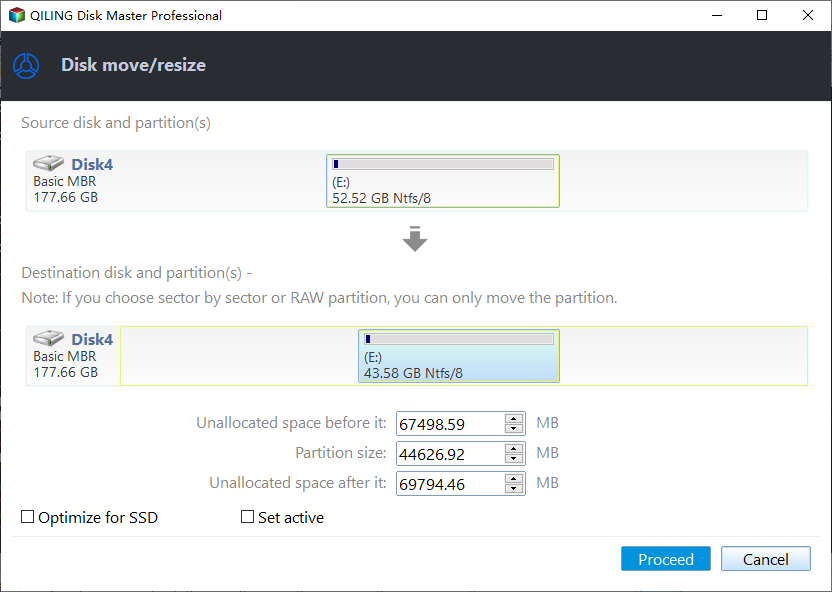
Step 2. Right-click the C drive and hit "Move/resize Partitions"

Step 3. Drag the partition to the unallocated space.
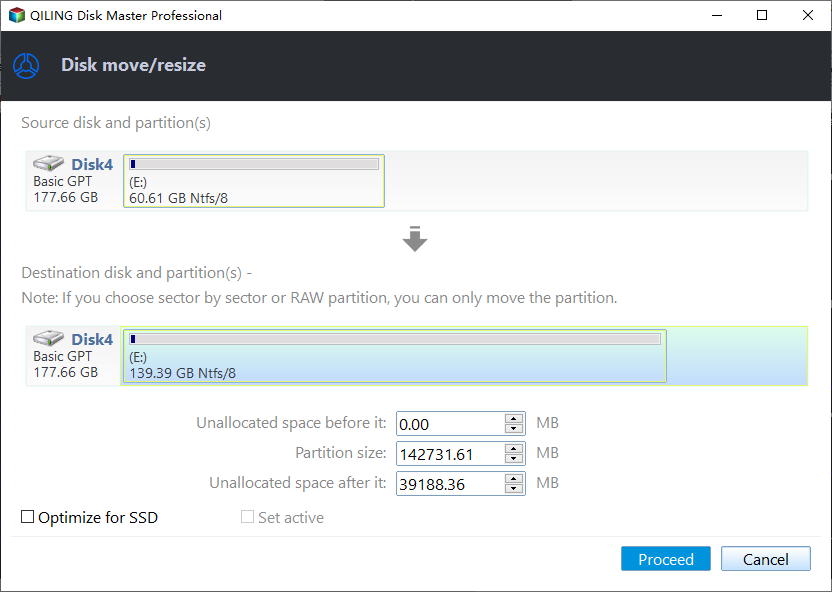
Step 4. Click Proceed, you will see the C drive has been extended.
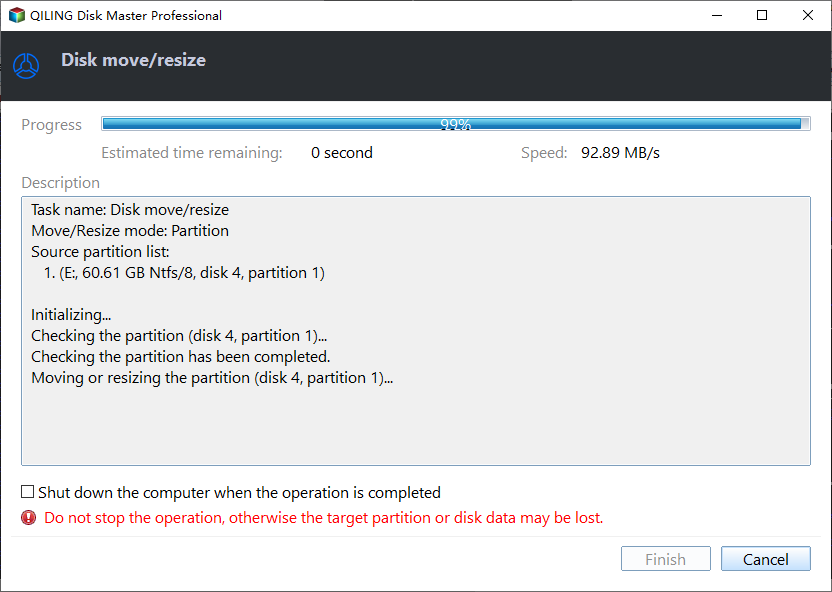
To fix the "Windows extend volume greyed out" issue, you can merge partitions using the feature of Merge Partitions, which makes it easy to extend C drive without worrying about the unallocated space being adjacent to D drive. This process can be completed in seconds due to the user-friendly interface.
If there's no unallocated space on the hard disk, you can use the "Allocate Free Space" feature to move some free space from one partition to another, allowing you to free up space for another partition.
Summary
Qiling Disk Master can solve the "Extend Volume" issue in Disk Management, allowing for drive extension even without an unallocated space next to the drive. It also helps with issues like greyed out "Convert to MBR Disk" or "Convert to GPT Disk" options in Disk Management, all without deleting any partitions.
Qiling Disk Master offers various versions for different users. For home users, Qiling Disk Master Professional is a suitable choice. Enterprise users can opt for Qiling Disk Master Unlimited, which allows unlimited usage within one company. Additionally, Technician Edition is available for providing charged technical services to clients. Users should choose an edition that meets their specific needs.
Related Articles
- My Laptop Keeps Crashing When Watching Videos
Relax! If you are trapped by a crashing laptop when watching videos, we can help. This post provides professional help for you to fix the 'laptop keeps crashing when watching videos' issue. You may not need to try them all, just work your way down until you find the one that works for you. - Newest Partition Magic Server Software Review and Download in 2022
This guide explains Newest Partition Magic Server Software Review and Download in 2022 with clear steps, key checks, and practical tips. - 6 Fixes for Not Enough Space for Windows 10 Update
This guide explains 6 Fixes for Not Enough Space for Windows 10 Update with clear steps, key checks, and practical tips. - FAT Recovery | Recover Data from FAT Hard Drive
Recover deleted, formatted, or lost partitions from FAT, exFAT, NTFS, ext2, and ext3 drives with Qiling Disk Master. A professional FAT recovery tool to retrieve your files easily. - How to Fix HP Stream Factory Reset Not Enough Space
Fix HP Stream factory reset not enough space error with practical solutions: delete unnecessary files, use cloud storage, uninstall unused apps, and enable Compact OS to free up storage and optimize your device. - Fixed: HP Stuck in Boot Loop | 5 Efficient Ways
This guide explains Fixed: HP Stuck in Boot Loop | 5 Efficient Ways with clear steps, key checks, and practical tips.
Products
Articles & Tutorials
- Data Recovery
- Data Backup
- File Recovery
- File Backup
- File synchronize
- System Backup and Restore
- Disk and Partition Clone
- Technical articles
- Disk Master Help
- Windows Deleted File and Disk Recovery Tutorials
- Windows File and Data Recovery Tutorials
- More Windows Tutorials for Install, Security, Files, and PC Tips
- Windows Boot, Repair, and Recovery Environment Tutorials
- Windows Backup Tutorials
- Windows Restore Tutorials
- Windows Clone and Migration Tutorials
- Windows Server Backup, Recovery, and Management Tutorials
- Windows Disk, Partition, and Storage Management Tutorials