How to Recover Data from Hard Drive on Mac
If you're using a Mac for work or study, you may need to recover data from a Mac hard drive due to various reasons such as accidental deletion, formatting, virus attack, or hardware failure.
For broader Mac recovery options, see Data Rescue for Mac.
- 1. You accidentally delete a photo by tapping the "Delete" button or dragging it to the trash bin without realizing it.
- 2. You may think you don't need the files and delete them, only to find out later that you actually do need them. Alternatively, someone else might use your computer and intentionally delete the files you need. This can lead to lost work, missed deadlines, and other negative consequences. To avoid this, it's a good idea to regularly back up your important files to an external hard drive, cloud storage, or both. This way, even if you accidentally delete something or someone else deletes it for you, you'll still have a copy of the file and can recover it easily.
- 3. Your Mac's hard drive has failed, likely due to system errors or corruption, making it inaccessible or unresponsive. This can prevent you from opening files or accessing the drive altogether.
- 4. The Mac hard drive was incorrectly formatted due to an upgrade or system reinstall, resulting in data loss.
- 5. Due to virus attacks, software crashes, or improper operation, data can be lost from a Mac hard drive.
If you've lost files on your Mac's hard drive, it's essential to act quickly to recover your data. The longer you wait, the higher the risk of losing them forever, so take immediate action to retrieve your lost files.
The theory of Mac hard drive data recovery suggests that deleted or missing data are still present on your Mac, but become invisible and waiting to be overwritten by new data. The sooner you recover them, the better the result. There are two commonly used ways to recover data from a Mac hard drive.
- Quick Navigation
- Method #1. Recover Files from Mac Hard Drive with Software
- Method #2. Restore Data from Hard Drive on Mac by Time Machine
Method #1. Recover Files from Mac Hard Drive with Software
Deep Data Recovery for Mac is a professional tool that can help with Mac hard disk recovery. It allows users to recover deleted or lost files, including photos, videos, audio files, emails, documents, and more, from a Mac hard drive or other removable devices. This lightweight tool focuses solely on data recovery, making it a useful option for users in need of assistance.
Your Safe & Effective Mac Hard Drive Recovery Software
- It can easily recover files from various storage devices, including external hard drives, memory cards, Mac hard disks, and USB drives, within just 3 simple steps.
- The powerful 2 scan modes of this software ensure the success of data recovery from the Mac hard disk, providing a reliable solution for users to recover their important files.
- This software is fully compatible with recovering data from Mac hard drives in various Mac operating systems, including Mac OS X 10.10 (Yosemite), Mac OS X 10.11 (El Capitan), macOS 10.12 (Sierra), macOS 10.13 (High Sierra), and macOS 10.14 (Mojave), among others.
Here are the steps to use Deep Data Recovery to recover files from a Mac hard drive: Download and install the Mac version of the software, which is a safe and virus-free tool that doesn't collect personal info.
1. Launch the Mac hard drive recovery software
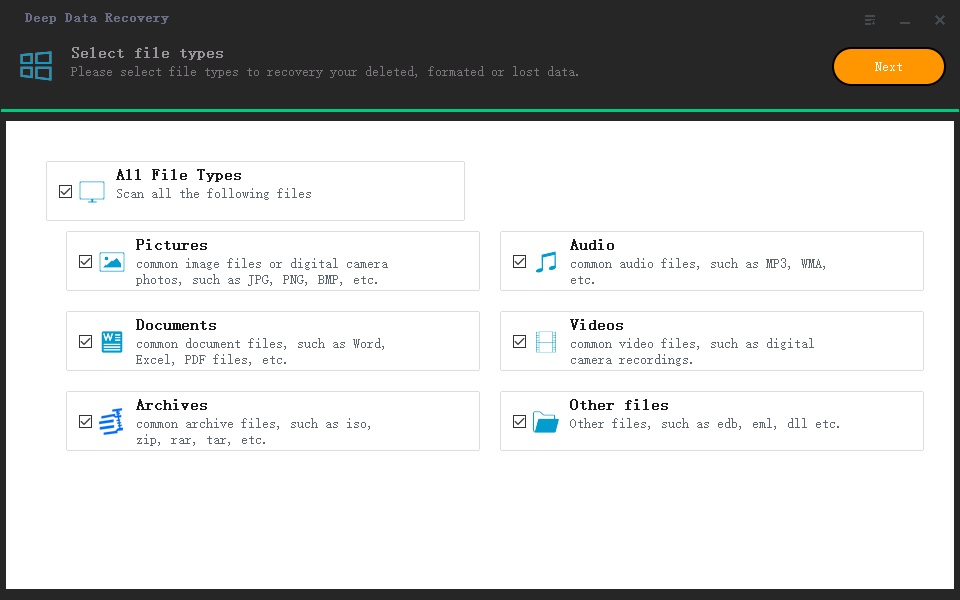
After installing the utility, launch it on your Mac and select the desired file types to recover. Uncheck any unwanted file types to shorten the scanning process. Then, click "Next" to start the restore Mac hard drive process.
2. Select hard drive to scan
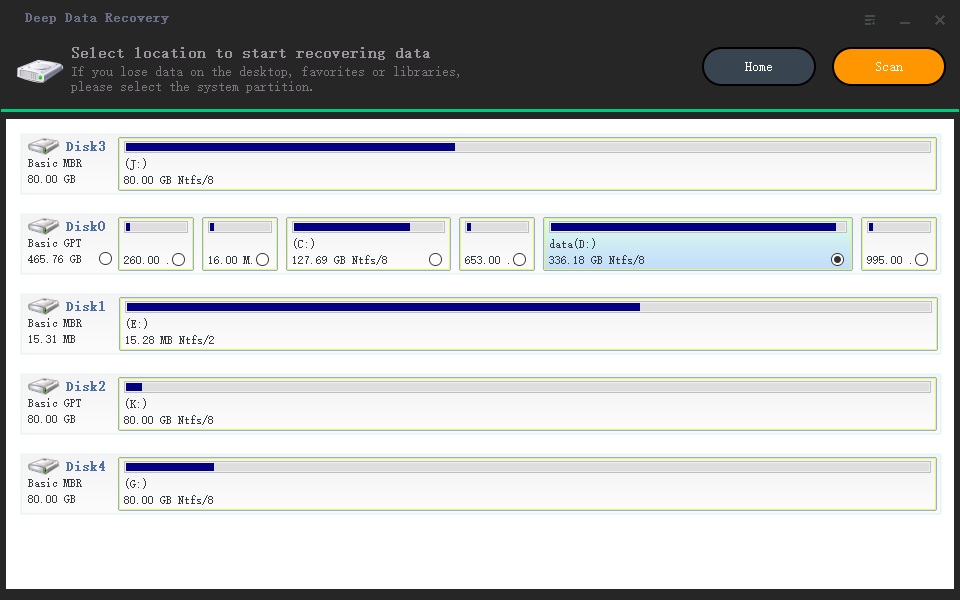
To recover lost files from a Mac hard drive, select the hard drive from the list of available drives and click the "Scan" button to initiate the scanning and recovery process.
3. Recover data from hard drive on Mac
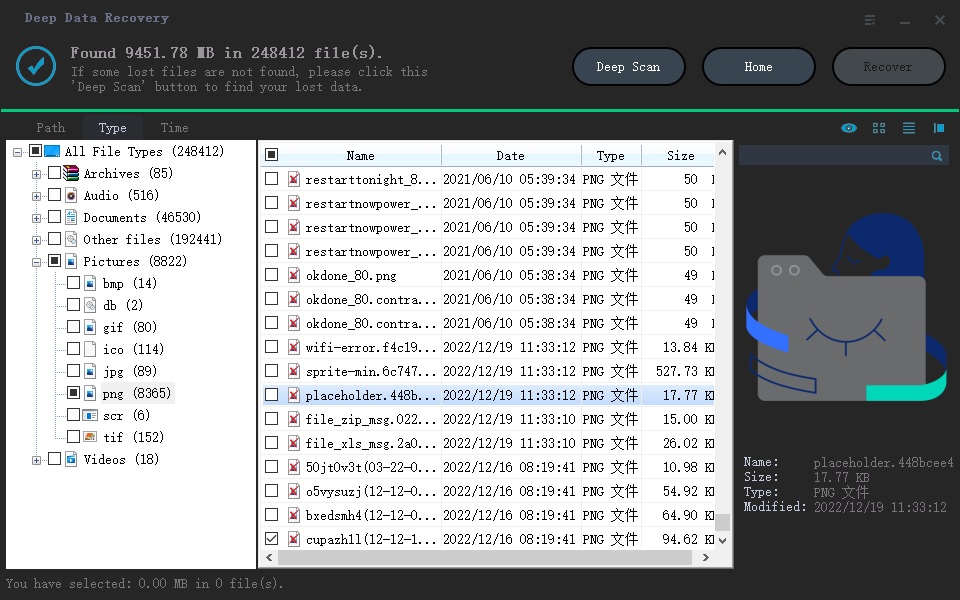
After initiating the scanning process, it will take a few minutes to complete, with the duration depending on the number of files being scanned. The longer it takes, the better the result will be. Once the scanning is finished, navigate to the result window to locate the files you want to recover. Select the desired files and click the "Recover" button to save them back to your Mac.
Recovering data from a Mac hard drive is most efficiently done using a data recovery tool, as manual attempts are often unsuccessful, especially if files have been deleted and the trash can has been emptied. The sooner you act, the better. If you have enabled the auto backup feature in Mac Time Machine, you can also try restoring files from the hard drive using this method.
Method #2. Restore Data from Hard Drive on Mac by Time Machine
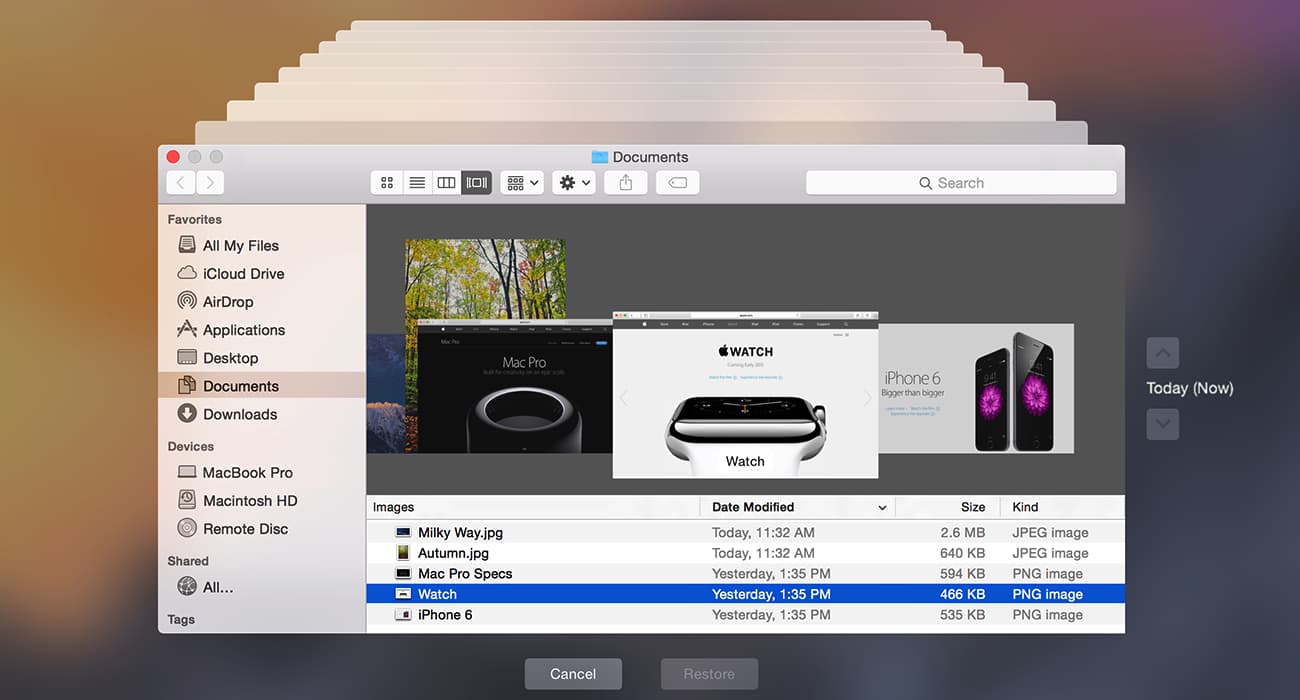
Losing data from a Mac hard drive can be a nightmare, but Apple's Time Machine feature helps prevent this by keeping an exact copy of files from the internal hard drive. If you've lost files and want to restore them, you can follow these steps to retrieve your data from a Time Machine backup.
1. Open Time Machine by searching for it in Spotlight.
2. Click the folder where your target files used to be.
3. To locate the deleted files, click the upward arrow to the right of the Time Machine window and scroll through the backup files until the deleted files appear.
4. Hold the Command button to select multiple files, then click on the "Restore" button to restore them.
Related Articles
- How to Recover Files from Erased Hard Drive on Mac
- How to Recover Data from Failing Hard Disk
- How to Recover Data from a Wiped Hard Drive
- How to Recover Deleted Files from SD Card on Mac
- How to Recover Files from A Hard Drive
Products
Articles & Tutorials
- Data Recovery
- Data Backup
- File Recovery
- File Backup
- File synchronize
- System Backup and Restore
- Disk and Partition Clone
- Technical articles
- Disk Master Help
- Windows Deleted File and Disk Recovery Tutorials
- Windows File and Data Recovery Tutorials
- More Windows Tutorials for Install, Security, Files, and PC Tips
- Windows Boot, Repair, and Recovery Environment Tutorials
- Windows Backup Tutorials
- Windows Restore Tutorials
- Windows Clone and Migration Tutorials
- Windows Server Backup, Recovery, and Management Tutorials
- Windows Disk, Partition, and Storage Management Tutorials