How to Recover Deleted Emails in Thunderbird
When deleting unwanted emails in Thunderbird, it's easy to accidentally delete important ones too. If you've emptied your trash folder and lost crucial emails, - there are ways to recover them. In this post, we'll share five methods to help you recover deleted Thunderbird emails.
If email files were deleted from local storage, see Windows file recovery methods.
- Quick Navigation
- Method #1: How to Retrieve Deleted Emails on Mozilla Thunderbird from Trash
- Method #2: How to Restore Deleted Emails in Thunderbird with a Backup File
- Method #3: How to Recover Deleted Thunderbird Emails after Emptying Trash
- Method #4: Restore Deleted Thunderbird Emails by Repairing Inbox Folder
- Method #5: How to Recover Deleted Emails in Thunderbird with Software
Method #1: How to Retrieve Deleted Emails on Mozilla Thunderbird from Trash
If you accidentally delete an email from your Inbox, it will be moved to the Trash folder in Mozilla Thunderbird. To recover the deleted email, simply follow these easy steps: [insert steps here].
- Launch the Mozilla Thunderbird software and sign in to your account with your username and password.
- To recover deleted emails, click on the 'Trash' icon to select the emails you want to restore.
- Right-click on the deleted email files and select the 'Move To' icon.
- Select 'Select user account' and then 'Specify location' where you want to restore deleted emails to.
- To restore messages to your inbox, click the 'Inbox' option.
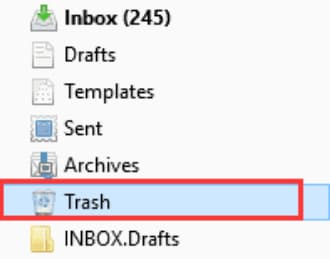
To restore all the selected emails from the trash folder, simply check your inbox to find all the emails that have been successfully restored.
Method #2: How to Restore Deleted Emails in Thunderbird with a Backup File
To manually backup and recover deleted emails on Thunderbird, create a backup profile on Thunderbird, then follow the steps to recover deleted emails from the backup profile. This process allows you to manually save and retrieve deleted emails without relying on the built-in backup feature.
- To access the Thunderbird profile path on your computer, navigate to the location C:\Users\UserName\AppData\Roaming\Thunderbird\Profile, where "UserName" is your actual username. This path is where Thunderbird stores all your email account settings, messages, and other data. By accessing this profile path, you can manage your Thunderbird settings, backup your data, and troubleshoot any issues with your email accounts.
- Substitute the profile folder with the backup copy that has previously been created for the Thunderbird profile.
- Launching Mozilla Thunderbird will transfer all settings, messages, calendar, and emails to your Thunderbird account.
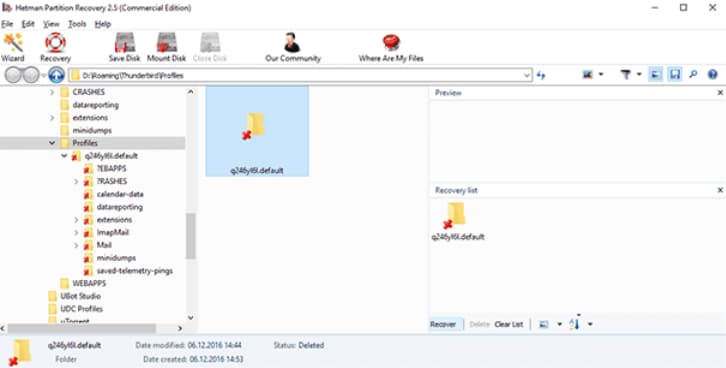
Method #3: How to Recover Deleted Thunderbird Emails after Emptying Trash
If you've emptied your trash folder, you can still recover permanently deleted emails in Thunderbird. To restore your deleted messages, follow these steps:
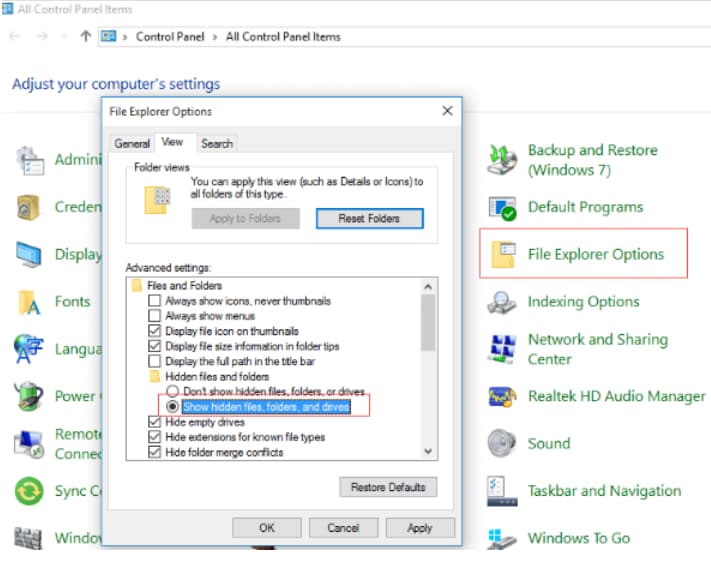
- To reveal hidden files in Windows Explorer, open Windows Explorer and click on 'Folder Options' under the 'Tools' menu. Alternatively, click on the 'View' menu and select 'Show hidden files, drives, and folders'. Then, click 'OK' to apply the changes. This will allow you to view and access hidden files.
- To locate the Thunderbird saved files on your PC, navigate to 'C:/Users/YourUserName/AppData/Roaming/Thunderbird/Profiles/YourProfile/YourThunderbirdAccount', and look for your profile, which is named in eight random numbers and letters followed by '.default', and check the Thunderbird account name where you're trying to restore deleted emails.
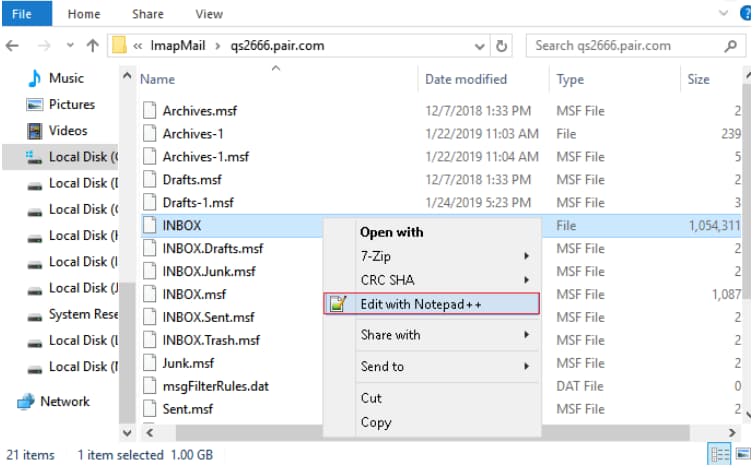
- Open the IMAP mail folder and click to open the Inbox file with any text editor like Notepad.
- Close Thunderbird, reopen it, and check your inbox to find restored deleted emails.
Method #4: Restore Deleted Thunderbird Emails by Repairing Inbox Folder
To fix corrupted emails in the Thunderbird Inbox folder, follow these steps: [insert steps here]. This method is the appropriate way to retrieve deleted emails in Mozilla Thunderbird.
- To access the properties of the Inbox Folder in Mozilla Thunderbird, launch the application and right-click on the 'Inbox Folder'. Then, select the 'Properties' menu from the context menu that appears.
- To verify that the folder name is 'Inbox', select the 'General Information' menu.
- Click the 'Repair Folder' option and then 'OK' to complete the process, allowing you to view repaired data and emails in your Inbox folder afterwards.
Method #5: How to Recover Deleted Emails in Thunderbird with Software
If you've deleted emails from your local computer, you can only recover them using professional software. Deep Data Recovery is highly recommended as the best software to recover deleted Thunderbird emails.
Deep Data Recovery software is a user-friendly tool that can recover lost files and data in minutes, even without technical knowledge. It offers two recovery modes, Quick Scan and Deep Scan, allowing users to choose between fast recovery and thorough scanning, and can even recover deleted emails from Thunderbird Mozilla in just three steps.
To recover deleted Thunderbird emails, use Qiling data recovery software's Deep Scan mode for a thorough search of files and data. Before executing the recovery mode, search or preview specific data using file types or file names to ensure you recover the right data. Qiling supports all data types and storage devices, making it easy to retrieve emails from any location.
To avoid data loss, regularly back up your Thunderbird emails, and consider using the Qiling Dback tool, which is effective and compatible with various systems and drives.
You can recover deleted emails in Thunderbird, and this article outlines five ways to do so. It's essential to regularly back up your emails and data to protect them, and then you can use these methods to retrieve any deleted emails without issue.
Related Articles
- How to Recover a Deleted Folder in Outlook
- How to Recover Deleted Word Document
- How to Recover Deleted Files from GoPro
- How to Recover Deleted Files from WD External Hard Drive
- How to Recover Deleted Files in Windows 10
- How to Recover Deleted Videos on PC
- Recover Deleted Files on Mac Without/With Software
- How to Recover Unsaved/Deleted WPS Document File
Products
Articles & Tutorials
- Data Recovery
- Data Backup
- File Recovery
- File Backup
- File synchronize
- System Backup and Restore
- Disk and Partition Clone
- Technical articles
- Disk Master Help
- Windows Deleted File and Disk Recovery Tutorials
- Windows File and Data Recovery Tutorials
- More Windows Tutorials for Install, Security, Files, and PC Tips
- Windows Boot, Repair, and Recovery Environment Tutorials
- Windows Backup Tutorials
- Windows Restore Tutorials
- Windows Clone and Migration Tutorials
- Windows Server Backup, Recovery, and Management Tutorials
- Windows Disk, Partition, and Storage Management Tutorials